

If you're like many website owners, you might find yourself managing multiple domain names across different hosting plans. This often means dealing with various configurations and separate logins - a task that can quickly become overwhelming. But there's a better way to handle this.
Why Consider a Single Plan?
Site.eu offers a practical solution: linking multiple domain names to one plan. This approach not only streamlines your domain management but also brings several benefits. Let's explore why this might be the right choice for you.
Benefits of Having Multiple Domains in a Site.eu Plan
- Save Money, Reduce Hassle
Instead of paying for multiple hosting plans, consolidating your domains under one plan can significantly reduce your costs. Think of it as bundling your services - just like you might do with your phone and internet.
- Easier Management
No more logging into multiple accounts just to manage your hosting or email. One dashboard, complete control.
- Boost Your SEO Strategy
Using multiple domains strategically can enhance your search engine presence. For example, you could use keyword-specific domains to direct traffic to your main website, improving your overall visibility.
- Protect Your Brand
By owning various versions of your domain name, you can prevent competitors from using similar names that might confuse your customers. It's like creating a protective shield around your brand.
How to link more domain names to your plan
Your domain names and your plan need to be in the same Site.eu dashboard. A domain name that is registered somewhere else? Add it as an external domain name first.
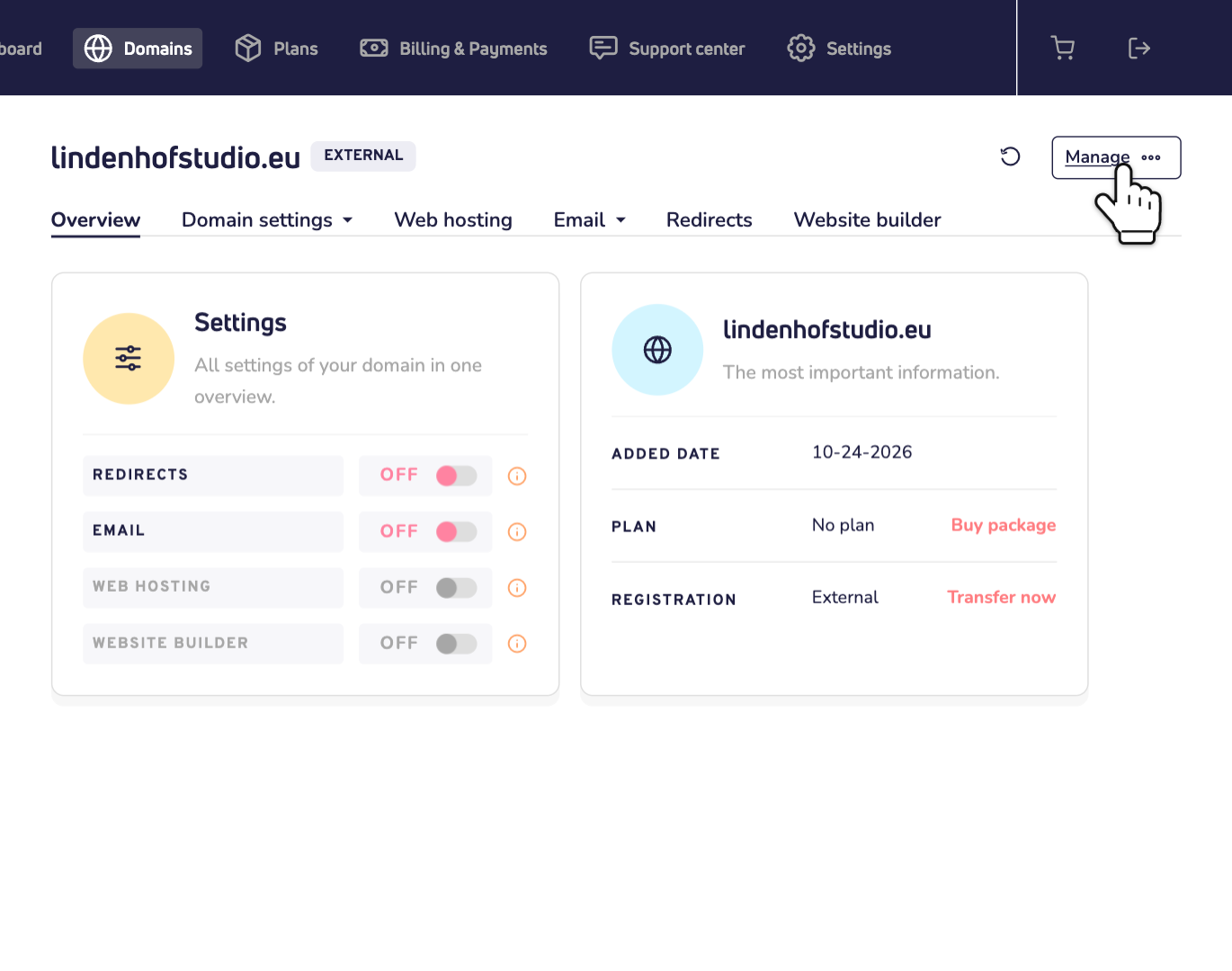
Step 1: Open the domain name you want to add to your plan and click Manage in the top right corner.
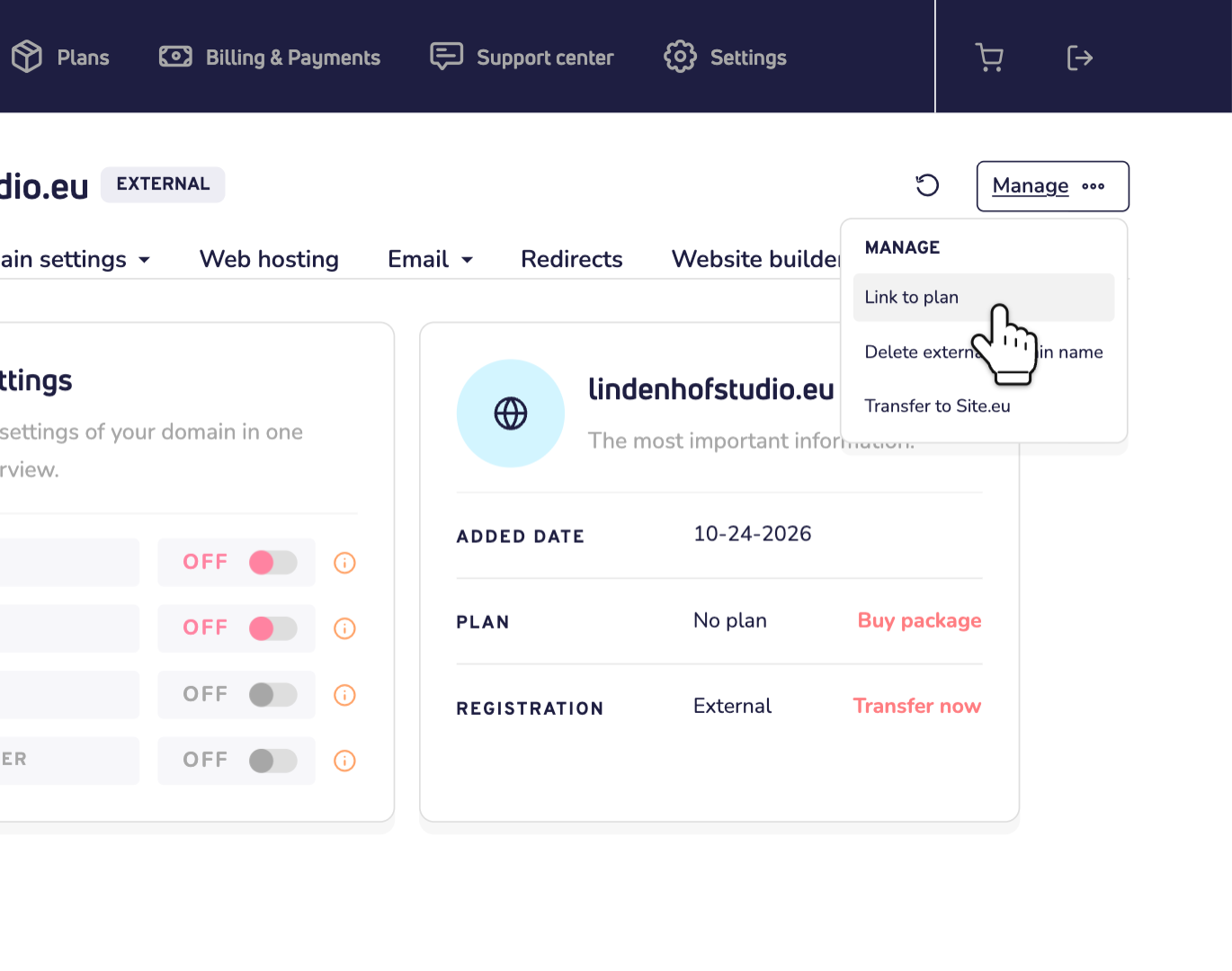
Step 2: Choose Link to plan. You only see this option when the domain name is not linked to a plan yet.
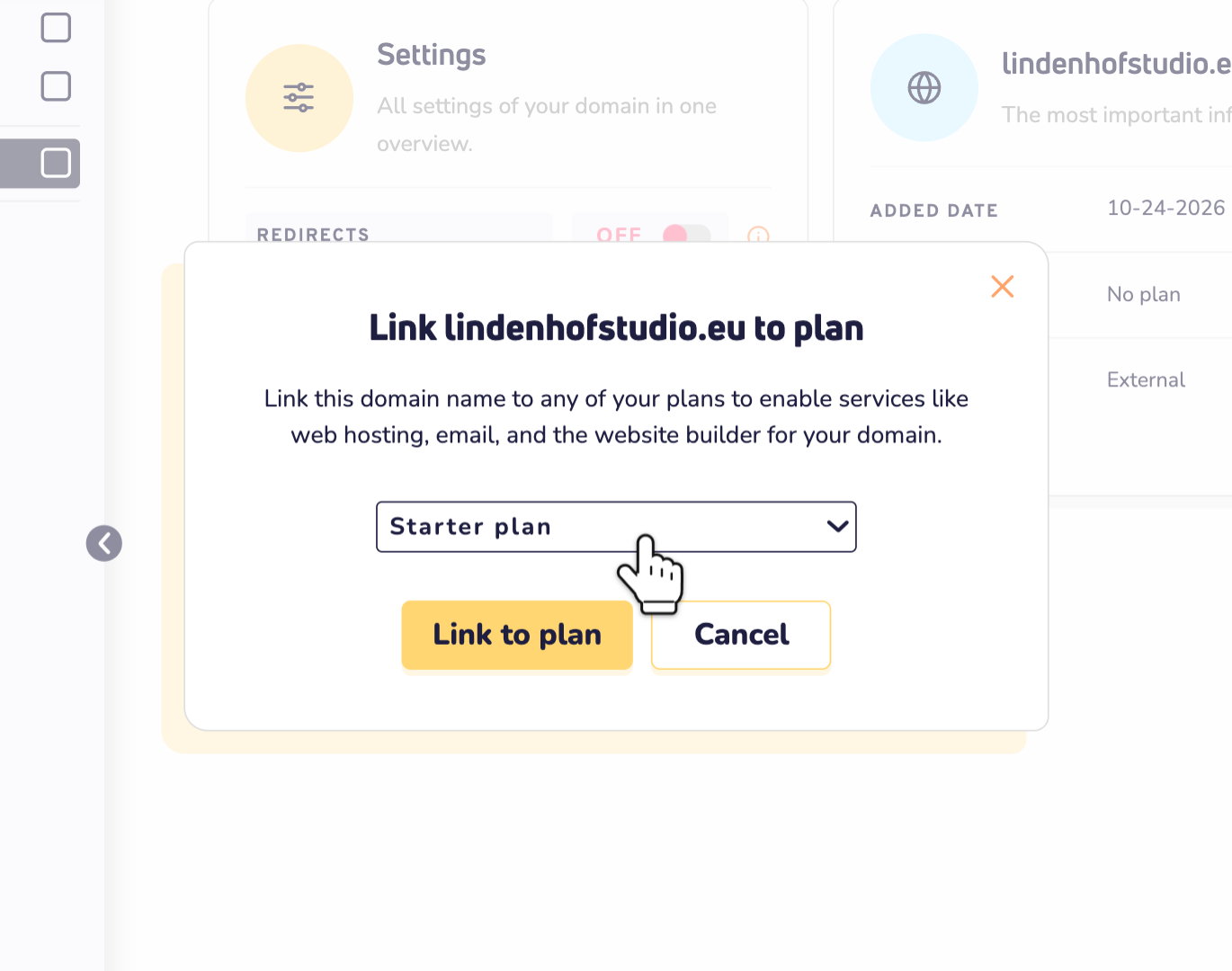
Step 3: Choose the plan you want to use.
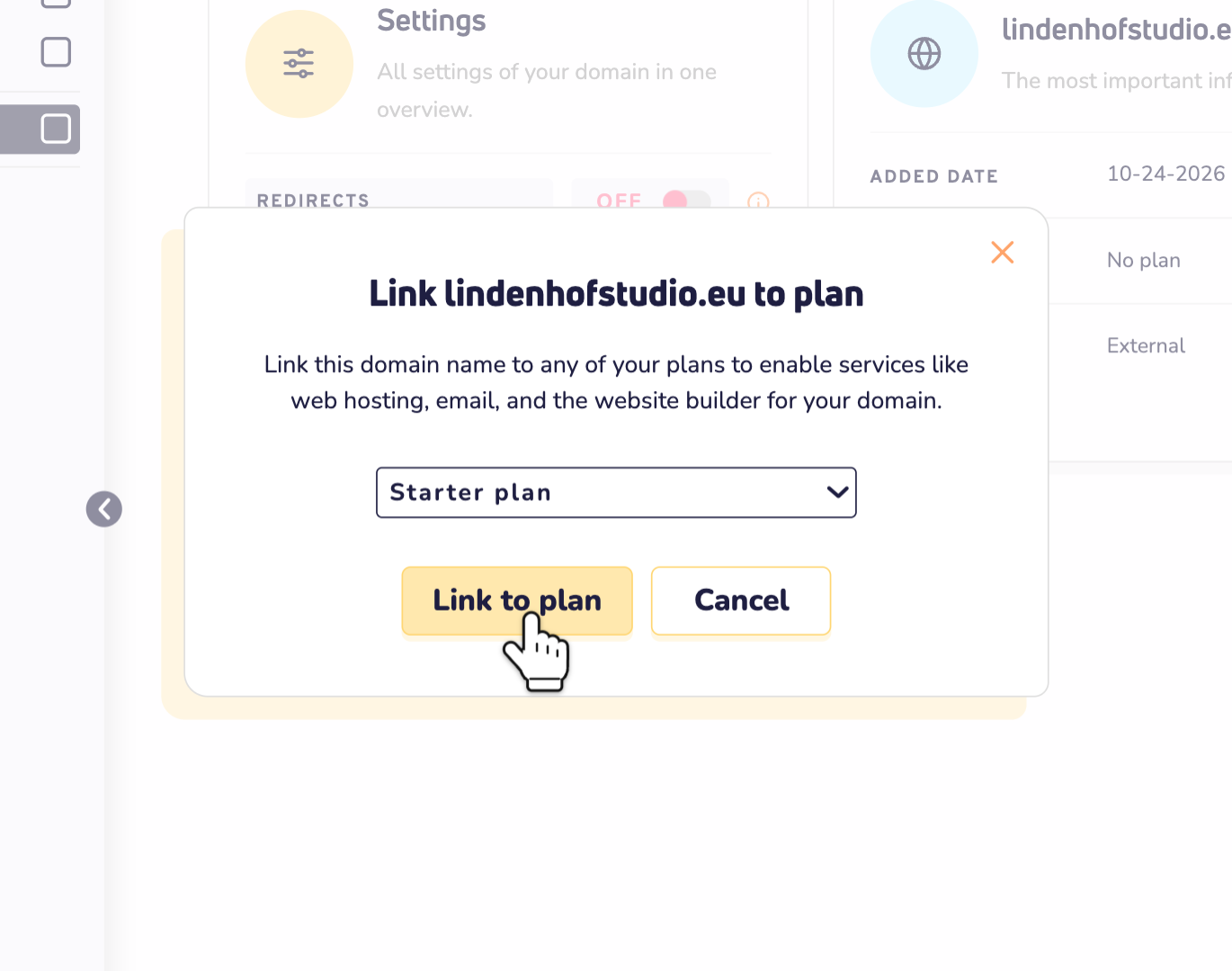
Step 4: Click Link to plan to confirm.
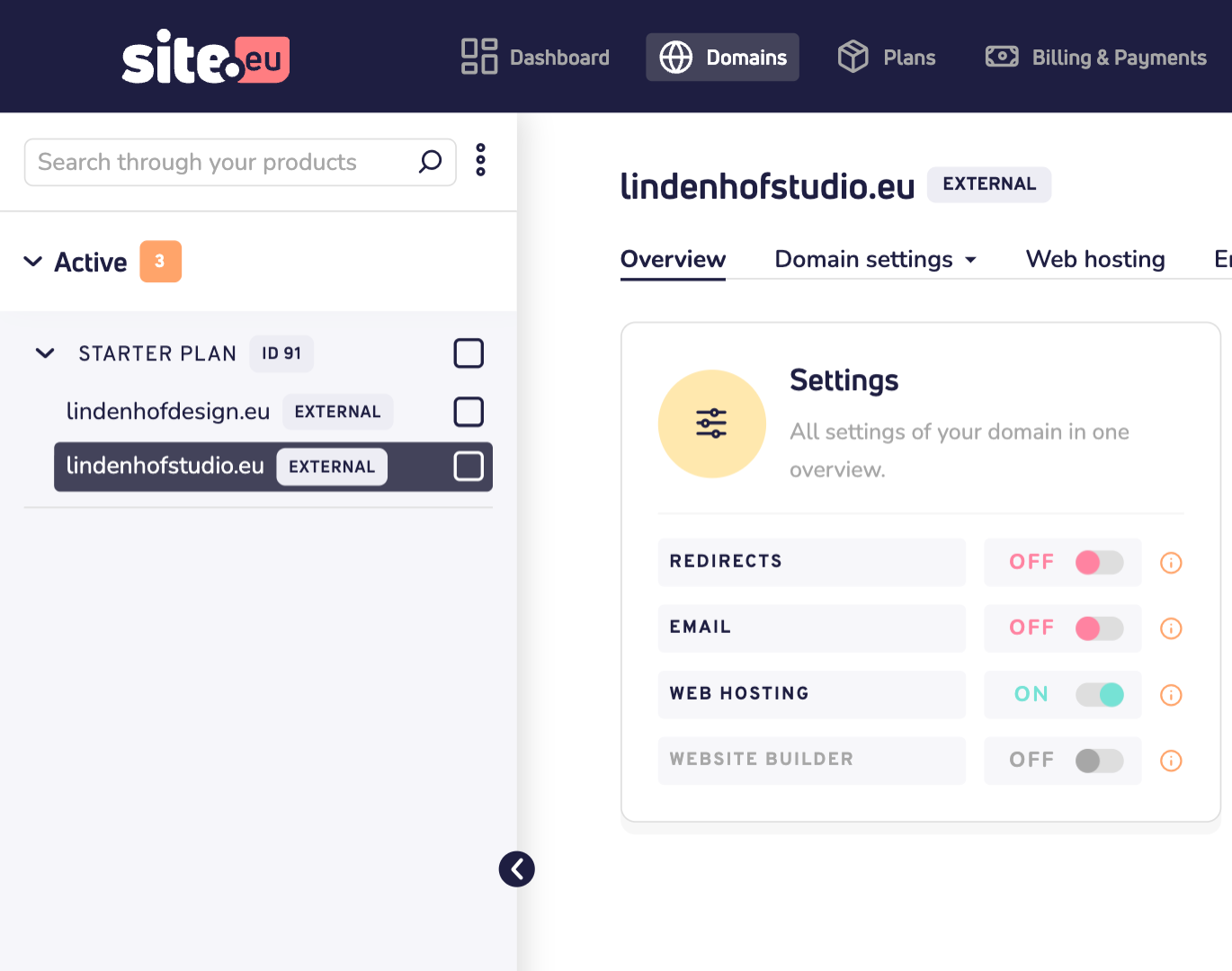
Step 5: Done! In the list on the left, the domain name now sits under your plan, next to your other domain names. Repeat these steps for every domain name you want to add.
Want to know more? Read our guide on linking a domain name to a plan, which also explains how to unlink one.