

Moving your domain name to Site.eu? Then you want your website and email to keep working. Not most of the time. All the time.
Here's the good news: the transfer itself doesn't take anything offline. The usual cause of downtime is one setting: the nameservers you choose in your cart. Get that right, and nobody notices a thing.
What a transfer changes (and what it doesn't)
A transfer moves the registration of your domain name from your current provider to us. We request it at the registry. Sometimes your current provider or the domain holder has to approve it first. From then on, you manage and renew your domain name in your dashboard.
Your website, your email and your DNS records don't move along. Moving a website to new hosting is a separate job.
So where can it go wrong? Think of your DNS records as signposts. They tell browsers where your website lives, and mail servers where to deliver your email. Your nameservers hold those signposts. Switch to nameservers without the right signposts, and your visitors get lost.
Before you start
- Get the transfer key. Ask your current provider for it. It's also called an authorization code or EPP code. Read more about the transfer key.
- Turn off the transfer lock. Does your current provider have a transfer lock on your domain name? Turn it off there. Otherwise the transfer can't go through.
- Make sure it hasn't expired. An expired domain name usually can't be transferred. Renew it first.
- Check the domain holder's details. Are the name and email address at your current provider correct? You may need that email address to approve the transfer. Some extensions also have rules for the domain holder, like the country. When an extension needs extra details, we ask for them.
- Write down your nameservers and DNS records. You find them in the control panel of your current provider. Our DNS check also shows your nameservers, your mail servers and where your website points.
Order the transfer
Step 1: Search for your domain name on our website and click Transfer. Then choose a plan, or Domain name only.
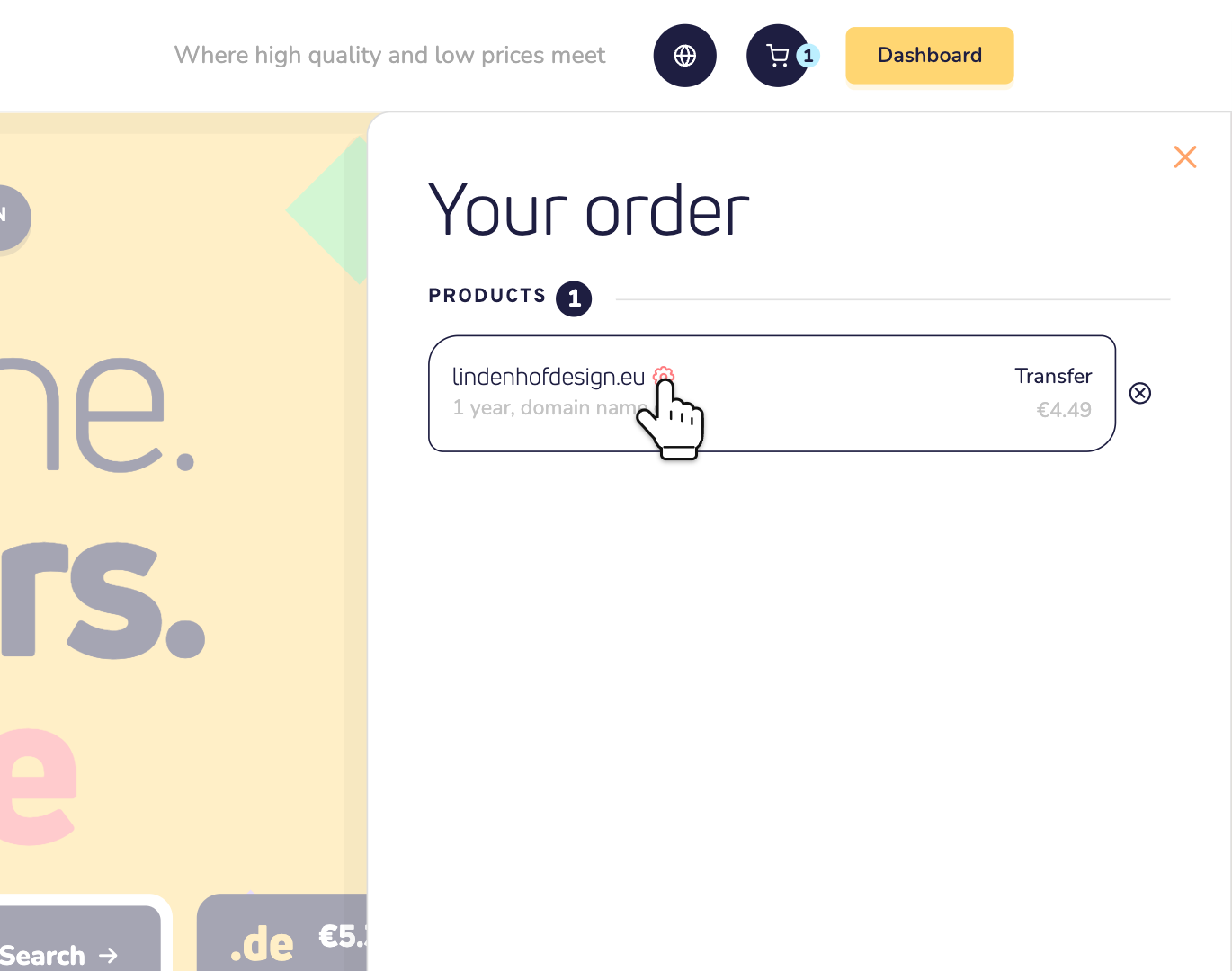
Step 2: Open your cart. Click the gear icon next to your domain name.
Step 3: Open Transfer key and paste your transfer key. Don't have it yet? Leave it empty. You can add it later in your dashboard.
Step 4: Open Nameservers. This is the step that matters most. Choose Use Site.eu nameservers or Set my own nameservers. Not sure which? Read the next part first.
Did you set default nameservers in your dashboard? Then the list starts on My default nameservers or My default DNS template, and ours are called Site.eu nameservers. For a transfer, your defaults are only right when they are the nameservers your domain name uses now.
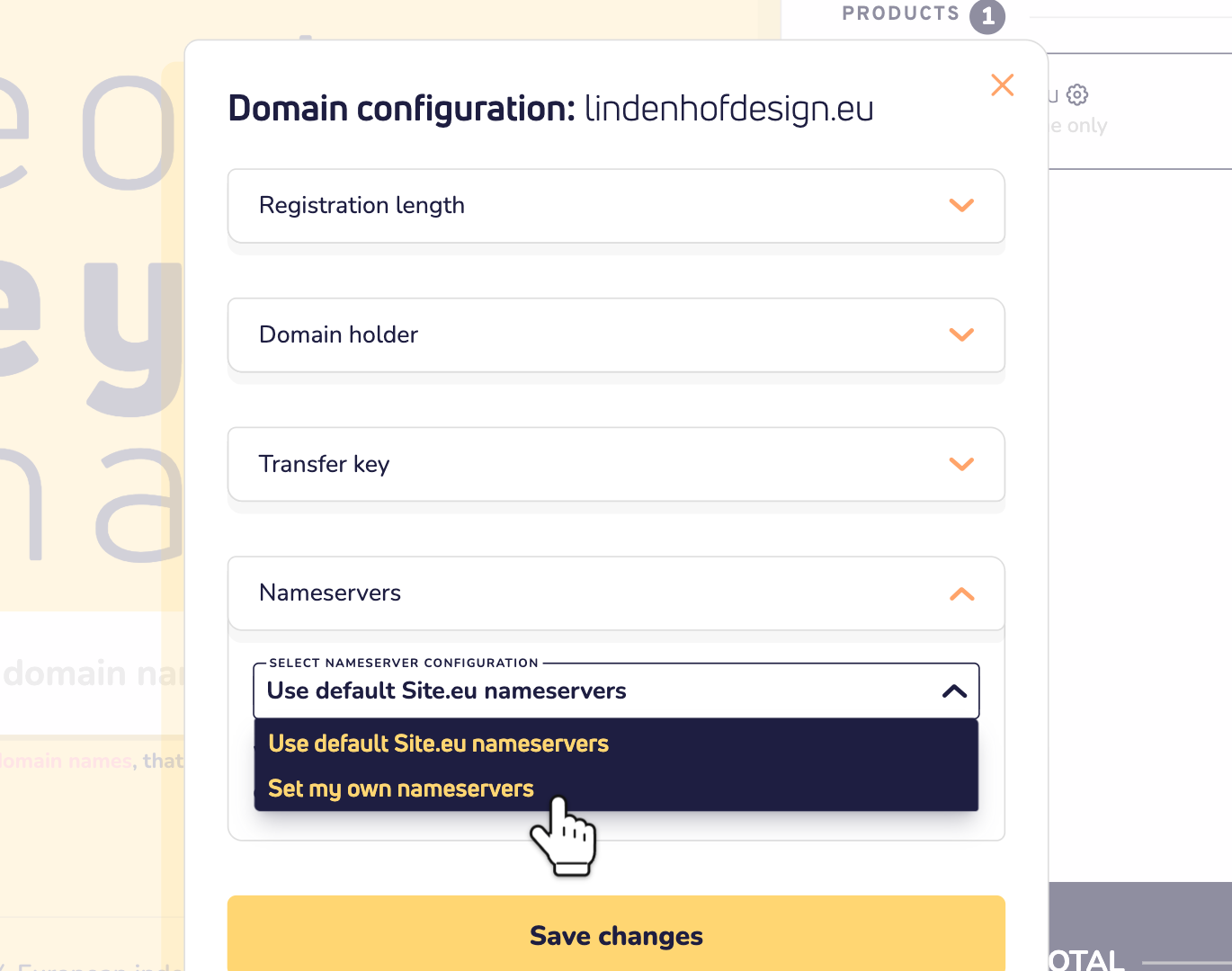
Step 5: Picked Set my own nameservers? Then fill in the nameservers your domain name uses now, at least two. Click Save changes and complete your order.
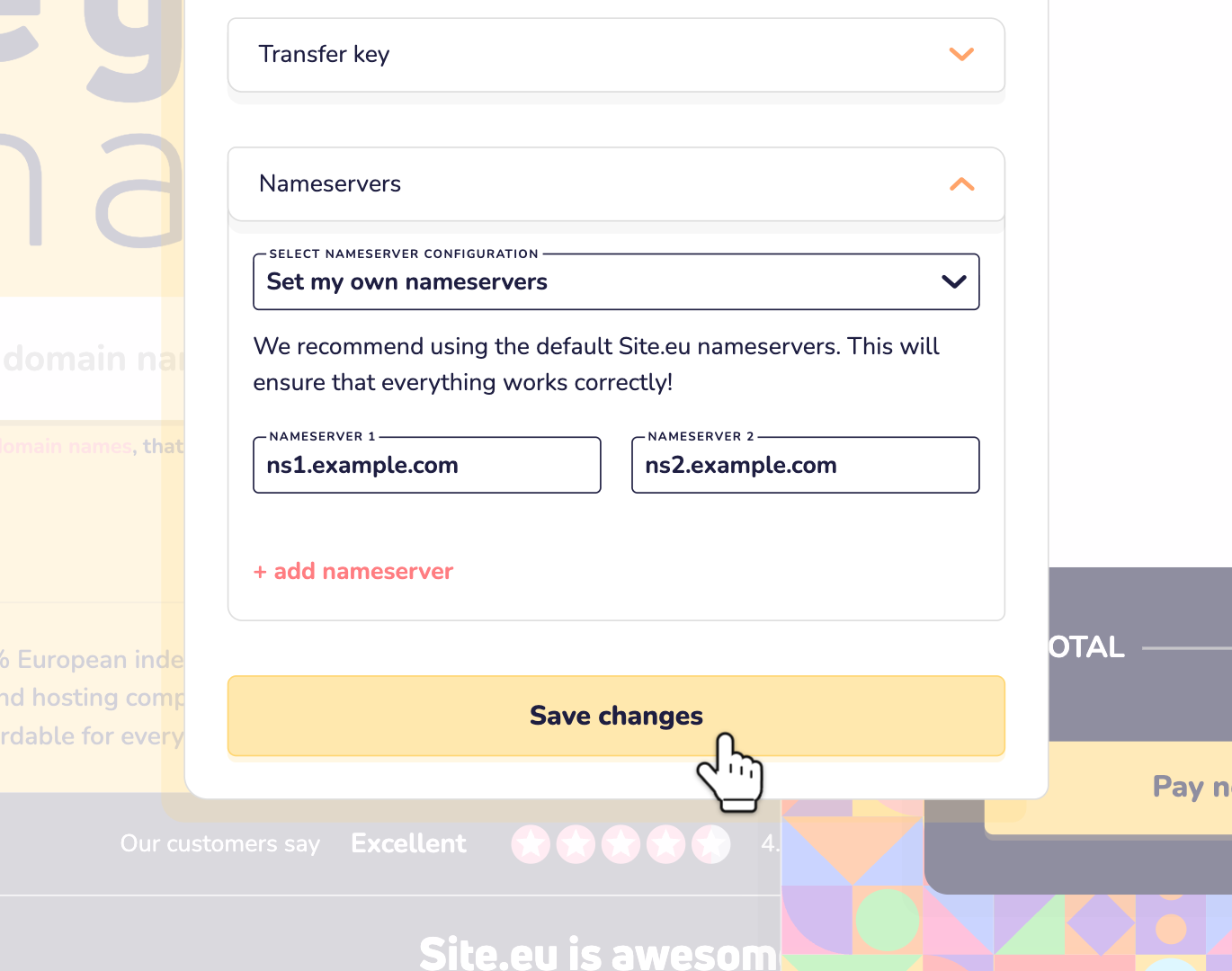
In the same window, you also set the registration length and the domain holder. And privacy protection, when your extension offers it.
Which nameservers should you choose?
Our nameservers
With Use Site.eu nameservers, your domain name moves to our nameservers as soon as the transfer is complete. Our default settings are on: we set our standard DNS records, and they point your website and email to us. Your old records don't come along.
So anything that still runs somewhere else stops working. Until you add its records again.
Choose this when:
- your domain name has no website or email yet, or
- it already uses our nameservers, with all its records in place. See Move your DNS first, then transfer below.
Your own nameservers
With Set my own nameservers, you fill in the nameservers your domain name uses now. Then the transfer changes nothing. Your website and email keep working, wherever they are.
Choose this in every other case. In doubt? Choose this one.
Good to know:
- Many transfers are done within minutes, for example for .nl, .be, .de and .eu. So prepare before you order, not after.
- Do your nameservers belong to your current provider? Ask them if your DNS keeps working after the transfer. Some providers stop it. Then move your DNS first.
- Is a nameserver part of your own domain name, like ns1.yourdomain.com? Then the cart also asks for its IP address.
- No nameservers chosen in the order? Then the transfer gets your default nameservers from your dashboard settings, if you set them. Otherwise ours.
Switch to us later, without downtime
Transferred with your own nameservers? Then move your website and email to us at your own pace. And switch only when everything is ready.
Step 1: Link your domain name to a plan. Turn on web hosting or the website builder, and email. Create your email addresses. Your domain name still points to your old servers, so nobody notices. A notice about missing DNS records is normal for now: your DNS isn't with us yet.
Step 2: Move your website. Copy your old emails with Start email sync, under Email > Email addresses. Want to see your website on our server before everyone else? Edit your hosts file.
Step 3: A day before the switch, lower the TTL of your DNS records at your current DNS provider, for example to 300 seconds (5 minutes). The TTL tells other servers how long they may keep a record in memory. The lower it is, the sooner a change reaches everyone.
Step 4: Open your domain name in your dashboard. Click Domain settings, then Advanced settings. Turn on Use default Site.eu settings. We move your domain name to our nameservers and set every record your web hosting, email and website builder need. All in one go.
Step 5: Keep your old hosting and email running for a few more days. A change of nameservers can take up to 24 hours to work everywhere. Until then, some visitors still reach your old server, and some email still lands in your old mailbox. Run the email sync once more to copy it over.
Website or email staying somewhere else? Then don't turn on the default settings. They point everything to us. Turn on DNS management instead, and add your own records. Read how to manage your DNS records. Careful: the moment you turn it on, your domain name moves to our nameservers, with our standard records. So have your records ready and put them in right away. Quickest: import them as a zone file with Import/export DNS zone.
Move your DNS first, then transfer
Want your records ready on our nameservers before anything switches? Then move your DNS before you order the transfer. This is the way to go when your website or email stays somewhere else. Or when your current provider stops your DNS after a transfer.
Step 1: In your dashboard, click Add domain names at the bottom of the sidebar. Add your domain name as an external domain name.
Step 2: Open it and click Domain settings, then Advanced settings. Click Link domain to Site.eu nameservers and then Proceed. Our nameservers now know your domain name. Nothing points to them yet, so nothing changes.
Step 3: Moving your website or email to us too? Link the domain name to a plan and turn those services on first. With the default settings on, we add their records for you.
Step 4: Turn off Use default Site.eu settings. Then, under DNS management, add the other records you wrote down. Replace our standard records where needed, for example our mail servers when your email stays elsewhere.
Step 5: At your current provider, change the nameservers to ours: ns1.site.eu, ns2.site.nl, ns3.site.be and ns4.site.de. Does your current provider use DNSSEC for your domain name? Ask them to turn it off first. Otherwise your domain name can become unreachable for some visitors.
Step 6: Wait up to 24 hours. Then run the DNS check: do the nameservers, mail servers and website look right? Now order the transfer with Use Site.eu nameservers. Your domain name already uses our nameservers, so your visitors notice nothing.
After the transfer: check everything
- You get an email when the transfer starts, and another one when it's complete.
- Run the DNS check on your domain name. Are the nameservers, mail servers and website what you expect?
- Open your website, with and without www. Send an email to your own address, and reply to it.
- We turn the transfer lock back on for you, when your extension has one.
- All good? Then cancel the domain name at your old provider, so they stop sending invoices. But keep any hosting, email or DNS you still use there, until you've switched.
Quick checklist
- Transfer key ready. Transfer lock off. Domain name not expired.
- Nameservers and DNS records written down.
- Website or email somewhere else? Choose your own nameservers, or move your DNS to us first.
- No website or email yet, or your DNS already with us? Choose our nameservers.
- Switching later? Set everything up with us, test it, lower the TTL, then turn on the default settings.
- Afterwards: DNS check, website, email. Then cancel at your old provider.
Questions
How long does a transfer take? It depends on the extension. Many European ones, like .nl, .be, .de and .eu, move within minutes. For .com, .net and .org, it can take up to about 7 days. It's faster when your current provider approves the transfer sooner.
Do I always need a transfer key? No. Most extensions use one, some don't. Our search page only asks for it when your extension needs one. Left it empty or mistyped it? Then your domain name waits under Awaiting extra information in your dashboard, until you fill in the right one.
How do I follow the transfer? In your dashboard, your domain list has a Transfers tab. Click your domain name there to see how far it is.
What if the transfer fails? For example because it was refused? Then you get an email. Open the transfer under Transfers to see what happened. Fix the cause and click Start transfer to try again, free of charge. Was the transfer key wrong or out of date? Then fill in the new one under Transfer key in the same window. Read more about what to do when your transfer failed.
Can I cancel a transfer? Usually, yes. Open it under Transfers, click the link after Cancel domain name transfer? and confirm with Cancel transfer. Is the transfer almost done? Then it may be too late.
Do I keep my remaining registration time? No. You get the period you pay for with us. Time left at your current provider doesn't carry over.
Taking longer than expected? Ask your current provider first. They may still have to approve the transfer, or the domain holder may have to confirm an email.
Ready to start? See the steps, how long it takes and the price per extension: transfer your domain to Site.eu.