

Need help with your products? Site Assistant can answer questions, check settings, and, if you allow it, make changes for you.
Think of it like asking someone to look over your account with you. The important part? You choose what it may access first.
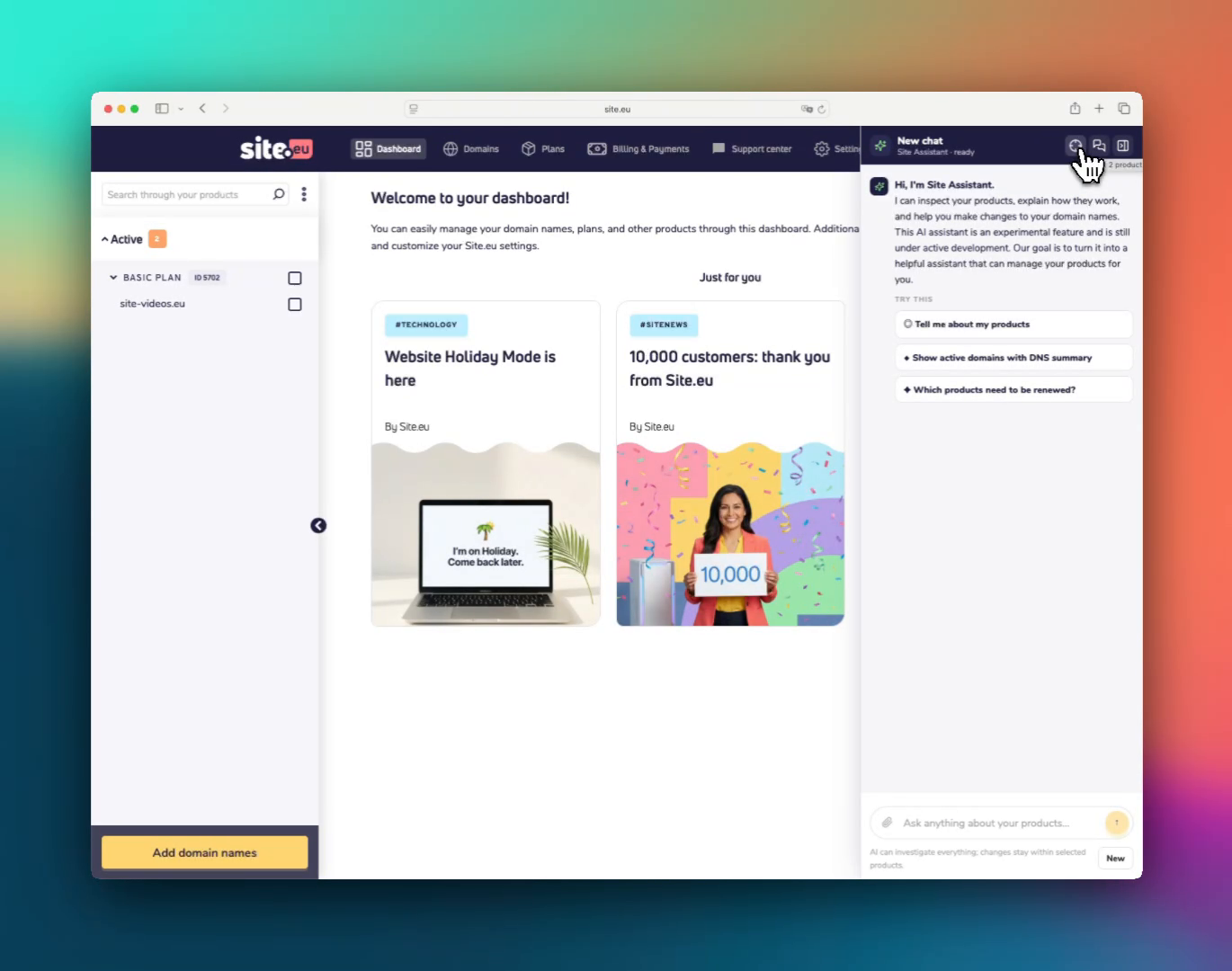
Open Site Assistant
Click Open Site Assistant on the side of the screen. You can open it from the website or from your dashboard.

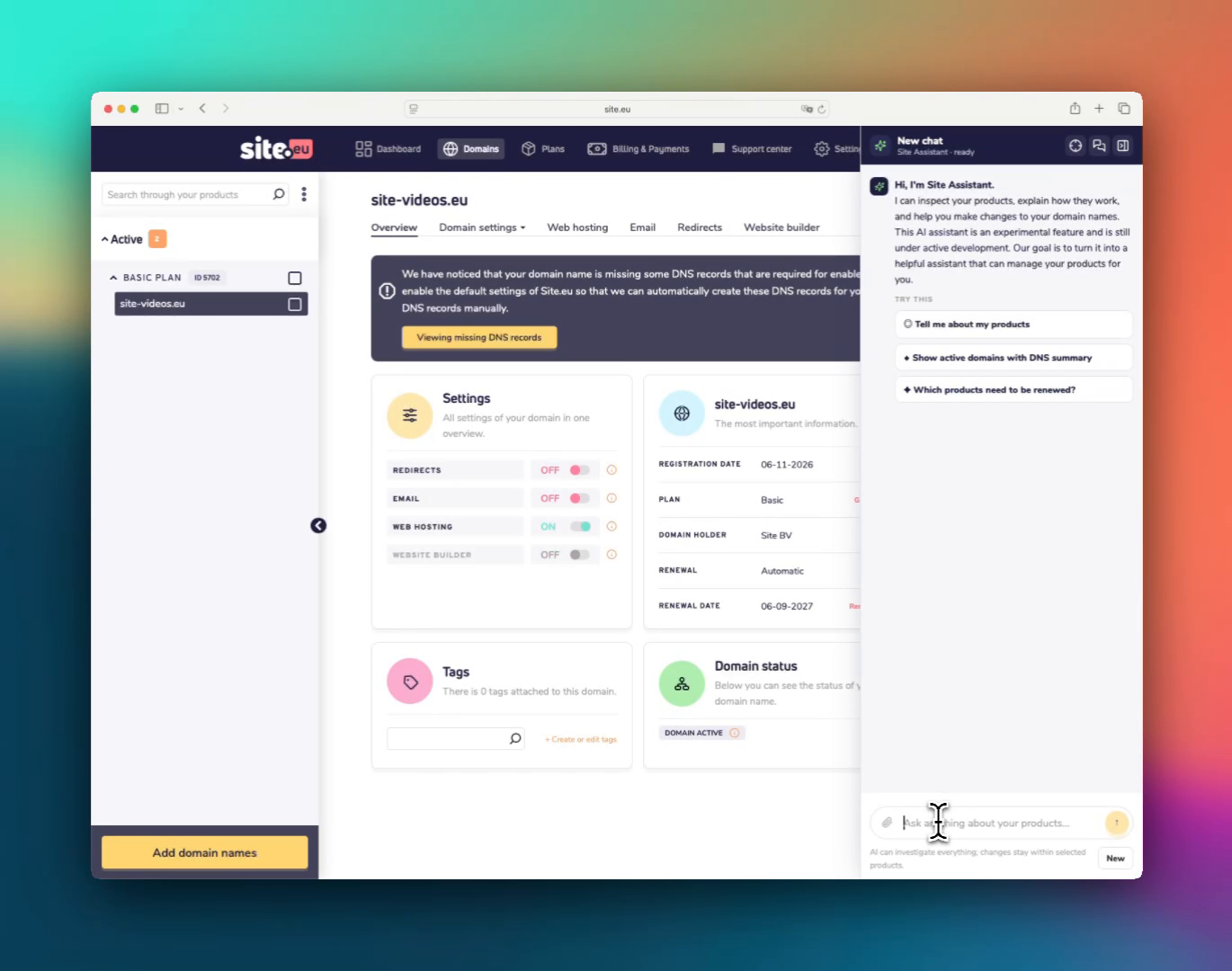
When Site Assistant opens, it appears as a panel on the right side of your screen. You can use New chat if you want to start a fresh chat.
Choose what Site Assistant may do
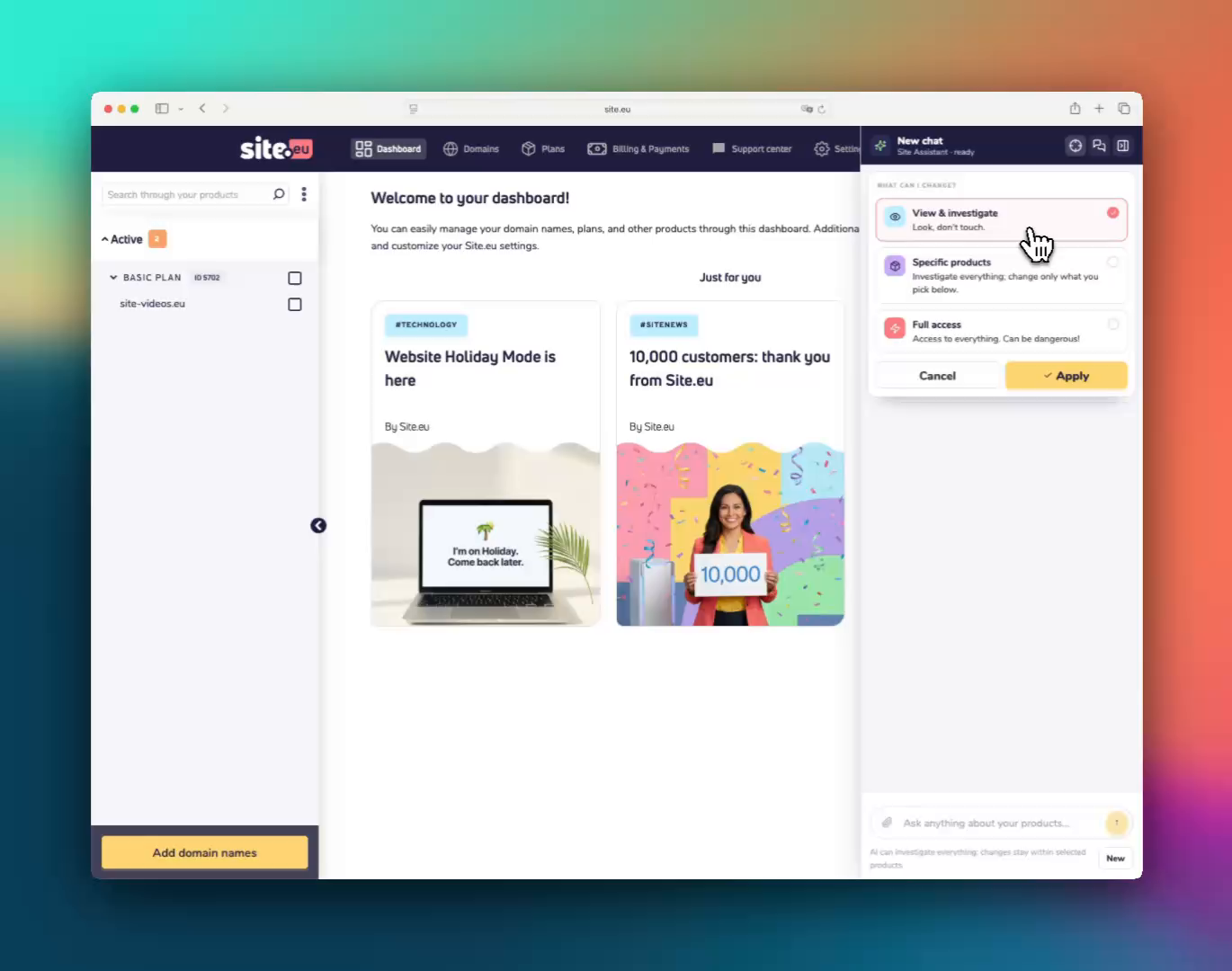
Before you ask Site Assistant to do anything, choose its access level. Click Agent scope. You will see What can I change?.
Option 1: View & investigate
Start here if you only want Site Assistant to inspect things. This option means: Look, don't touch.
It can look at your products and explain what it sees, but it cannot change your settings.
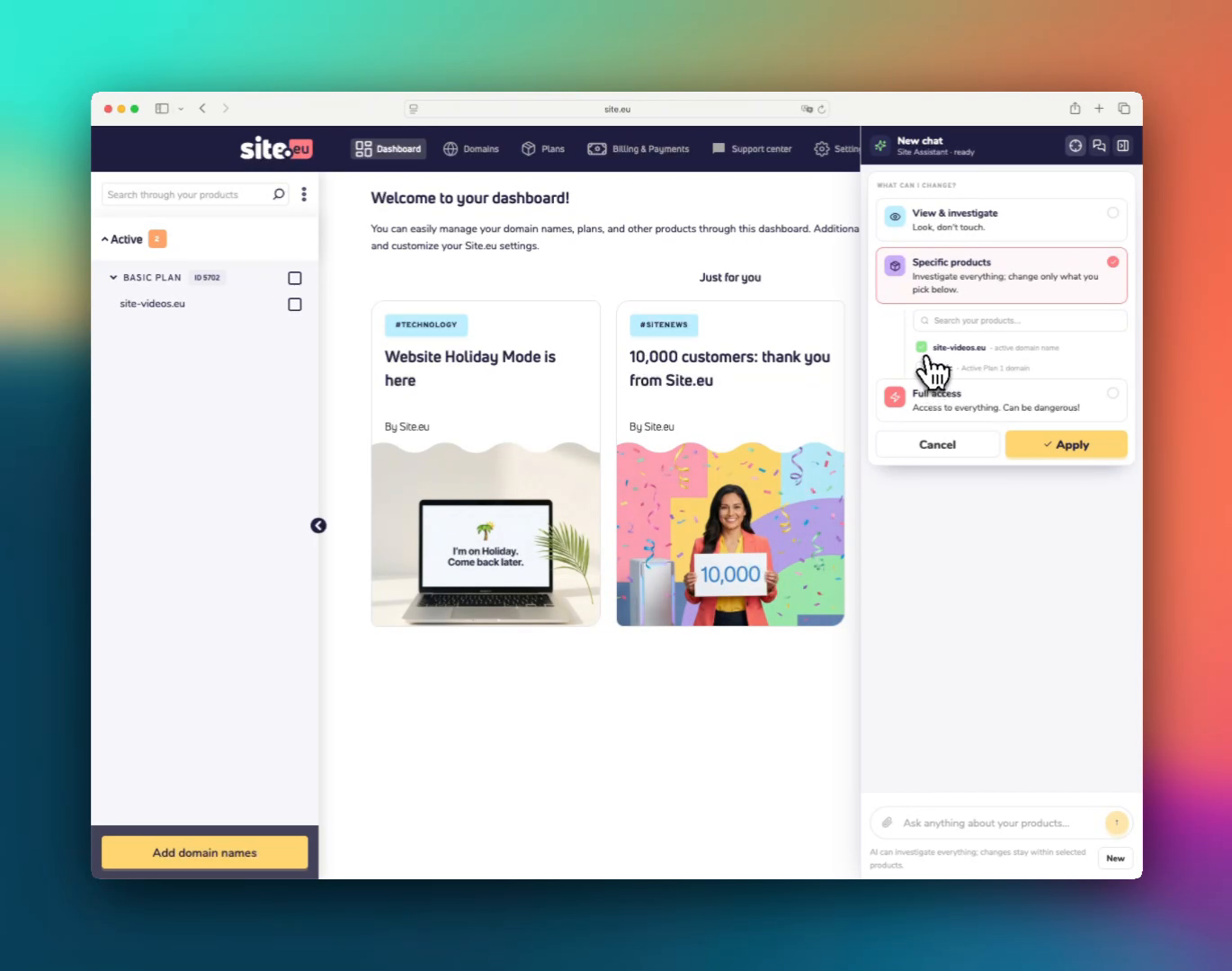
Option 2: Specific products
Choose this if you want Site Assistant to make changes only for products you select. Pick the product below this option, then click Apply.
This is usually the best choice when you want help with one domain name, one plan, or one clear task.
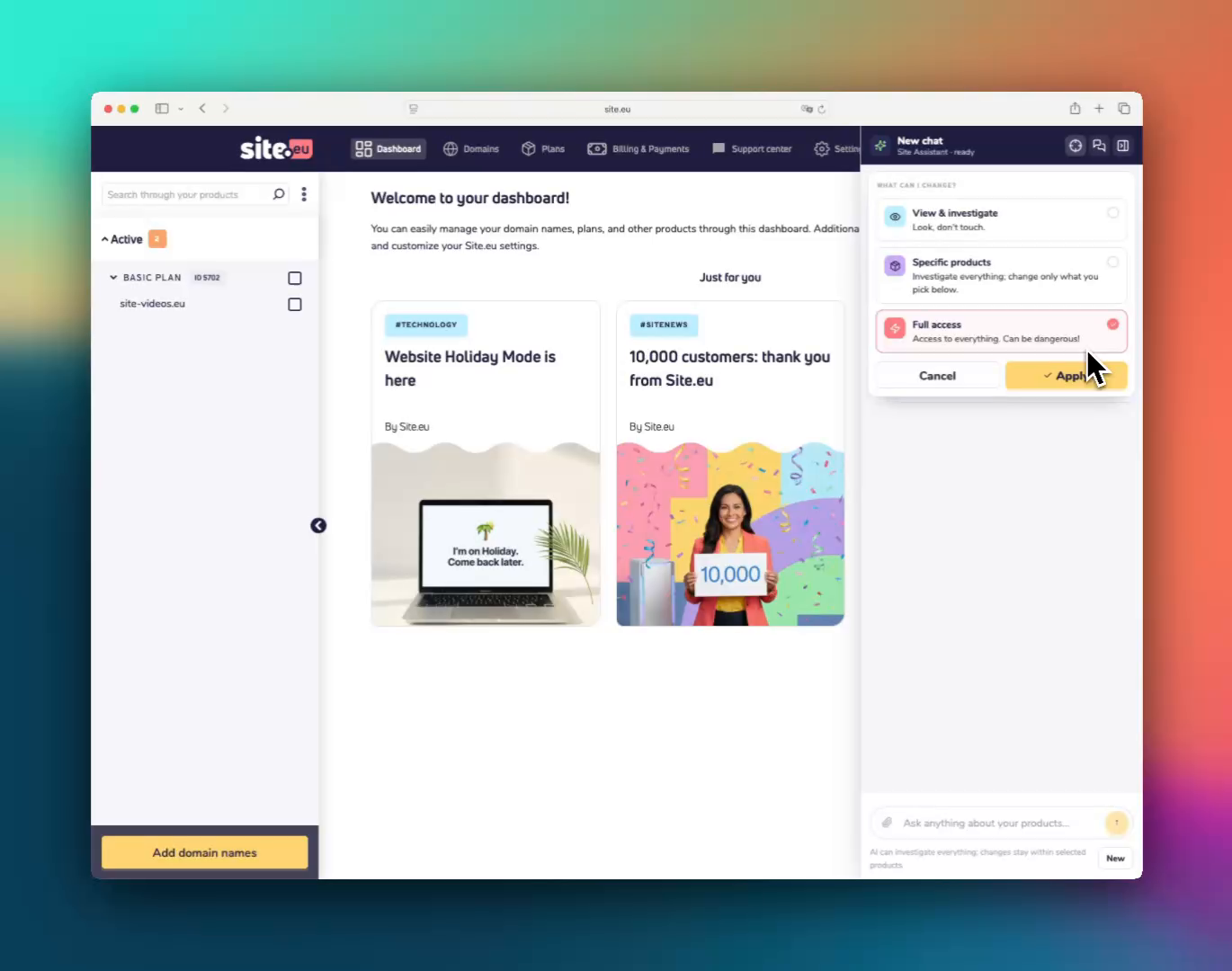
Option 3: Full access
Use this only when you are sure. This gives Site Assistant access to everything. That can help with bigger tasks, but it also has more risk.
Ask your question
Click the field Ask anything about your products... and type what you need.
You can ask things like:
- Which products do I have?
- Which domain names need to be renewed?
- Can you check my DNS records?
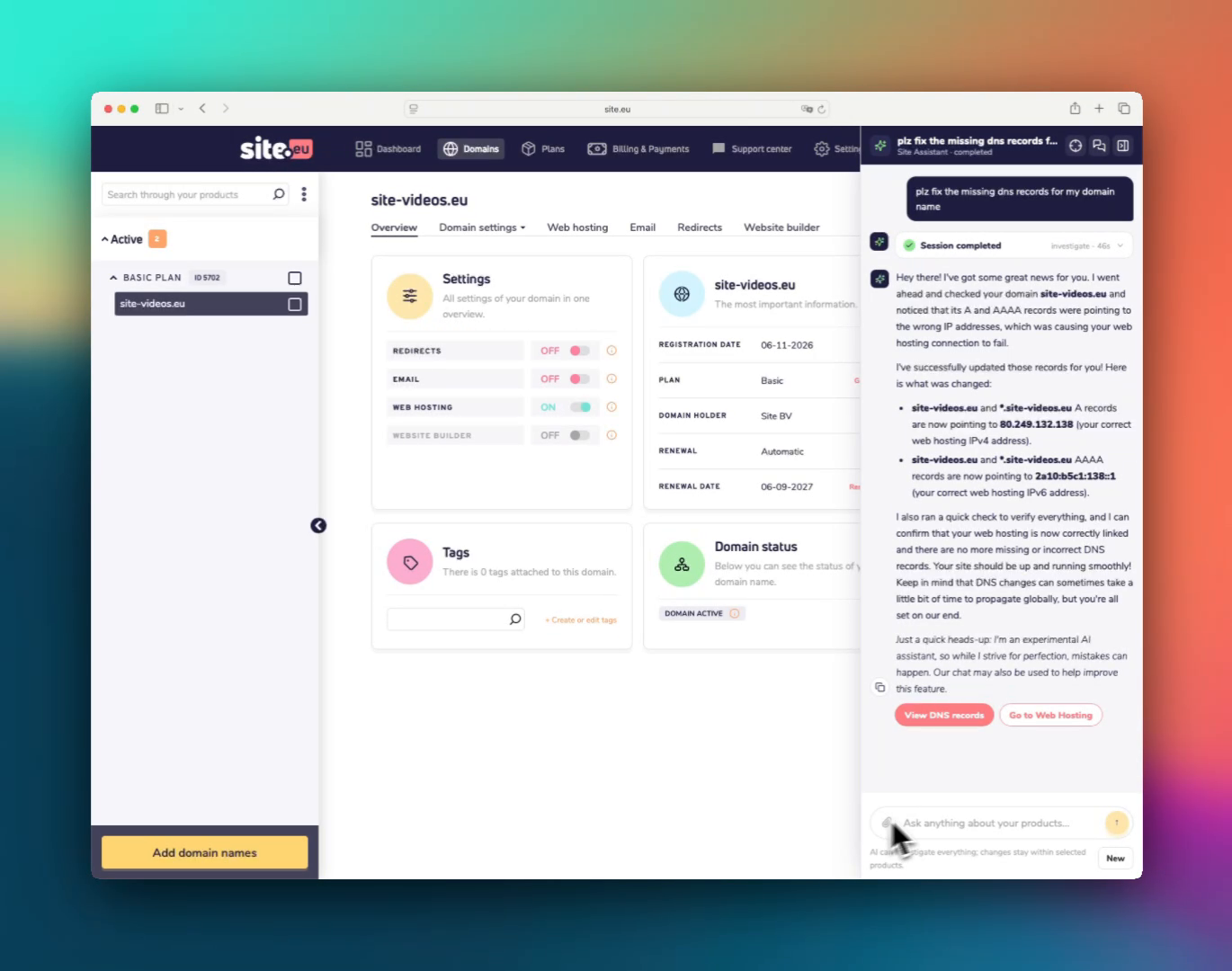
- Please fix the missing DNS records for my domain name.
Simple rule? If your question may change settings, use Specific products and select only the product you want changed.
Add a file
Need Site Assistant to look at a file? Click Attach files, or drag the file into the chat.
This can be useful for screenshots, error messages, logs, or instructions you received somewhere else.
Good to know
- Start with View & investigate when you only want advice.
- Use Specific products for most changes.
- Use Full access only when the task really needs it.
- Check important changes yourself after Site Assistant finishes.