
With Softaculous in DirectAdmin, you make a WordPress backup of your whole website, download it and restore it in a few clicks. You don't need a backup plugin. Make a backup before every update of WordPress, a theme or a plugin. Did something go wrong? Then you restore the backup, and your website is back as it was.
What's in a WordPress backup?
- The files: WordPress itself, your themes and plugins, and everything you uploaded, such as images.
- The database: your pages, posts, comments, users and settings.
Softaculous backs up both. You need both to get your website back.
Before you start
Softaculous backs up the WordPress websites in its own list. A website you installed with Softaculous is always in it.
To open DirectAdmin, go to Dashboard, select your plan, and open Web hosting. Then click Log in automatically.
Make a WordPress backup
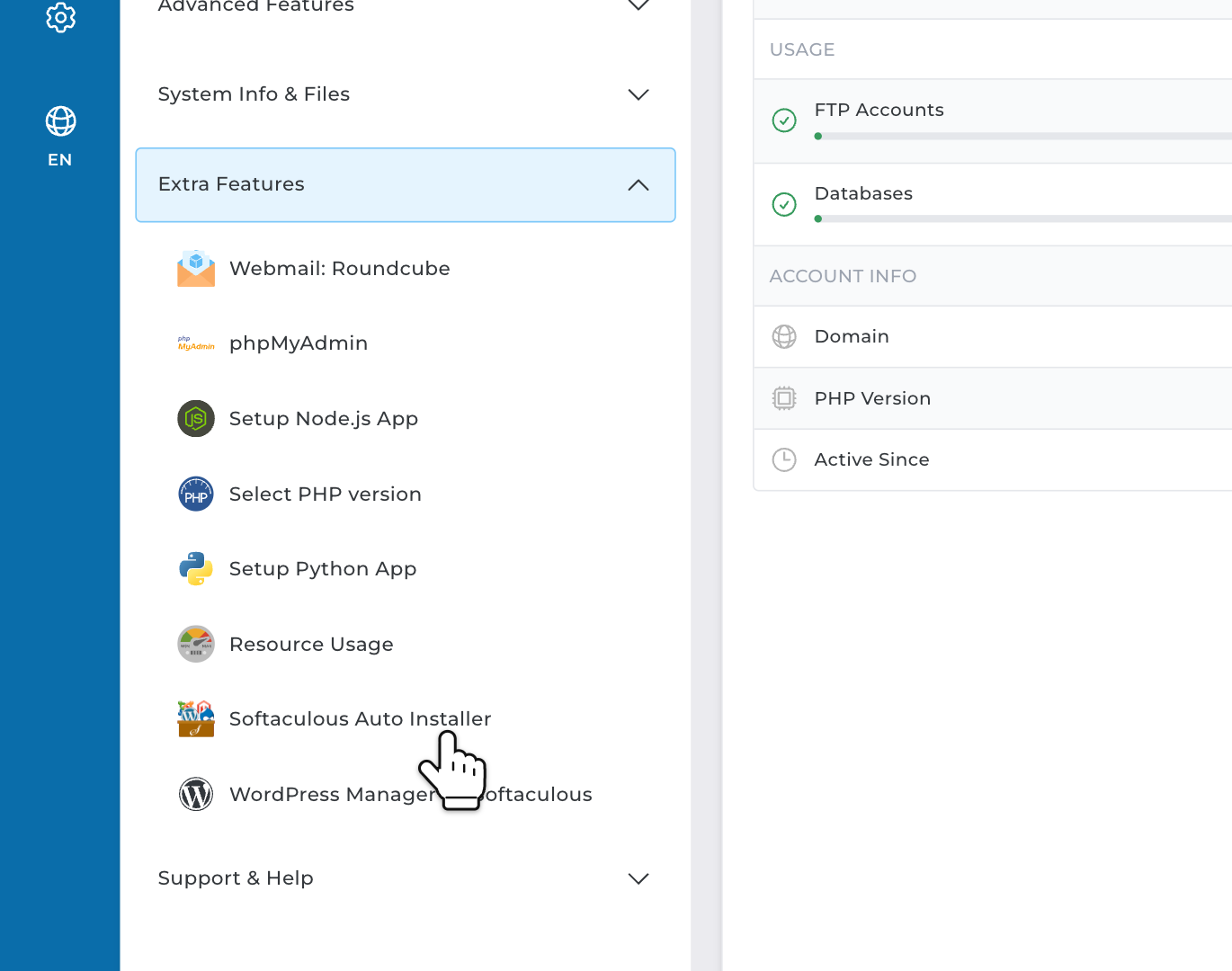
Step 1: In DirectAdmin, open Extra Features in the menu. Click Softaculous Auto Installer.
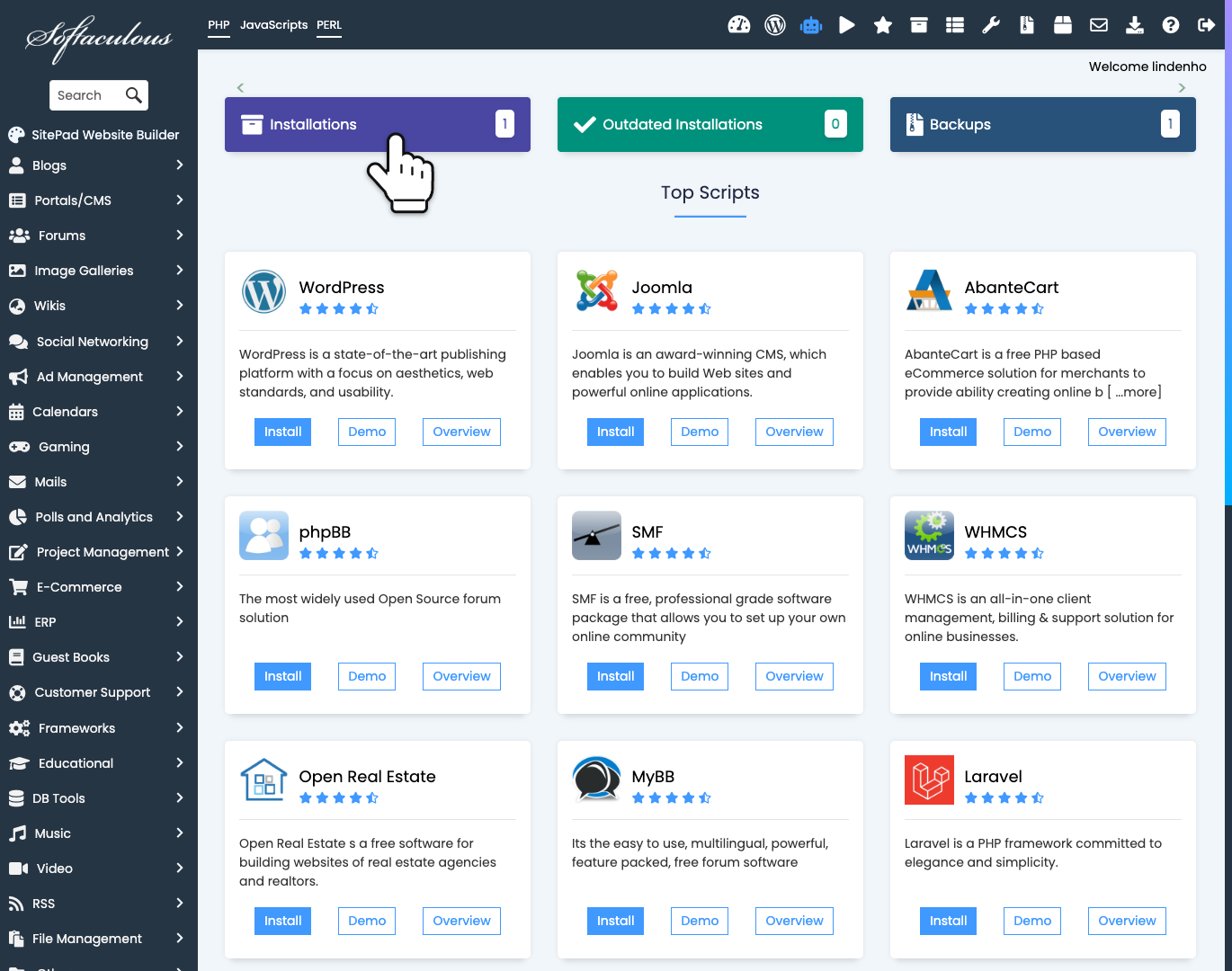
Step 2: At the top, click Installations.
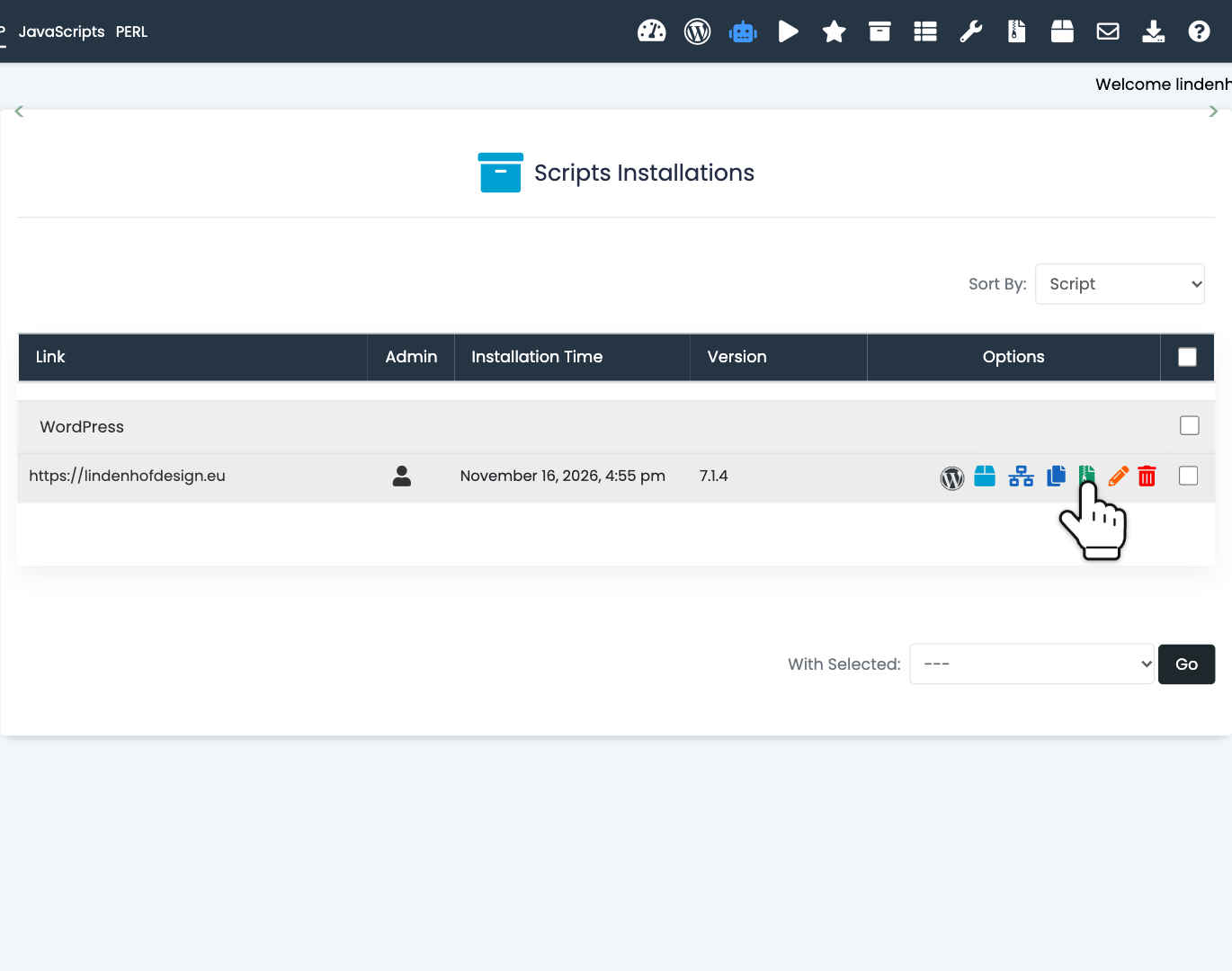
Step 3: Find your website and click the green Backup icon.
Step 4: Leave Backup Directory and Backup Database on. Want to remember why you made it? Then type a Backup Note, such as "before plugin update". Click Backup Installation.
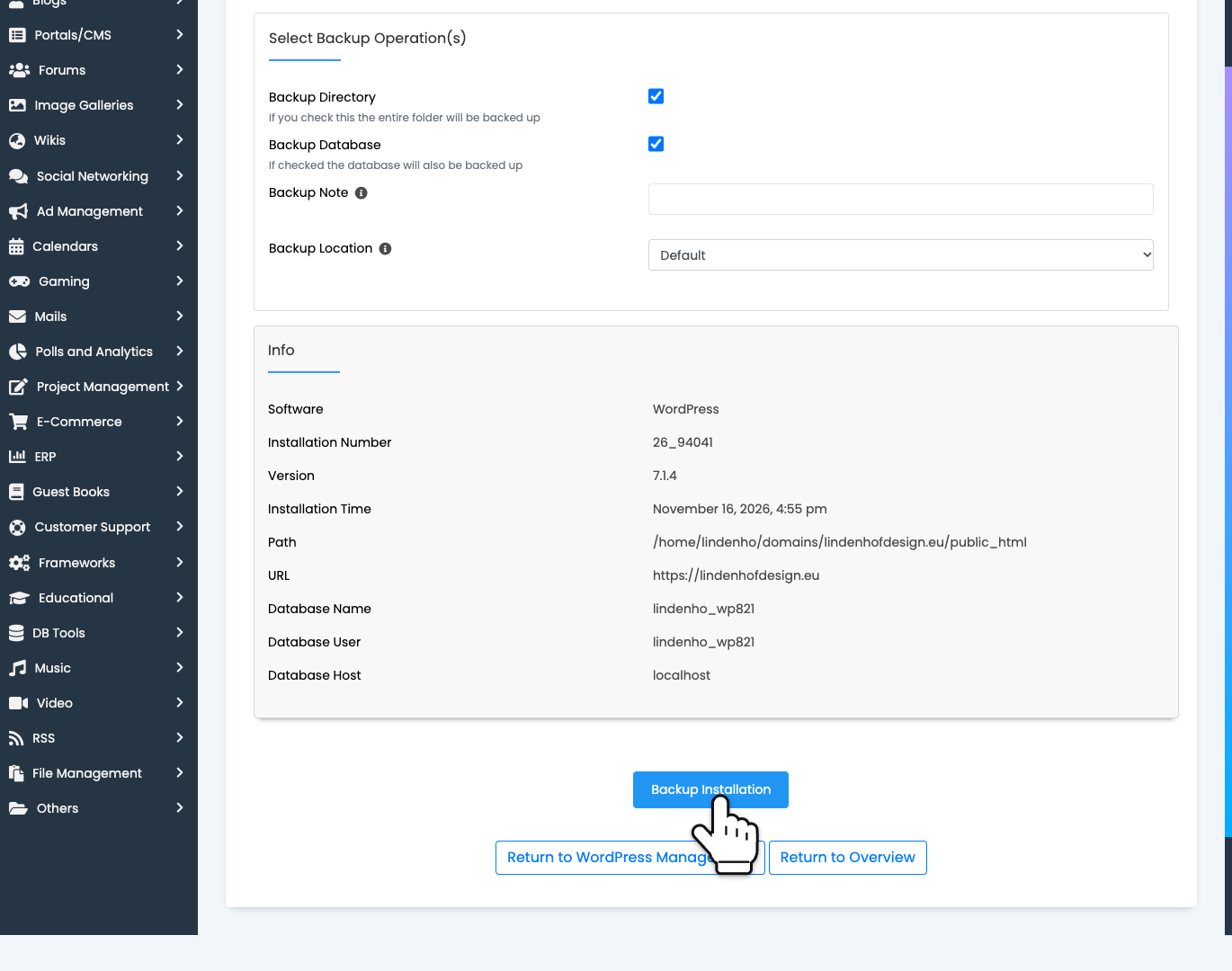
The backup runs in the background and can take a few minutes. You can leave the page. When it's ready, Softaculous sends you an email.
Where is your WordPress backup stored?
Softaculous keeps your backups in your hosting account, in the softaculous_backups folder. They count toward the disk space of your web hosting. A new WordPress website gives a backup of about 35 MB. A website with many images can be much bigger.
Delete the backups you no longer need. Open Softaculous as in step 1 and click Backups at the top. Next to the backup, click the red Remove Backup icon.
Download your WordPress backup or save it elsewhere
If something happens to your hosting account, the backups in it are gone too. For example, resetting your web hosting deletes them. So keep a copy somewhere else as well. A good rule is 3-2-1: 3 copies of your website, on 2 different kinds of storage, and 1 of them in another place.
Step 5: Open Softaculous as in step 1 and click Backups at the top. Next to your backup, click the blue Download Backup icon. You get one .tar.gz file with the files and the database.
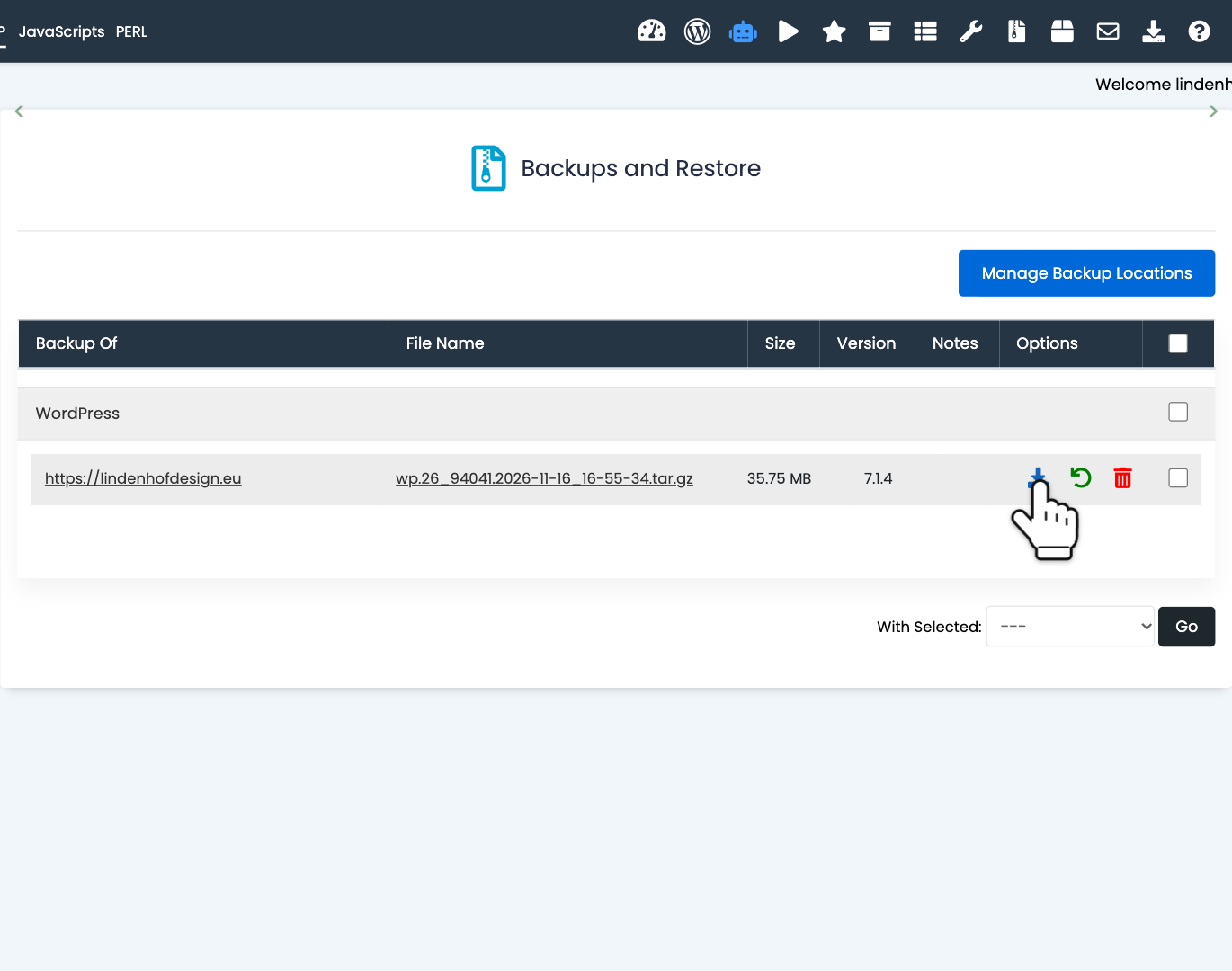
Softaculous can also save your backups somewhere else, such as Google Drive, Dropbox or an FTP server. On the Backups page, click Manage Backup Locations and then Add Backup Location. When you make a backup, choose that place under Backup Location.
Restore a WordPress backup
A restore puts your website back as it was at the time of the backup. Everything that changed after that is lost, such as new posts, comments and orders. Not sure? Make a new backup first.
Step 6: Open Softaculous as in step 1 and click Backups at the top. Next to the backup you want, click the green Restore icon.
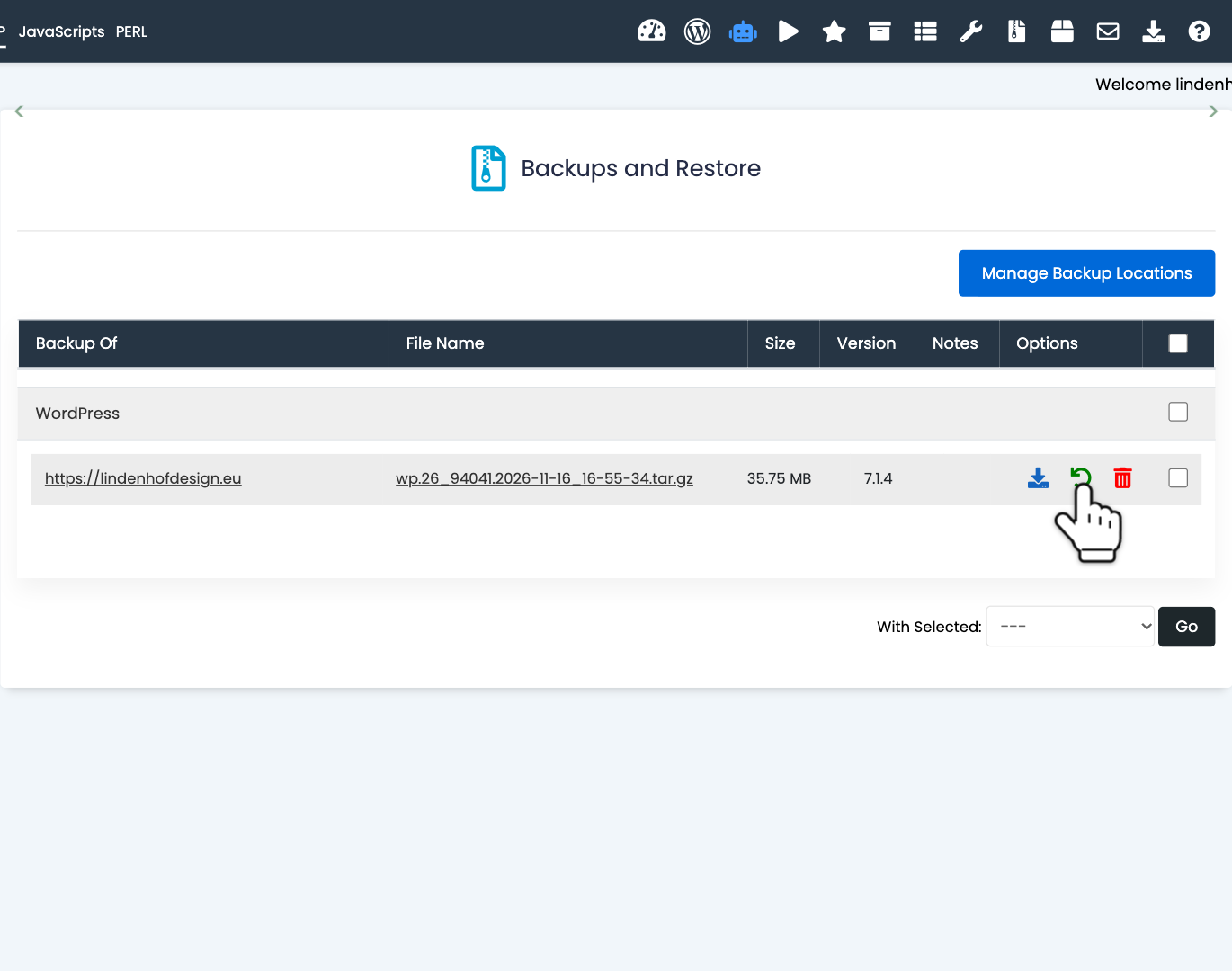
Step 7: Leave Restore Directory and Restore Database on. Click Restore Installation and confirm with OK.
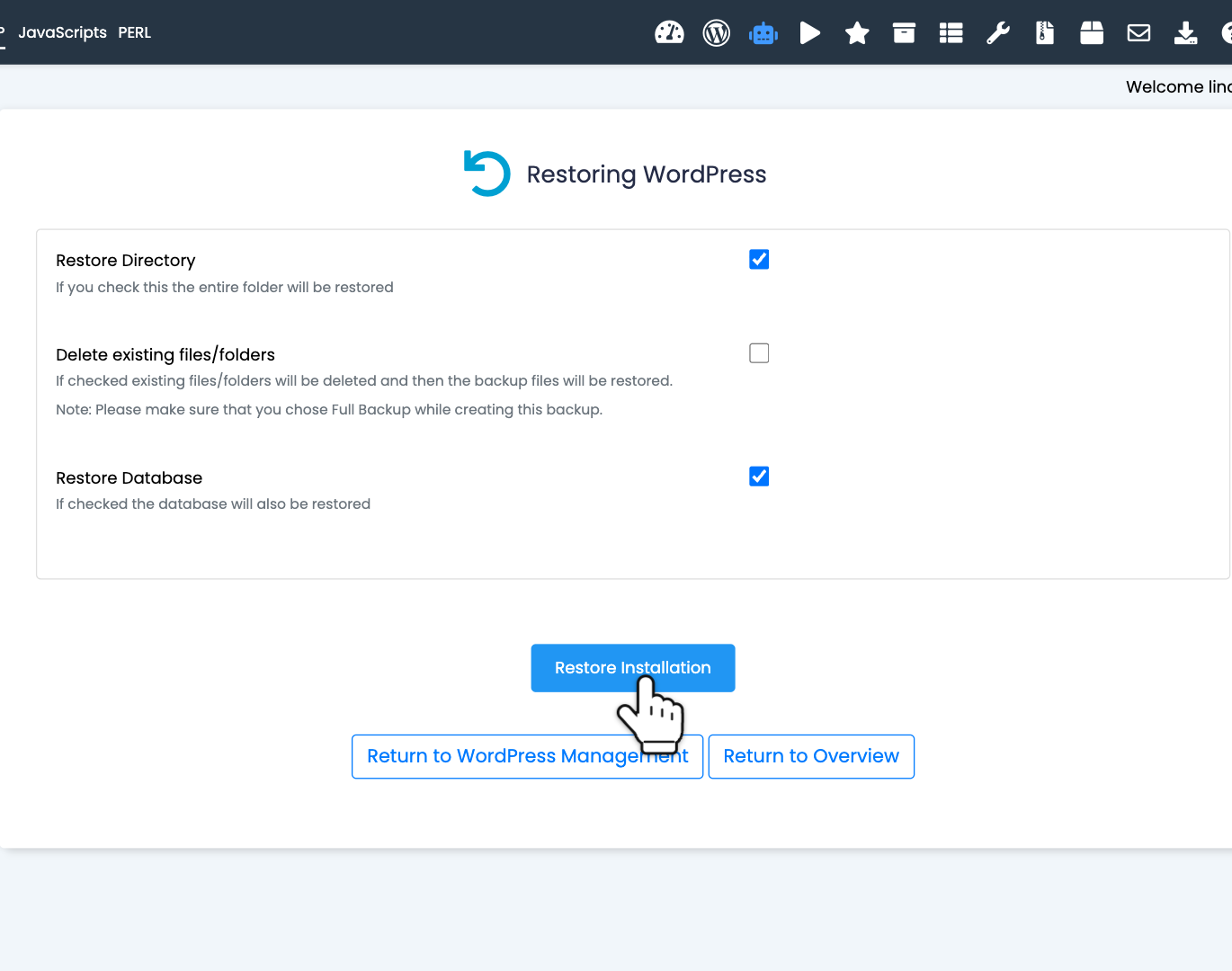
Delete existing files/folders first removes all files of your website, and then puts back the files from the backup. This also removes files that were added later, for example by a hacker. Only turn it on if Backup Directory was on when you made the backup. Website hacked? Also read what to do when your WordPress website is hacked.
Restore doesn't work? Contact us and tell us which backup you used.
Automatic backups of your WordPress installation
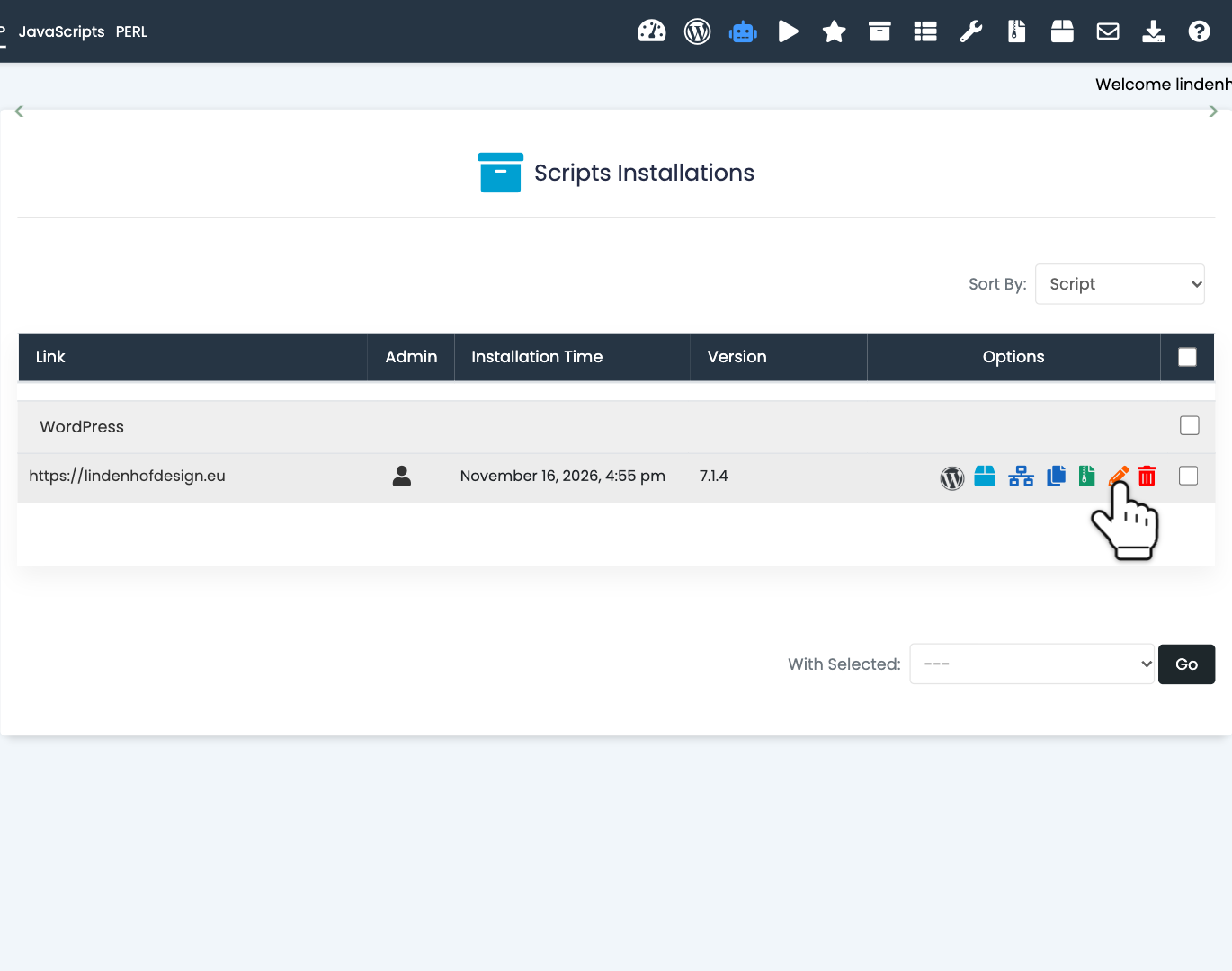
Step 8: Open Softaculous as in step 1 and click Installations at the top. Next to your website, click the orange Edit Details icon.
Step 9: Under Automated backups, choose Once a day, Once a week or Once a month. Under Backup Rotation, choose how many backups Softaculous keeps. The standard is 4. When there are more, it deletes the oldest one, so your disk space doesn't fill up. Then click Save Installation Details at the bottom of the page.
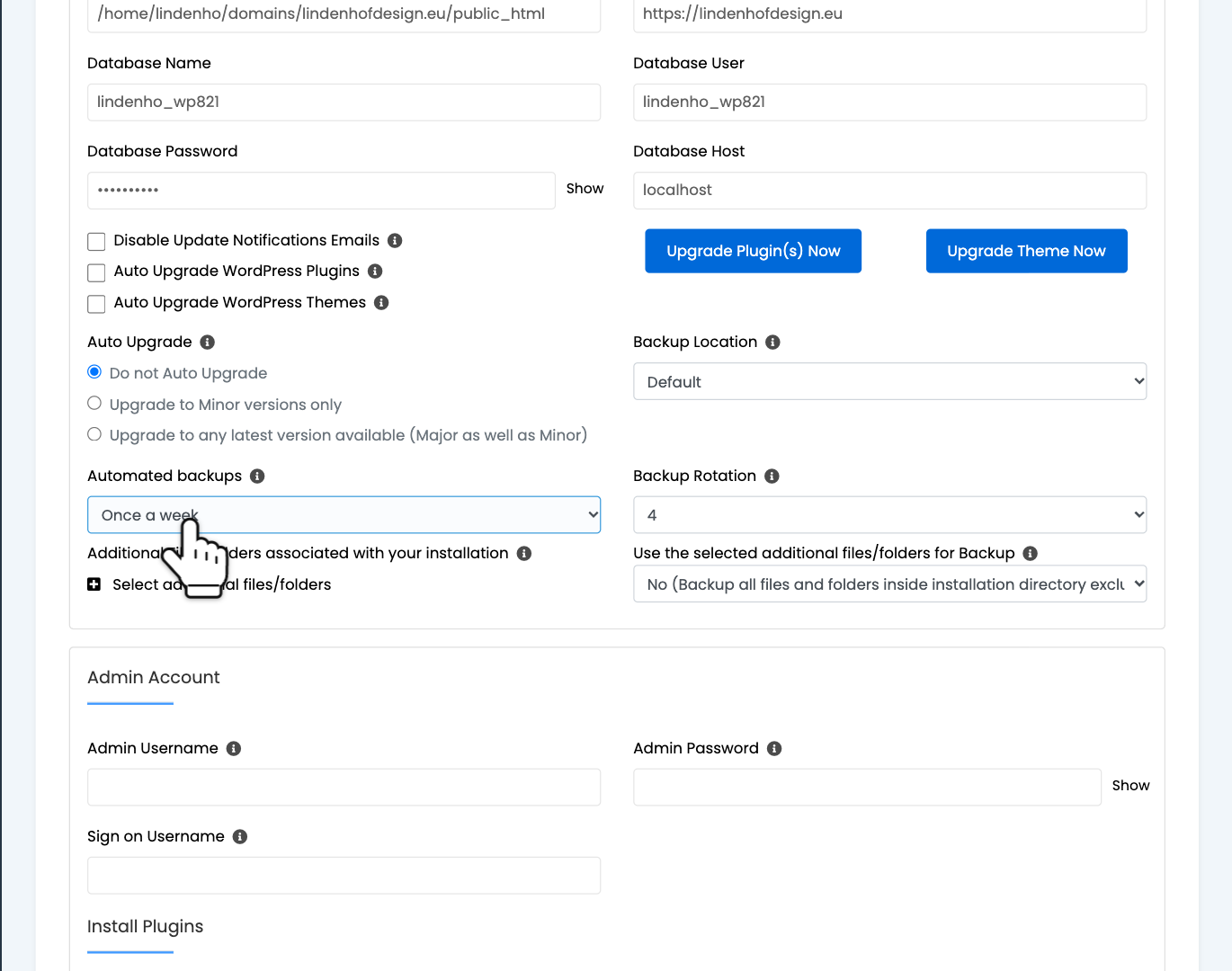
Once a week is usually enough, because we also back up your web hosting every day.
Our daily backups or your own backup?
We back up your web hosting every day, and keep these backups for 3 months. Need one? Contact us. We put the backup in your hosting account for free. Then you restore it yourself.
Your own Softaculous backup is ready right away, and you restore it yourself whenever you want. So use it before updates and changes. Our daily backups help when you have no backup of your own, or when you notice a problem only weeks later.
Softaculous or a backup plugin?
Softaculous does what plugins like UpdraftPlus do: automatic backups, and copies in Google Drive or Dropbox. But you don't need to install or update a plugin. And because Softaculous works from DirectAdmin, you can also restore a backup when your WordPress website no longer opens, for example after a broken update.
Questions about WordPress backups
Where is my backup stored?
In your hosting account, in the softaculous_backups folder. Or in the place you chose under Backup Location.
Does a backup count toward my disk space?
Yes. Every backup in your hosting account uses disk space. Delete the ones you no longer need.
How often should I make a WordPress backup?
Before every update of WordPress, a theme or a plugin. And let Softaculous make one automatically once a week.
How many backups are kept?
For automatic backups, you choose that under Backup Rotation. The standard is 4.
Backing up an app other than WordPress? Read how to create backups in Softaculous.