

Do you host a client's website on your plan? And do they want to manage it themselves? Then move the plan to their Site.eu account. The website files, the databases and the mailboxes go along, and everything keeps working during the move.
Two users take part in a move. In this guide, we call them:
- User A: has the plan in their account now and moves it.
- User B: gets the plan in their own account.
User A sends a move request. User B accepts it in their own dashboard. Then the plan moves right away.
Before you start
A plan can move on its own when:
- Its domain names are already user B's. Every domain name on the plan must be in user B's account. A plan without domain names can move too.
- It's active and doesn't expire within 30 days.
- It has no unpaid or open orders.
- Its hosting account only hosts the plan's own domain names.
Is the plan's domain name still in your own account? Then move the domain name, and take the plan along. Read how to move a domain name to another account.
User B: allow moves to your account
Step 1: In their dashboard, user B goes to Settings, on the Your account tab. Under Site.eu internal domain transfer to your account, user B turns on the switch next to Allow internal Site.eu transfer request. It's off by default.
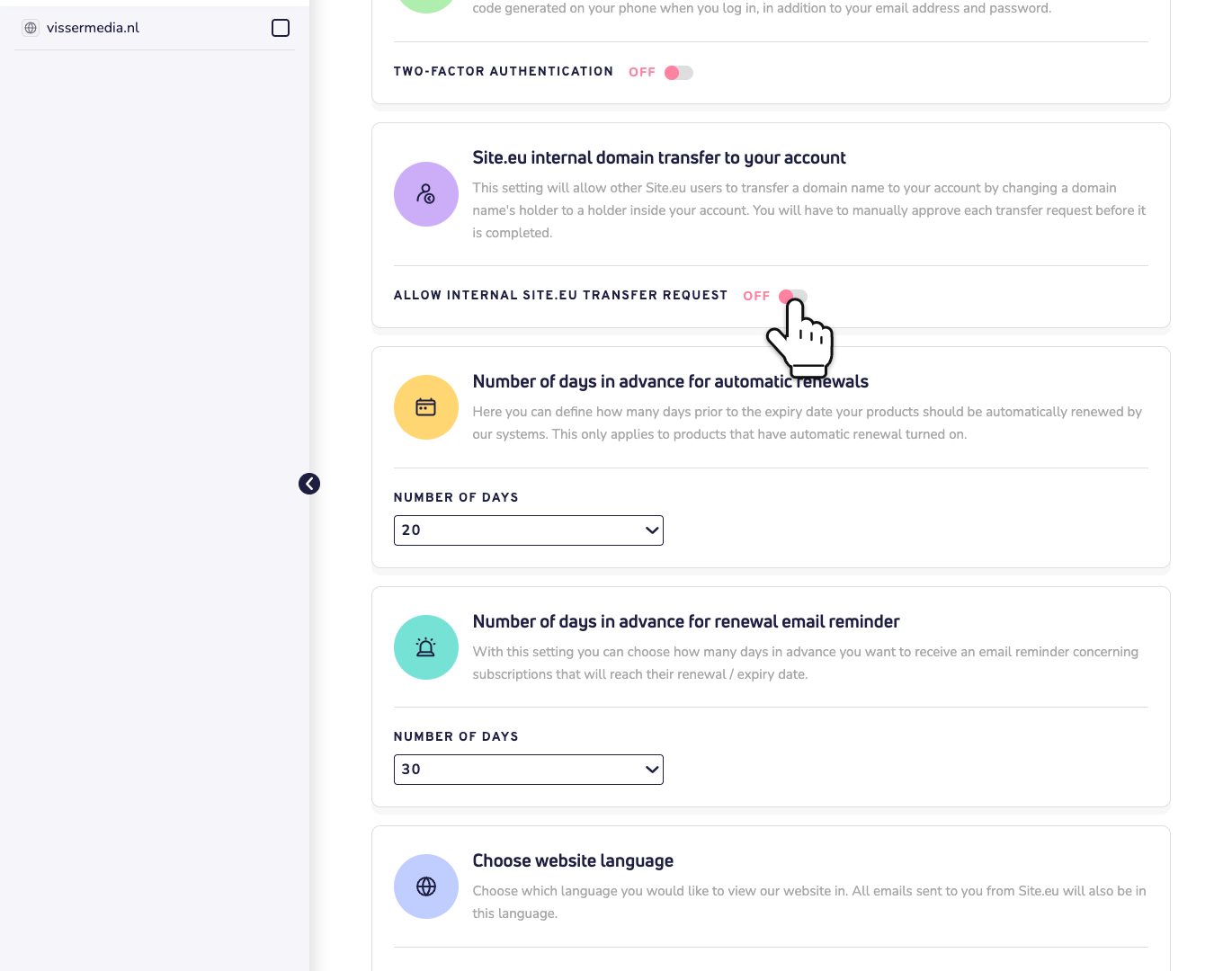
Then user B gives user A the email address they log in with. That's all user A needs. Both accounts must be at Site.eu.
User A: send the move request
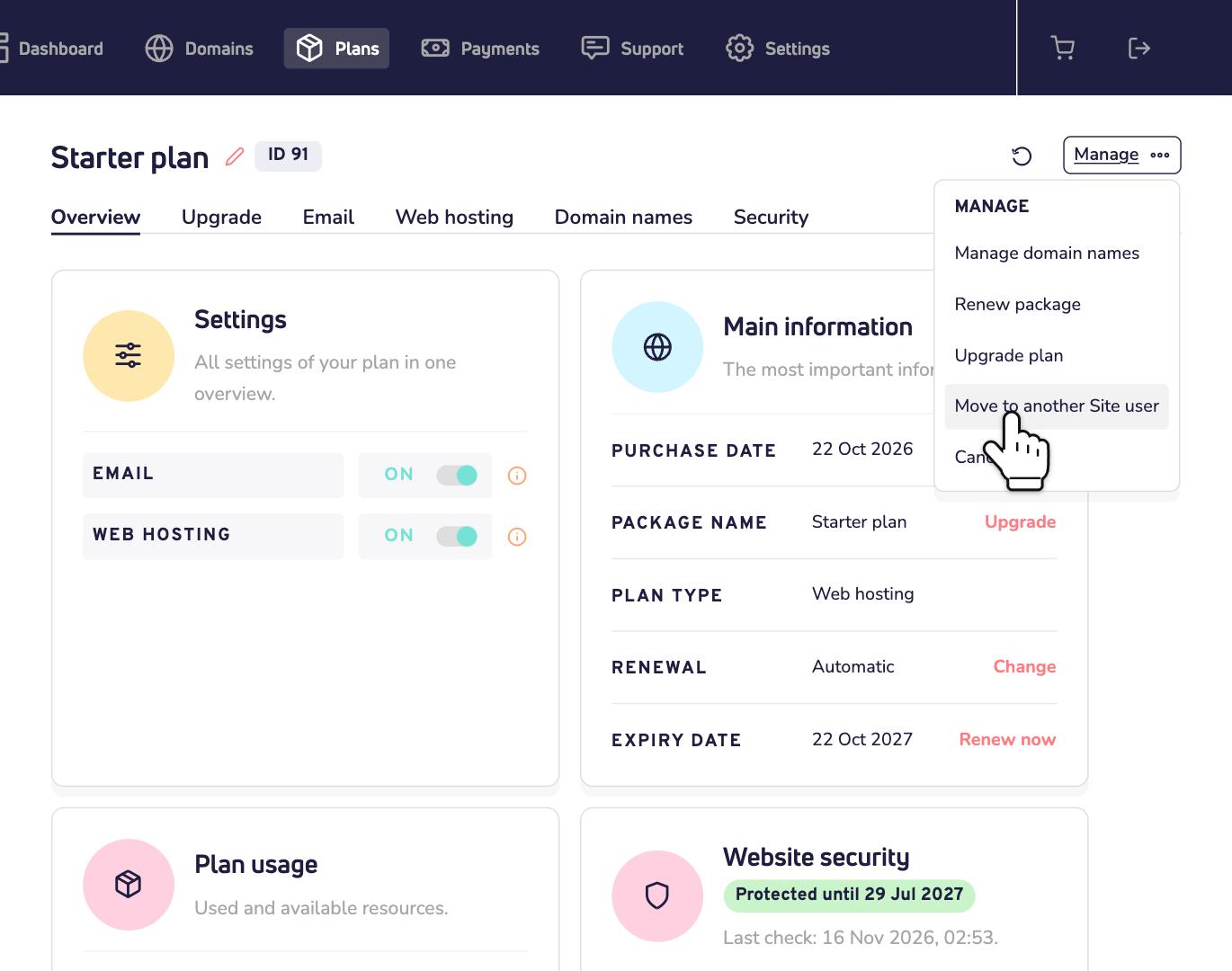
Step 2: User A goes to Plans and opens the plan. They click Manage and choose Move to another Site user.
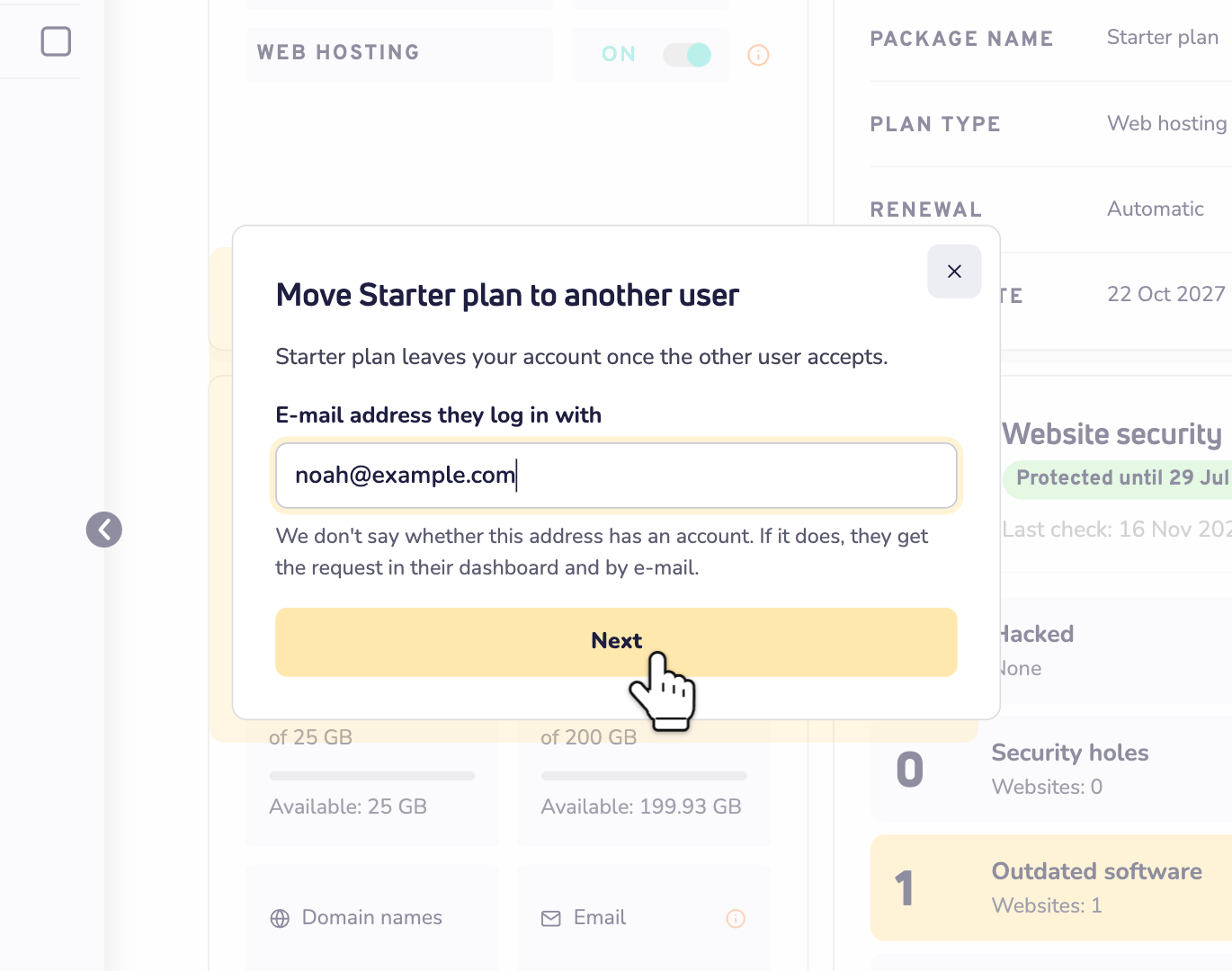
Step 3: User A enters the email address user B logs in with and clicks Next.
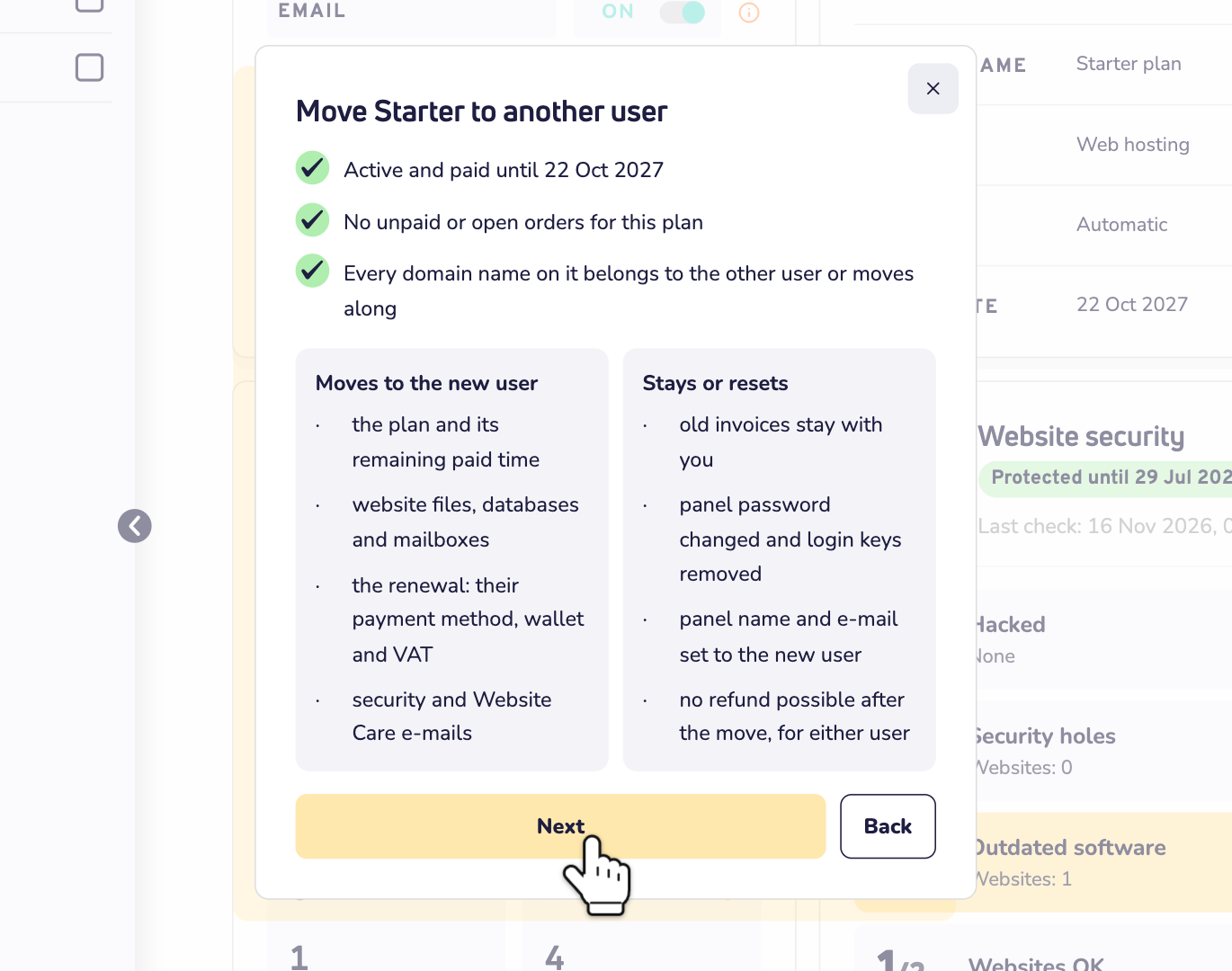
Step 4: We check whether the plan can move. User A sees what moves to user B and what changes, and clicks Next. Is something in the way? Then we say what, and how to fix it.
Step 5: User A confirms that it's them. Usually that's the password of their account. Is two-factor authentication on? Then it's the code from the authenticator app. An account without a password uses its support PIN. Then user A clicks Send request.
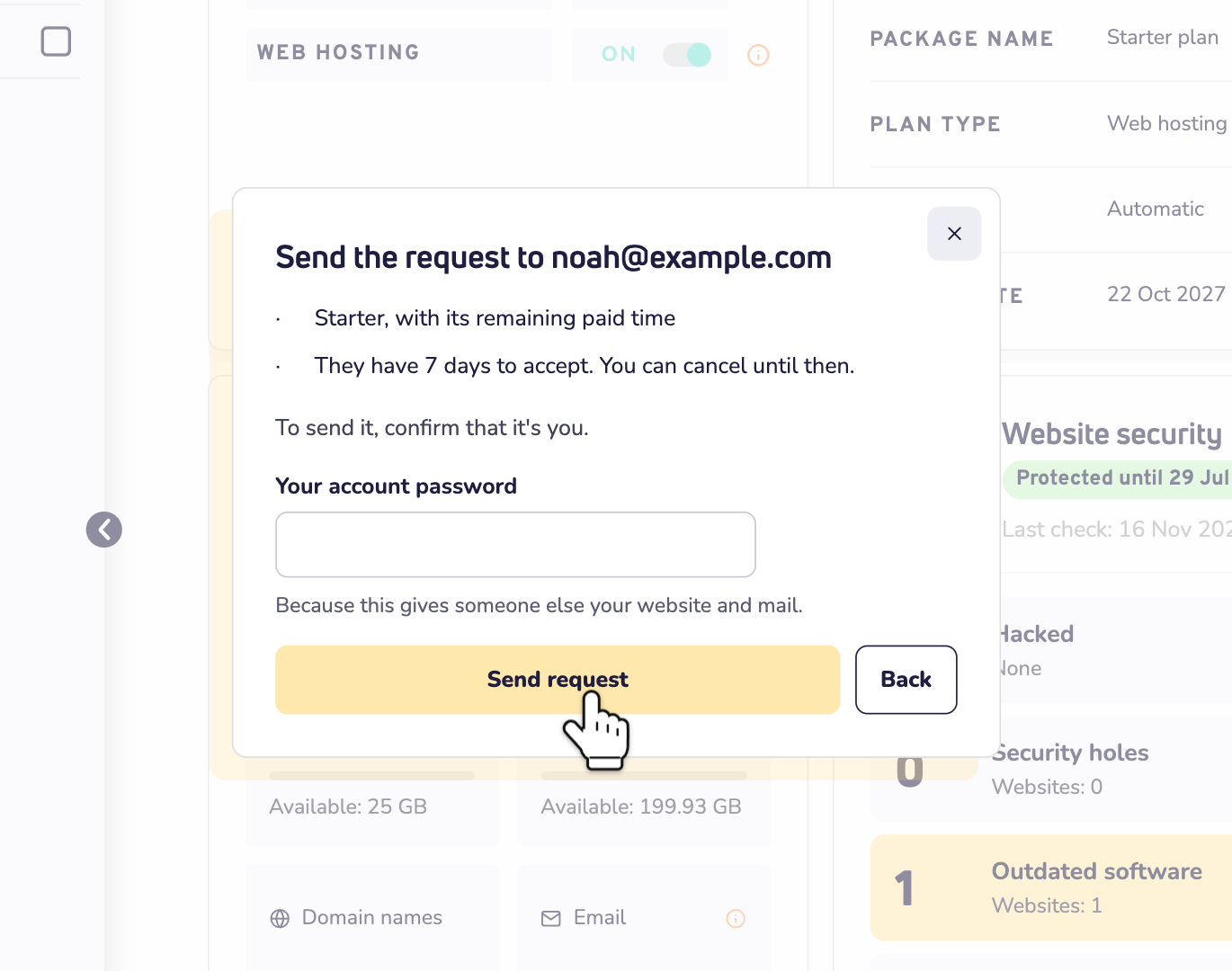
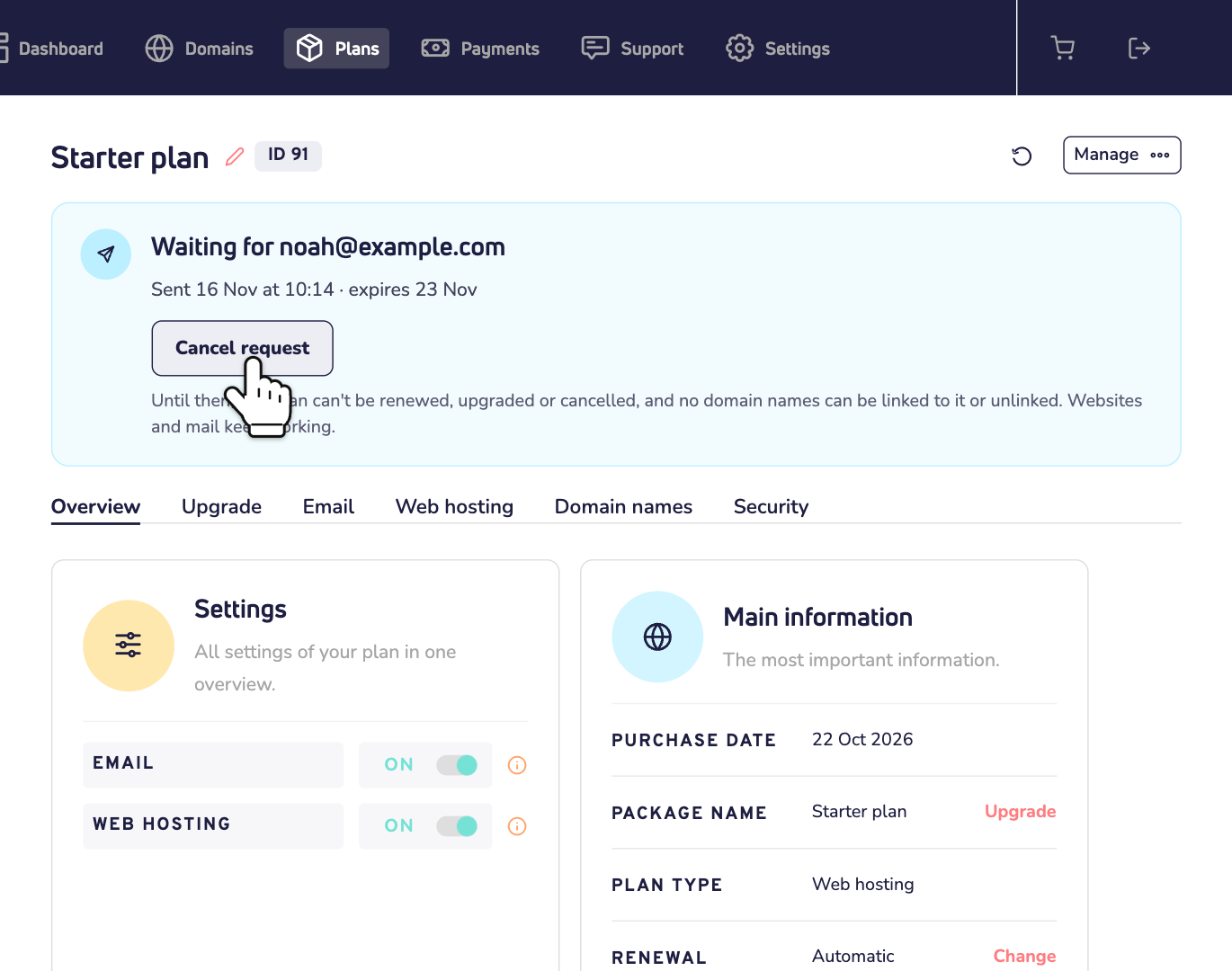
User B now gets an email. They have 7 days to answer. Until then, the plan shows the open request in user A's dashboard, with a Cancel request button. Meanwhile the plan can't be renewed, upgraded or cancelled, and no domain names can be linked to it or unlinked. The website and email keep working.
User B: accept the request
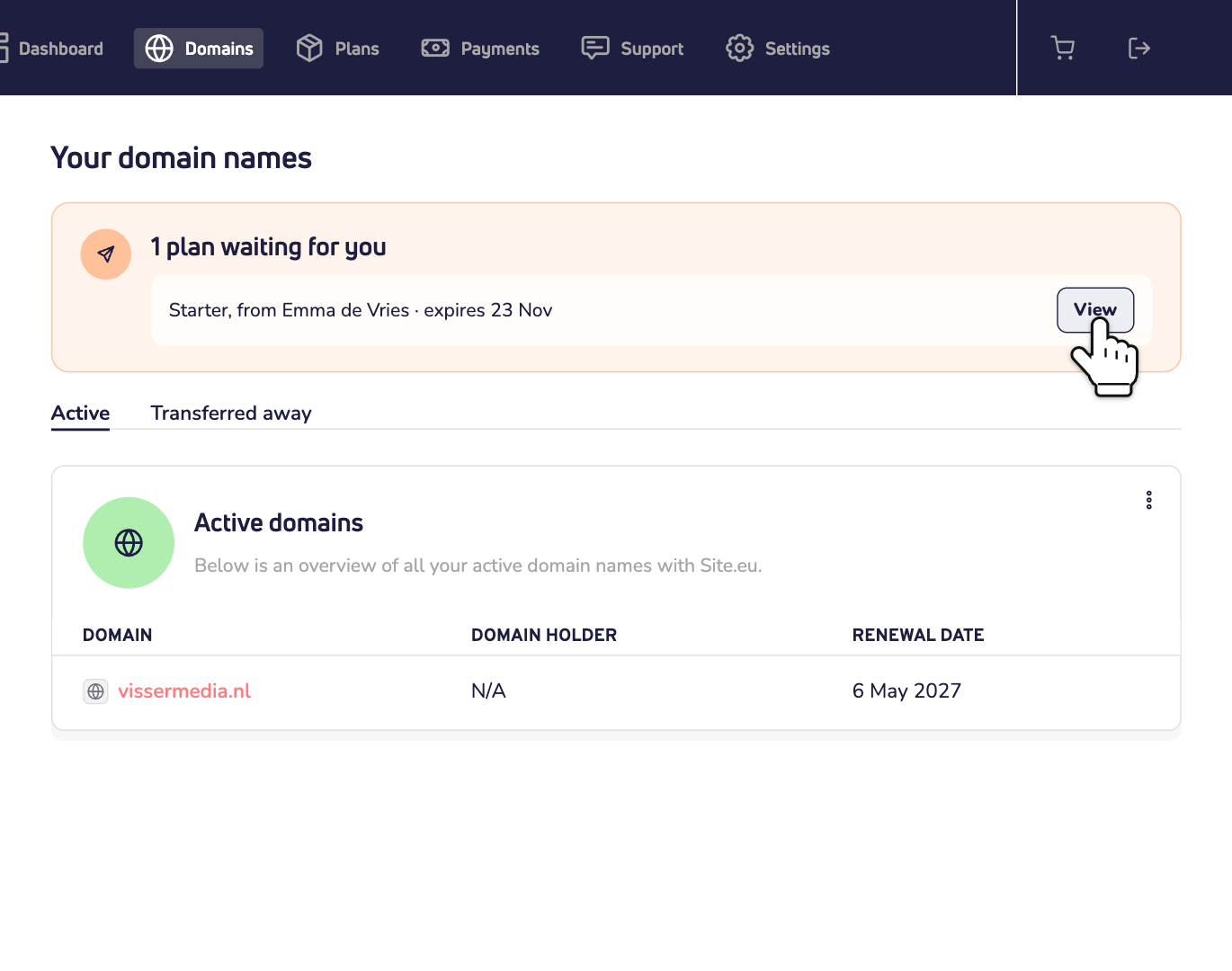
Step 6: User B logs in and goes to Domains. At the top, they see the plan waiting for them. They click View. The link in the email opens the same page.
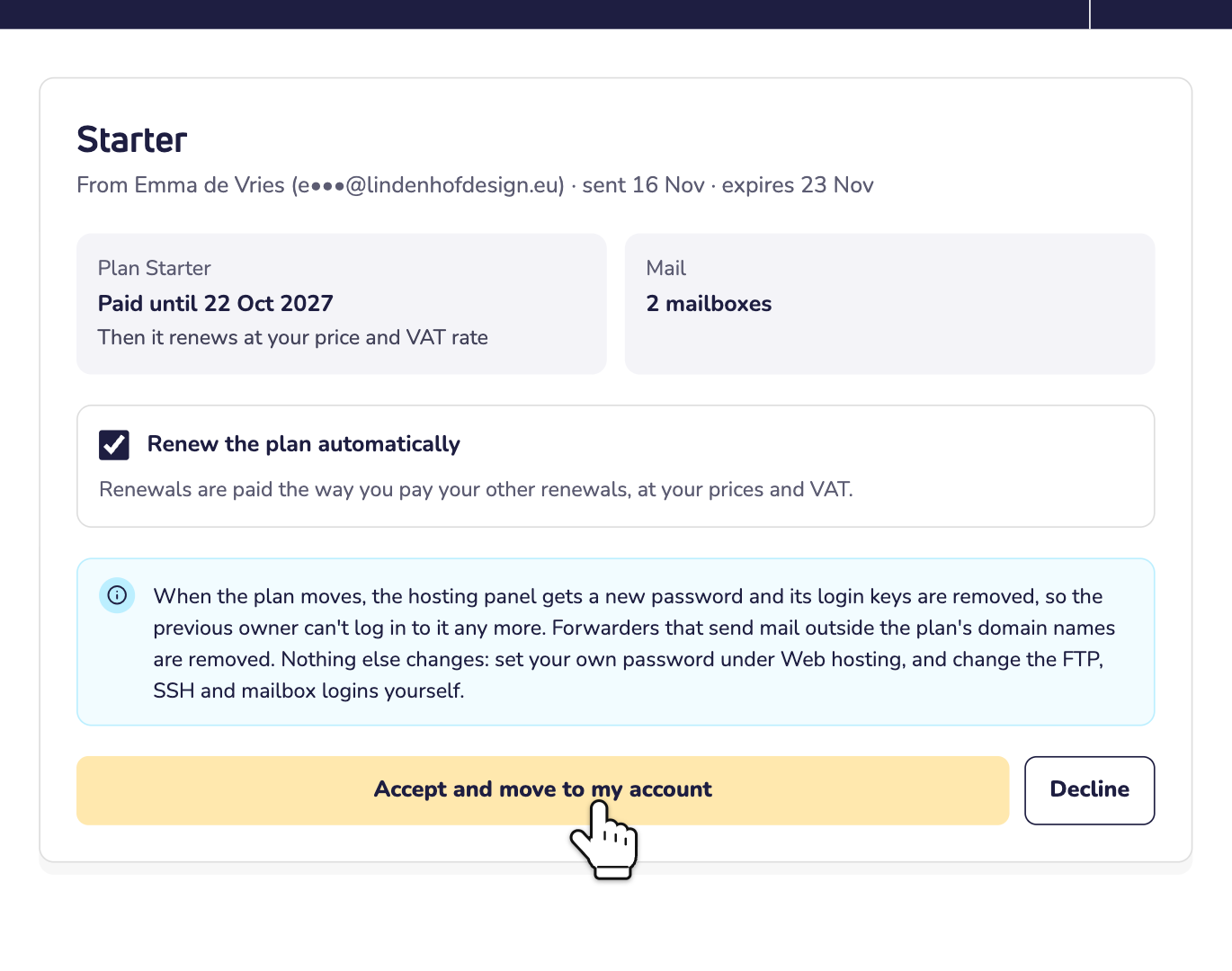
Step 7: User B chooses whether the plan renews automatically and clicks Accept and move to my account. Don't want it? Then click Decline. User A gets an email about it.
The plan moves to user B's account right away. User A and user B both get an email.
What changes after the move
- User B pays the renewals the way they pay their other renewals, at their own prices and VAT. The plan keeps its remaining paid time. Old invoices stay with user A. Read how the renewal of a plan works.
- The hosting panel gets a new password. Its old login keys are removed too. So user A can't log in to it anymore. User B sets their own password under Web hosting.
- Other logins stay the same. The FTP, SSH and mailbox passwords don't change. So user B changes them.
- Forwarders to outside addresses are removed. User B gets access to the mailboxes. Forwarders that send mail to addresses outside the plan's domain names stop.
- Security and Website Care emails go to user B from then on.
- No refunds. After the move, neither user can get a refund for the plan.
Can't send the request?
- Check the email address. It must be the address user B logs in with, and user B must have turned on the switch from step 1. For their privacy, we never say whether an address has an account.
- Is a domain name on the plan still yours? Then move that domain name, and take the plan along. For now, a plan can only move with one domain name. Are more of your domain names on the plan? Then our support team can move it for you.
- Does the plan expire within 30 days? Then it can't move yet. Renew it first.
- Does the plan have unpaid or open orders? Finish or cancel them first.
- Does the hosting account also host other websites? Websites of domain names that aren't on the plan would go along with it. Remove the ones you no longer need from the hosting panel, or ask our support team.
- Is there already a request? A plan can only have one at a time. Wait until it's done, or cancel it.