

Sold your business? Or does a client want to manage their own domain name? Then move the domain name to their Site.eu account. It stays with us: no transfer key and no transfer to another provider needed.
Two users take part in a move. In this guide, we call them:
- User A: has the domain name in their account now and moves it.
- User B: gets the domain name in their own account.
User A moves the domain name by giving it a domain holder from user B's account.
User B: get ready first
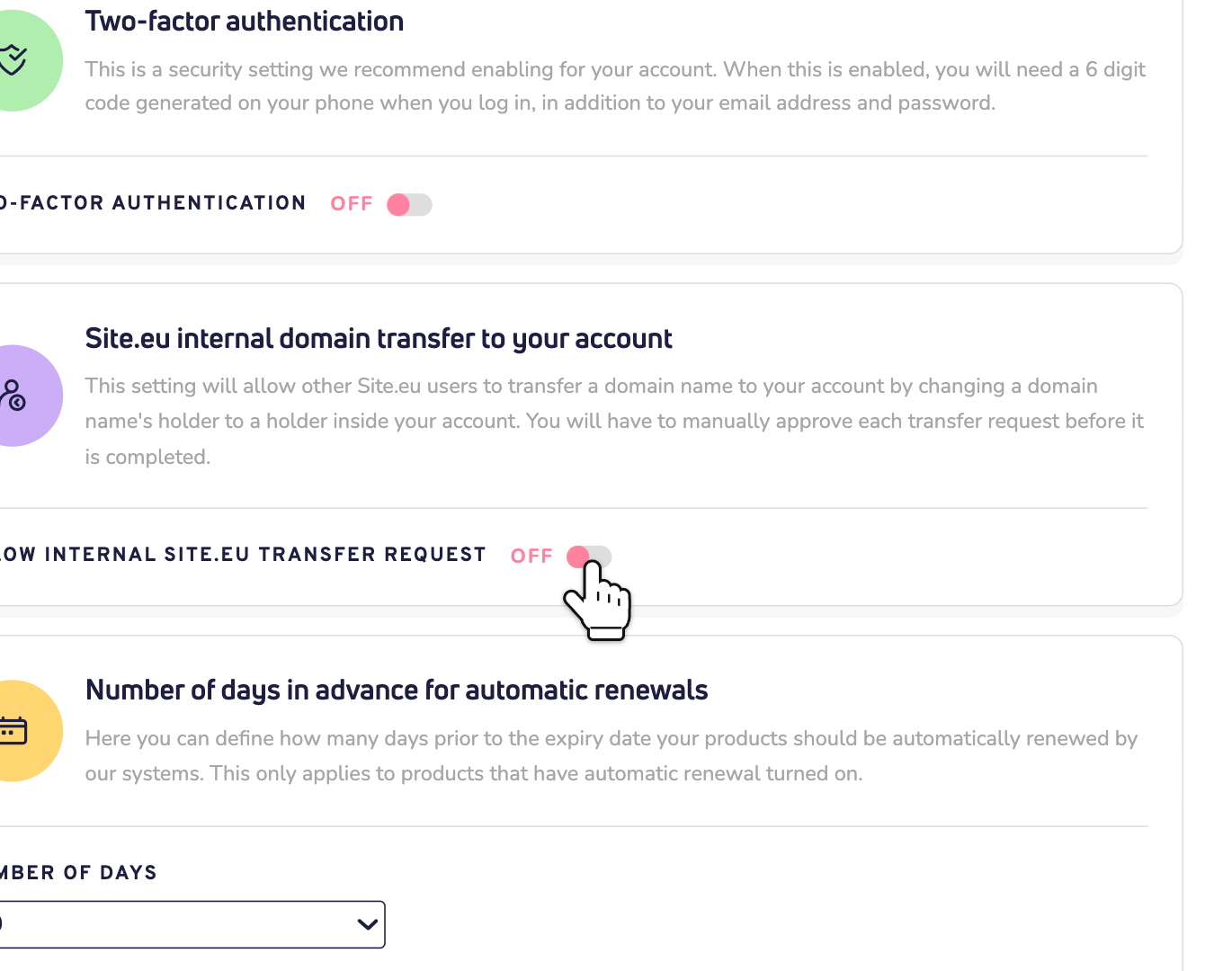
Step 1: User B allows internal moves. In their dashboard, user B goes to Settings, on the Your account tab. Under Site.eu internal domain transfer to your account, user B turns on the switch next to Allow internal Site.eu transfer request. It's off by default.
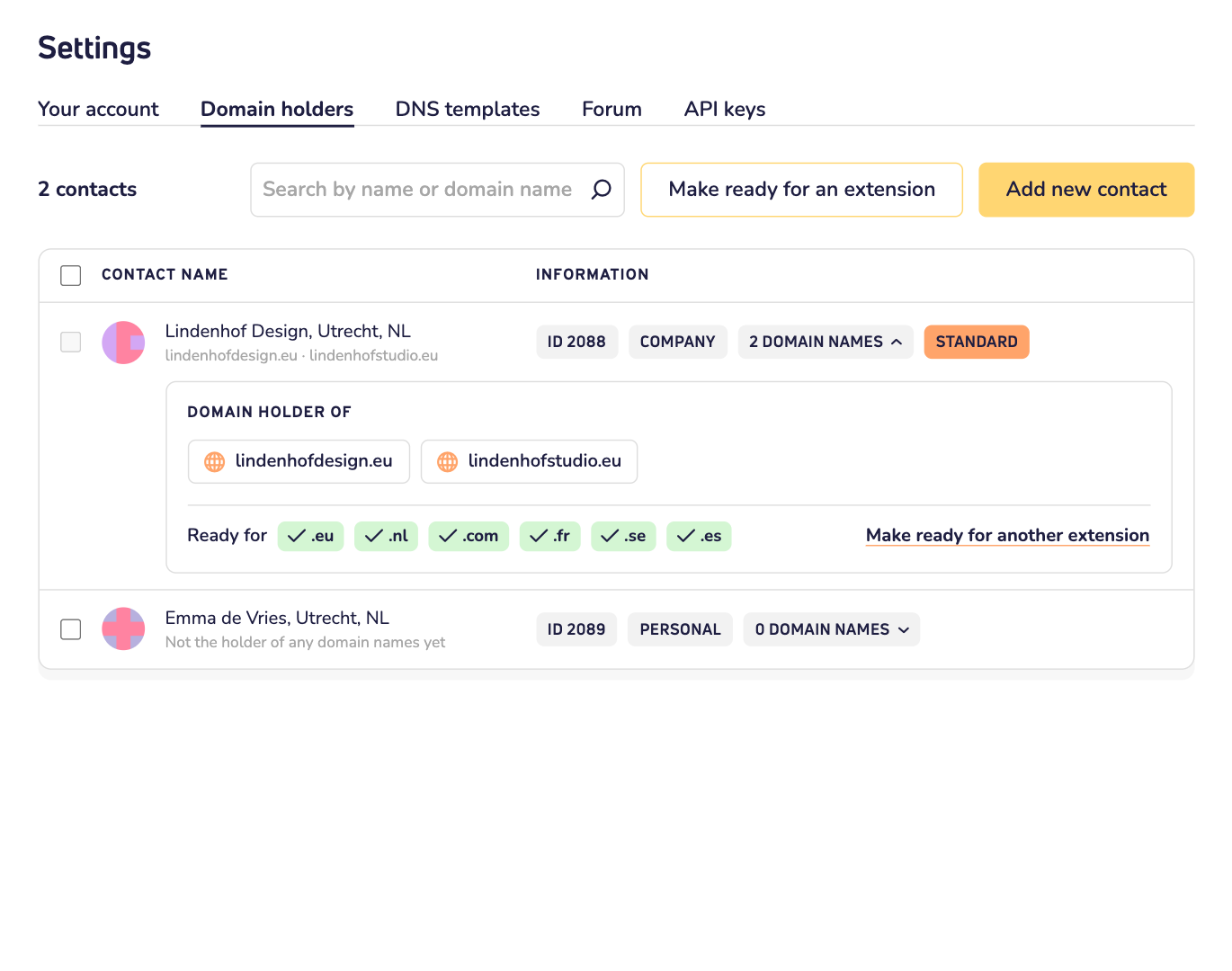
Step 2: User B makes the contact that becomes the new domain holder ready for the extension of the domain name, like .com or .es. Some extensions need extra details about the domain holder. Without them, the move can fail. Under Settings, in the Domain holders tab, user B clicks Make ready for an extension and fills in what's asked. Read how to make a contact ready for a domain extension.
Step 3: User B gives user A the ID of that contact. It's in the same tab: every contact shows its own ID, a number.
User A: move the domain name
Step 4: User A opens the domain name in their dashboard. They go to Domain settings and choose Domain holder. Then they click Change domain holder.
Step 5: Under Select domain holder, user A chooses Internal domain move to another user. They enter user B's contact ID in the field New domain name holder ID.
Step 6: User A clicks Request change. Does the extension charge for a change of domain holder? Then user A sees Add to shopping cart instead, and pays that first. Read whether changing the domain holder is free.
User B: approve the move
Step 7: User B gets an email to approve the move. They log in to their own account and click the link in the email. They have 24 hours. Until then, the domain name shows Waiting for approval from the other user in user A's dashboard.
After the approval, we change the domain holder at the registry. Once that's done, the domain name moves to user B's account. User A and user B both get an email.
Good to know
- The DNS records stay the same. So the website and email keep working during the move.
- Automatic renewal is on in user B's account. The tags user A added to the domain name are removed.
- The new domain holder may have to confirm their details. For many extensions, the registry then sends them an email with a confirmation link.
- Didn't work? Then check the contact ID, and whether user B has turned on internal moves and made the contact ready for the extension. Also check that the domain name is active.
Moving the domain name to another provider instead? Then you need the transfer key. Read how to request the transfer key.