
Most websites run on PHP, like WordPress. Does a plugin or theme need a newer version? Or is your website too old for the newest one? Then change the PHP version yourself in DirectAdmin. It takes a minute.
Tip: choose the newest version your website supports. It's faster and safer. Versions older than PHP 8.2 no longer get security updates from PHP itself.
First: which kind of server do you have?
We have two kinds of web hosting servers. They work a bit differently. Read more about choosing your web hosting server.
- LiteSpeed and Redis: for speed. They run the newer PHP versions: 8.1 up to 8.5.
- CloudLinux and Apache: all PHP versions, older ones too, from 5.6.
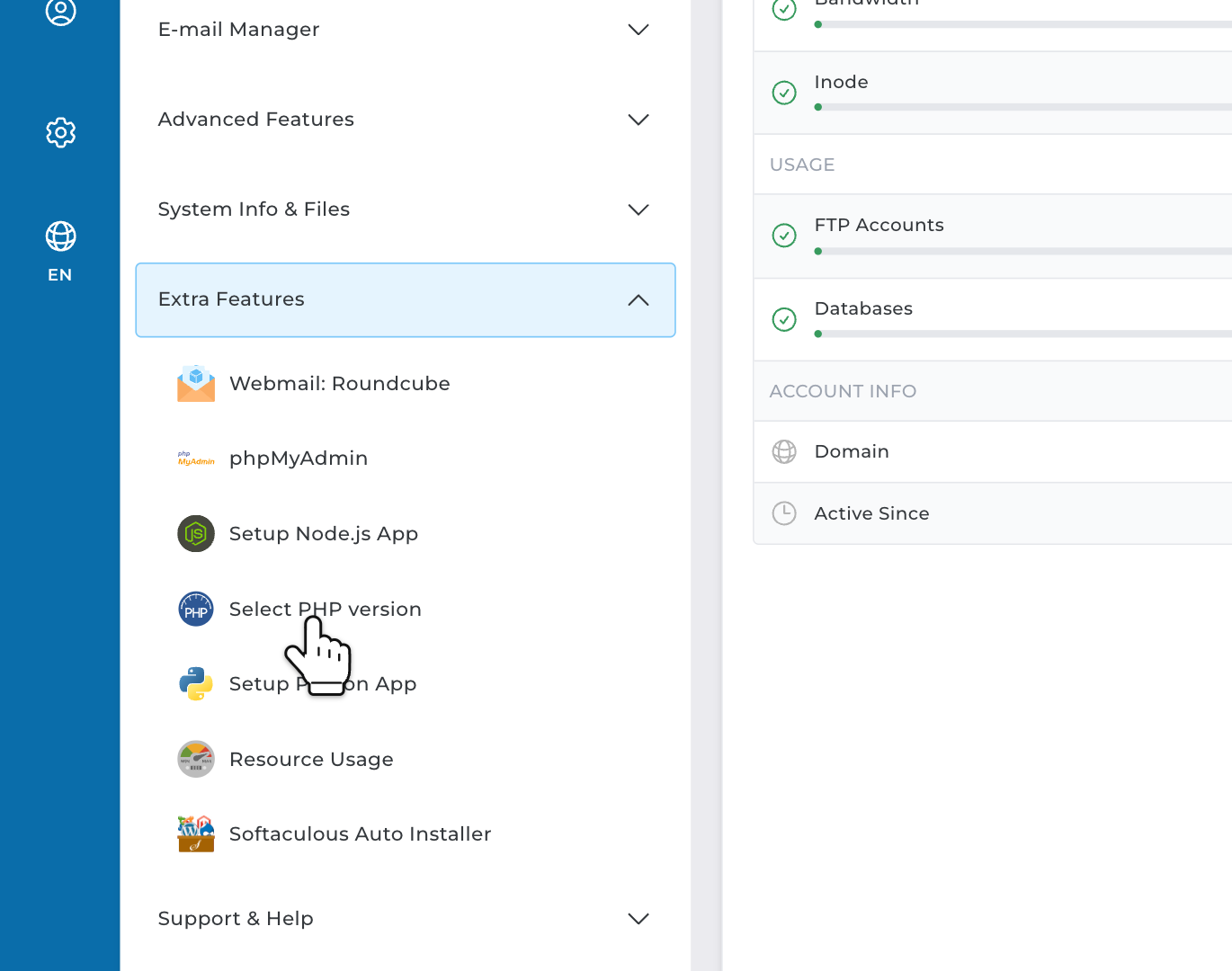
Not sure? Log in to DirectAdmin and open Extra Features in the menu. Do you see Select PHP version there? Then you're on a CloudLinux server. Otherwise, you're on a LiteSpeed server.
On a LiteSpeed server: PHP Settings
Step 1: In DirectAdmin, search for PHP Settings and open it. At the top, check that the right domain name is selected.
Step 2: Click the field under PHP Version and choose the version you want. Then click UPDATE VERSION. Your website uses the new version straight away.
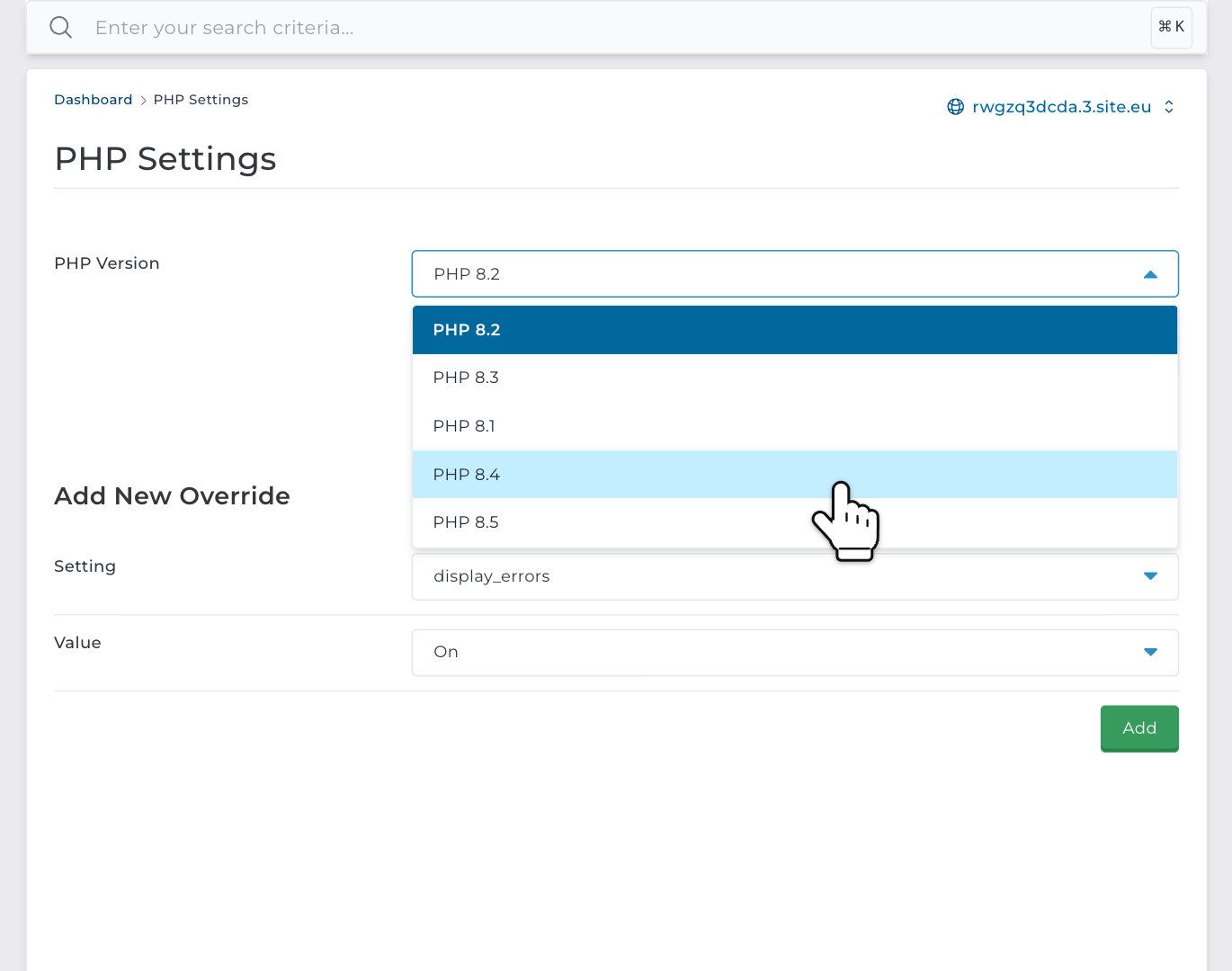
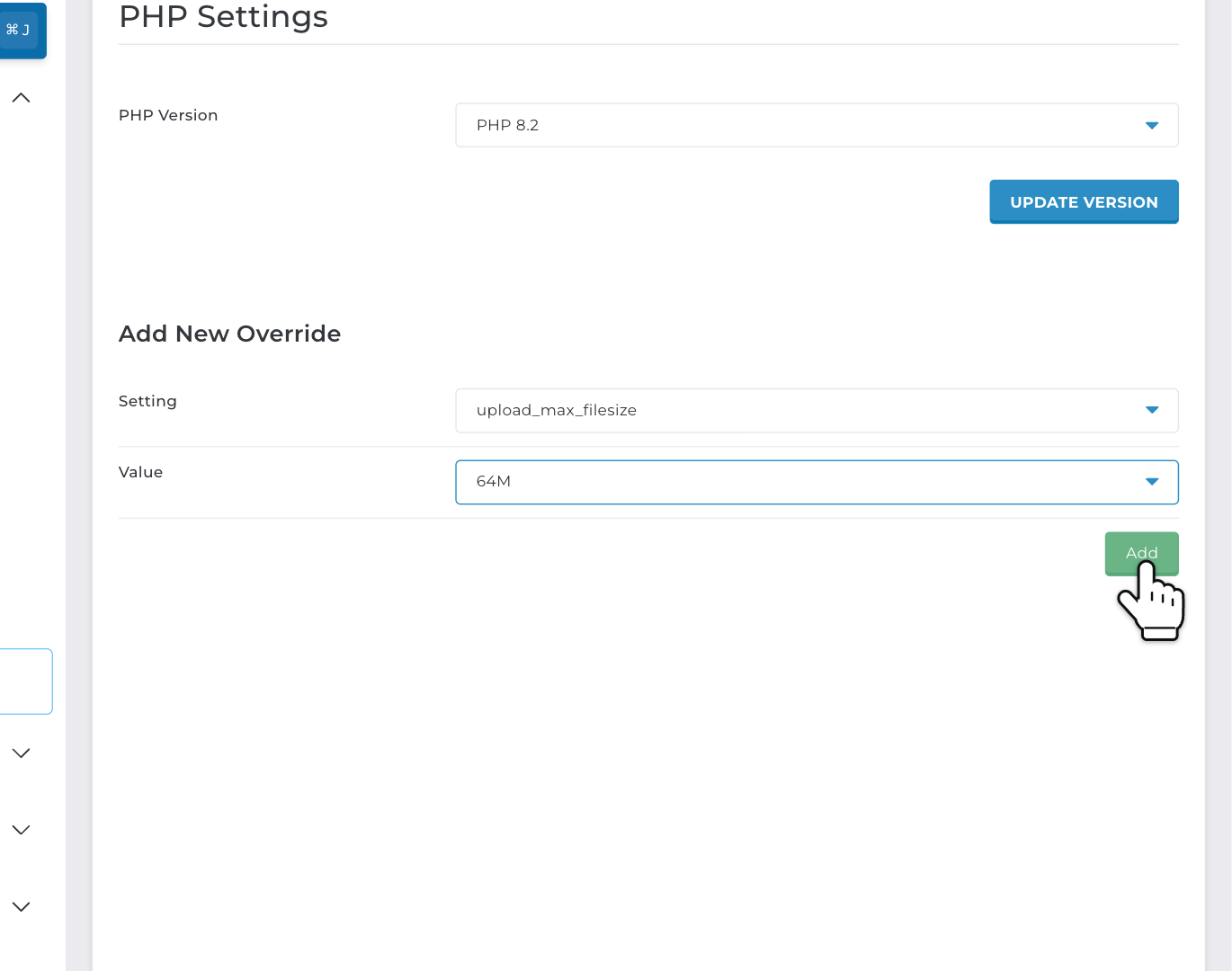
Need to change a PHP setting? Use Add New Override on the same page. Choose a setting, like upload_max_filesize, post_max_size, memory_limit or max_execution_time. Pick a value, for example 64M, and click Add.
What about extensions? On LiteSpeed servers, the extensions most websites need are already on. Think of curl, mysqli, PDO, gd, imagick, intl, mbstring, zip, soap, redis, OPcache and ionCube Loader. You don't have to turn anything on. Missing one? Contact us by WhatsApp, Telegram or email.
On a CloudLinux server: Select PHP version
Step 1: In DirectAdmin, open Extra Features and click Select PHP version.
Step 2: Click the field next to PHP version and choose a version, for example 8.3. You now see its extensions. The ones most websites need are already ticked. Tick any extra ones you need.
Step 3: Click Apply. Done!
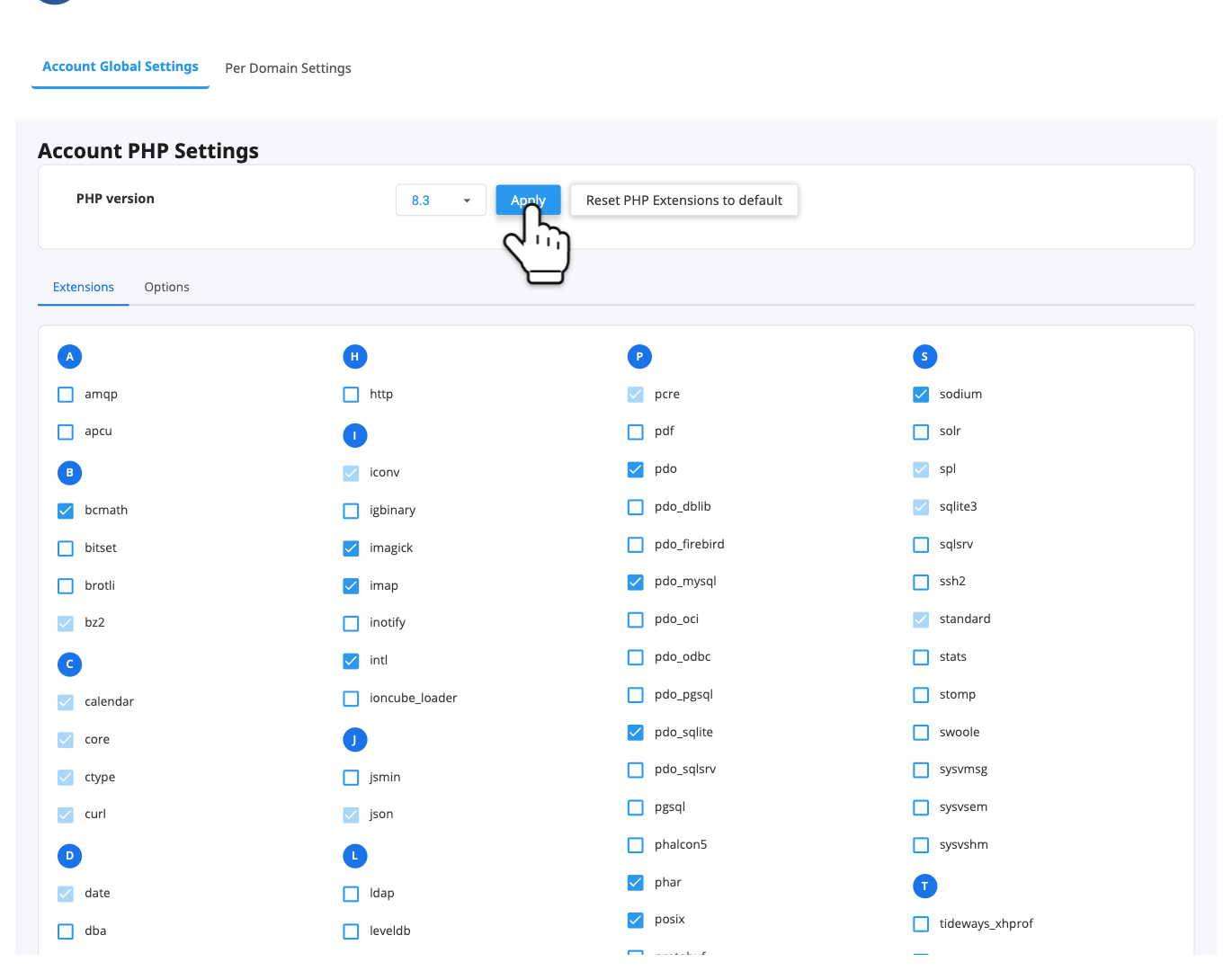
Good to know about CloudLinux servers:
- "native" is the server's own PHP version. With it, you can't change extensions or options. So choose a version number instead.
- Under Options, you change PHP settings, like the upload limit. Read how to increase the PHP upload limit.
- Want a different version for each website? Use the tab Per Domain Settings.
After the change
Open your website and check that everything still works. Use WordPress? Then go to Tools and Site Health in WordPress. It shows the PHP version your website now runs on. Something broken? Switch back to the version you had, and update your plugins and theme first.