
Our prices are shown without VAT. We add the VAT at checkout. How much depends on where you live, and whether you order as a business. Here's how it works, and how to add your VAT number.
How much VAT do you pay?
- In the Netherlands: always 21% Dutch VAT. That counts for businesses too, with or without a VAT number.
- Private customer in another EU country: the VAT of your own country. For example 19% in Germany, 20% in France and 21% in Belgium and Spain.
- Business in another EU country: 0% VAT, if you give us your company name and a valid VAT number. You then declare the VAT yourself (reverse charge).
- Outside the EU: no VAT. The Canary Islands count as outside the EU too.
We go by the country in your billing details. So make sure your address is correct.
When is a VAT number valid?
We check every VAT number in VIES, the EU's own VAT database. Is the number not active there? Then we charge VAT as for a private customer. You won't see an error message. So check your number in VIES first if you're not sure.
We check the numbers again every month. If yours is no longer valid, we charge VAT again from then on.
Add your VAT number when you order
Step 1: Go to your cart and continue to Billing details.
Step 2: Under Billing address, click add company name. Fill in your Company name and VAT number.
Step 3: Check the total. It's updated right away. With a valid VAT number from another EU country, the VAT is 0%.
A VAT number always needs a company name. Without one, you can't continue.
Add your VAT number to an existing contact
Your billing details are saved as a contact. You can add or change the VAT number there.
Step 1: Go to Settings and open the Domain holders tab. Click the contact.
Step 2: Click Change details, fill in the VAT number and click Save details.
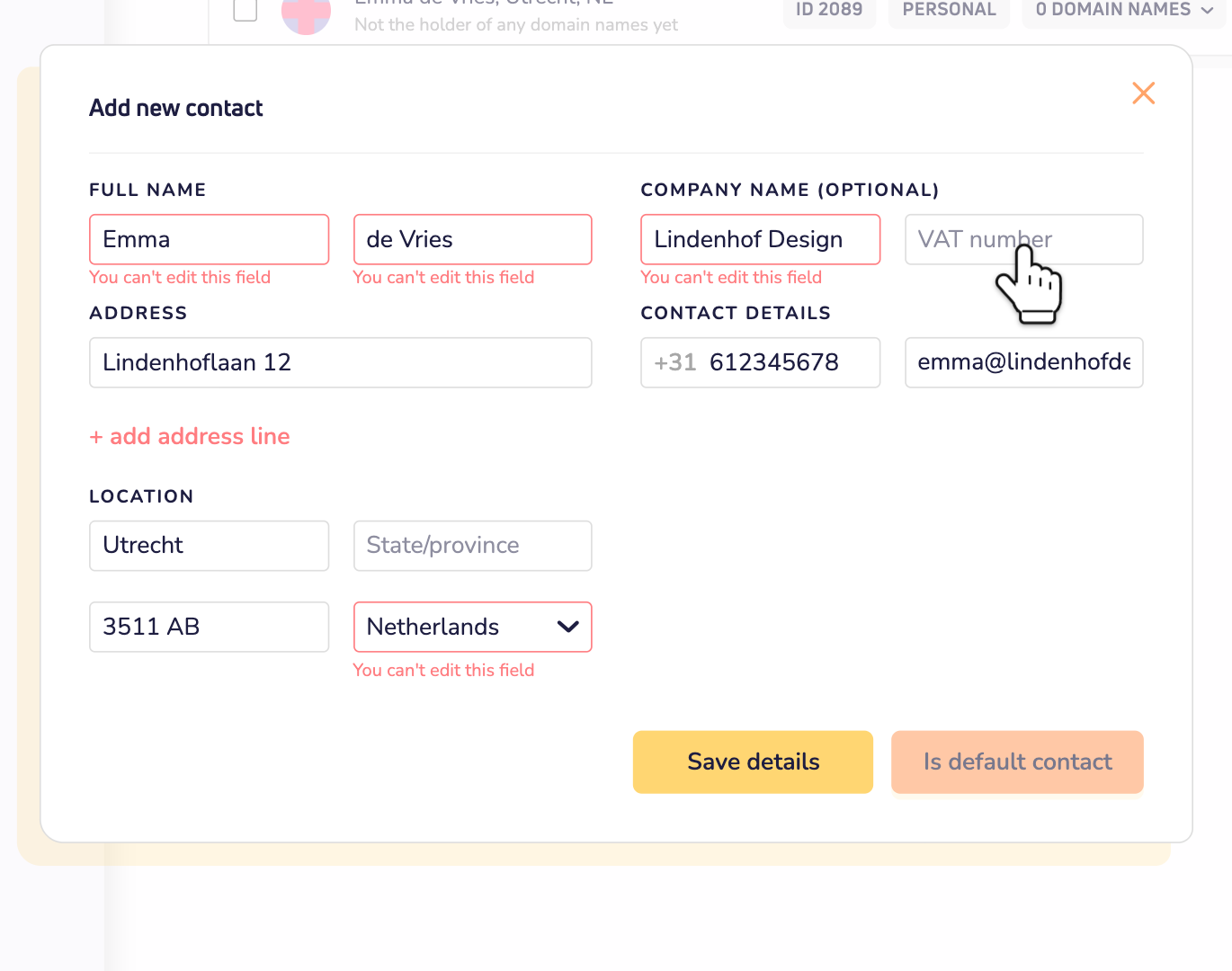
Is the contact a private person, without a company name? Then you can't add a company name later. Add a new contact with your company name and VAT number instead: click Add new contact.
Which contact counts for renewals?
For an order, we use the billing details you choose at checkout. For automatic renewals, we use your default contact. So is your business contact the one you want on your invoices? Make it your default: click the contact and then Make default. Read more about contacts and your default contact.
Good to know
- Invoices stay as they are. A new VAT number only counts for new orders and renewals. We can't change the VAT on an invoice you've already paid. So add your VAT number before you pay.
- Your invoice shows it all: your company name, your VAT number, and the VAT rate and amount. Read where to find your invoices.
- The VAT setting at the bottom of our website only changes how prices are shown there. It doesn't change what you pay.