

Do you work with an AI assistant, such as Claude, ChatGPT or Cursor? Then connect it to your Site.eu account. Ask it "Which of my domain names expire this month?" or "Add this TXT record to my domain name". It looks it up or makes the change for you.
That works through MCP, the Model Context Protocol. It's an open standard that lets an AI assistant use the tools of other services. Our MCP server gives your assistant tools for your domain names, DNS, email, invoices and orders. You decide which ones, with an API key.
What can your assistant do?
Every tool needs its own permission on your API key. Your assistant only sees the tools you allow.
Look things up. These tools change nothing:
- Your domain names, with their DNS records, email addresses and log book
- Your domain name orders and their status
- Your invoices, also as PDF, and your wallet balance
- How much disk space and traffic your web hosting uses
- The spam filter setting and the DNSSEC of a domain name
Make changes. These tools change your account right away:
- DNS records, name servers and DNSSEC
- Email addresses: create them, change a password or forwarding address, delete them, or import email from another mailbox
- How strict the spam filter is
- Link a domain name to a plan, or unlink it
- Add external domain names, cancel a domain name order that's still waiting, and turn monthly invoicing on or off
Order and pay. Register, transfer, renew and restore domain names. Order, renew and restore plans. Your assistant pays these from your wallet, right away, and you can't undo them. They work like ordering domain names with the API and ordering plans with the API.
Create an API key for your assistant
Make a separate key for your assistant. Then you can stop it any time, without breaking anything else. New to API keys? Read how to get started with the API.
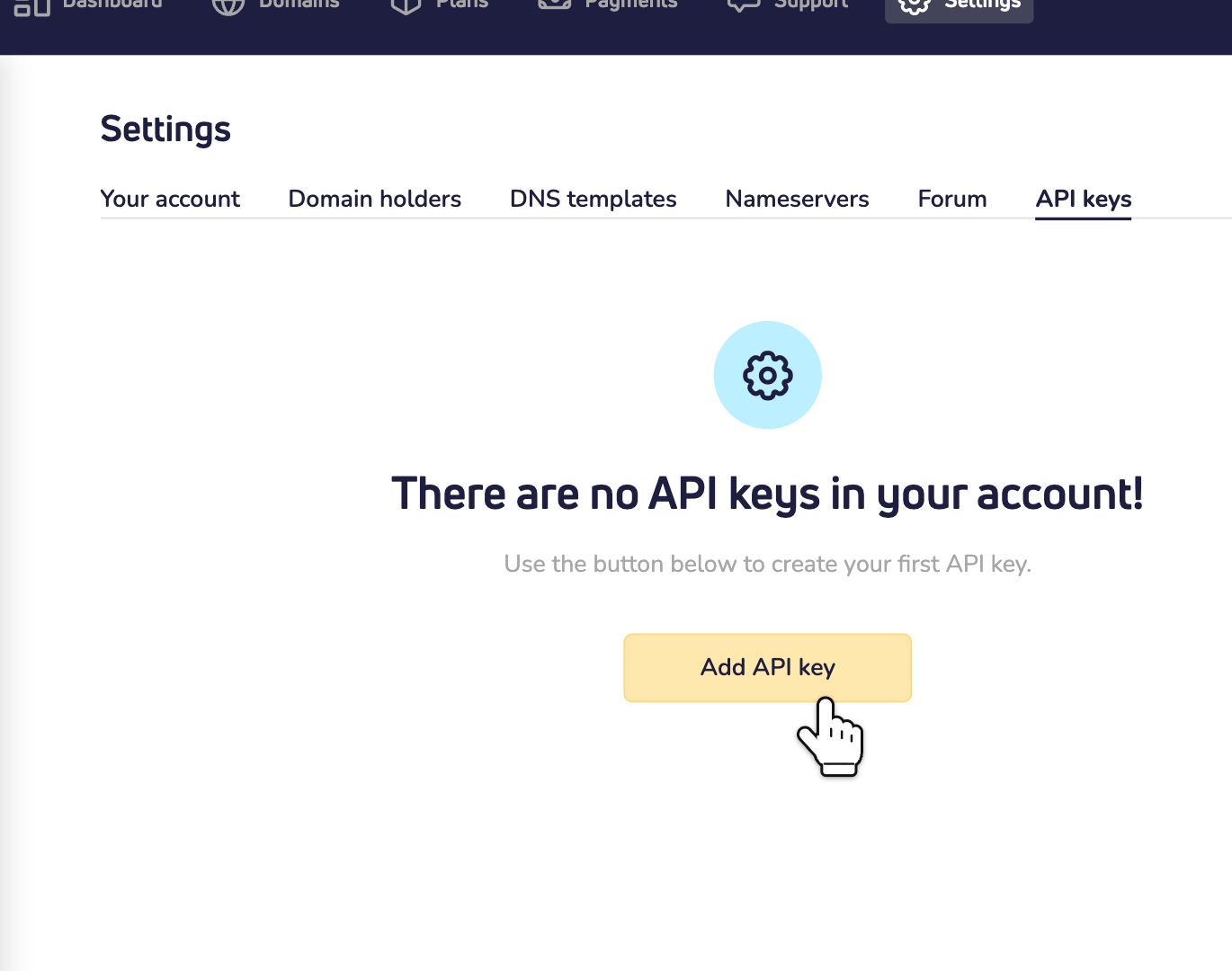
Step 1: Log in to your dashboard and go to Settings, on the API keys tab. Click Add API key.
Step 2: Give the key a name, such as "AI assistant". Open MCP Tools and tick what your assistant may do. Leave API Endpoints empty. Your assistant doesn't need it.
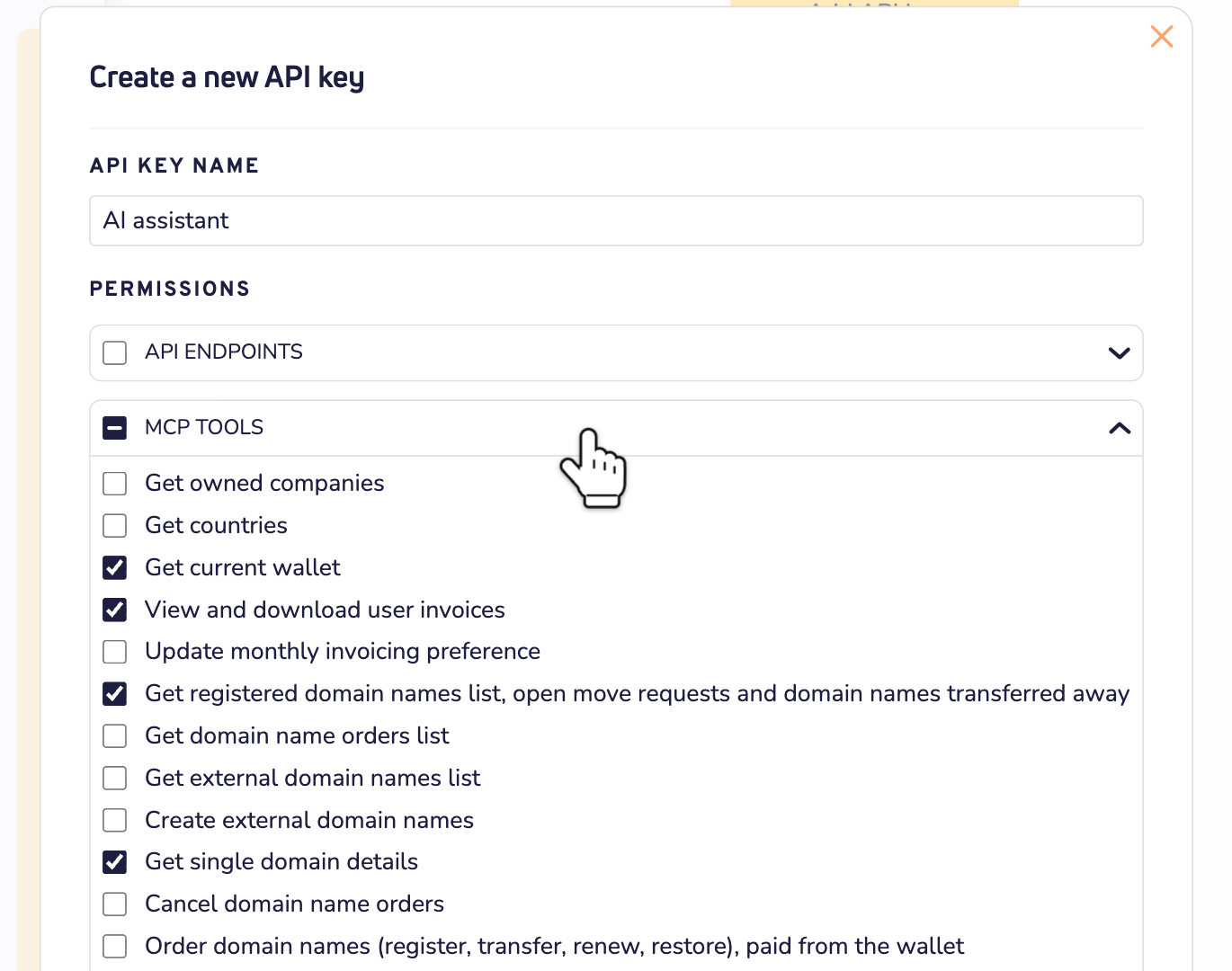
Not sure what to tick? Start with tools that only look things up, such as Get registered domain names list and Get single domain details. You can add more later.
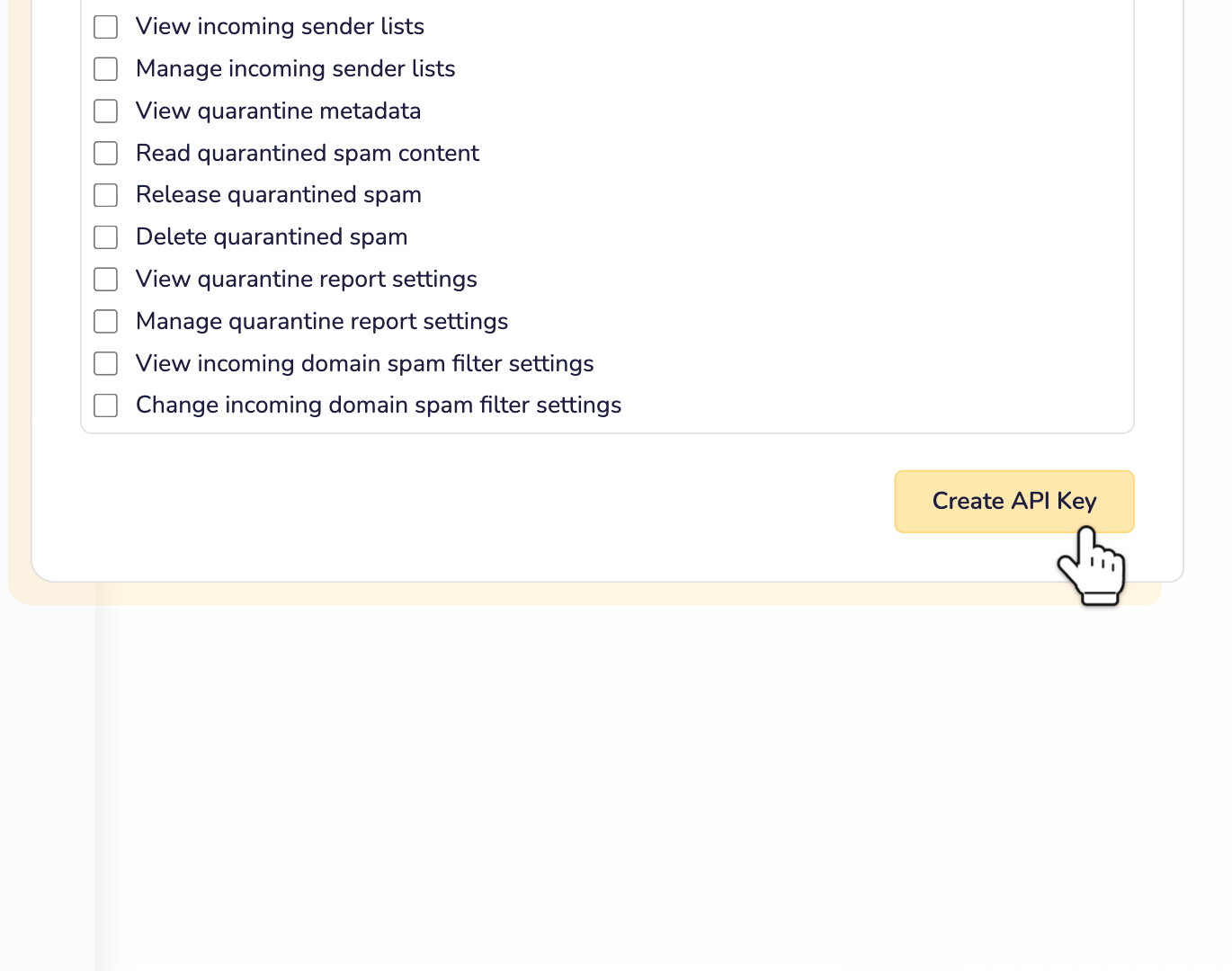
Step 3: Click Create API Key at the bottom.
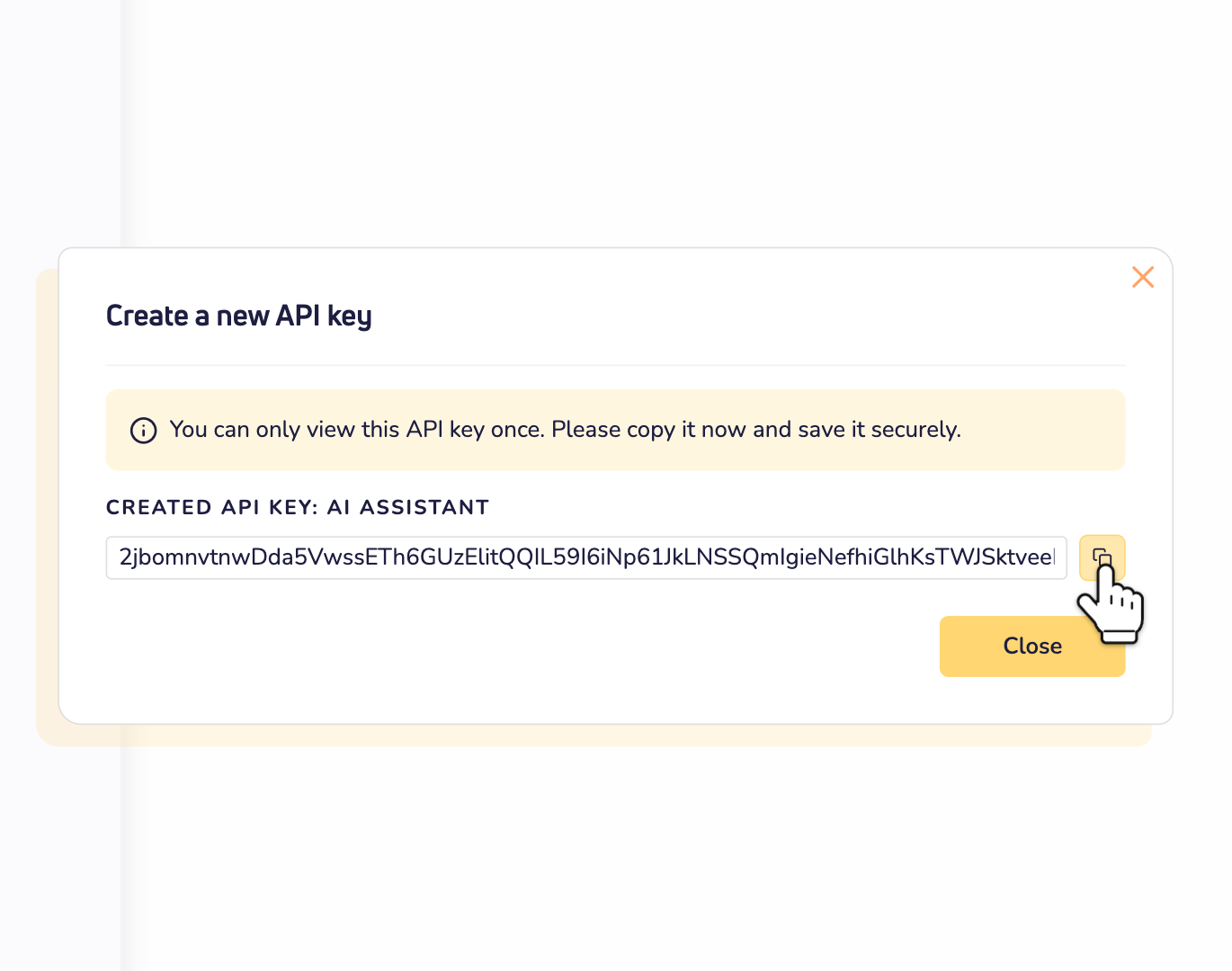
Step 4: Copy the key and keep it somewhere safe. You only see it once.
Connect your assistant
Every AI app needs two things: the address of our MCP server and your API key.
https://backend.site.eu/v2/mcpYour app sends the key in a header called X-API-Key. Can't your app add a header? Then put the key at the end of the address, like this: https://backend.site.eu/v2/mcp?api_key=your-API-key. Keep that address private. Anyone who has it can use your key.
Claude
Go to Customize and then Connectors. Click + Add and choose Add custom connector. Enter a name and our address and click Continue. Under Authentication, choose No sign in. Under Request headers, add X-API-Key with your API key. Then click Add. In a chat, turn the connector on under + and Connectors.
Adding it for a Claude team? Then everyone in the team uses your key, so they can all do what your key allows.
Claude Code
claude mcp add --transport http site https://backend.site.eu/v2/mcp --header "X-API-Key: your-API-key"Cursor
In Cursor, add an MCP server to ~/.cursor/mcp.json for all your projects, or to .cursor/mcp.json in one project. Use site as its name, https://backend.site.eu/v2/mcp as its url, and your key in the header X-API-Key. Cursor's own guide shows the exact format: MCP in Cursor.
ChatGPT
In ChatGPT, you add your own MCP server in developer mode. Not every plan has it. ChatGPT can't send our header. So choose No authentication, and use the address with your key at the end.
Using another app? Any app that connects to MCP servers over HTTP works. Use our address and send your key in the X-API-Key header.
Use it safely
- Your assistant acts as you. Everything it does is real, just like in your dashboard. There's no test mode.
- Only allow what you need. Leave the order permissions off, unless you want your assistant to order and pay.
- Read before you allow. When your assistant wants to change something, check what it's about to do.
- Copy the key exactly. After 3 wrong keys within 24 hours, we block the IP address they came from for 72 hours.
- Change what it may do. Click the key in the list, change its permissions and save. Then connect your assistant again, so it sees the new tools.
- Stop it any time. Delete the key on the API keys tab. Your assistant can't reach your account anymore.