

A cron job runs a command for you on a fixed schedule. Every night, every hour or every 15 minutes. You set it up once in DirectAdmin, and the server does the rest. Even when your computer is off.
What do people use it for? For example:
- running a PHP script every night, such as a cleanup or an export
- opening a web address on a schedule, such as the cron link of a webshop
- running the scheduled tasks of WordPress on time
Before you start
To open DirectAdmin, go to Dashboard, select your plan, and open Web hosting. Then click Log in automatically. Read more about logging into DirectAdmin.
Create a cron job
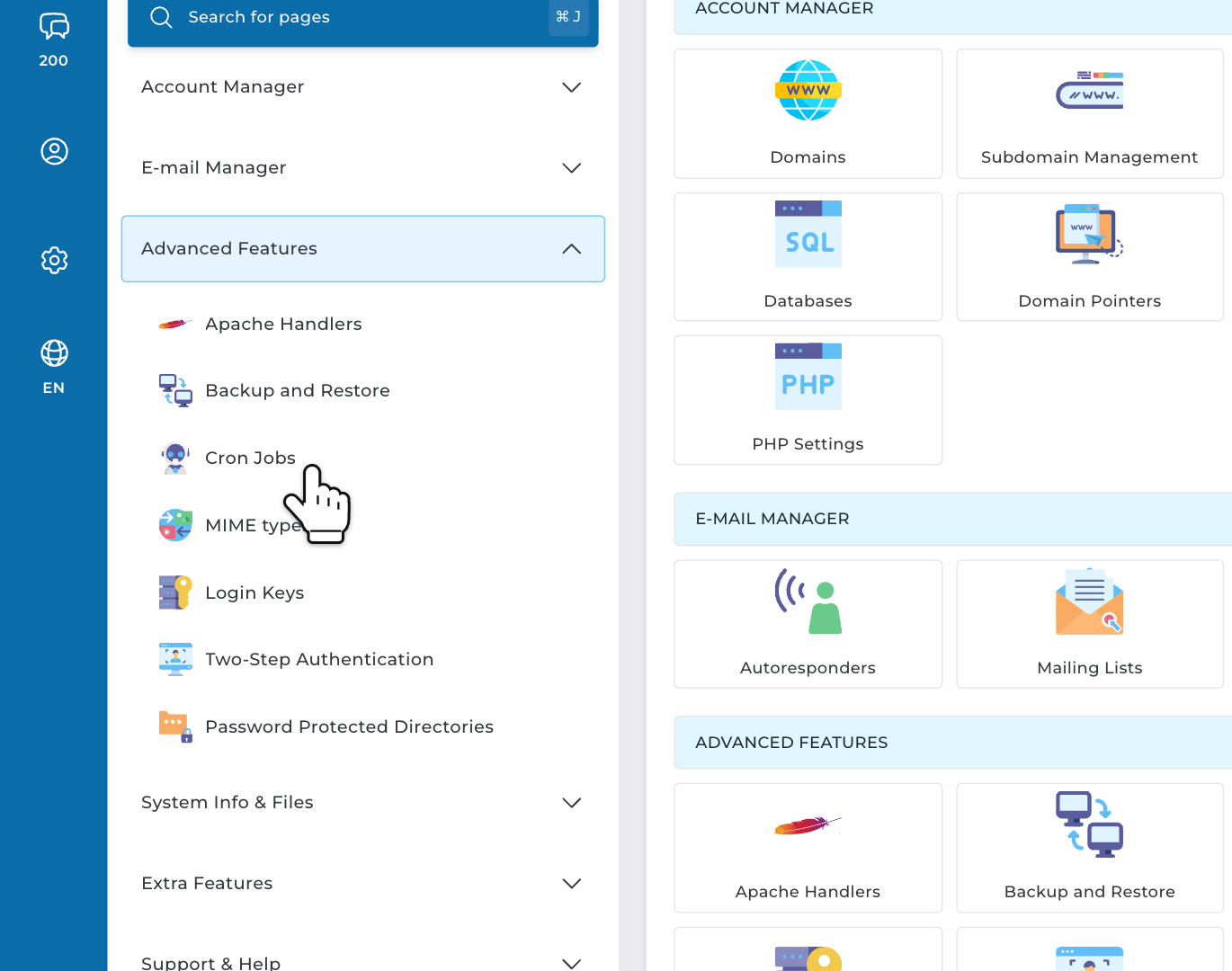
Step 1: In DirectAdmin, open Advanced Features in the menu. Click Cron Jobs.
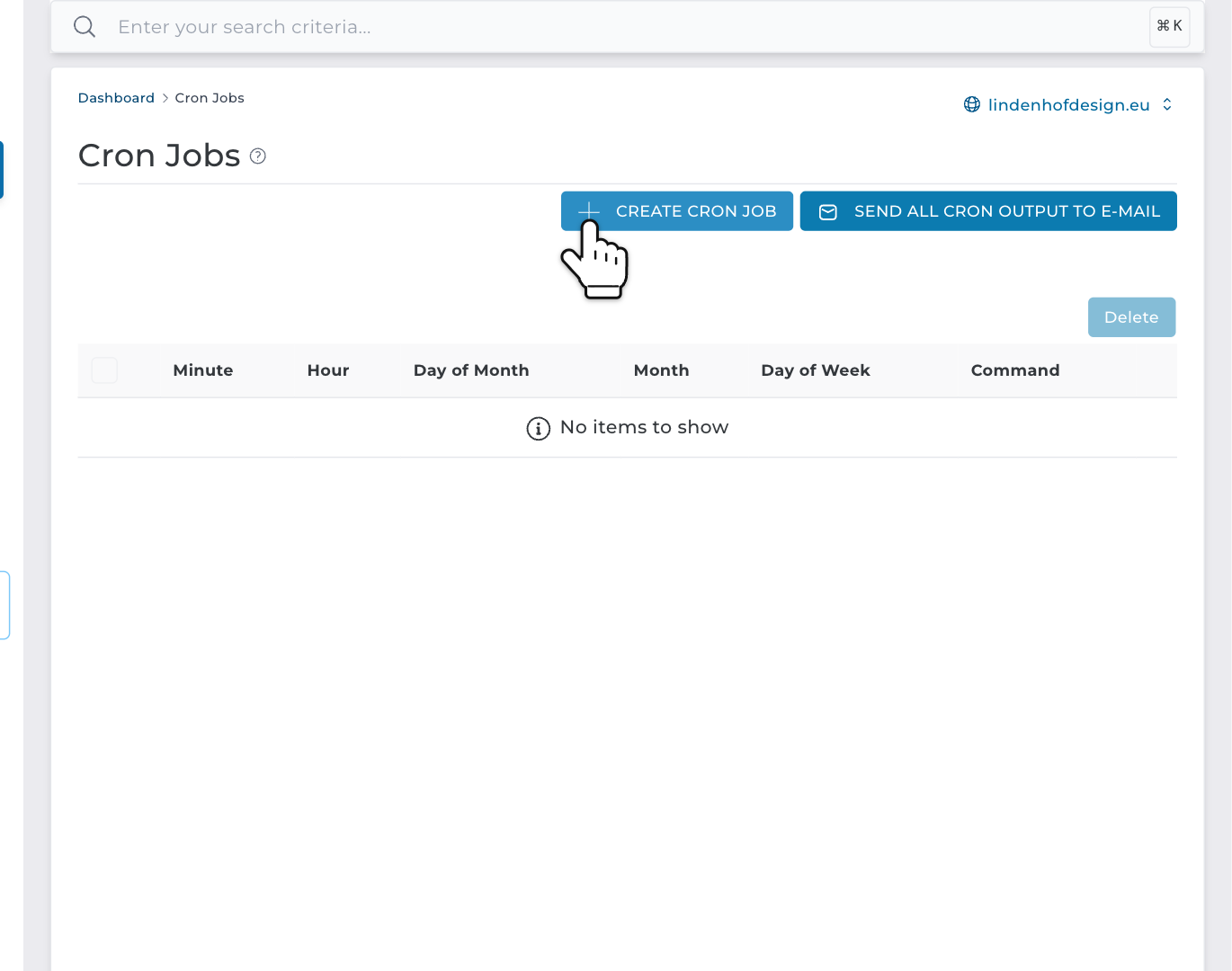
Step 2: Click CREATE CRON JOB.
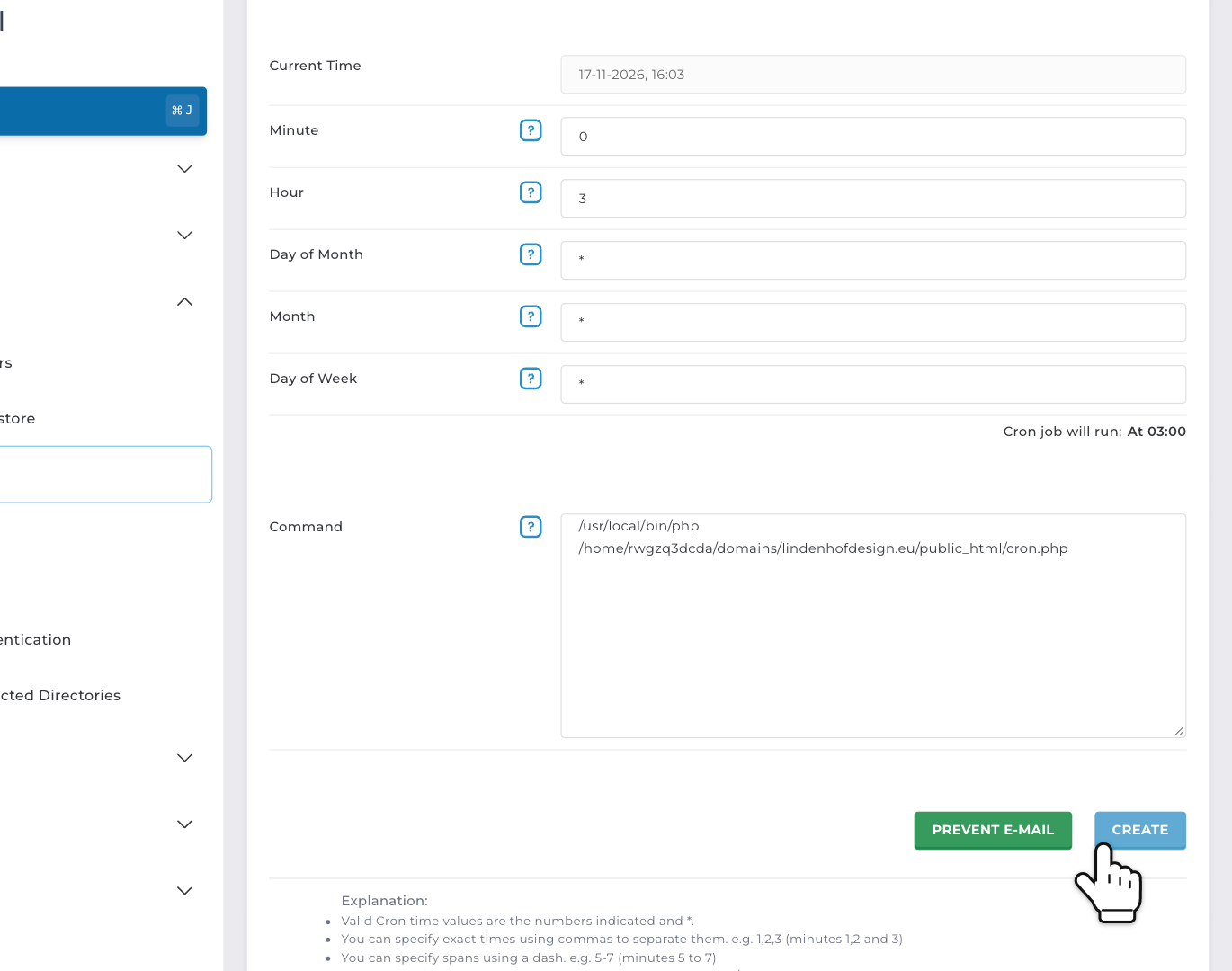
Step 3: Fill in when the job runs: Minute, Hour, Day of Month, Month and Day of Week. Next to Cron job will run, DirectAdmin shows your schedule in words. Check it. Then type the Command and click CREATE.
Your cron job is now in the list. It runs the next time the schedule matches.
Careful: every field starts with a *. Leave them all like that, and your job runs every minute.
The five time fields
Each field says when the job may run. A * means "every". So 0 3 * * * means: at minute 0 of hour 3, every day. In other words, every night at 3:00.
- Minute: 0 to 59
- Hour: 0 to 23
- Day of Month: 1 to 31
- Month: 1 to 12
- Day of Week: 0 to 7. Both 0 and 7 are Sunday, 1 is Monday.
You can also fill in more than one value:
- A list: 1,15 in Day of Month means the 1st and the 15th.
- A range: 1-5 in Day of Week means Monday to Friday.
- Every so many: */15 in Minute means every 15 minutes.
The times follow the server's clock (Dutch time), not the clock of your computer. Current Time at the top of the form shows what time it is now.
Good to know: did you fill in both Day of Month and Day of Week? Then the job runs when either one matches. So 1 in Day of Month and 1 in Day of Week runs on the 1st of the month and on every Monday.
Examples you can copy
Minute, Hour, Day of Month, Month and Day of Week, in that order:
- */5 * * * *: every 5 minutes
- */15 * * * *: every 15 minutes
- 0 * * * *: every hour, on the hour
- 30 2 * * *: every night at 2:30
- 0 8 * * 1-5: Monday to Friday at 8:00
- 0 6 * * 1: every Monday at 6:00
- 0 0 1 * *: on the 1st of every month at midnight
Which command do you use?
Under the form, DirectAdmin shows sample commands with your own username and domain name. Copy the path from there, so you don't make a typo.
Run a PHP script
/usr/local/bin/php /home/username/domains/yourdomain.com/public_html/cron.phpReplace username with your DirectAdmin username and yourdomain.com with your domain name. Always use full paths. A cron job doesn't start in your website's folder.
/usr/local/bin/php is the full path to PHP on our servers. On a CloudLinux server, it runs the PHP version you chose under Select PHP version. On a LiteSpeed server, it runs the server's standard version, which can differ from your website's. There, use the path with your website's version in it, for example /usr/local/php83/bin/php for PHP 8.3. Not sure which server or version you have? Read how to change your website's PHP version.
Want your script to run with exactly the same PHP version and settings as your website? Then let the cron job open it through its web address. See below.
Open a web address
Does your script also work in the browser, such as the cron link of a webshop? Then let the cron job open that address:
wget -q -O /dev/null https://yourdomain.com/cron.phpOr with curl:
curl --silent https://yourdomain.com/cron.php > /dev/nullThis runs the script just like a visitor would. So it uses your website's own PHP version and settings. The -q, --silent and /dev/null parts keep the command quiet, so it doesn't send you an email on every run.
WordPress: replace WP-Cron with a real cron job
WordPress has its own scheduler, WP-Cron. It publishes scheduled posts, checks for updates and runs plugin tasks. But WP-Cron only runs when someone opens a page of your website. No visitors at 2:00? Then a task planned for 2:00 waits until the next visitor. And on a busy website, WP-Cron checks its list on every page load.
A real cron job fixes both. Here's how:
1. Turn off WP-Cron. Open wp-config.php in the folder of your website, for example with the File Manager in DirectAdmin. Add this line above the line that starts with /* That's all, stop editing!:
define( 'DISABLE_WP_CRON', true );2. Create a cron job that opens wp-cron.php every 15 minutes. Fill in */15 in Minute and * in the other fields. As the command, use:
wget -q -O /dev/null https://yourdomain.com/wp-cron.phpDon't skip step 2. Without a cron job, WP-Cron stays off, and your scheduled posts and updates no longer run.
Cron job emails
A cron job can email you what the command printed. Handy to see if it works, or why not. Until you set an address, you get no emails.
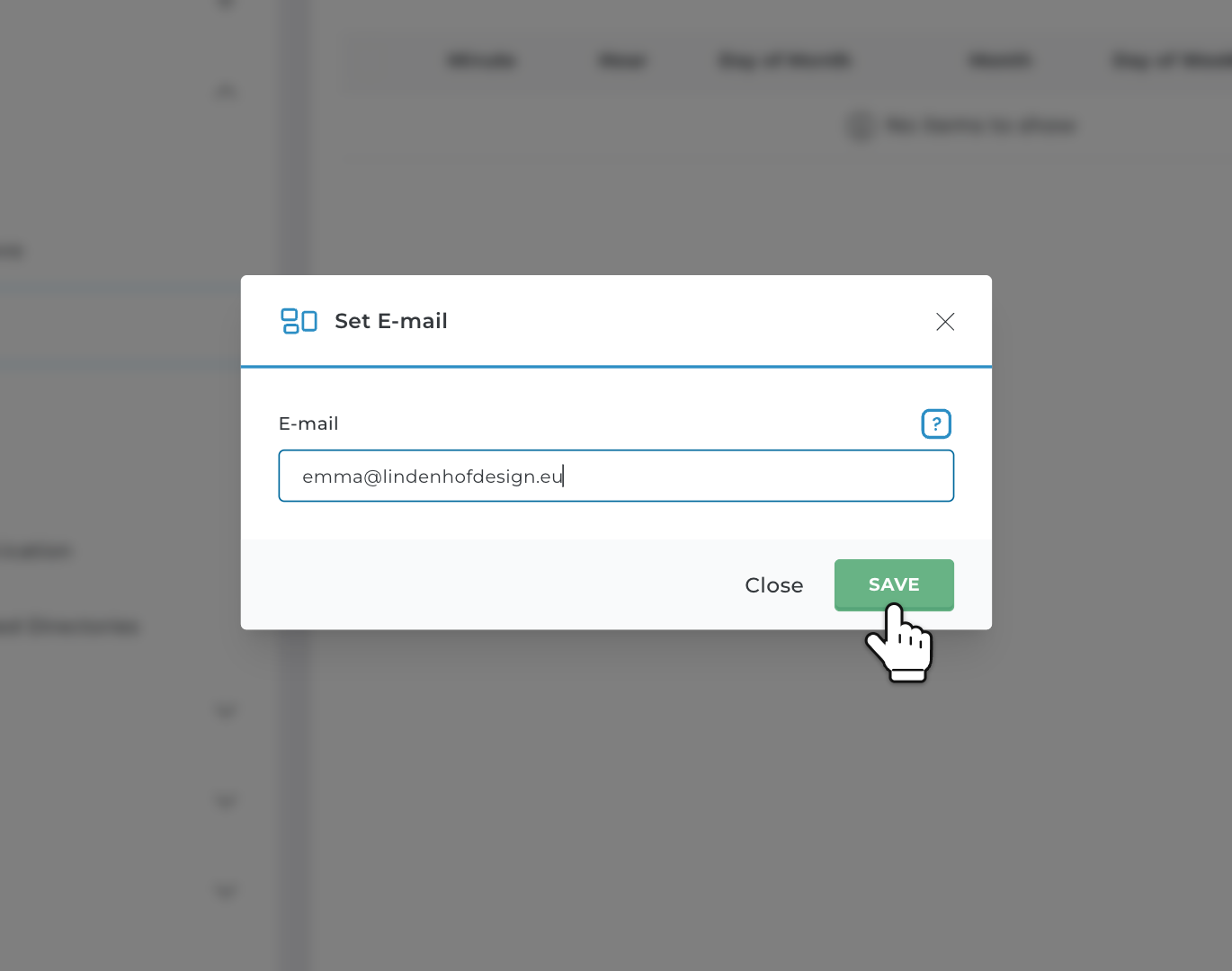
- Turn emails on: on the Cron Jobs page, click SEND ALL CRON OUTPUT TO E-MAIL. Enter your email address and click SAVE. This counts for all your cron jobs.
- No emails for one job: in the form, click PREVENT E-MAIL. DirectAdmin adds >/dev/null 2>&1 to the command. Now that job doesn't print anything, so nothing is sent.
- All emails off again: empty the address and click SAVE.
Watch out with jobs that run often. A job every 5 minutes can send 288 emails a day.
How often can a cron job run?
DirectAdmin lets you run a job every minute. But most tasks don't need that. Every 5 or 15 minutes is plenty for most websites. A cron job uses the resources of your hosting account, just like your website does. A heavy job that runs every minute can make your website slower.
Change or delete a cron job
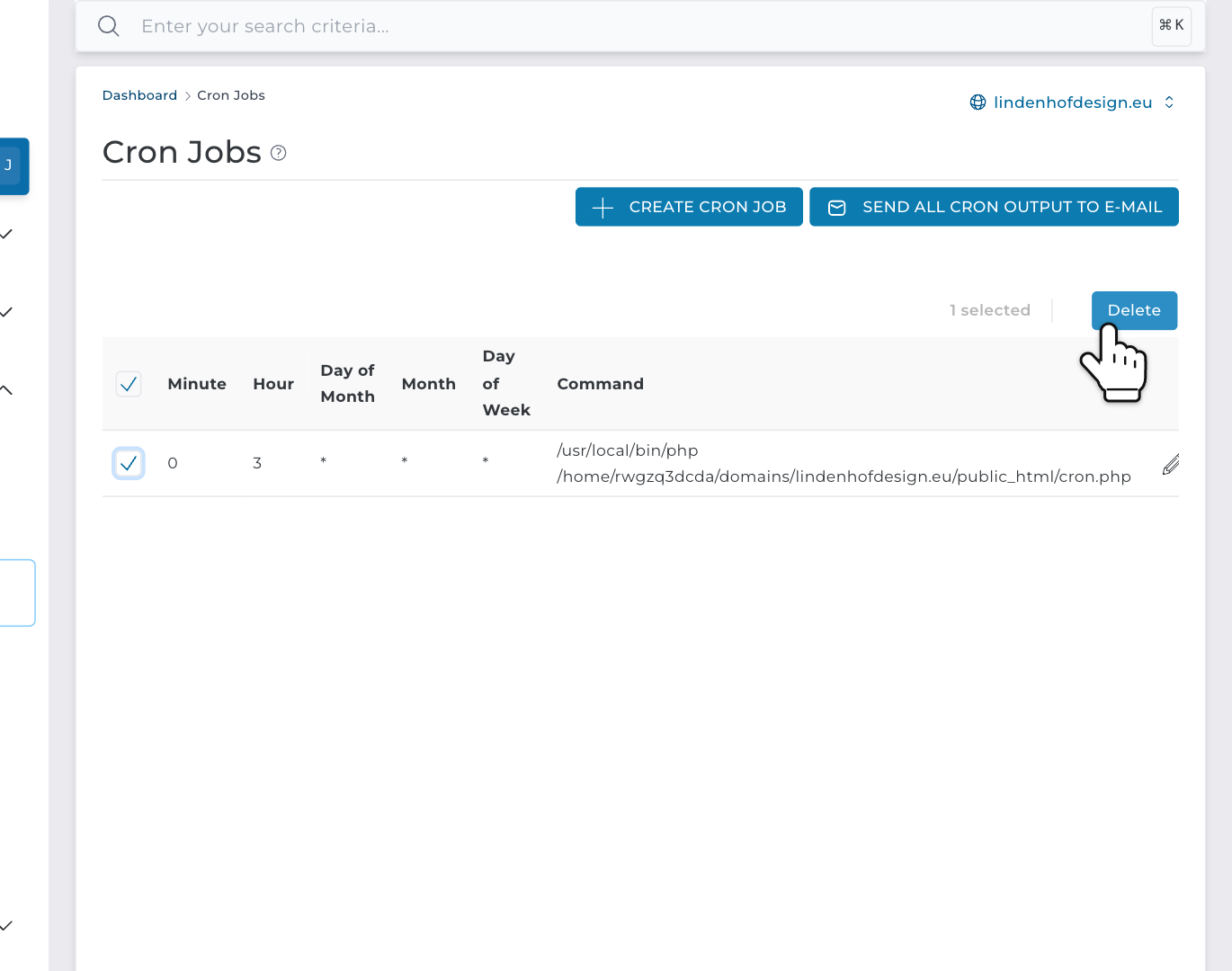
Step 4: On the Cron Jobs page, click the pencil next to a job to change it. To delete a job, tick the box in front of it and click Delete. Then click CONFIRM.
Cron job doesn't run?
- Check the schedule. Read what DirectAdmin shows next to Cron job will run. And keep the server's clock in mind.
- Use full paths, to PHP and to your script.
- Look at the output. Turn on the emails for a moment. Or write the output to a file, by adding >> /home/username/cron.log 2>&1 to the end of the command. Then open cron.log in the File Manager.
- Test the web address in your browser, if you use wget or curl.