Every email sent to your domain name passes our spam filter first. Think of it as a bouncer at the door. Good mail walks straight into your inbox. Suspicious mail waits outside, in quarantine.
Most people should keep that bouncer at work. But sometimes you want the door wide open. For example when:
- you already filter your email somewhere else
- you're testing your email setup and want to see every message
The good news? Turning it off takes less than a minute.
Before you start
Email must be turned on for your domain name. The spam filter settings only show up for domains with email. Not using email yet? Follow our guide to creating an email address first.
Turn off the spam filter
Step 1: Log in to your Site.eu dashboard and open your domain name.
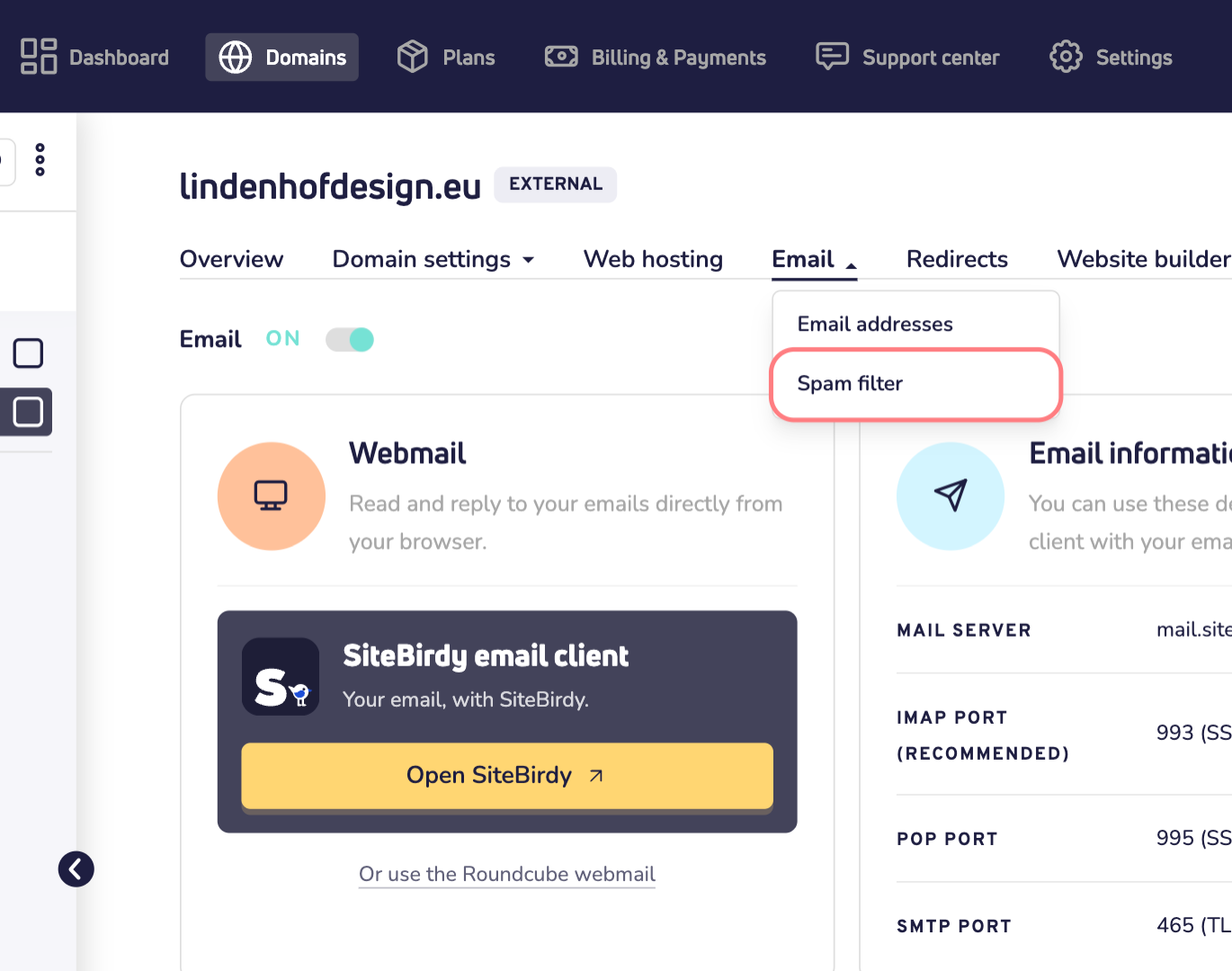
Step 2: Click Email and choose Spam filter.
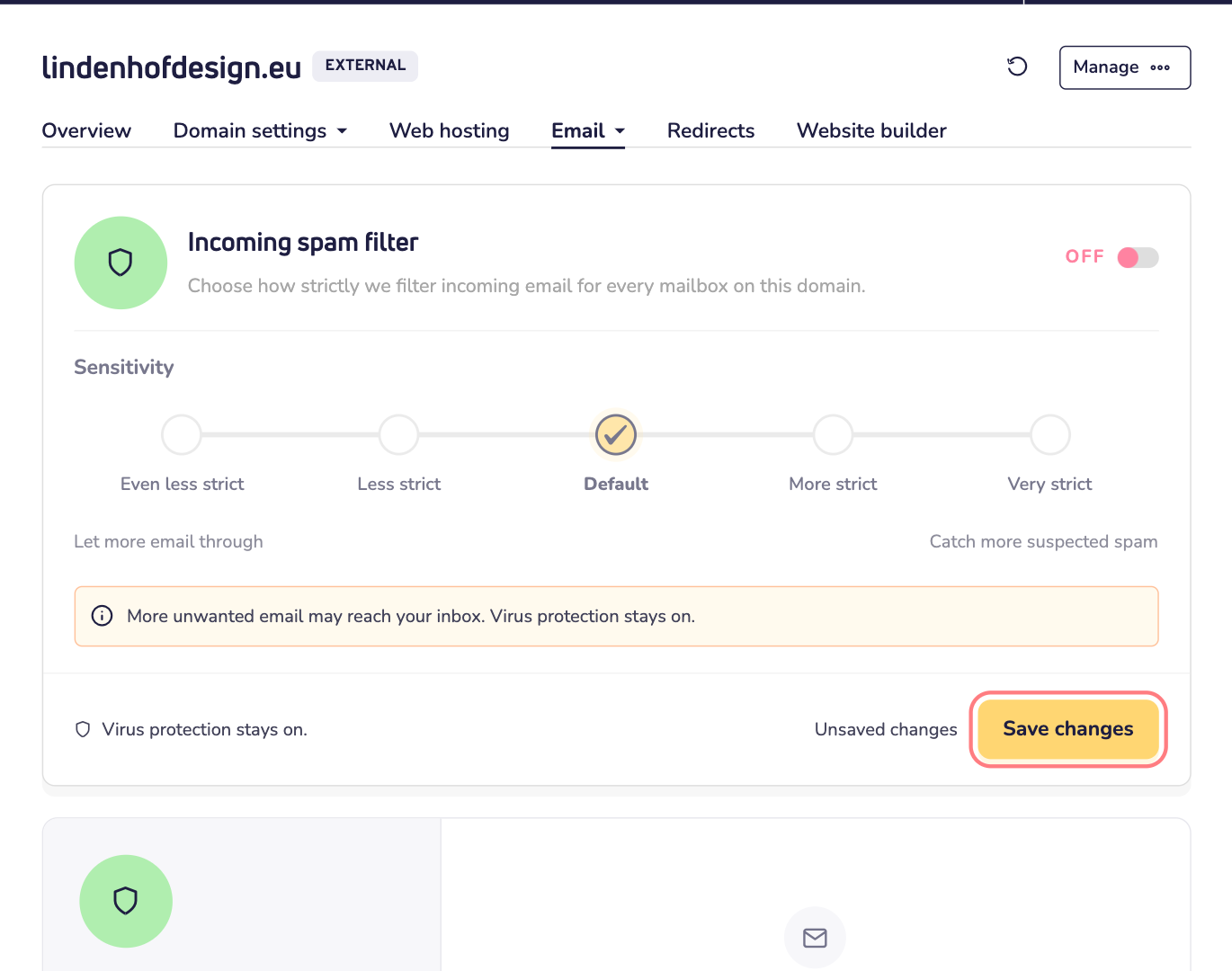
Step 3: Find the Incoming spam filter block. Click the switch at the top right.
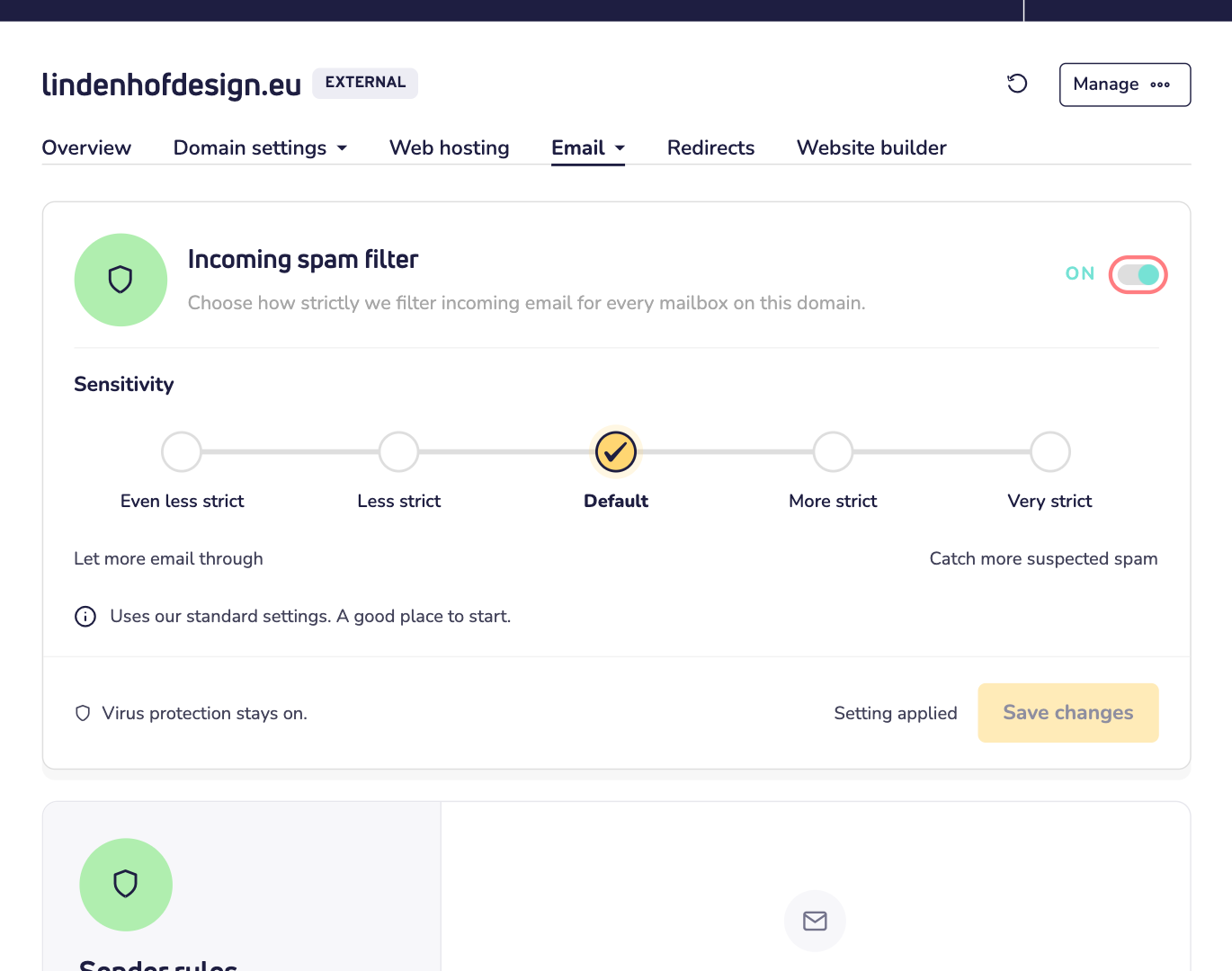
Step 4: The switch now says OFF. Click Save changes.
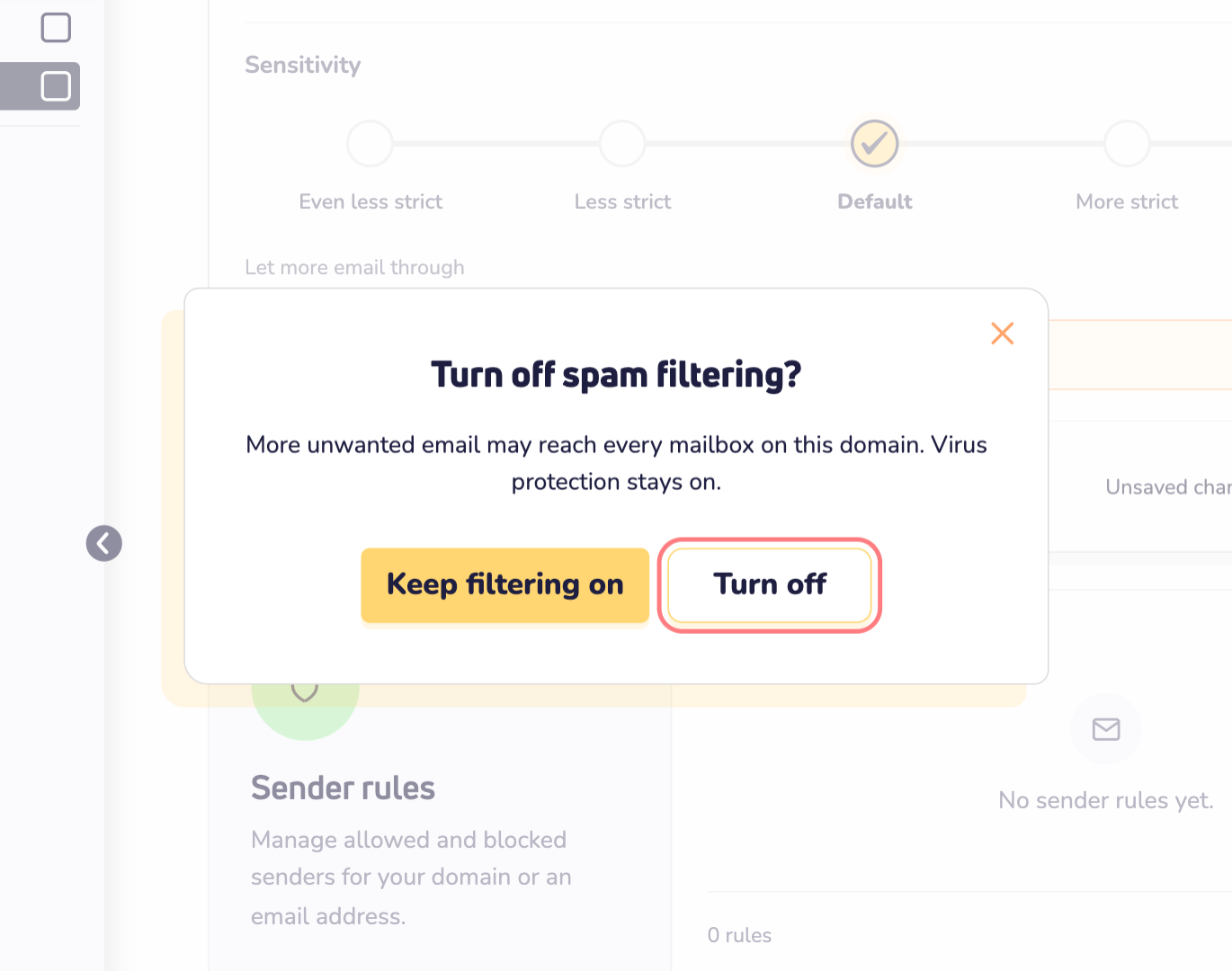
Step 5: A window asks: Turn off spam filtering? Click Turn off.
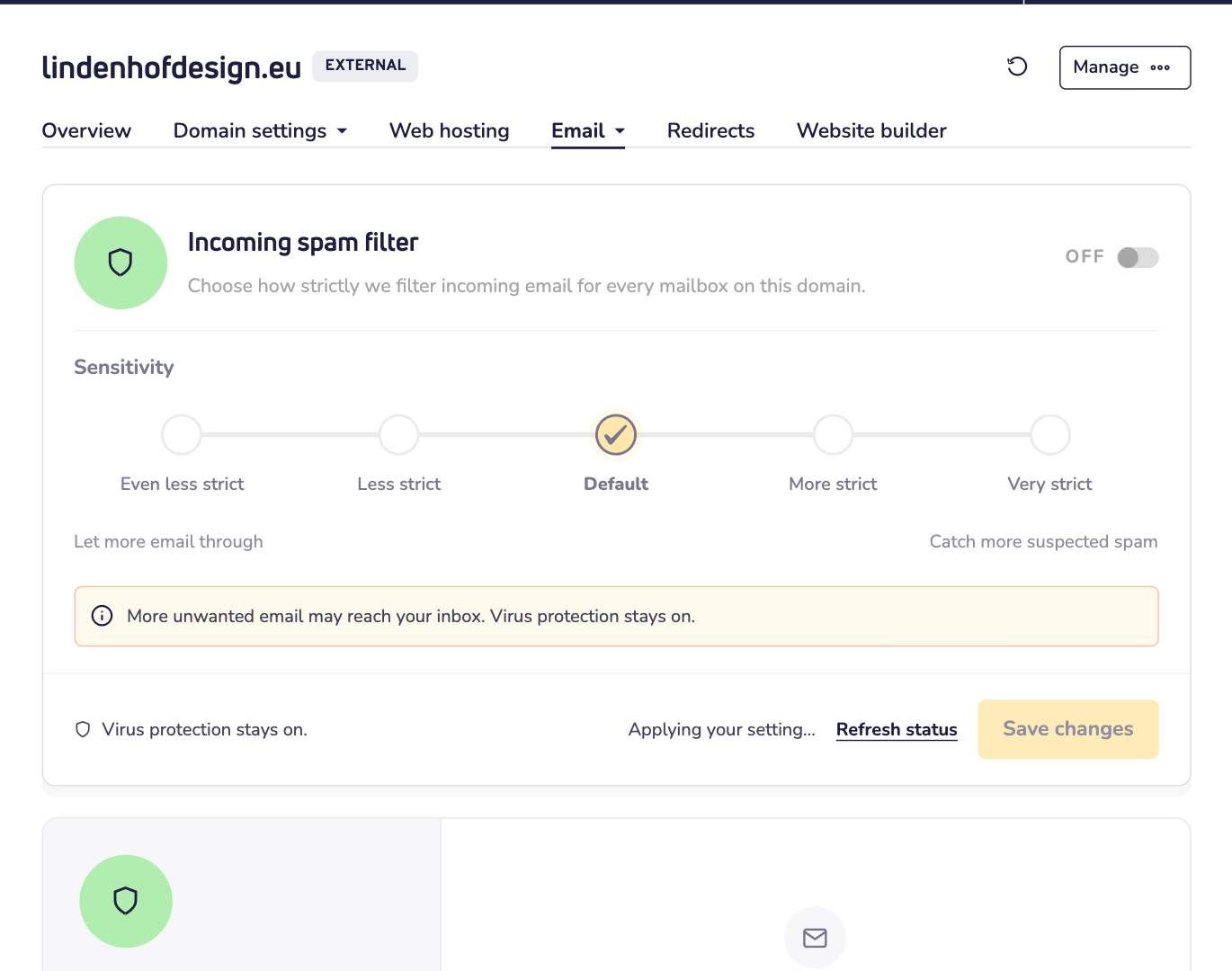
That's it! It can take a few minutes before the change is active. Want to check? Click Refresh status. When it's done, you see Setting applied.
What changes?
The setting counts for every mailbox on your domain name. Not just yours. So if your colleagues use info@ or sales@, more unwanted email can reach them too.
Expect more spam in your inbox from now on. That's normal. Keep an eye on your mail for the first few days, for example in webmail.
What stays on?
Turning off the spam filter doesn't leave you unprotected:
- Virus protection. Emails with a virus are still held back.
- Attachment checks. Emails with an attachment that isn't allowed are still held back.
- Your sender lists. Your allowed and blocked senders are saved. They work again as soon as you turn the filter back on.
Tip: try a milder level first
Missing a good email now and then? You don't have to switch the filter off completely. Under Sensitivity, choose Less strict or Even less strict. Then click Save changes. You keep most of the protection, with fewer false alarms.
How to turn it back on
Changed your mind? Switching it back on is just as quick.
- Go to Email and choose Spam filter again.
- Click the switch so it says ON.
- Choose a level. Not sure? Default is a good place to start.
- Click Save changes.