
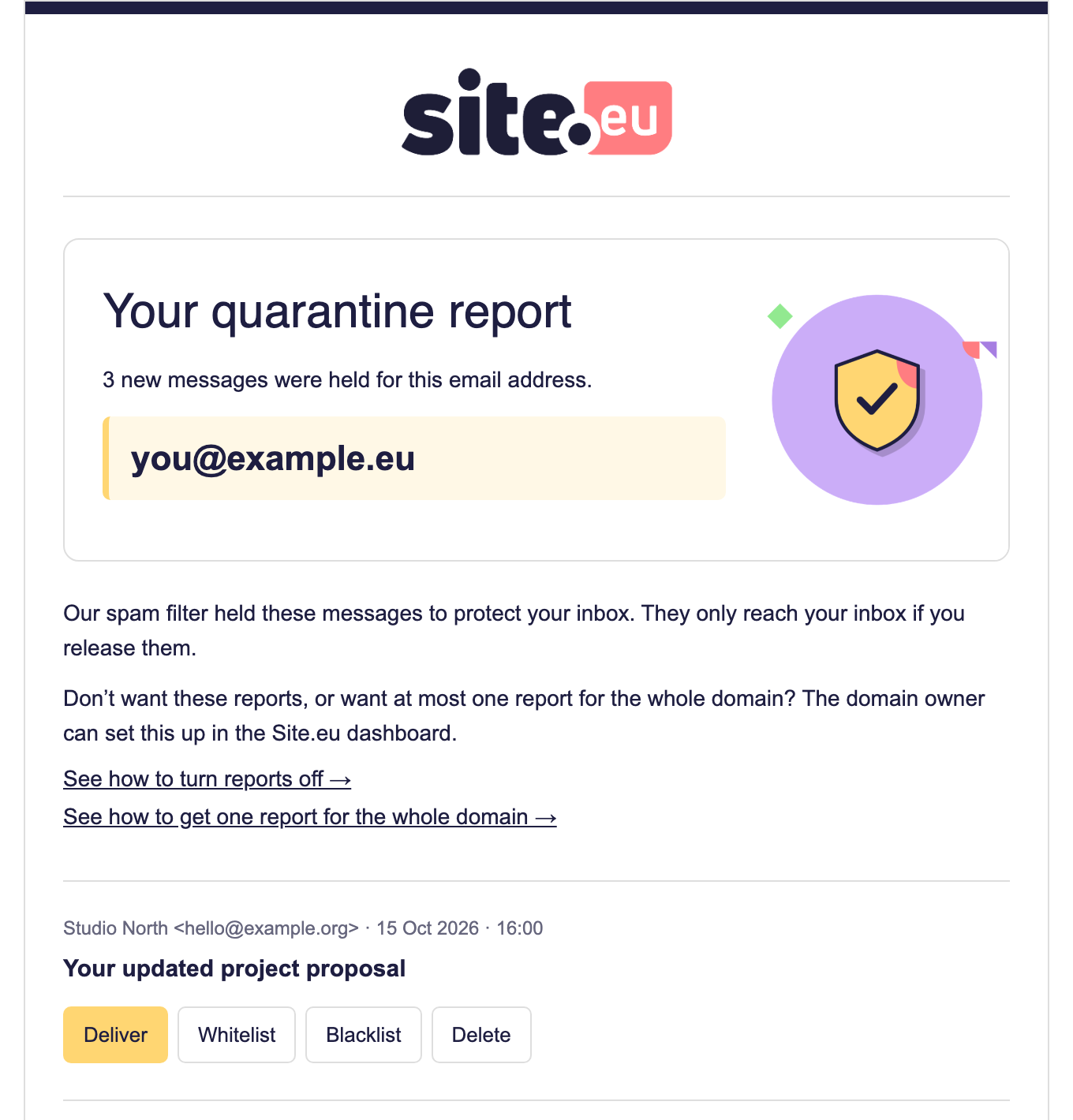
Do you get an email called Your quarantine report from us? That's our spam filter checking in. It lists the emails it held back for your email address. So you can quickly see if a good one got caught.
Think of a doorman. Suspicious visitors wait outside. Once a day, the doorman shows you the list. You decide who gets in.
Why do you get these emails?
Our spam filter checks every email sent to your domain name. Mail that looks like spam doesn't go to your inbox. We hold it back in quarantine. That keeps your inbox clean. But now and then, a real email gets caught too. The report makes sure you don't miss it.
You only get a report when there's something new: emails we held back since your last report. No new spam? Then no email either.
What's in the report?
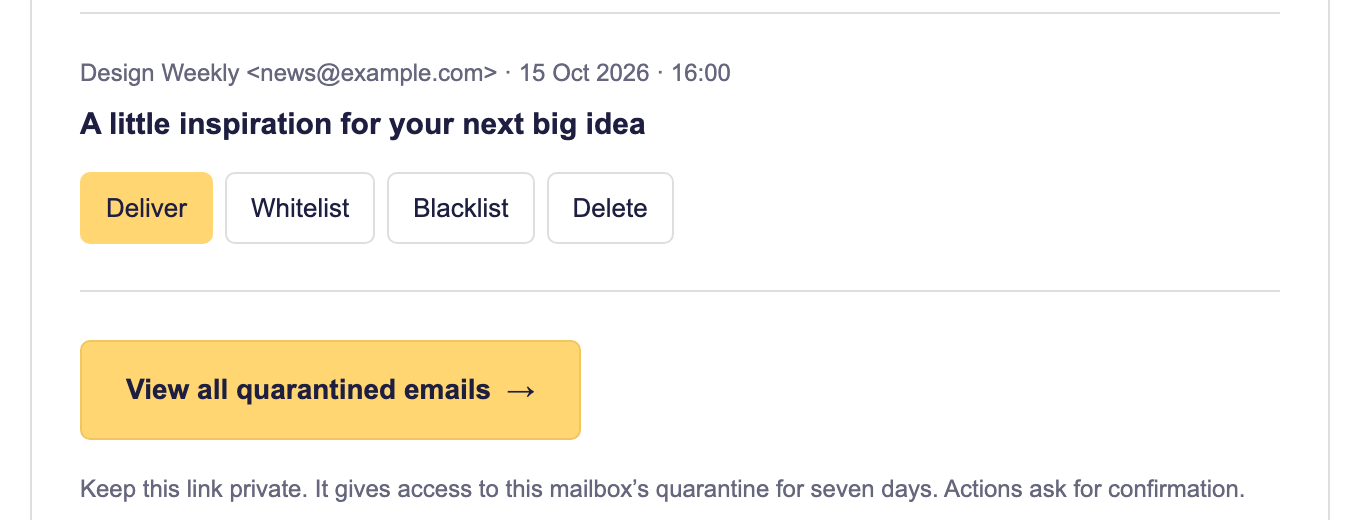
For every email we held back, you see the sender, the date and the subject. Below it are four buttons:
- Deliver: the email goes to your inbox. Just this once.
- Whitelist: the email goes to your inbox, and this sender is always let through from now on.
- Blacklist: the email is deleted, and this sender is blocked from now on.
- Delete: the email is deleted for good.
Every button asks you to confirm first. So a wrong click does no harm.
Want to see everything we're holding for you? Click View all quarantined emails at the bottom of the report. It opens your private quarantine page. You don't need to log in. Keep the link to yourself: it works for seven days.
Blacklisted senders stay out of your reports
The report only lists emails from senders you haven't blocked. Did you blacklist a sender? Then their emails still end up in quarantine. But they no longer show up in your reports.
So does the same sender keep filling your report? Click Blacklist once. You won't hear about them again.
Turn the reports off
Only the owner of the domain name can change the reports, in the dashboard. Do you only use this email address? Then ask the domain owner.
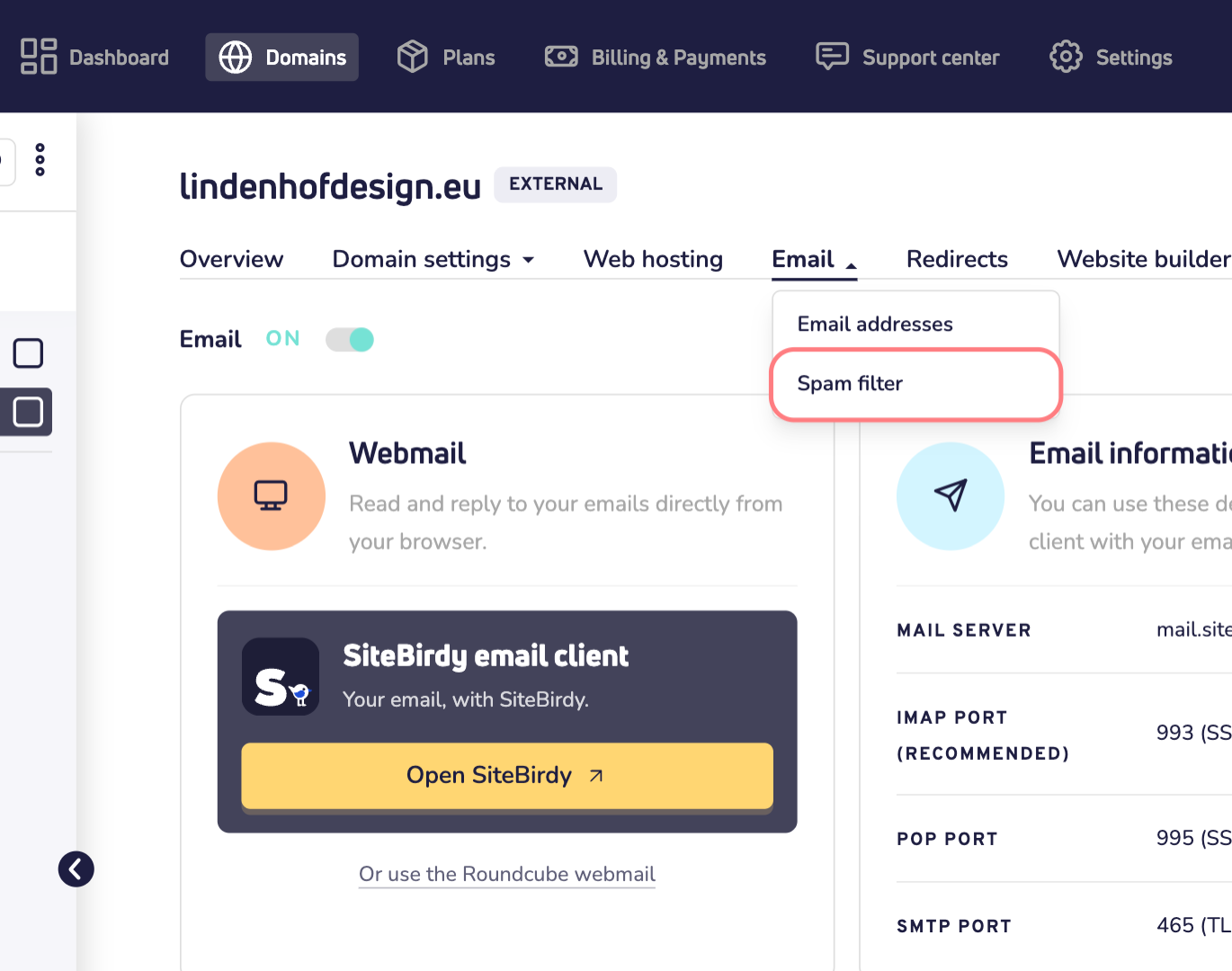
Step 1: Log in to your Site.eu dashboard and open your domain name.
Step 2: Click Email and choose Spam filter.
Step 3: Scroll down to Quarantine reports. Under Frequency, choose Disabled.
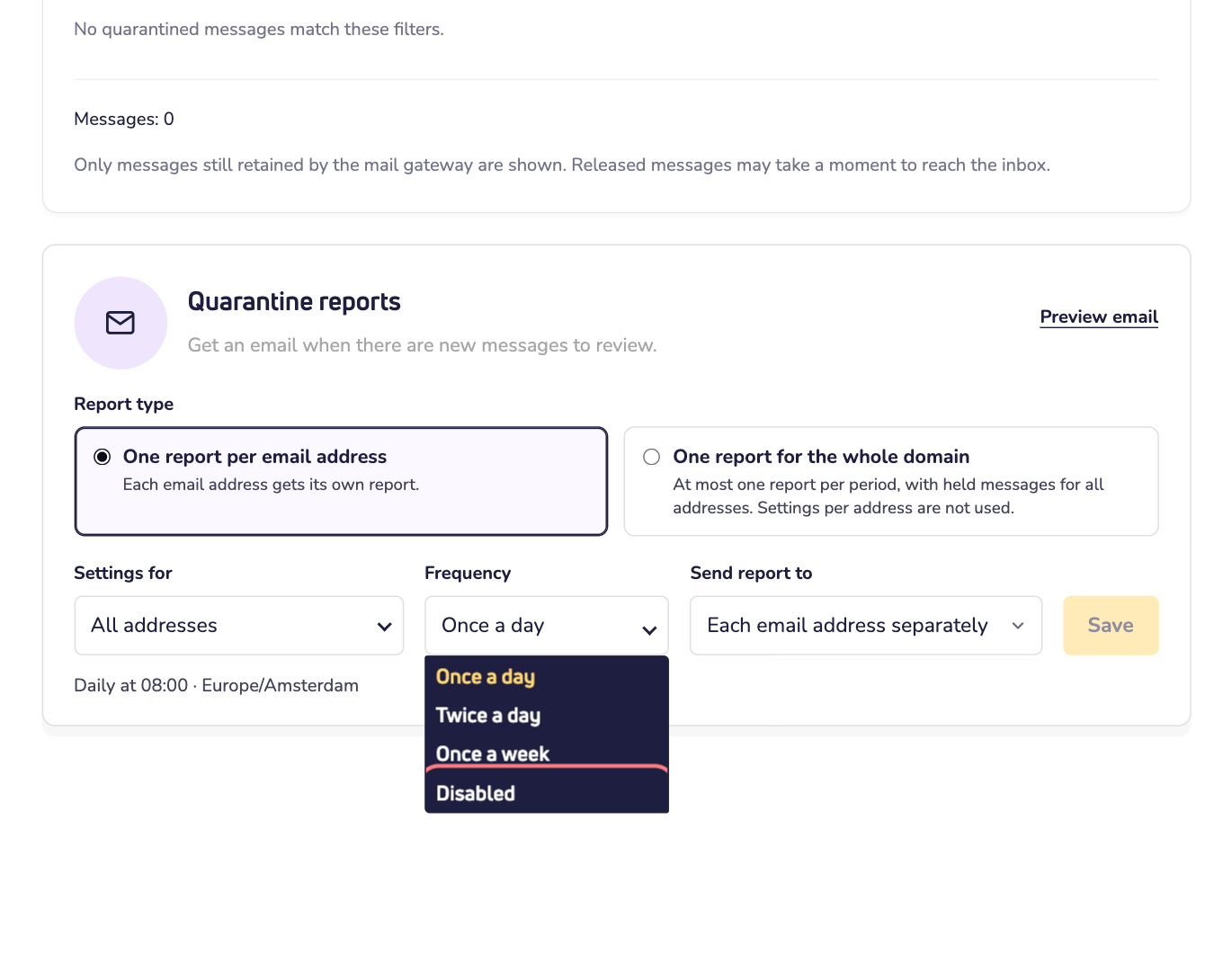
Step 4: Click Save.
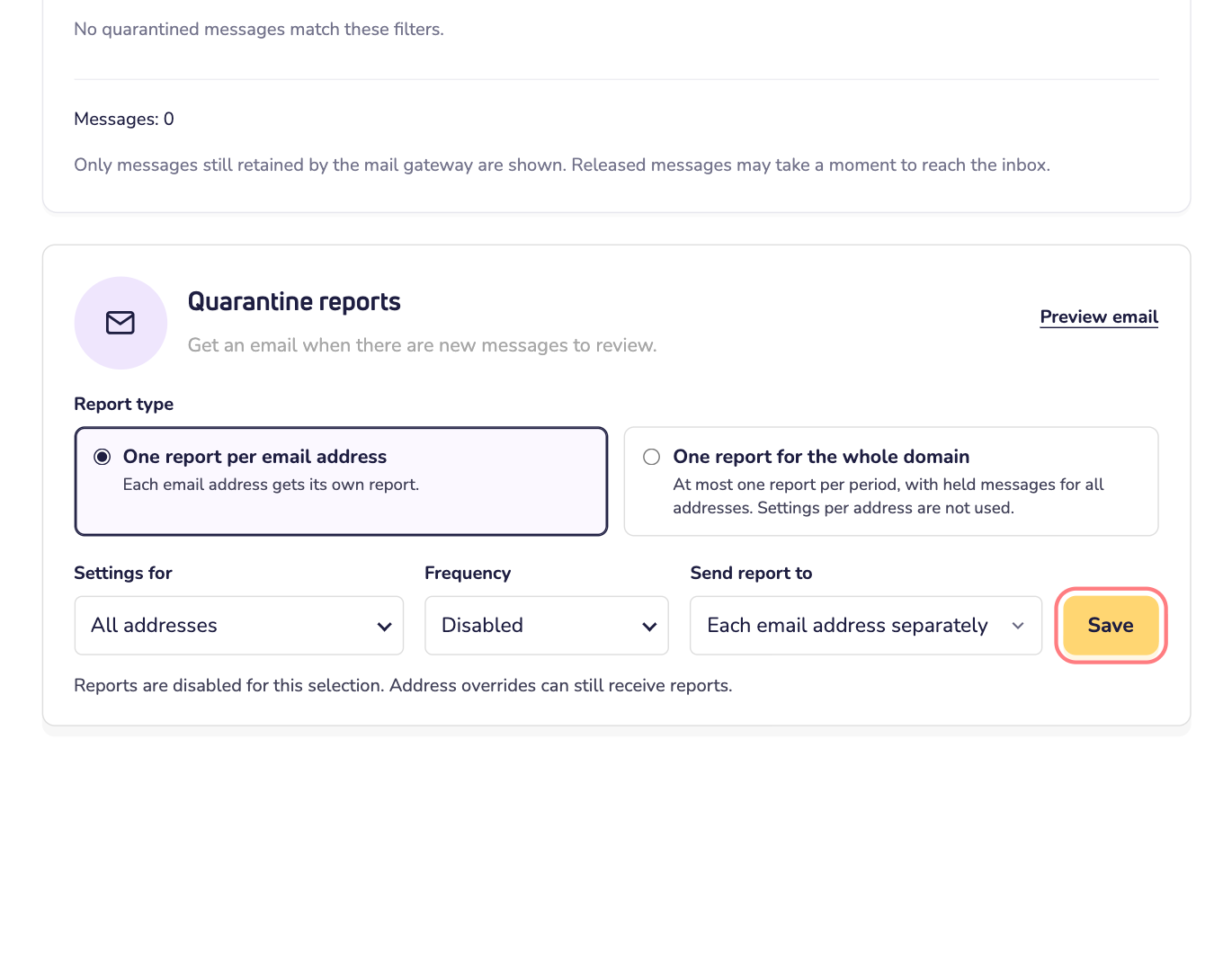
That's it. The spam filter keeps working: it still holds back spam. You find those emails under Quarantine on the same page.
Only want to stop the reports for one email address? Choose that address under Settings for first. The same goes for an address that already has its own setting: it keeps getting reports until you turn them off there too.
Get one report for the whole domain
Normally, every email address gets its own report. Got a lot of addresses? Then that's a lot of email. You can also get one report for the whole domain name, sent to one mailbox.
Step 1: Open Email and then Spam filter, as in the steps above.
Step 2: Under Report type, choose One report for the whole domain.
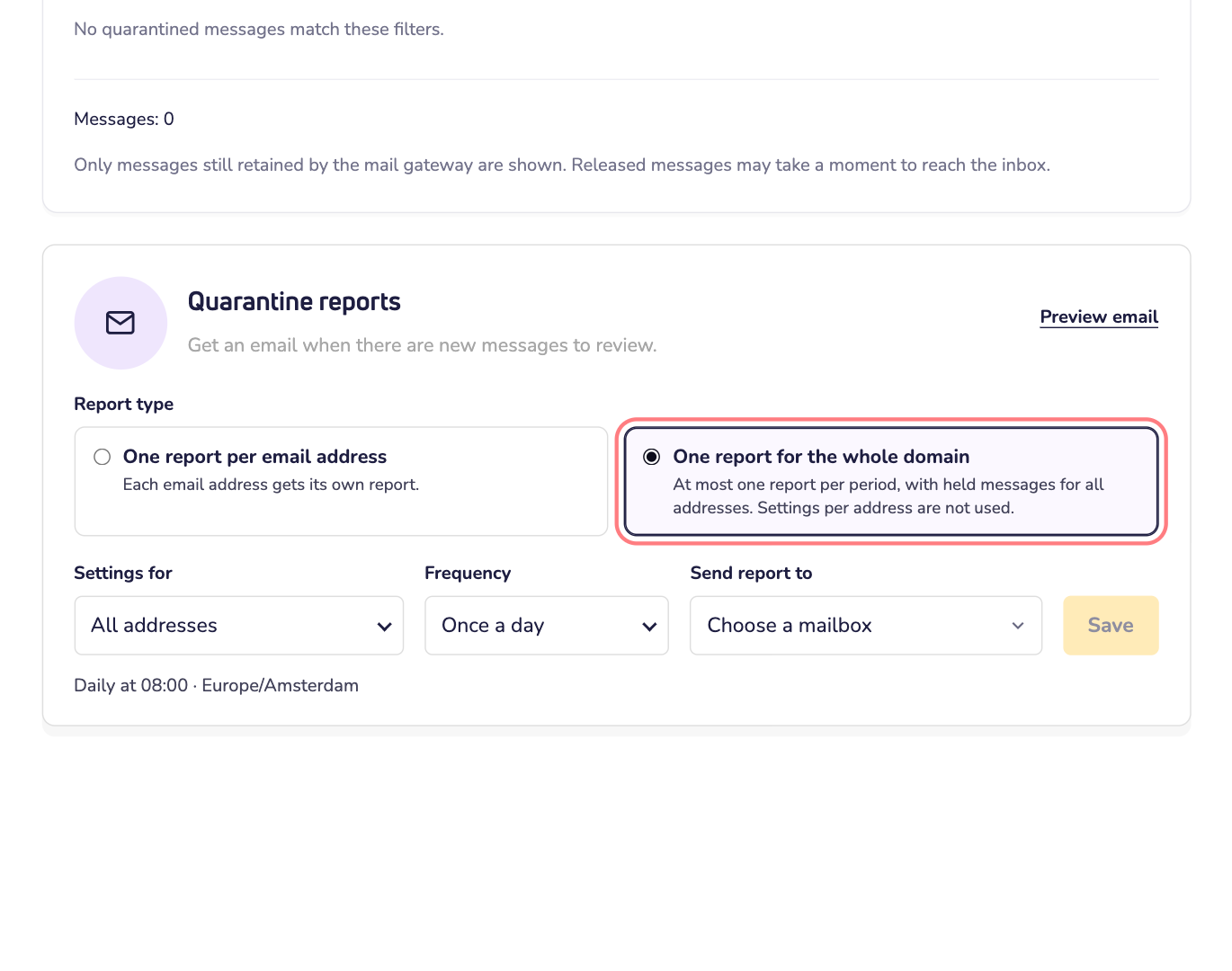
Step 3: Under Send report to, choose the mailbox that should get the report.
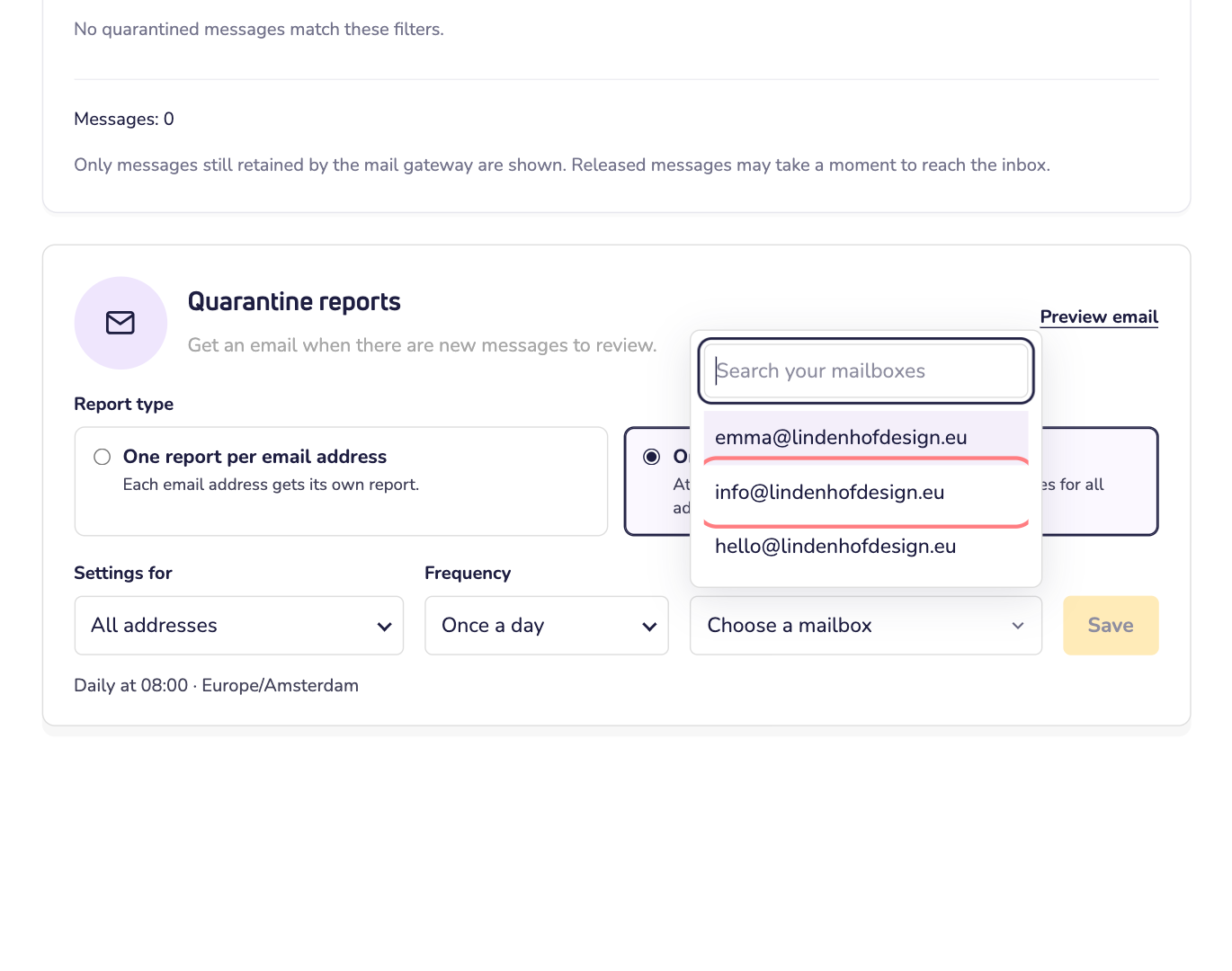
Step 4: Click Save.
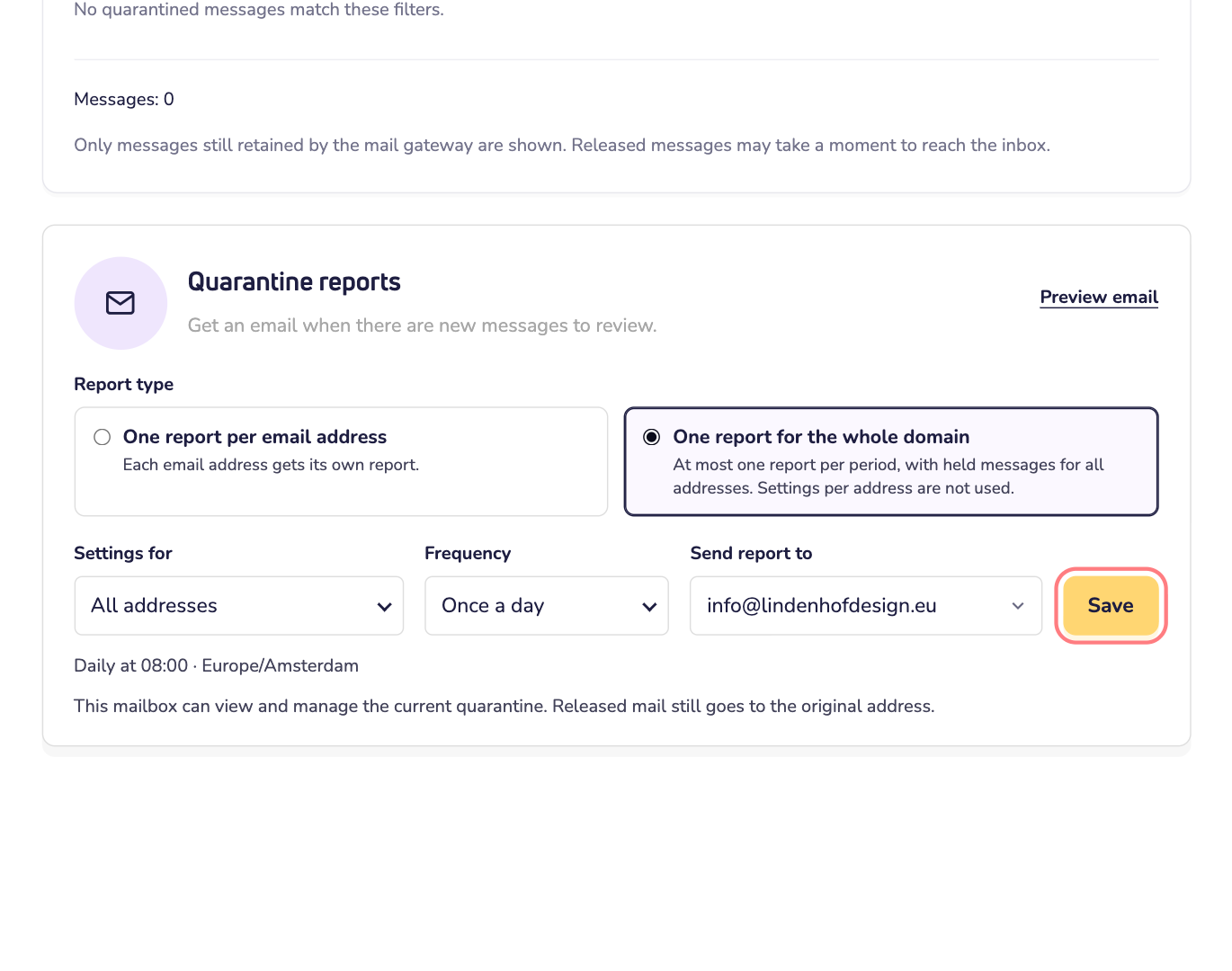
From now on, one report covers all your addresses. It lists their held emails together. The mailbox you chose can also manage the quarantine. Released emails still go to the address they were sent to.
More options
- Another moment: under Frequency, choose Once a day (at 08:00), Twice a day (at 08:00 and 20:00) or Once a week (Monday at 08:00). These are Amsterdam times.
- Another mailbox: under Send report to, choose where the reports go. For example, to your own mailbox instead of to each address.
- One address only: choose it under Settings for. Then give it its own setting. The other addresses keep the setting for the whole domain.
Good to know
- Lots of spam in your reports, or good emails getting caught? Change the sensitivity of the spam filter.
- Is the spam filter turned off? Then we hold nothing back, and you get no reports. Read how to turn off the incoming spam filter.