

SiteBirdy is our email app. One calm inbox for all your email addresses. Here's how to add your Site.eu email address to it. It takes about two minutes.
Never heard of SiteBirdy? Read what SiteBirdy is first.
Before you start
- You need an email address created with Site.eu. No address yet? Follow our guide to creating an email address.
- You need the password of that email address. Forgot it? Set a new one in your dashboard. Under Email addresses, click Change password next to the address.
Add your email address
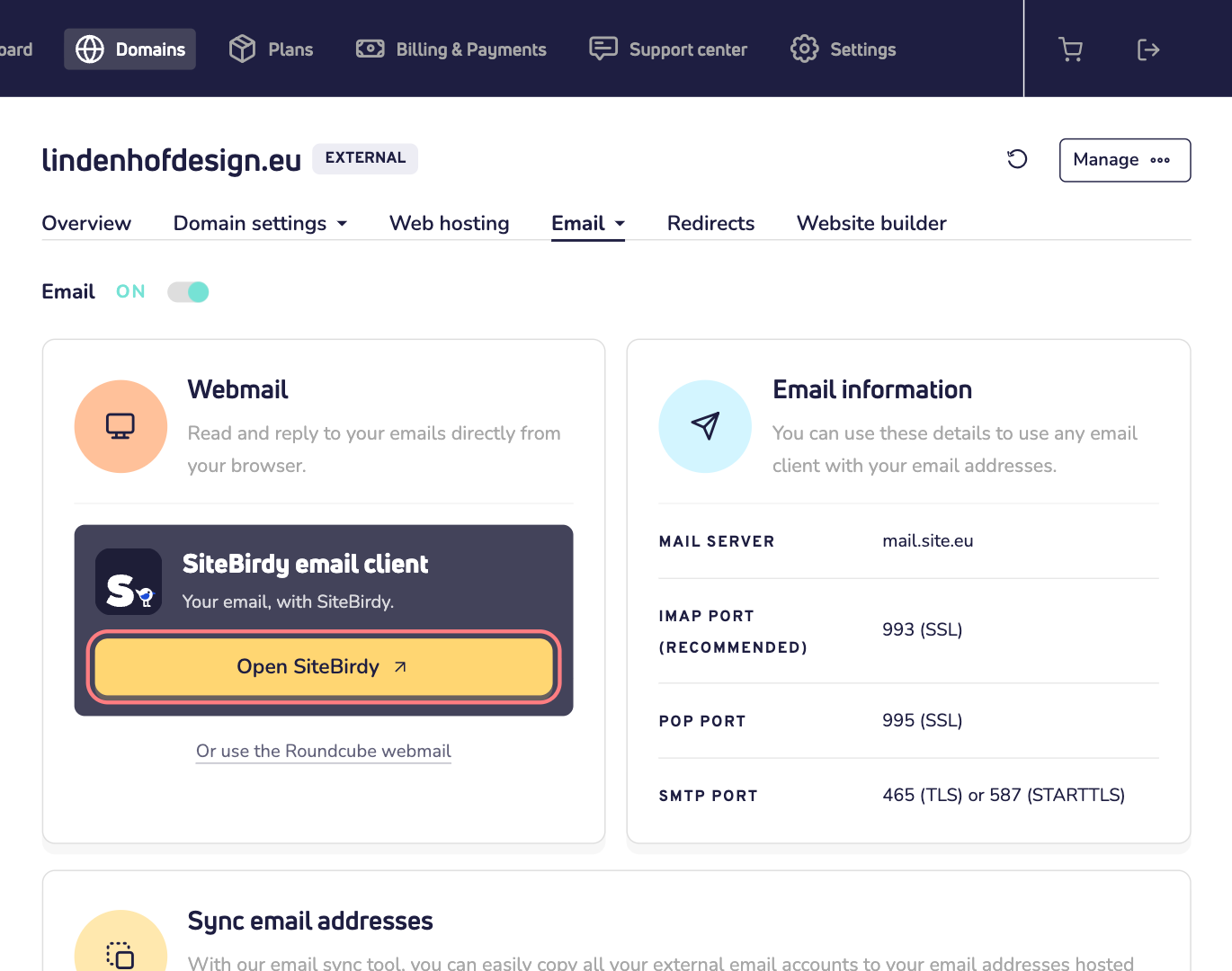
Step 1: Log in to your Site.eu dashboard and open your domain name. Click Email. Under Webmail, click Open SiteBirdy.
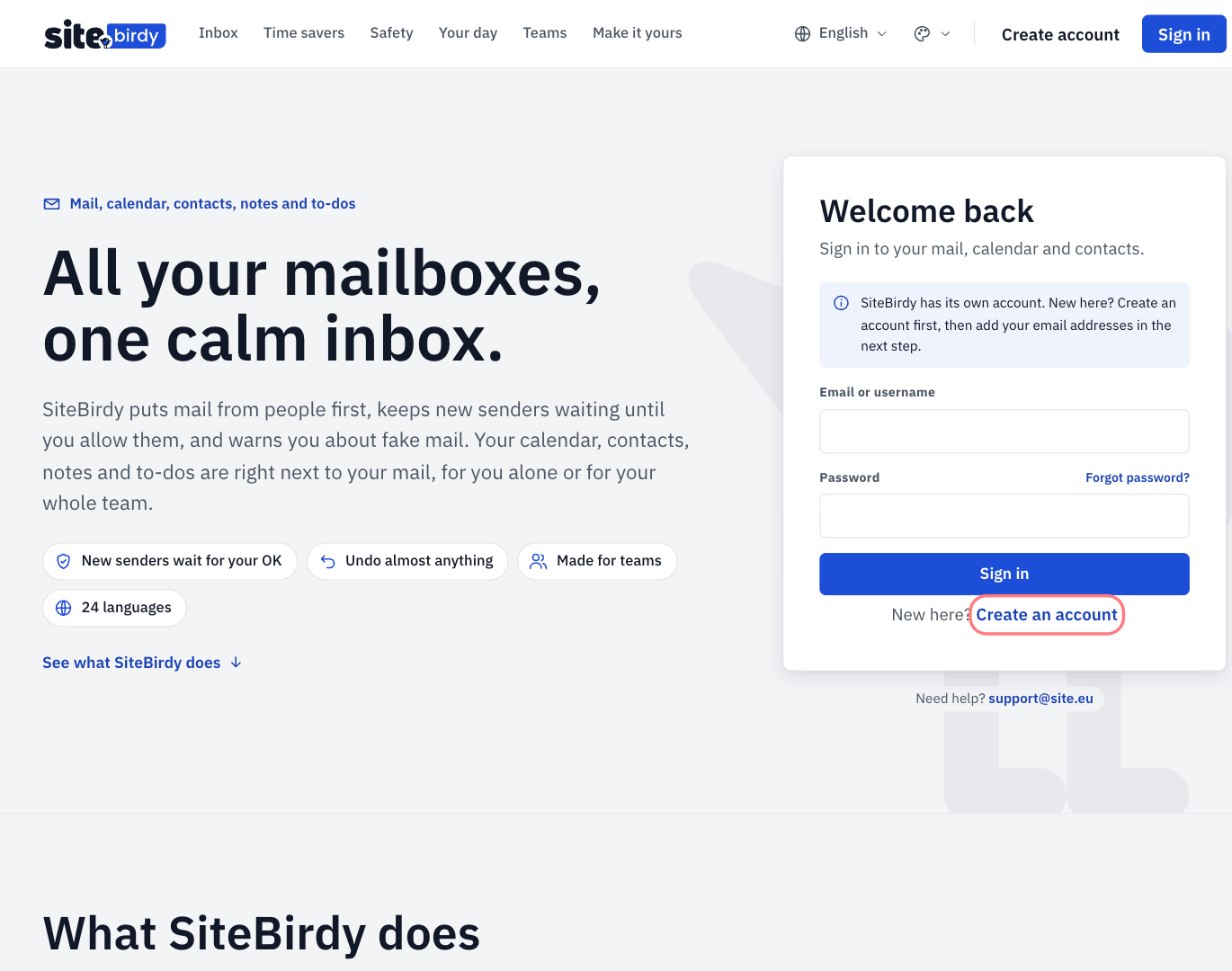
Step 2: SiteBirdy has its own account. New here? Click Create an account and follow the steps. SiteBirdy sends a 6-digit code to your email address, to check that it's yours. Already have an account? Then just sign in.
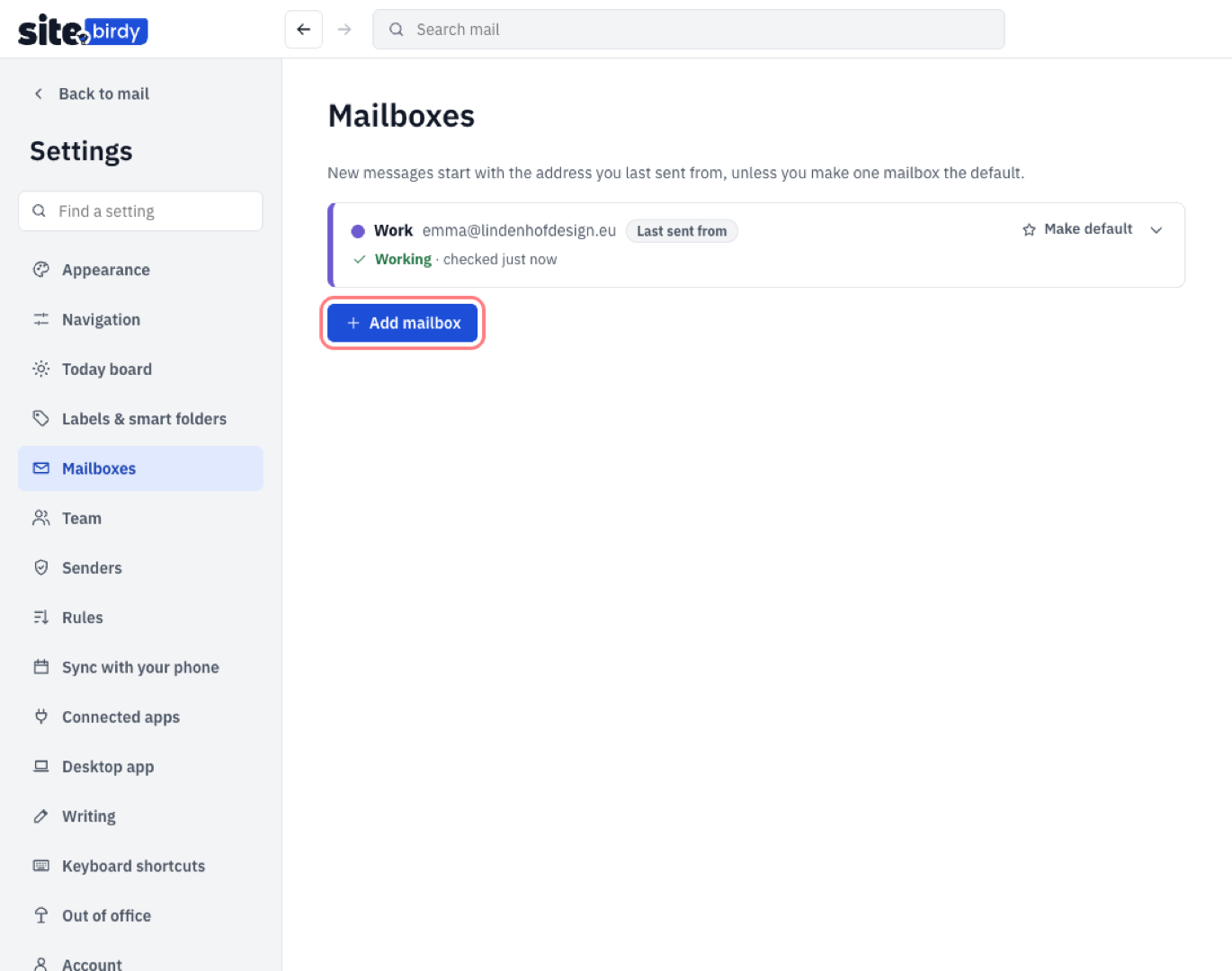
Step 3: Right after you create your account, SiteBirdy asks you to Connect your first mailbox. Already using SiteBirdy? Then go to Settings › Mailboxes and click Add mailbox.
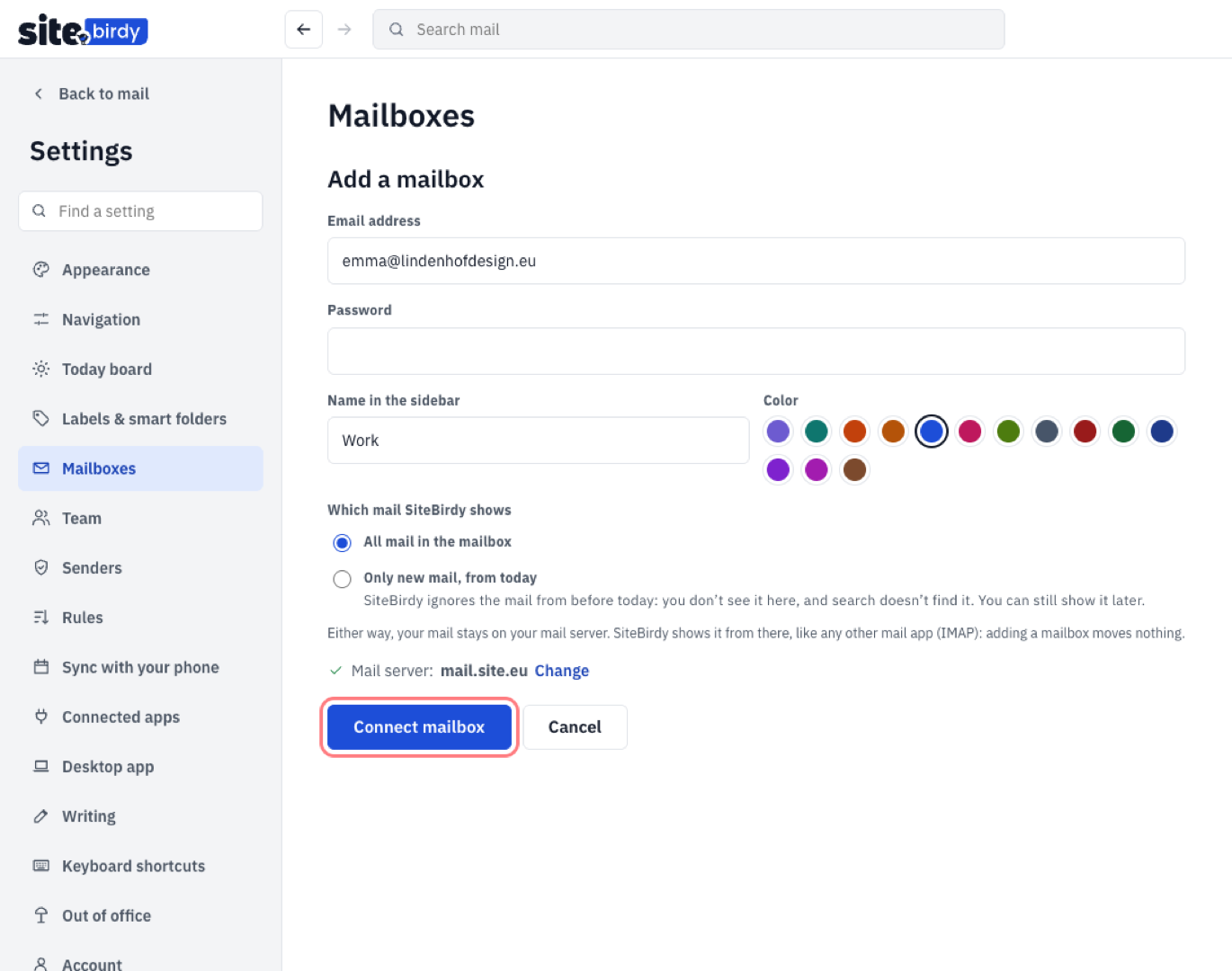
Step 4: Type your full email address, such as info@yourdomain.eu, and the password of that email address. SiteBirdy finds the server settings by itself.
Step 5: Give the mailbox a name, like Work, and pick a color. That's how you tell its email apart in your inbox.
Step 6: Under Which mail SiteBirdy shows, choose All mail in the mailbox. Only want to see new email? Then choose Only new mail, from today.
Step 7: Click Connect mailbox. Done! Your newest email shows up right away. Older email follows in the background.
Got more email addresses? Repeat steps 3 to 7 for each one. SiteBirdy shows the email of all of them in one inbox, and each mailbox keeps its own folders.
Good to know
- Your email stays where it is. SiteBirdy shows your email from our mail server, like any other email app. So your phone and other email apps keep working as before.
- Changed the password of your email address? Then enter the new password in SiteBirdy too, under Settings › Mailboxes.
- SiteBirdy can't find the server settings? Choose Enter server settings manually. You find our settings in your dashboard, under Email information. Or read our email settings for POP, IMAP and SMTP.