

Some domain extensions need extra details about the domain holder. Think of an ID number, a company registration number or a private contact person. Without them, the registry won't register the domain name.
Now you can sort this out before you order. Make a contact ready for an extension: we check the contact with the registry and save the details on the contact. After that, you can register domain names with that extension in the contact's name right away.
Why make a contact ready?
- No waiting. Is a detail missing when you order? Then your domain name waits until you fill it in. A ready contact has everything already.
- Fill it in once. The details are saved on the contact. We use them for every future order.
- No surprises. Not every registry accepts every contact as domain holder. Some extensions are only for organizations, for example. You find out before you order.
Your contacts at a glance
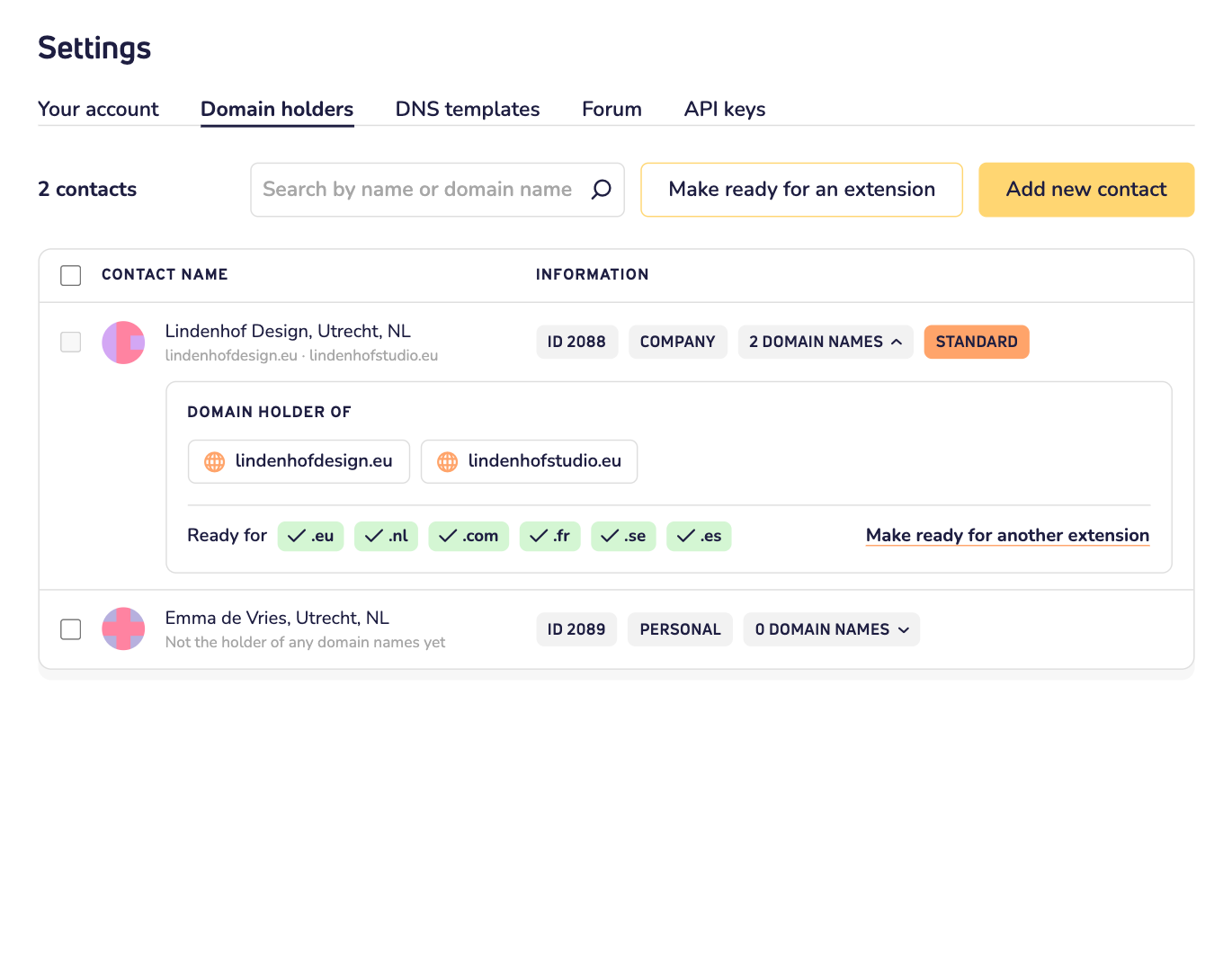
Your contacts are the people and companies in your account. Each of them can be the domain holder of your domain names. You find them in the Domain holders tab of Settings. Next to each contact, click the number of domain names. You then see two things:
- Domain holder of: the domain names this contact holds.
- Ready for: the extensions this contact is ready for.
Want to know which contact holds a domain name? Type the domain name in the search field. The search also looks at domain names.
How to make a contact ready
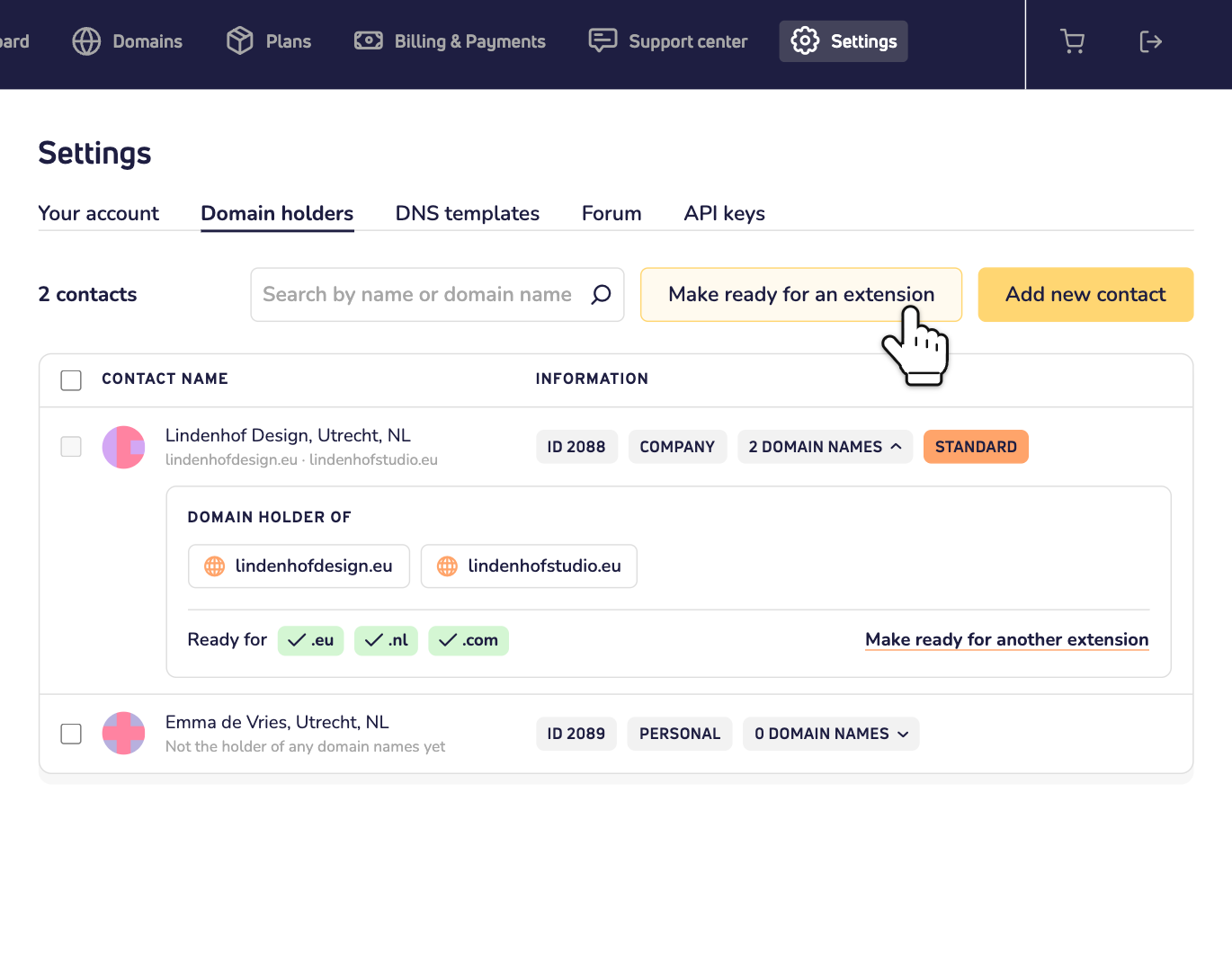
Step 1: Log in to your dashboard. Click Settings and open the Domain holders tab.
Step 2: Click Make ready for an extension. You can also open a contact's domain names and click Make ready for another extension there.
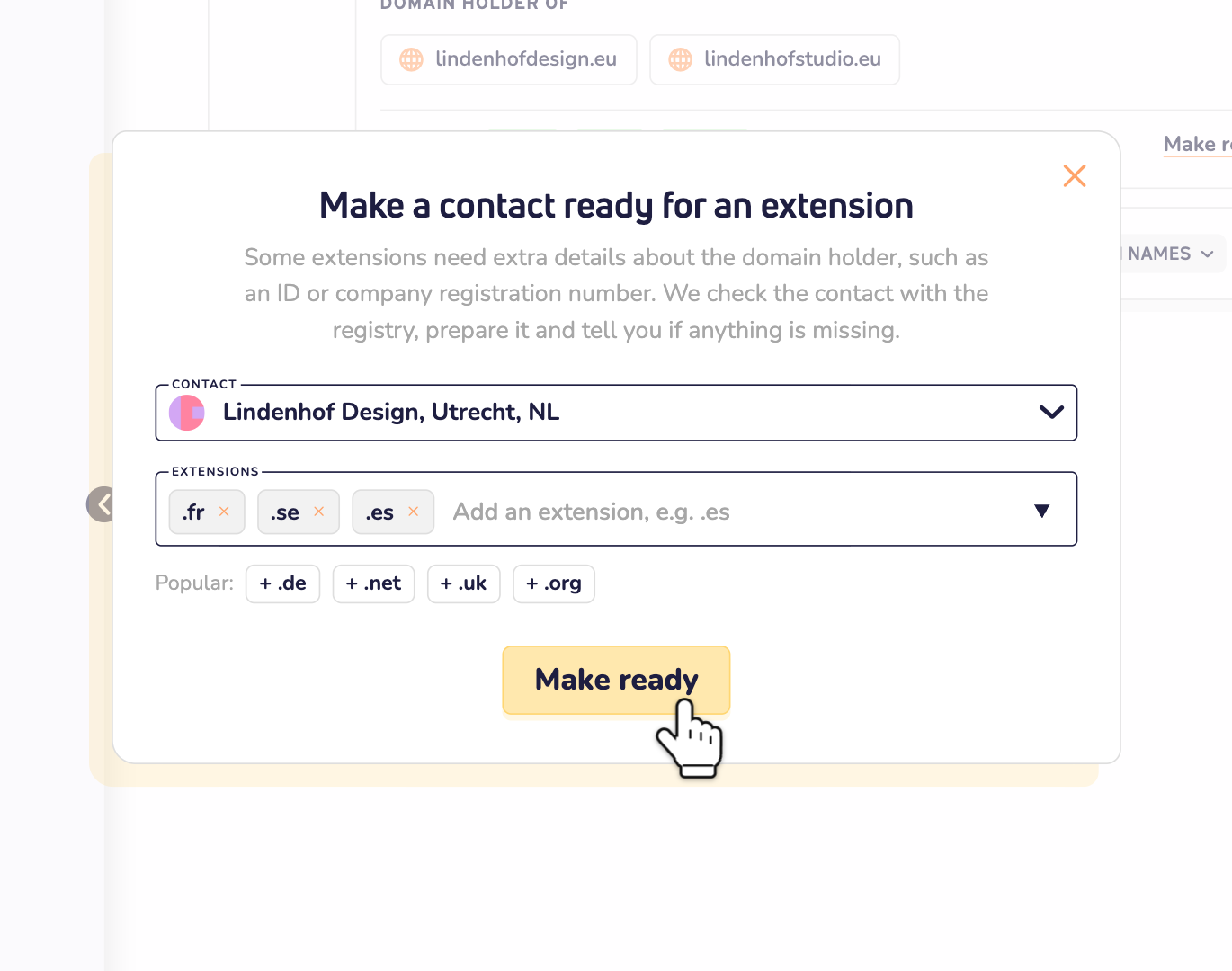
Step 3: Choose the contact. Then add the extensions you want. Type one, like .es, and press Enter. Or click one of the popular extensions below the field. You can add up to 10 at a time. Then click Make ready.
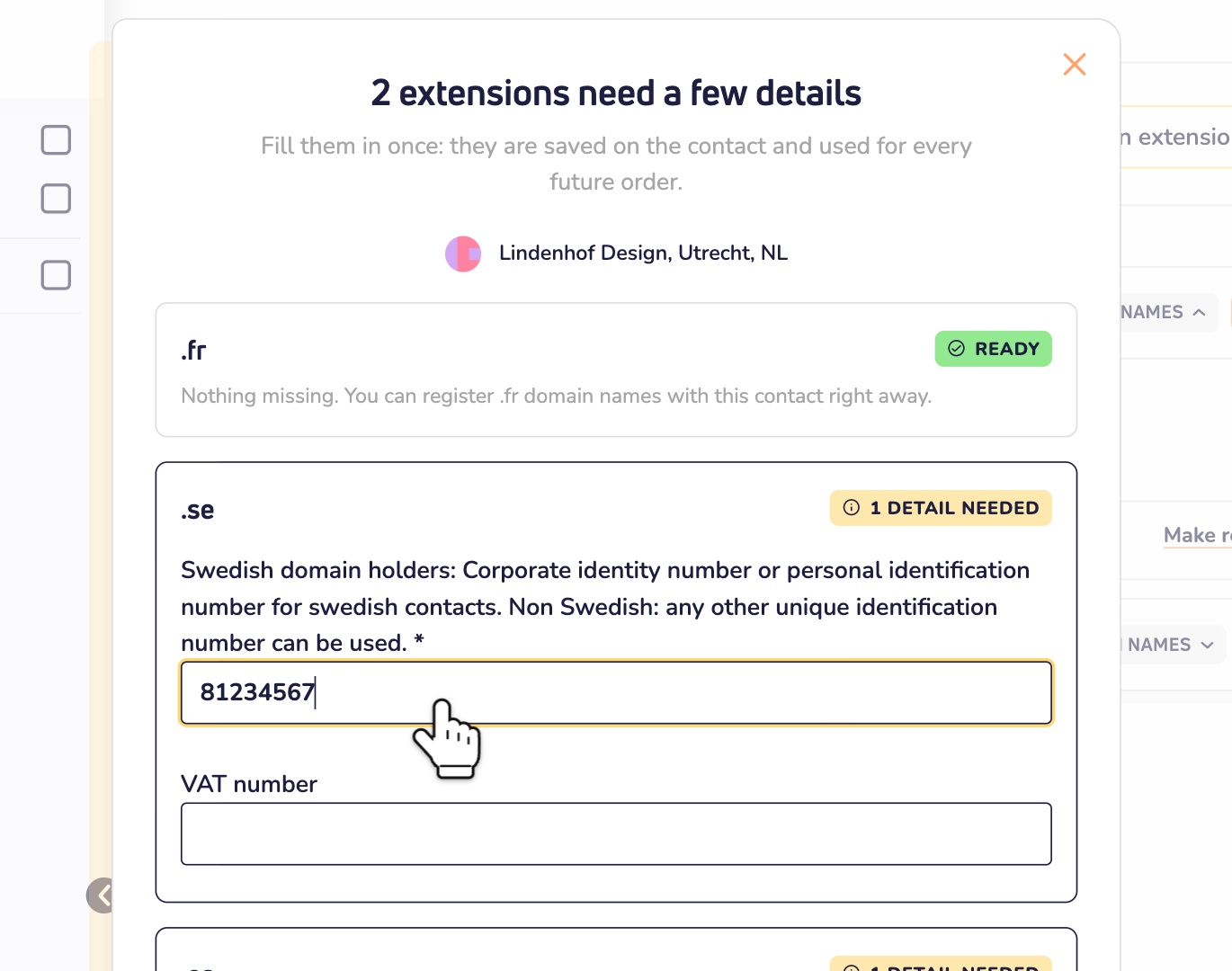
Step 4: We check each extension with its registry. This takes a moment. Then you see the result per extension:
- Ready: nothing is missing.
- 1 detail needed (or more): fill in what's asked. Fields with a * are required.
- Not accepted: the registry doesn't accept this contact. You see why. For example, only organizations can hold that extension. Then choose another contact.
- Not checked: we couldn't check it right now. Please try again later.
Step 5: Is the contact a company? Then some extensions also need a private person, for example as administrative contact. .es is one of them. By default, we use the company's contact person, without the company name. Want someone else? Choose Someone else and pick one of your contacts without a company name. No such contact yet? Add one first with Add new contact, then come back.
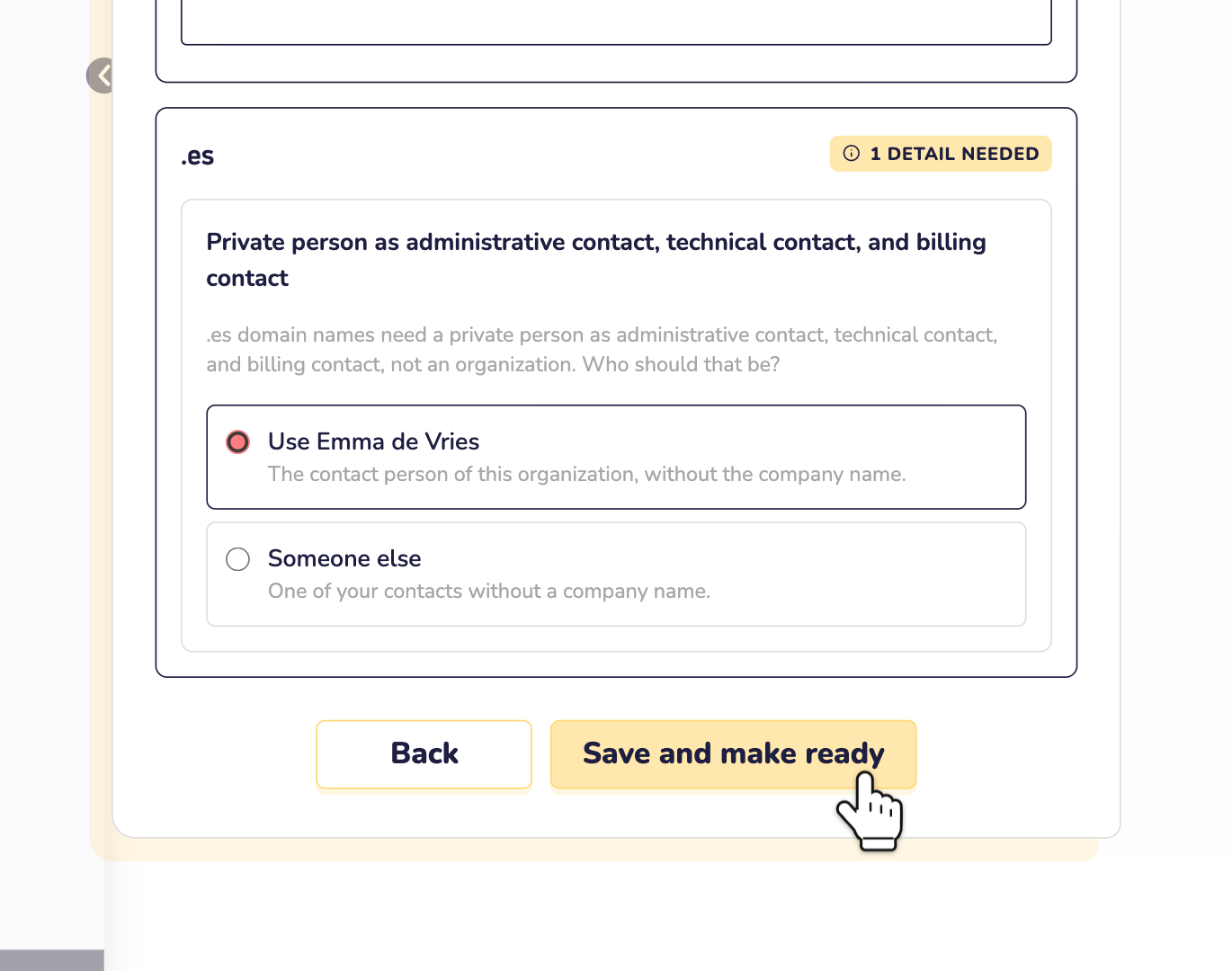
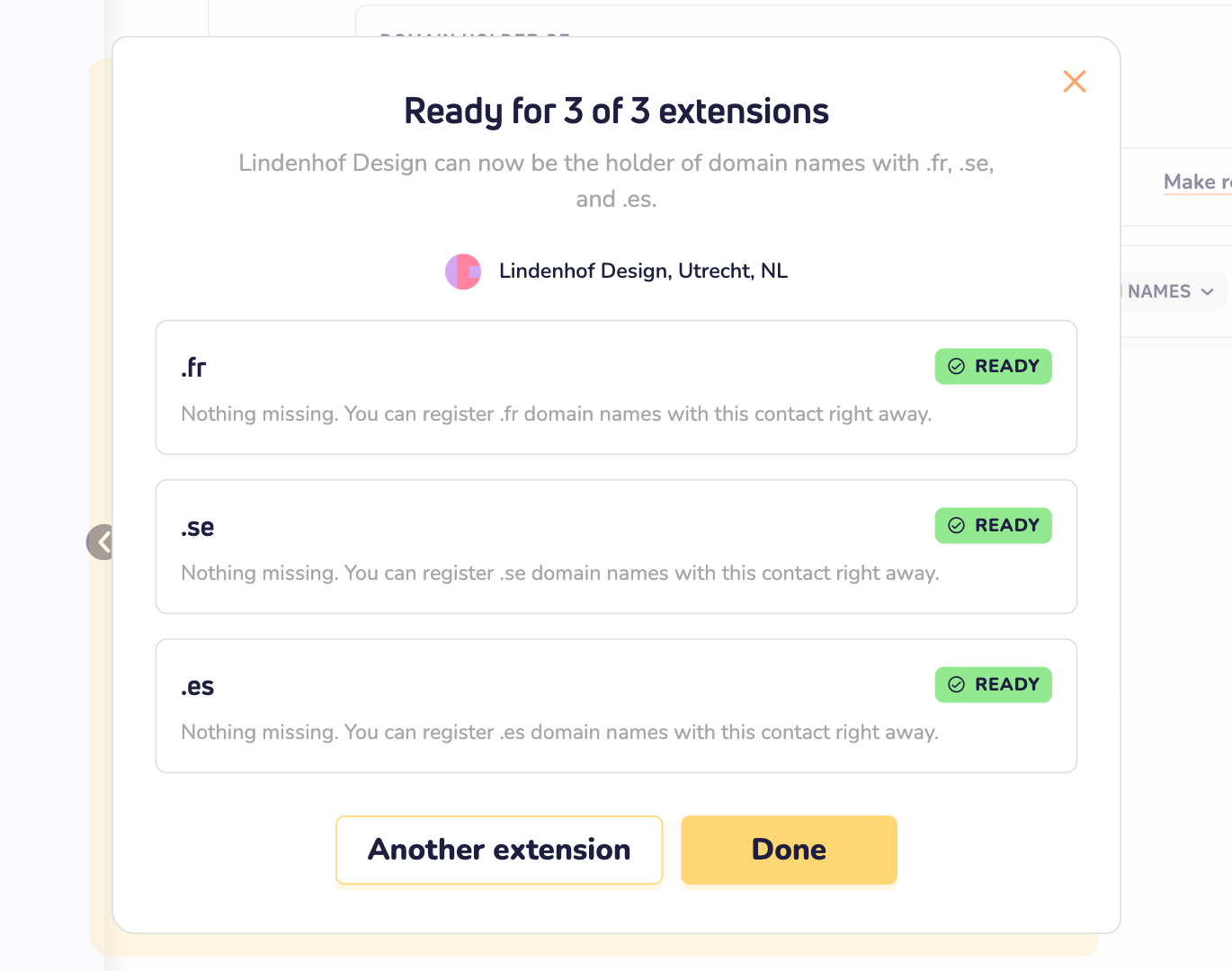
Step 6: Click Save and make ready. That's it! You now see which extensions the contact is ready for. Click Done to close the window, or Another extension to add more.
The contact now also shows the new extensions under Ready for.
Good to know
- It doesn't order anything. Making a contact ready is free. It doesn't register or reserve a domain name. You still order the domain name as usual, with the ready contact as domain holder.
- Skipped this step? No problem. We still ask for missing details when you order, just like before.
- A contact in Spain? Then .es also asks for their NIE or NIF number. Read more about .es domain names.
Want to know more about the domain holder? Read what a domain holder is. Questions? Contact us by WhatsApp, Telegram or email.