

A favicon is the small icon of your website. You see it in the browser tab, next to the name of your website. Browsers also show it in your bookmarks, and Google shows it next to your website in the search results. On a phone, it's the icon when someone saves your website to their home screen.
No favicon? Then your tab shows a plain grey icon, lost among 20 other tabs. With our free favicon generator, you make one in a minute. You don't need an account. And nothing is uploaded: your favicon is made in your own browser.
What can you make a favicon from?
- Letters: 1 or 2 letters, such as your initials. You choose from 4 fonts.
- An emoji: pick one of 16, or type your own.
- Your logo: a PNG, JPG, SVG, WebP or GIF file of at most 5 MB. A square logo works best.
Then you pick a background colour, the colour of the letters and a shape.
Make your favicon
Step 1: Open the favicon generator. Under Make your icon, click Letters, Emoji or Image. In this example, we use letters. Type 1 or 2 letters under Your letters and choose a font.
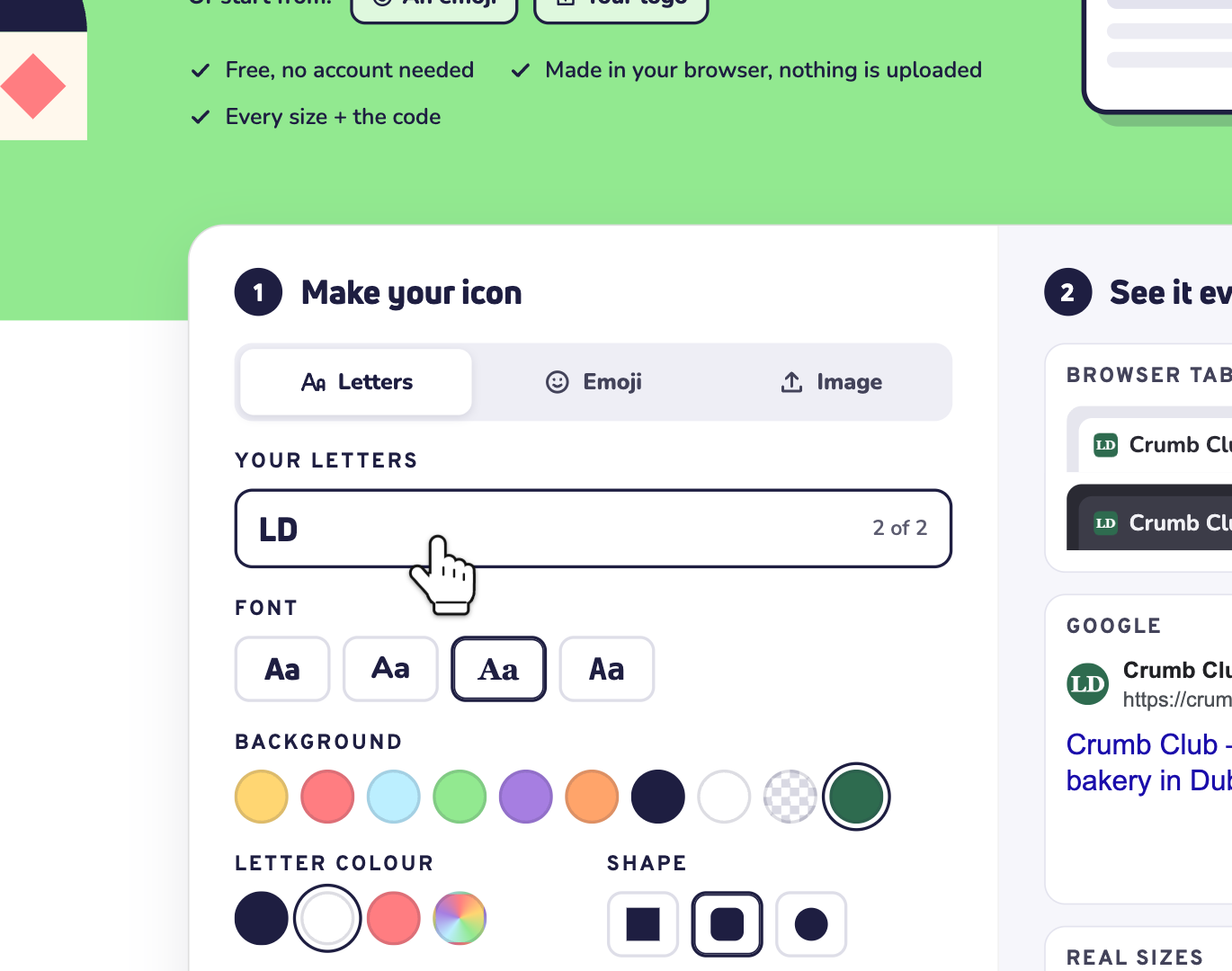
Using your logo? Click Image. Then choose the file, or drag it onto the box. Want an emoji? Click Emoji and pick one, or type your own.
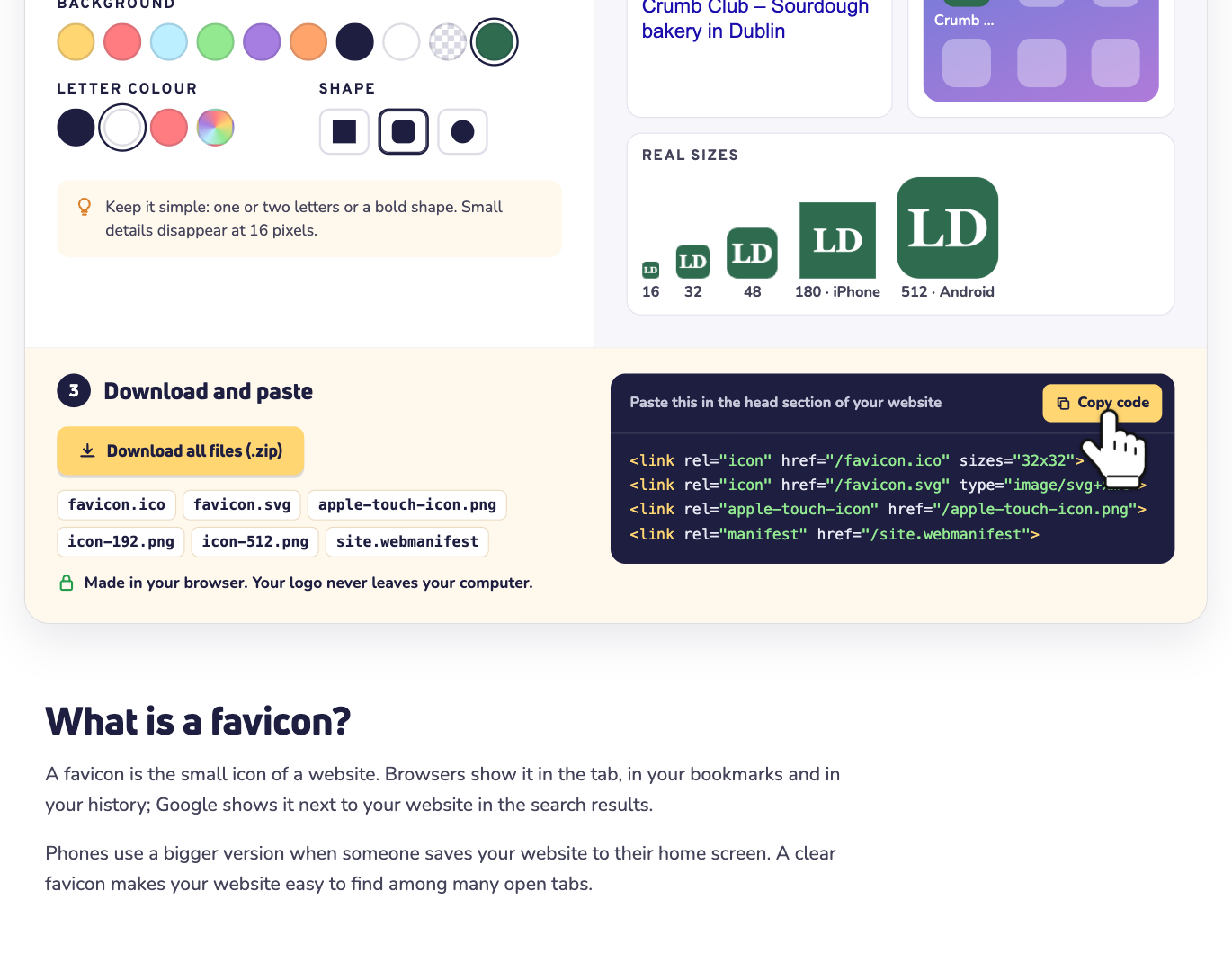
Step 2: Pick a Background colour. Want your own brand colour? Click the colourful circle at the end of the row and choose any colour. The checkered circle means no background. Then pick the Letter colour and the Shape: square, rounded square or circle.
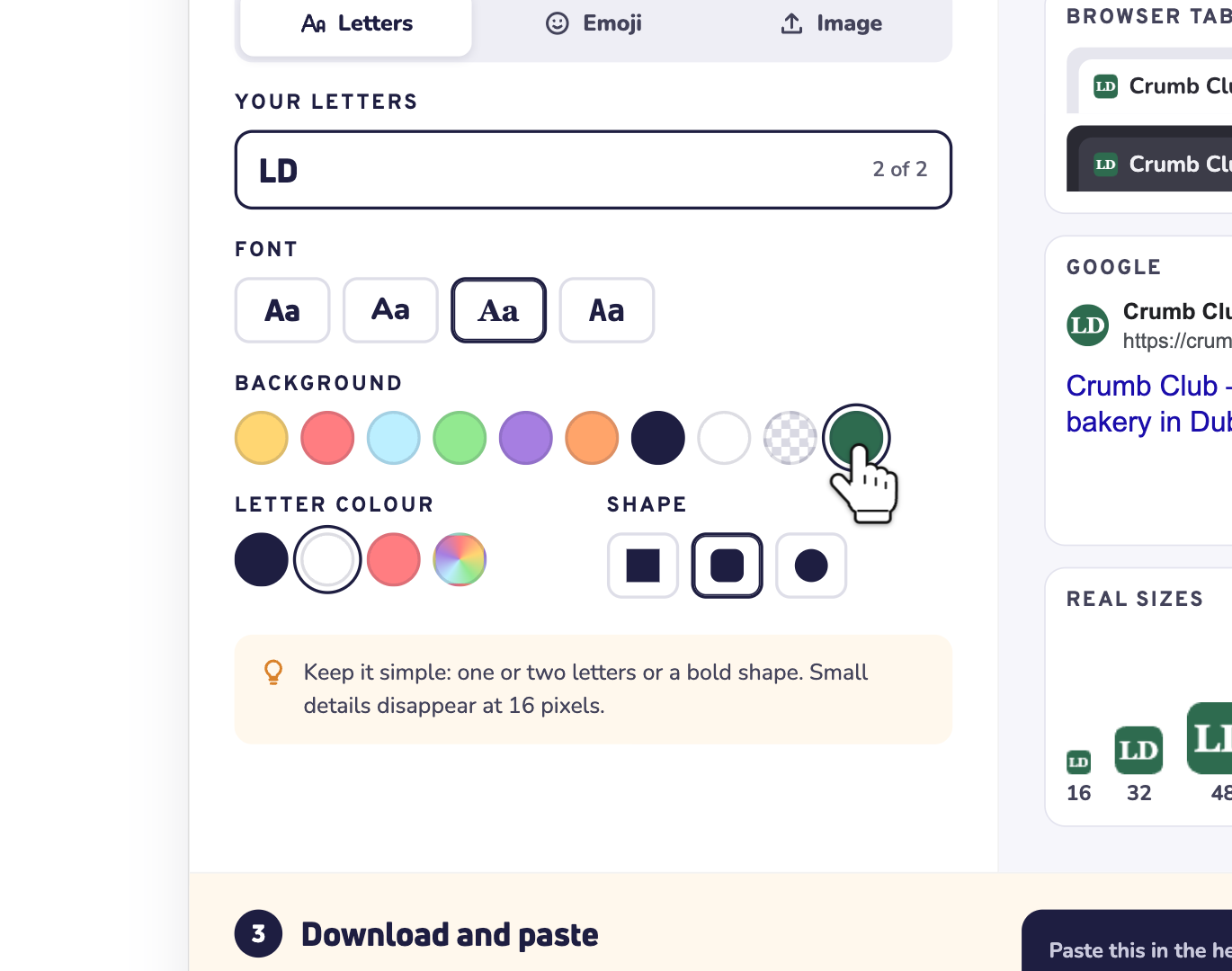
Keep it simple. One or two letters or a bold shape works best, because small details disappear at 16 pixels.
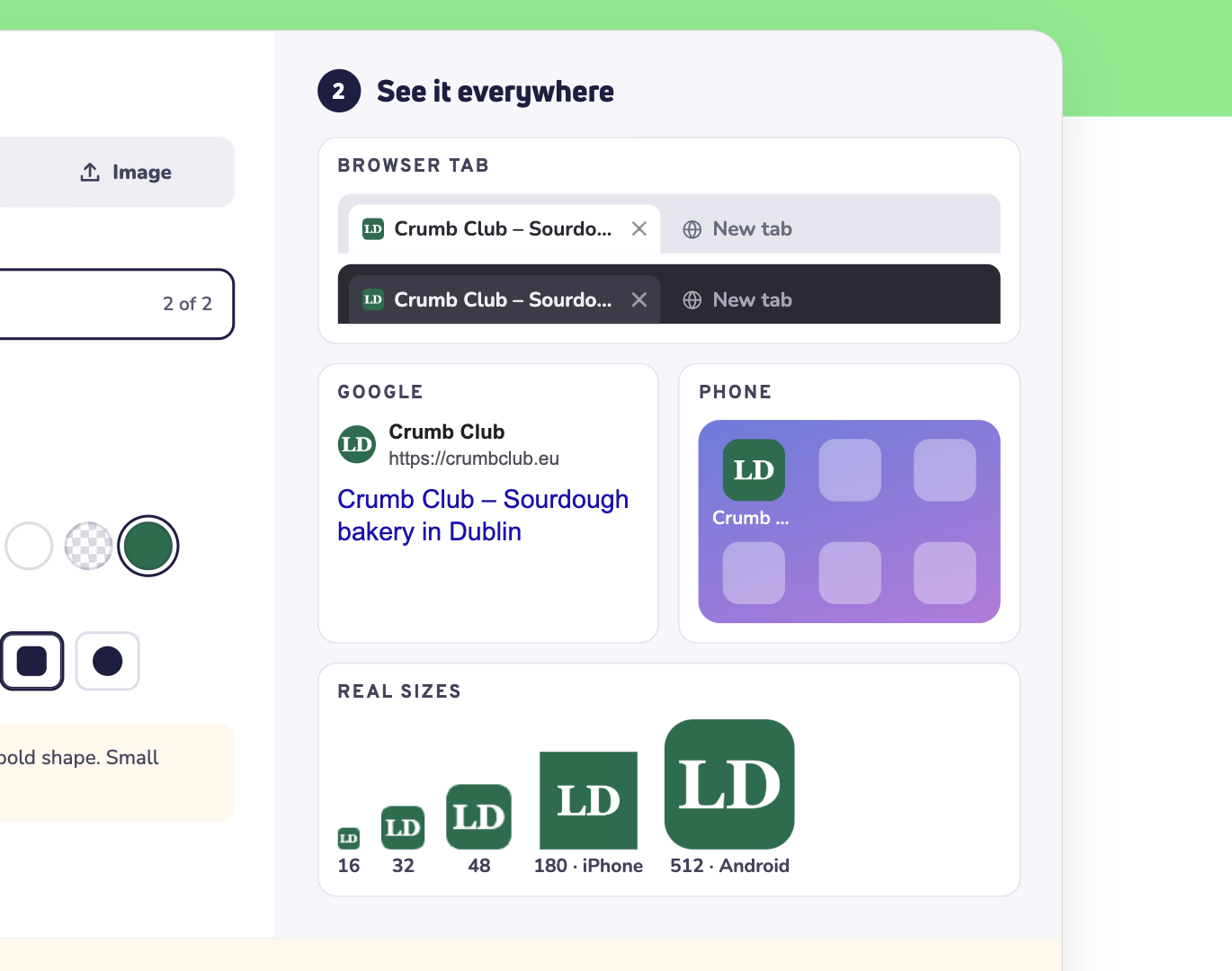
Step 3: Check the previews under See it everywhere. You see your favicon in a light and a dark browser tab, on Google, on a phone and in its real sizes. Not happy? Change it, and the previews change with it.
Step 4: Under Download and paste, click Download all files (.zip). You get the file favicon.zip.
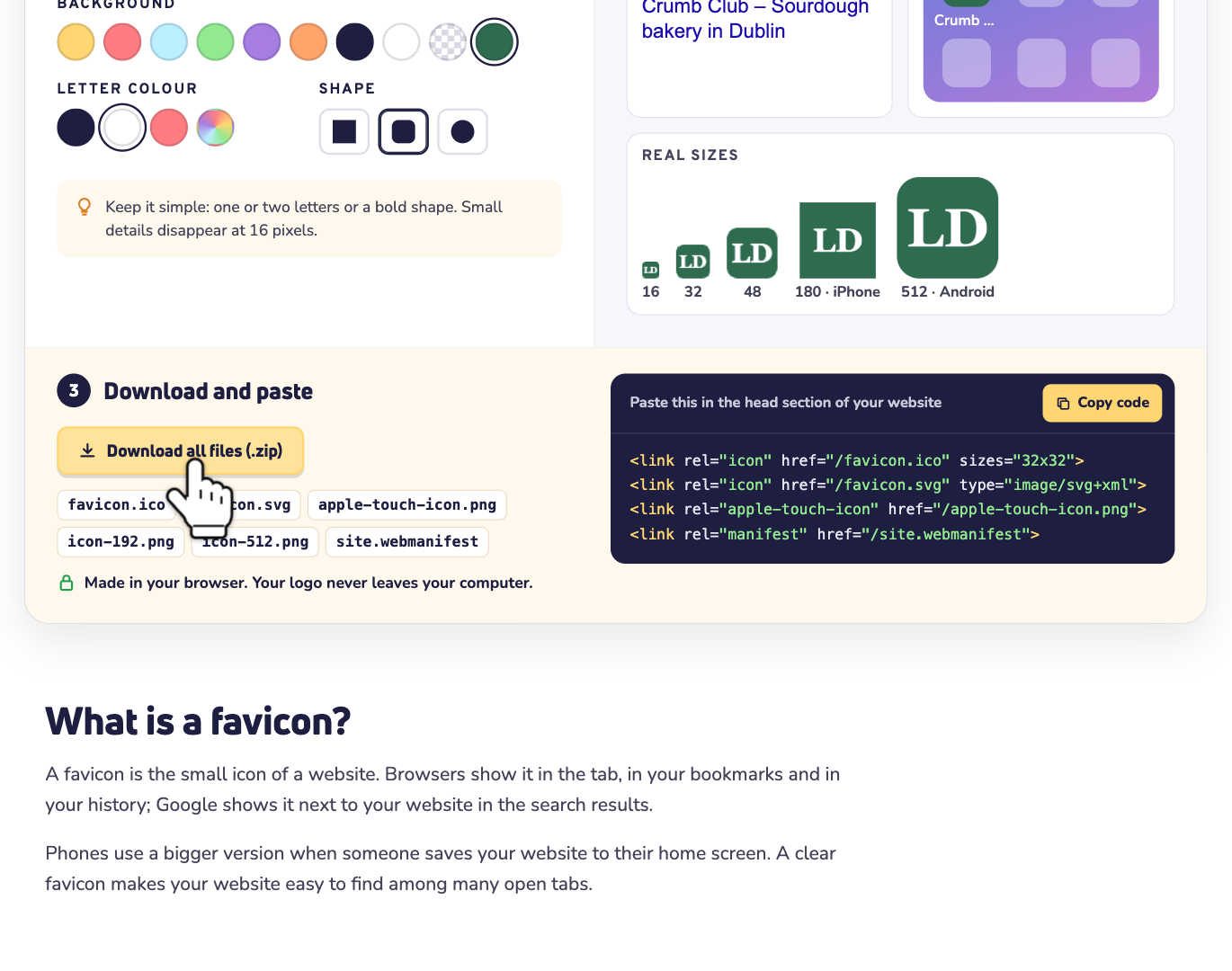
Step 5: Click Copy code. You paste this code into your website later. Using WordPress? Then you can skip this step.
What's in favicon.zip?
One image isn't enough. Every place asks for its own size, so the zip has them all:
- favicon.ico: for every browser, also older ones. It holds 3 sizes: 16, 32 and 48 pixels.
- favicon.svg: for modern browsers.
- apple-touch-icon.png: 180 × 180 pixels, for the home screen of an iPhone or iPad.
- icon-192.png and icon-512.png: for Android phones, and for when someone installs your website as an app.
- site.webmanifest: tells Android which icons to use, and the colour of your website.
The code from step 5 has 4 lines. They tell browsers where to find these files.
Add your favicon to WordPress
WordPress doesn't need the code. It makes the sizes itself.
- Log in to WordPress and go to Settings > General. On a WordPress version older than 6.5, go to Appearance > Customize > Site Identity instead.
- Under Site Icon, upload icon-512.png from the zip. WordPress wants a square image of at least 512 × 512 pixels.
- Save your changes.
Add your favicon to any other website
1. Upload the files. Unzip favicon.zip on your computer. Put the 6 files in the main folder of your website, where your homepage is. With our web hosting, that's the public_html folder of your domain name.
To open DirectAdmin, go to Dashboard, select your plan, and open Web hosting. Then click Log in automatically. In DirectAdmin, open System Info & Files and click File Manager. Go to domains, then your domain name, then public_html. Drag the 6 files into it. Rather use an FTP program? Read how to connect with FTP.
2. Paste the code. Paste the code from step 5 in the head section of every page. Does your website use a template or theme? Then paste it once, in the file with the head section, such as header.php.
Don't see your new favicon?
Browsers keep a favicon for a while, so you may still see the old one. Open your website in a private window: there you see the new favicon right away. Your normal window shows it later on its own.
Google takes longer. It shows your new favicon after it visits your homepage again, and that can take a few days to a few weeks.
Want more? Find a name, check your DNS or look up a domain name with our other free tools.