

Need more room for your website, email, or domain names? You can upgrade your plan from your Site.eu dashboard.
The good news? You do not need to move anything. After payment, the upgrade is processed right away.
Upgrade your plan
Step 1: Open your plan
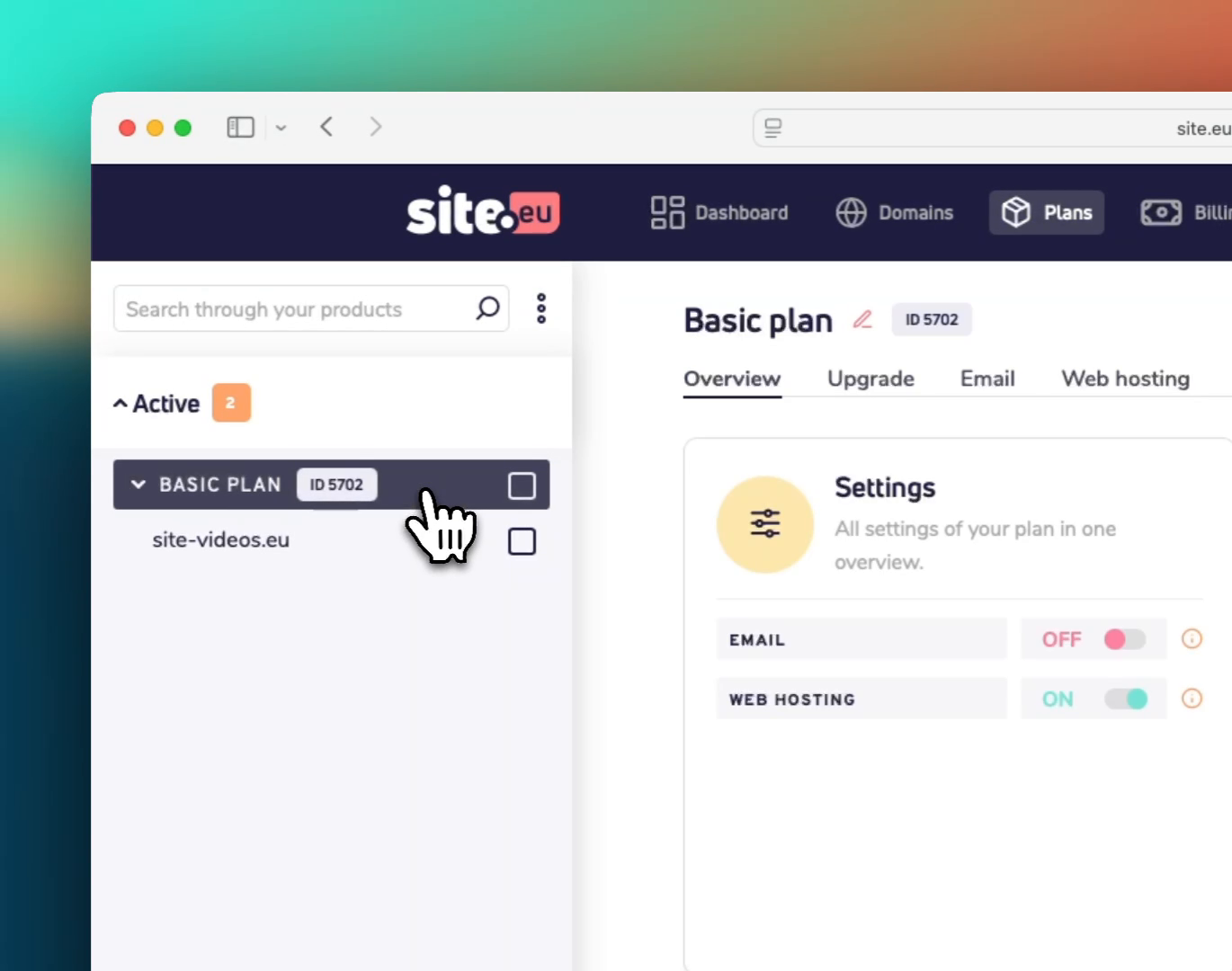
Open Site.eu and click Dashboard. Then open Plans and select the plan you want to upgrade in the product sidebar.
Step 2: Open the upgrade tab
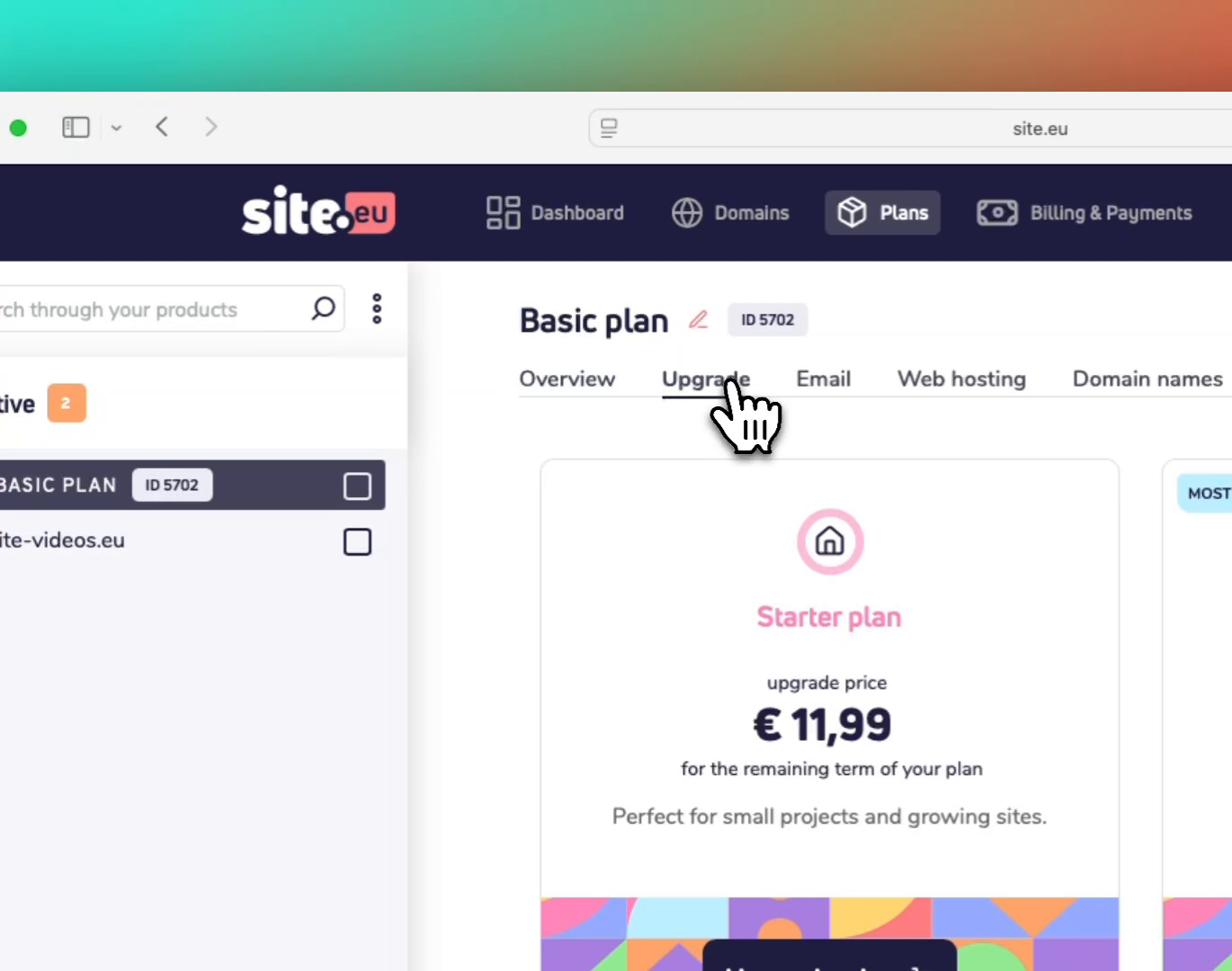
On the plan page, click Upgrade. This shows the upgrade options for your current plan.
Step 3: Compare the upgrade options
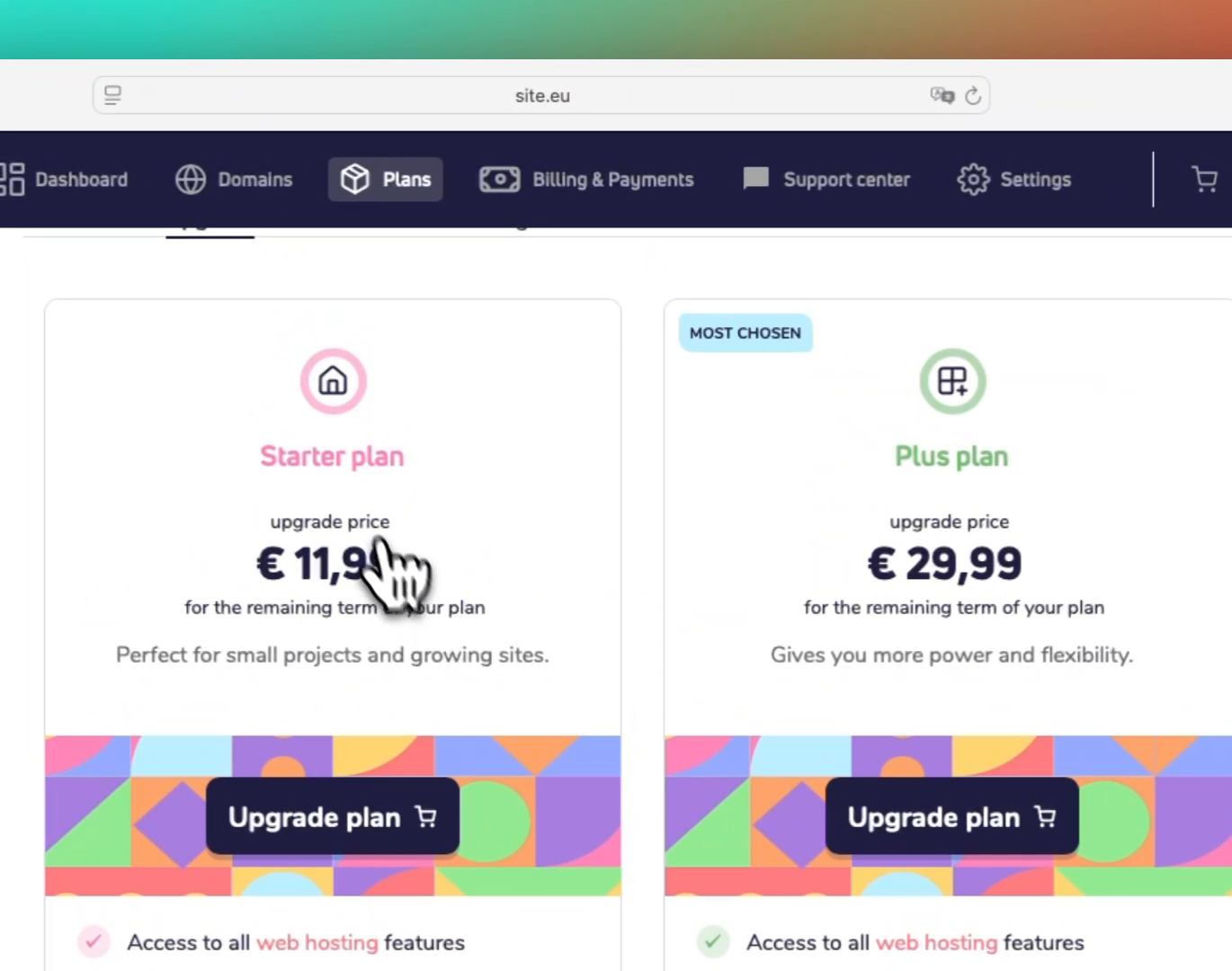
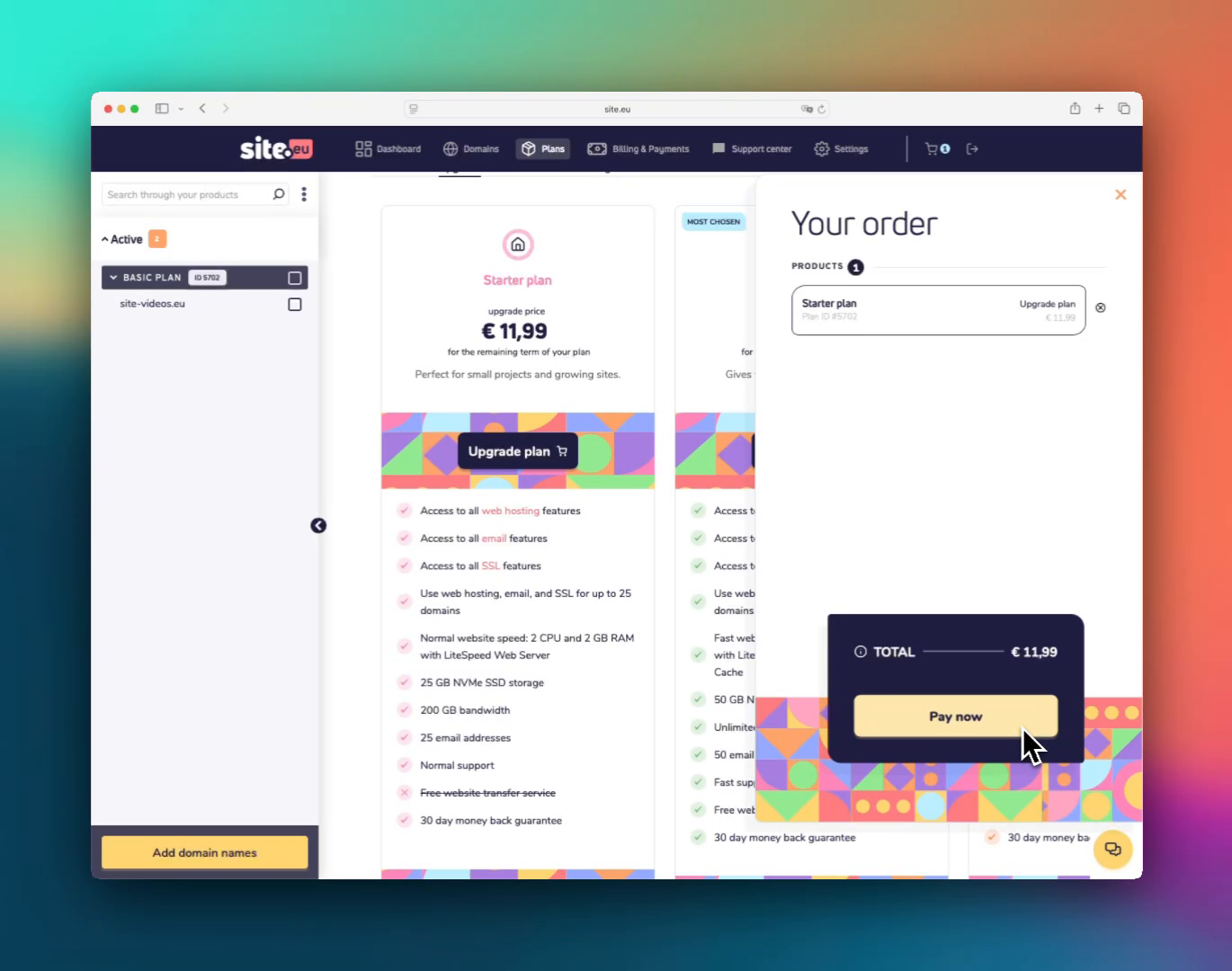
Each card shows upgrade price and the text for the remaining term of your plan. This means the price is only for the time left on your current subscription.
Example: if your plan is still active for 11 more months, the price you see is for those full 11 months.
Step 4: Add the upgrade to your order
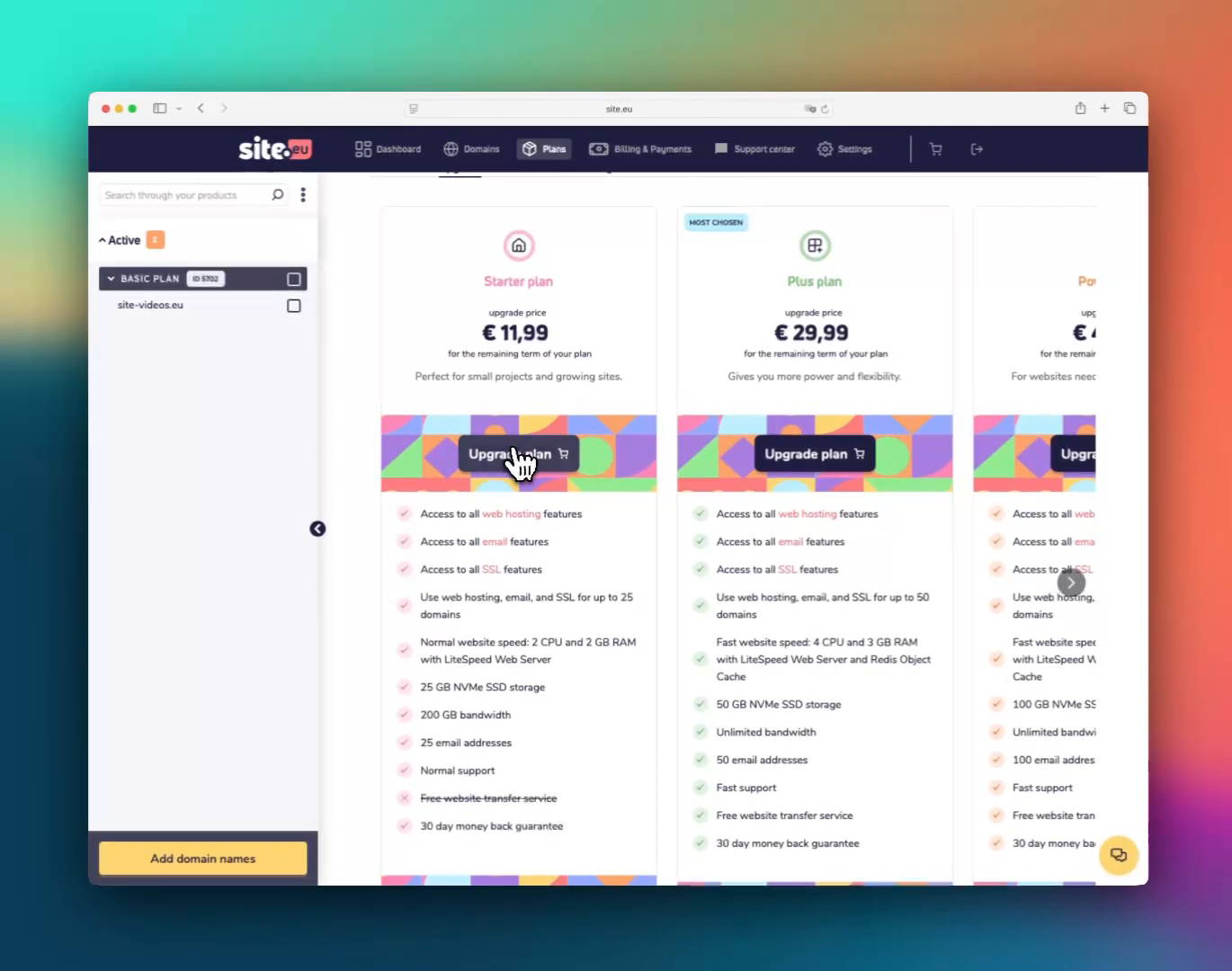
Choose the plan you want and click Upgrade plan. The cart icon will show that the upgrade has been added.
Step 5: Pay for the upgrade
Open the cart. In Your order, check the upgrade and click Pay now.
What happens after payment?
After payment, the upgrade is processed immediately. You do not need to change DNS records, change nameservers, or move files between servers.
There is also no downtime. Your website, email, and linked domain names stay in place while the plan is upgraded.
Good to know
- The upgrade price is based on the remaining term of your current plan.
- The upgrade starts after payment, not when you only add it to the cart.
- You do not need to move your website or change server settings.