

Got an email that asks you to confirm the details of your domain name's holder? Then the registry wants to know that those details are correct. It's one click in that email. But don't put it off. If nobody confirms in time, the registry can suspend your domain name.
Why do you get this email?
For many extensions, the domain holder has to confirm their details. Think of .com, .net, .org, .de, .fr and .uk. For .com and the other generic extensions, it's a rule of ICANN. For the others, it's a rule of the registry. The request usually comes after you:
- register a new domain name,
- transfer a domain name to us, or
- change the domain holder.
The email goes to the email address of the domain holder. That's the email address of the contact that holds the domain name. It can be another address than the one you log in with.
Is the email real?
The email comes from the registry, or from us on its behalf. Emails from mydomainprovider.com, or with links to it, are real. They ask the domain holder to confirm or check their details.
Not sure? Open your domain name in your dashboard. On the Overview tab, an orange box says Confirm the domain holder's e-mail address. It shows the email address we sent the link to. No orange box? Then the registry isn't waiting for anything.
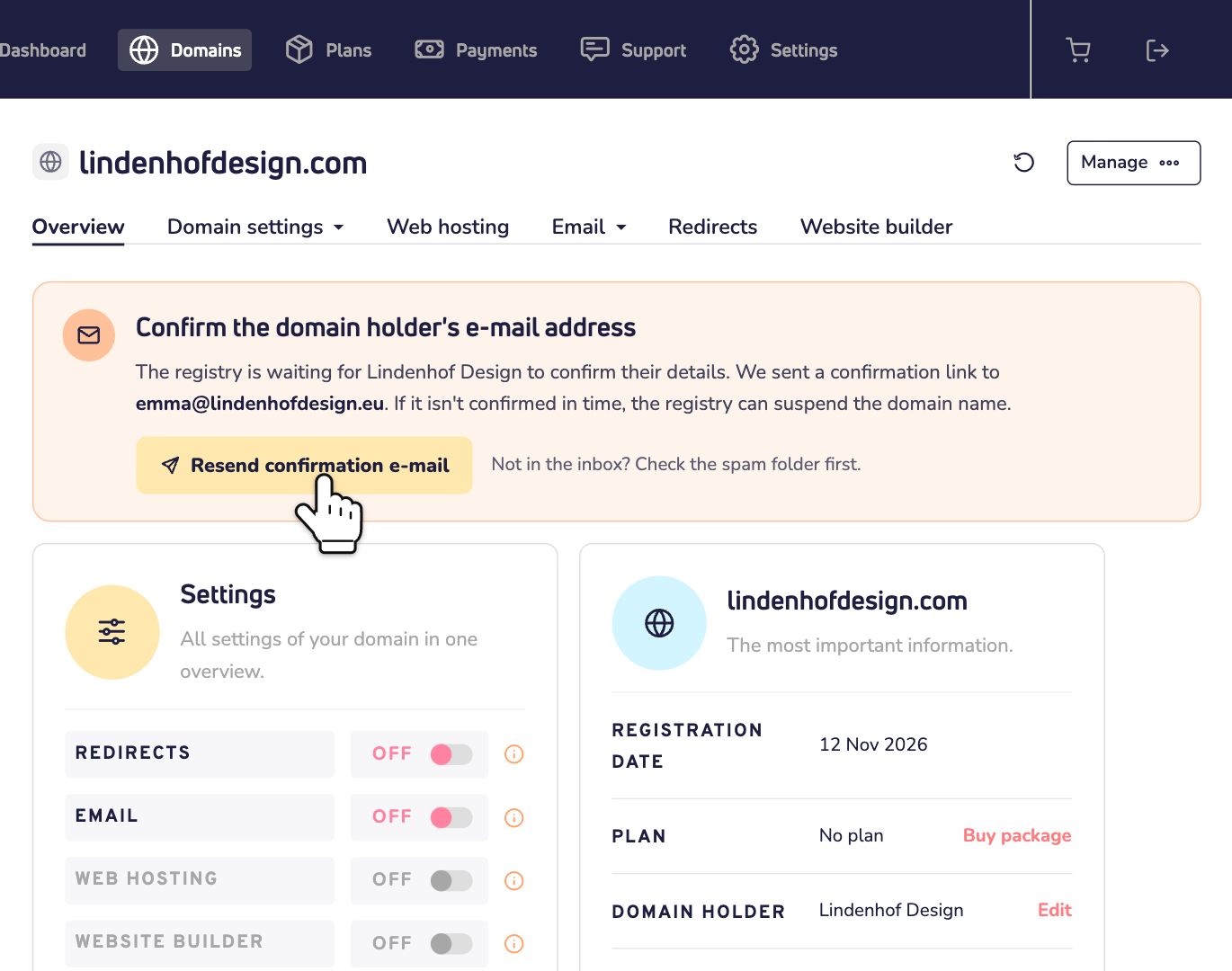
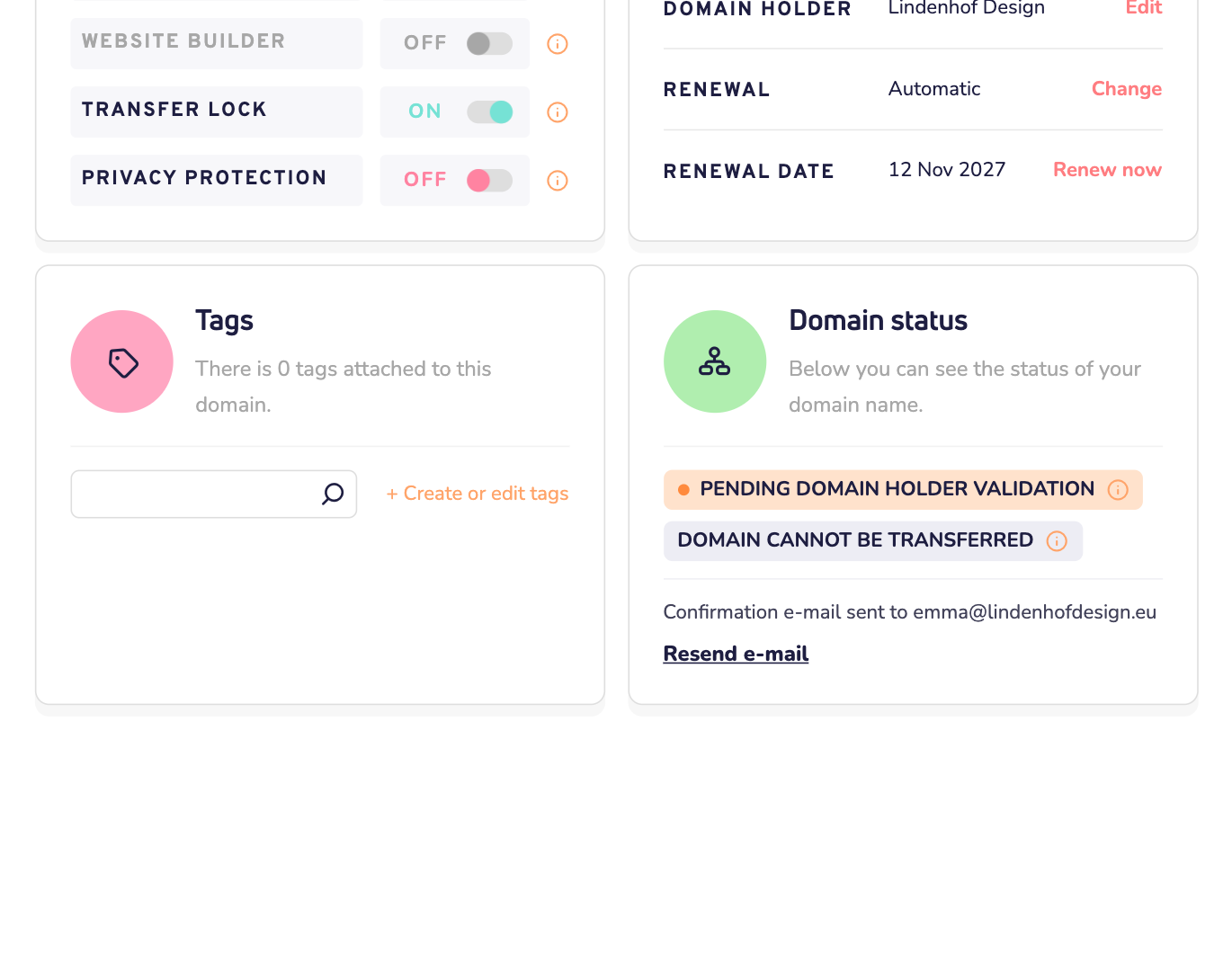
Under Domain status, you also see the status Pending domain holder validation. Read what the status of your domain name means.
Confirm the domain holder details
Step 1: Open the email and click the confirmation link.
Step 2: A page opens with the details of the domain holder. Check them and confirm.
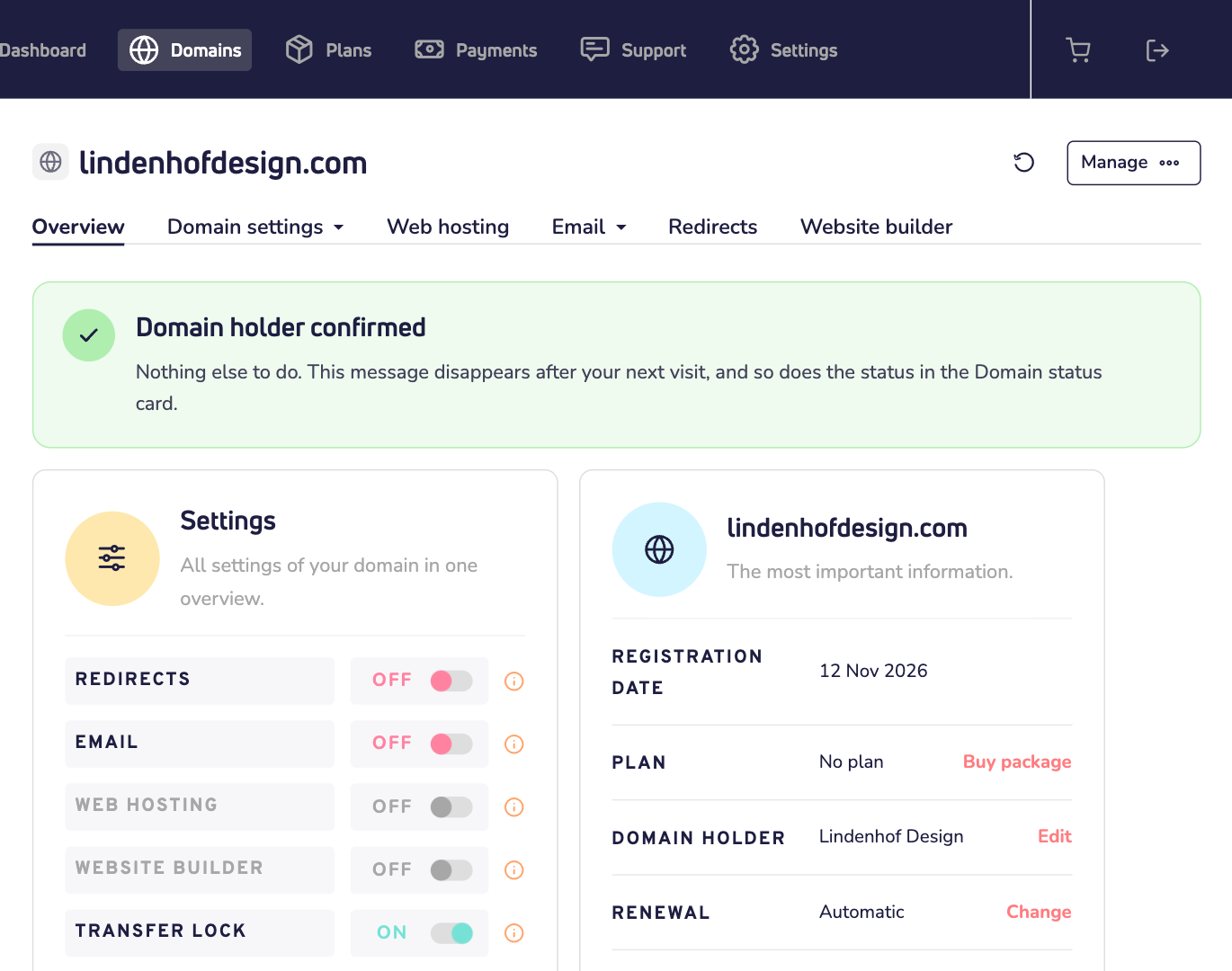
That's all. The registry removes the status by itself. Open your domain name in your dashboard again. After a few seconds, you see Domain holder confirmed.
How long do you have?
For .com, .net, .org and the other generic extensions, the domain holder has 15 days. Other registries set their own deadlines, and some are shorter. So confirm as soon as the email arrives.
Not confirmed in time? Then the registry can suspend your domain name. Your website and email stop working until the domain holder confirms. For .de, the registry can even delete the domain name later.
No email received?
First, check the spam folder of the domain holder's email address.
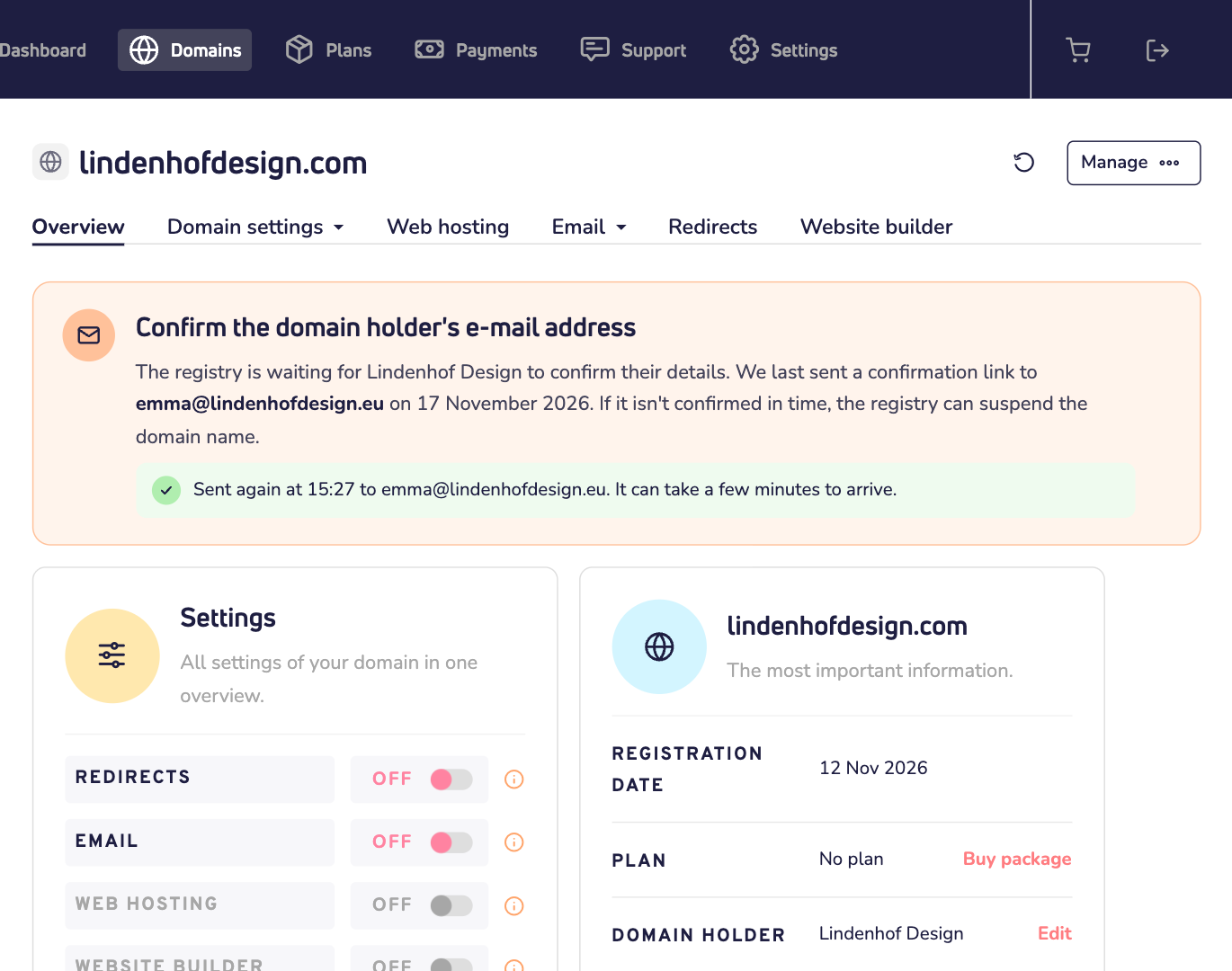
Then send it again. Open your domain name and click Resend confirmation e-mail in the orange box. You see where it went. It can take a few minutes to arrive. To prevent spam, you can send it once every 10 minutes.
Site Assistant can send it again for you too. Read how to use Site Assistant.
Is the email address wrong or old?
Then the link never reaches the domain holder. Change the email address of the contact first. Then send the email again.
Step 1: Go to Settings and open the Domain holders tab. Click the contact that holds the domain name.
Step 2: Click Change details and enter the right email address. Click Save details.
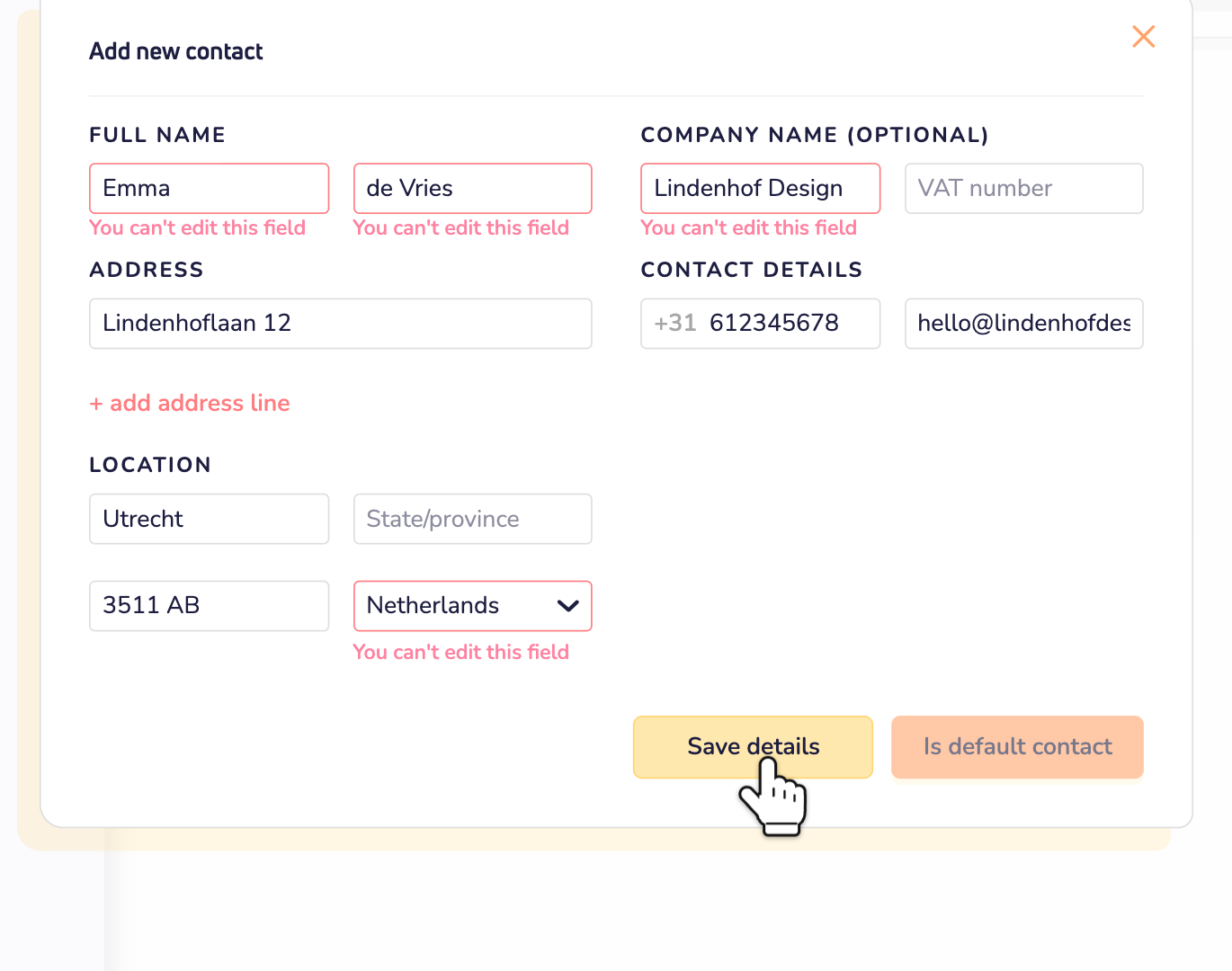
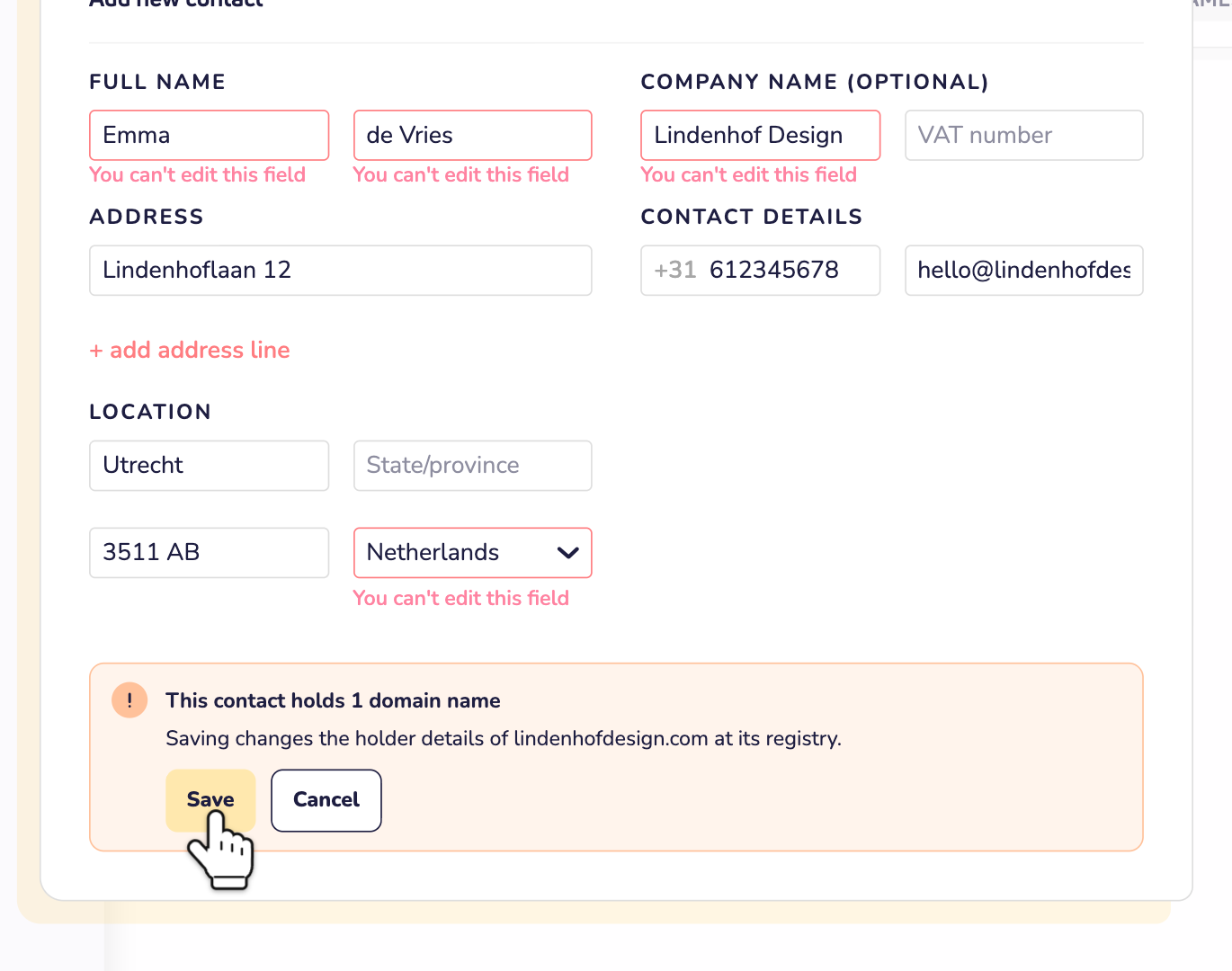
Step 3: You see which domain names this contact holds. Your change goes to the registry of each of them. Click Save.
Step 4: Open your domain name and click Resend confirmation e-mail. The new link goes to the new email address.
You can change the email address, phone number and address of a contact. The name, company name and country stay the same. Is the wrong person or company the domain holder? Then change the domain holder. Read how to change the holder of your domain name.