

Want an address like info@shop.yourdomain.com? Or one for each team, like hello@sales.yourdomain.com? Then give a subdomain its own email addresses. They work next to the addresses on your domain name. It even works more levels deep, like news@team.shop.yourdomain.com.
A subdomain is a name in front of your domain name, such as shop in shop.yourdomain.com. You don't have to register it. It's part of your domain name.
Before you start
- Email is on for your domain name. Your domain name must be linked to one of our plans. Is email still off? Turn it on first. Read how to create an email address. The first time you turn on email for a domain name, it can take up to 24 hours before it works.
- Each subdomain counts as 1 domain of your plan. It doesn't cost extra. On the Email tab, you see how many domains of your plan are in use.
- Its addresses count toward your plan, just like the addresses on your domain name.
Add a subdomain for email
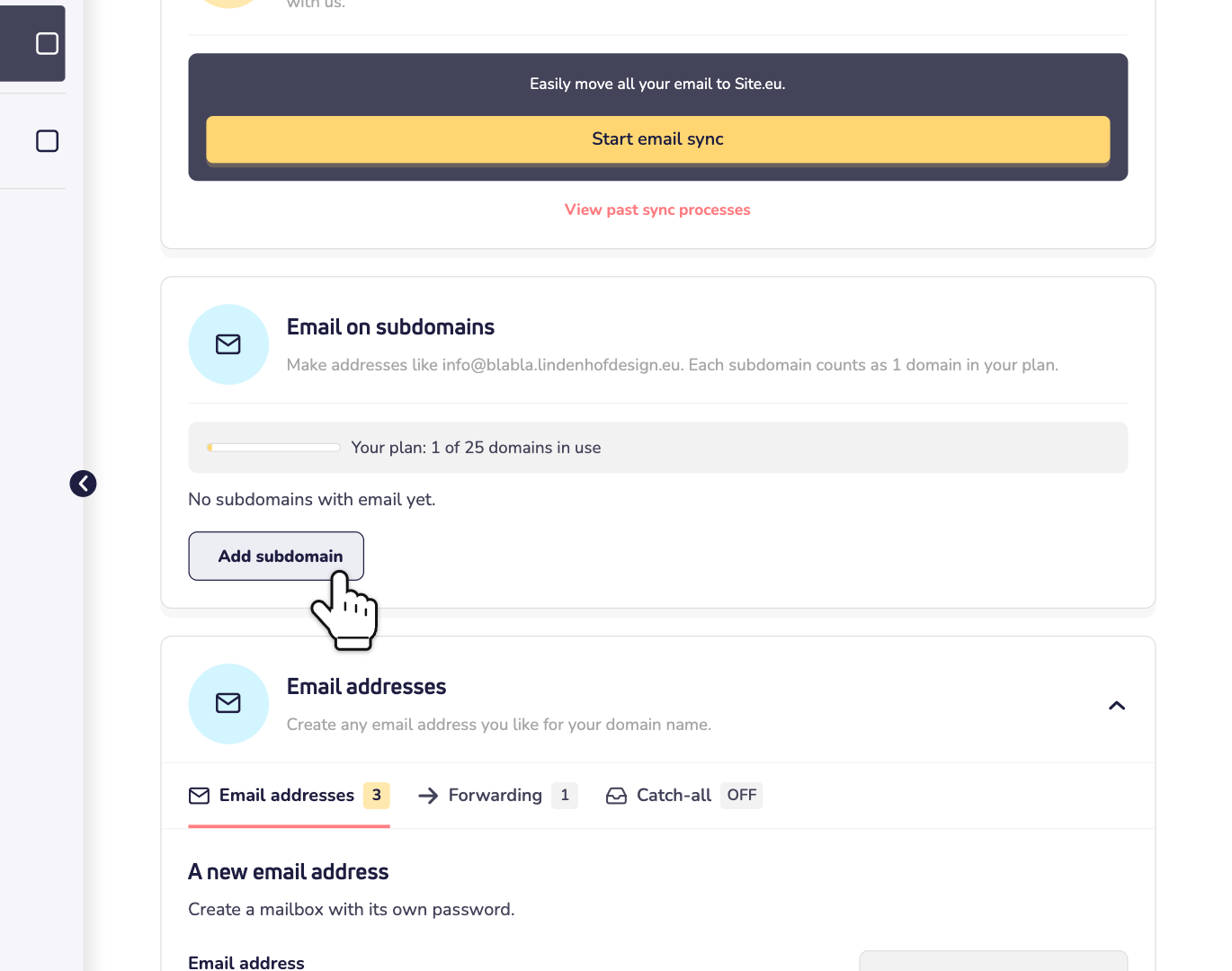
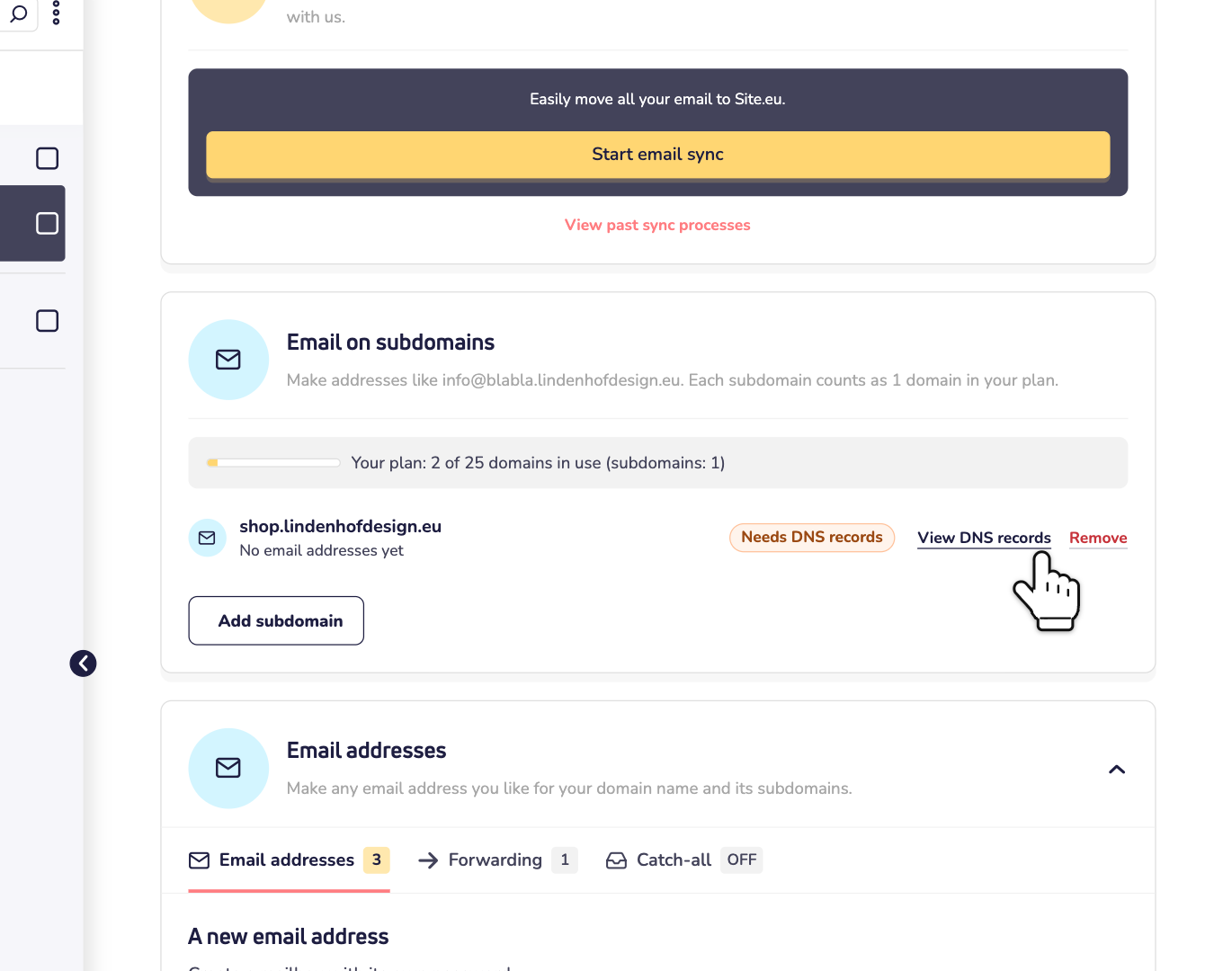
Step 1: Log in to your dashboard, click Domains and open your domain name. Click Email and choose Email addresses. Scroll down to Email on subdomains and click Add subdomain.
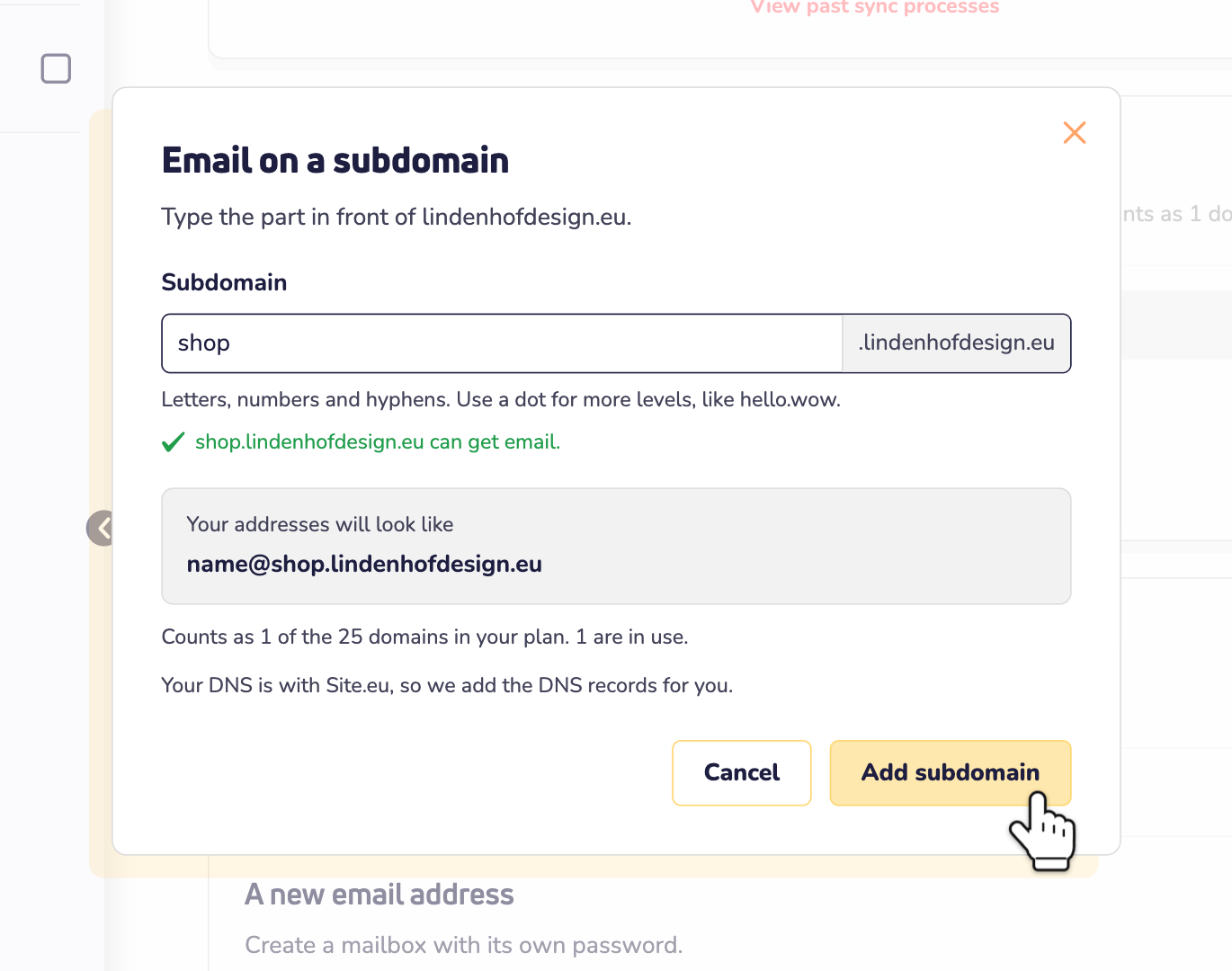
Step 2: Type the part in front of your domain name, such as shop. Want more levels? Use a dot, like team.shop. We check the name right away. See a green check mark? Then click Add subdomain.
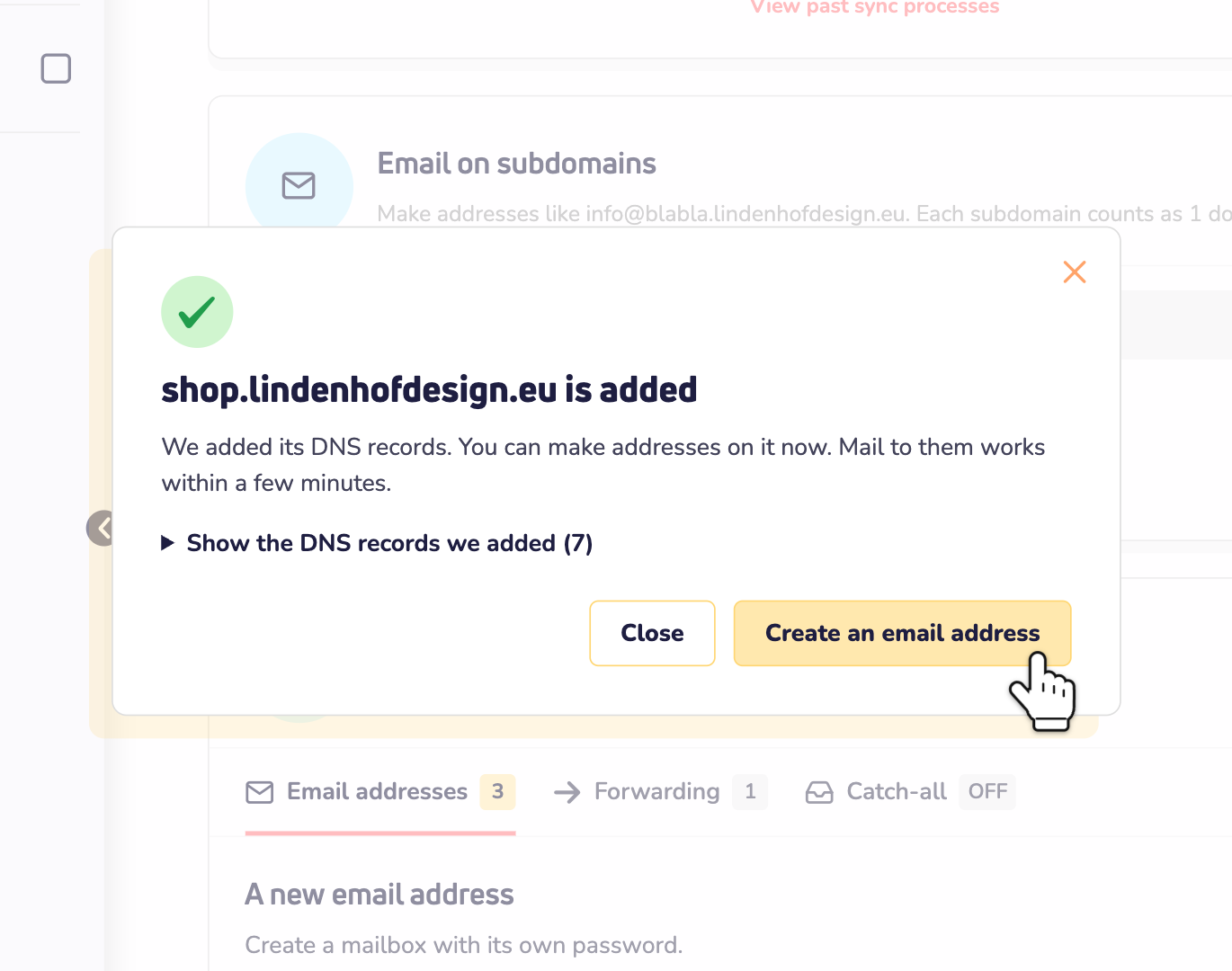
Step 3: Is your DNS with us? Then we add the DNS records for you. Click Create an email address to make your first address on the subdomain. Is your DNS somewhere else? Then you see which records to add. Read Is your DNS somewhere else? below.
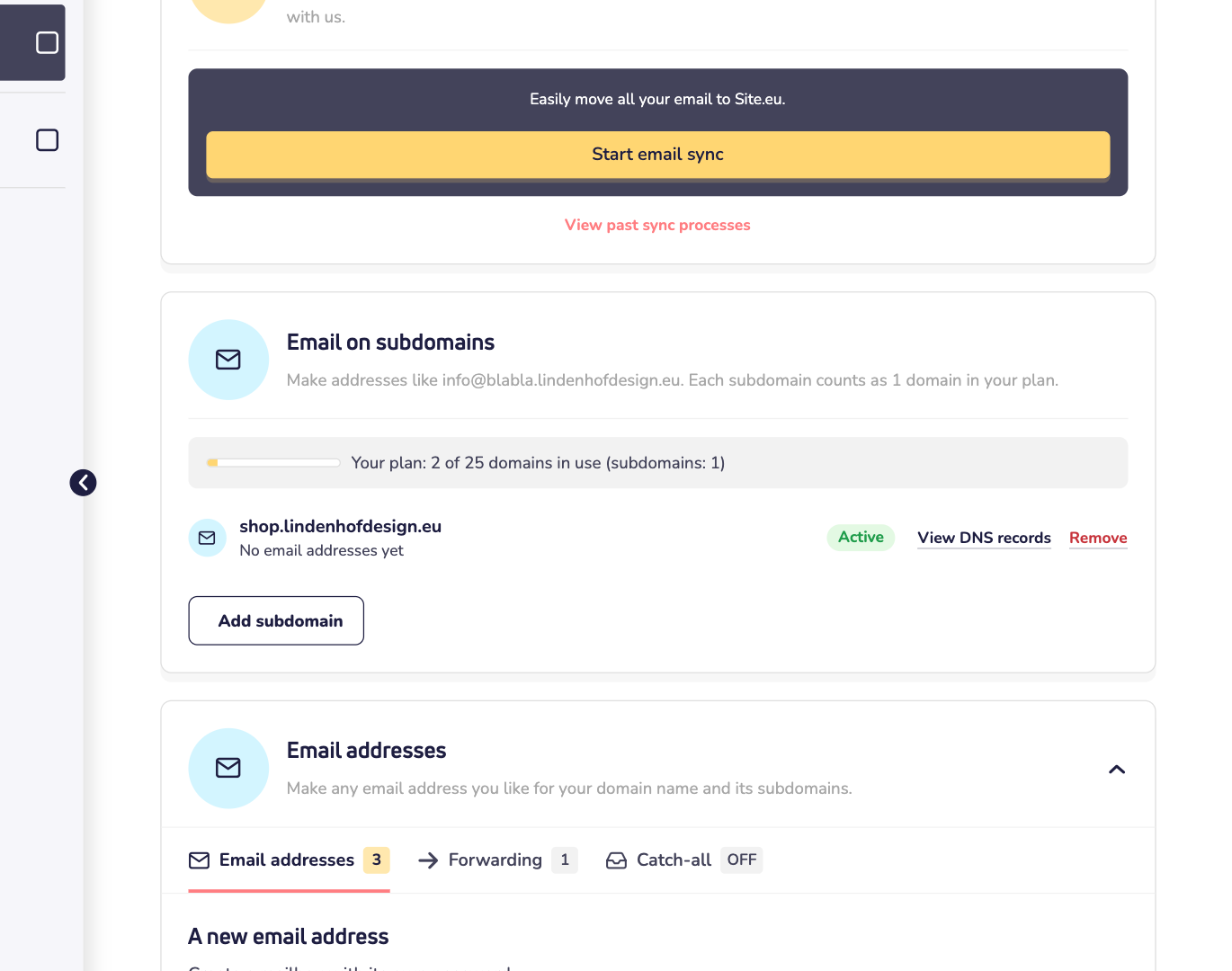
Your subdomain is now in the list. For the first few minutes, it says Setting up…. Then it says Active, and email to its addresses works.
Create an email address on the subdomain
Step 4: Under A new email address, type the part before the @, such as info. After the @, pick your subdomain. Type a strong password, or click Generate to make one. Then click Create email address.
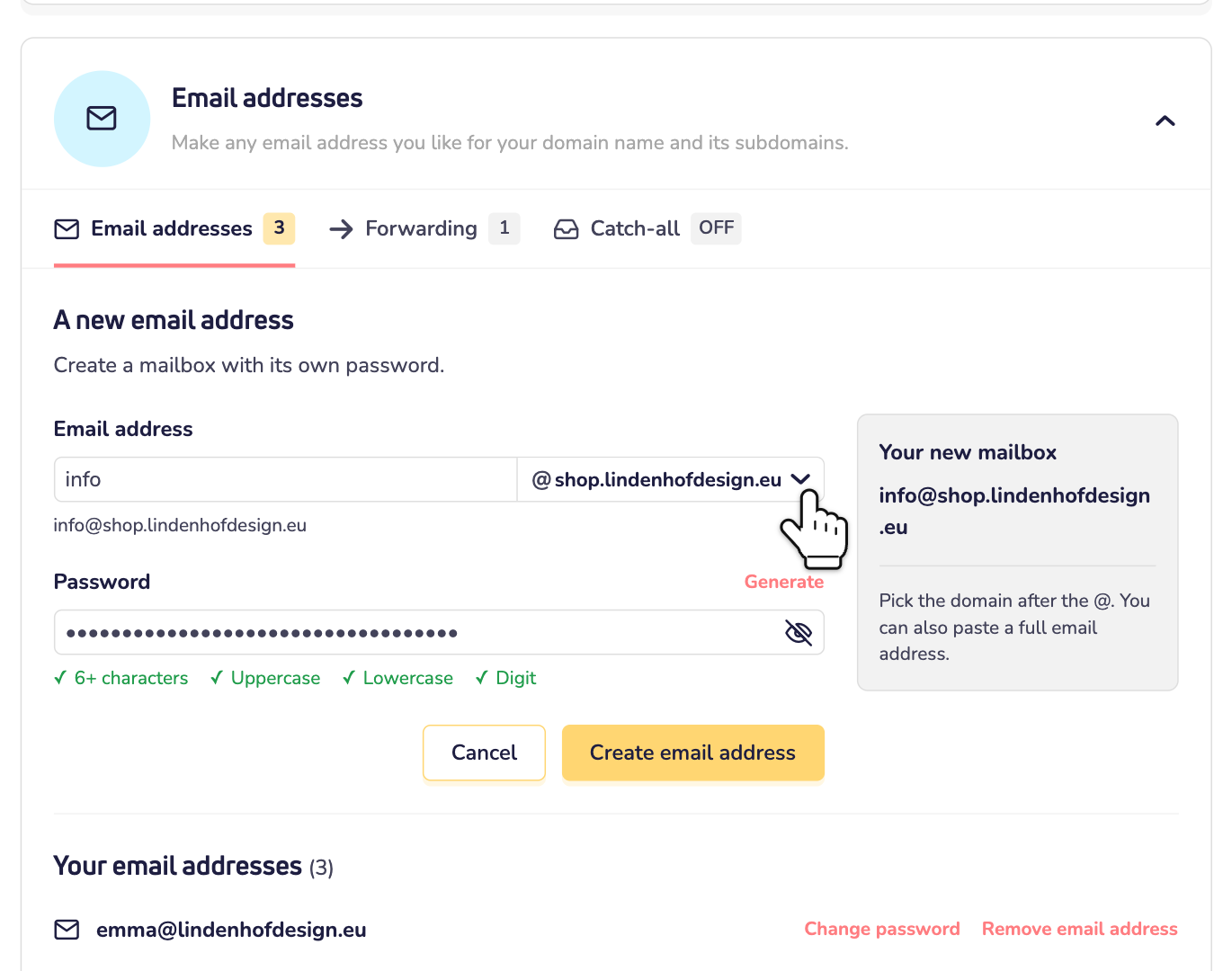
You can also type or paste the full address, like info@shop.yourdomain.com. A forwarder on a subdomain works the same way, on the Forwarding tab. A catch-all only works on the domain name itself.
Is your DNS somewhere else?
Then we can't add the DNS records for you. After step 2, you see which records the subdomain needs. Add them where you manage your DNS. Email on the subdomain works once they're live. That can take a few hours.
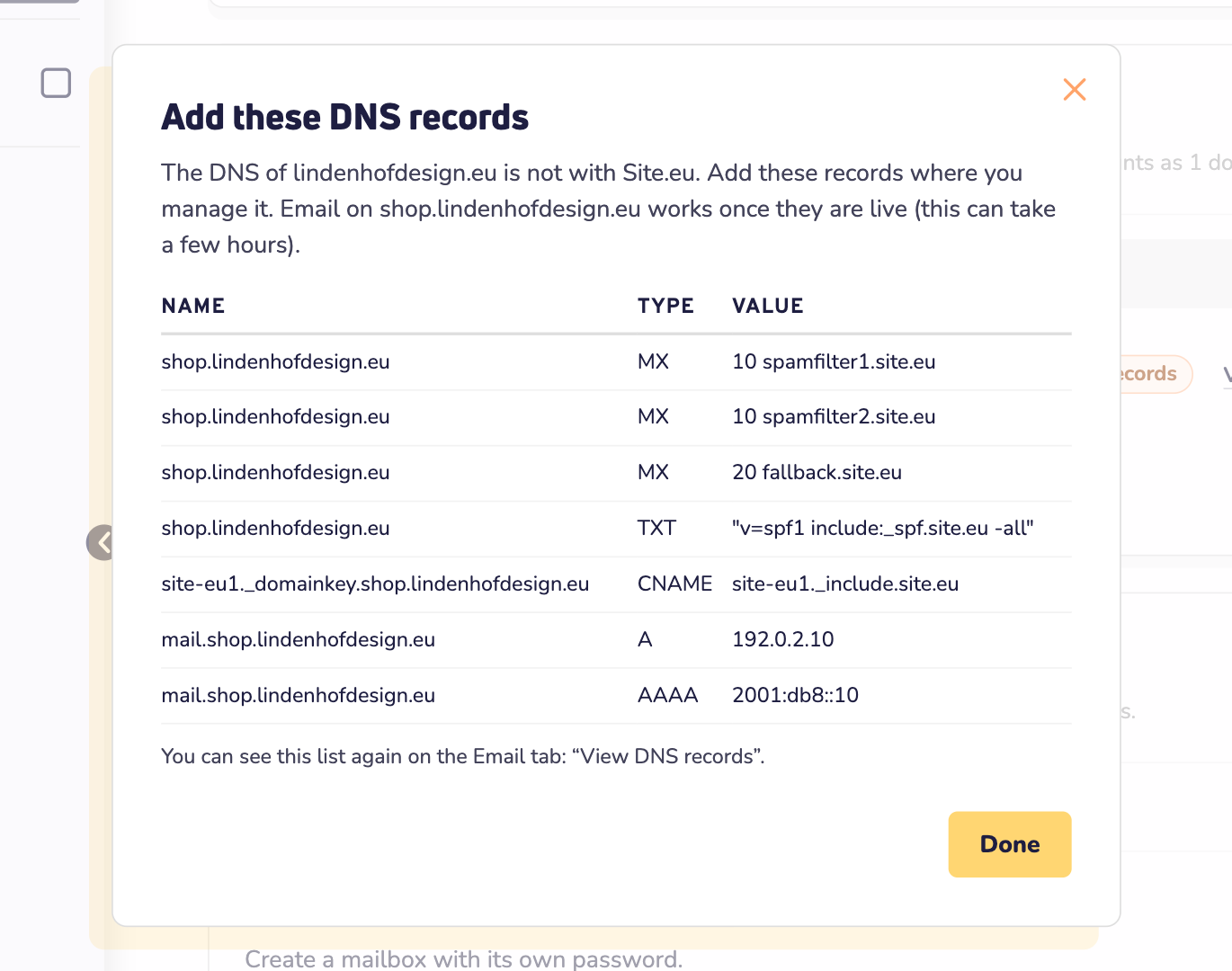
Need the list again? Click View DNS records next to your subdomain. We can't see DNS that's managed somewhere else. So your subdomain keeps saying Needs DNS records, also after you've added them. Want to know if it works? Send a test email to your new address.
Good to know
- Same spam filter. A subdomain follows the spam filter settings of its domain name. Change them on the domain name, and they change for the subdomain too. The allowed and blocked senders of your domain name also count for the subdomain. Read how to allow or block an email sender.
- Webmail and email apps work the same. Log in at mail.site.eu with the full address, like info@shop.yourdomain.com, and its password. In an email app, use the same server settings as for your other addresses.
- Your website stays. Is there already a website on the subdomain? Adding email doesn't change it.
Remove a subdomain
Next to the subdomain, click Remove. Type the password you log in to your dashboard with, and click Yes, remove.
Careful: this deletes all email addresses on the subdomain, with all their emails. You can't undo this. After that, the subdomain no longer counts toward your plan. Is your DNS with us? Then we also remove the DNS records we added for it.
Turning off email for your domain name also removes all its subdomains from the list, with their addresses.
Can't add the subdomain?
- Check the name. Use only letters, numbers, hyphens (-) and dots. The full name, like shop.yourdomain.com, can have at most 50 characters. A name whose first part is mail, like mail or mail.shop, is for our mail server.
- Does the subdomain point somewhere else with a CNAME record? Then email can't work on that name. Remove the CNAME in your DNS, or choose another name.
- Is the name already in use at Site.eu? For example, because it's added as a domain name to an account. Then choose another name.
- Are all domains of your plan in use? Then upgrade your plan, or remove a subdomain you no longer need.
- Is email off for your domain name? Turn it on first.
Does the subdomain get its email somewhere else now? Then you see a warning. You can still add it. But after that, its email comes to Site.eu.