

Our spam filter checks every email sent to your domain name. Most of the time, it gets it right. But not always. A newsletter you want keeps ending up in quarantine. Or a sender you never want to hear from keeps reaching your inbox.
With Sender rules, you decide who gets through. Think of a guest list at the door. Some names always get in. Others always wait outside.
- Allowed: we don't treat mail from this sender as spam. It gets through to the inbox. Virus and attachment checks still apply.
- Blocked: mail from this sender goes to the quarantine, not to the inbox. This works while the spam filter is on.
All addresses or one address?
A rule counts for all email addresses on your domain name, or for just one. You choose this under Applies to.
- All addresses on this domain: the rule counts for every address. Also for addresses you add later, and for your catch-all.
- One email address: the rule only counts for that address. Does the same sender also have a rule for all addresses? Then the rule for the address wins.
Add a sender
Email must be turned on for your domain name. The spam filter settings only show up for domains with email.
Step 1: Log in to your Site.eu dashboard and open your domain name.
Step 2: Click Email and choose Spam filter.
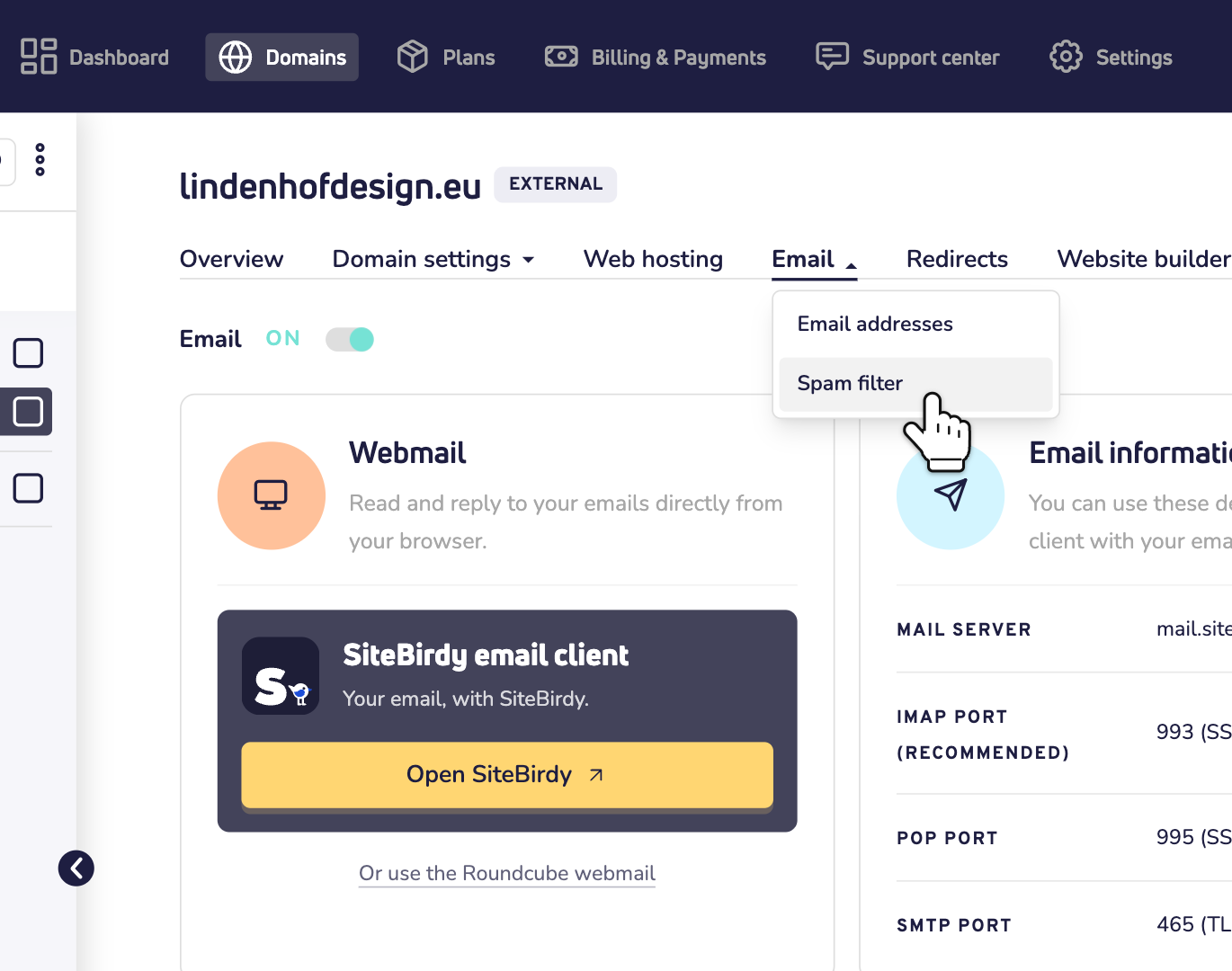
Step 3: Scroll down to Sender rules. Under Applies to, choose All addresses on this domain or one email address. Then click + Add sender.
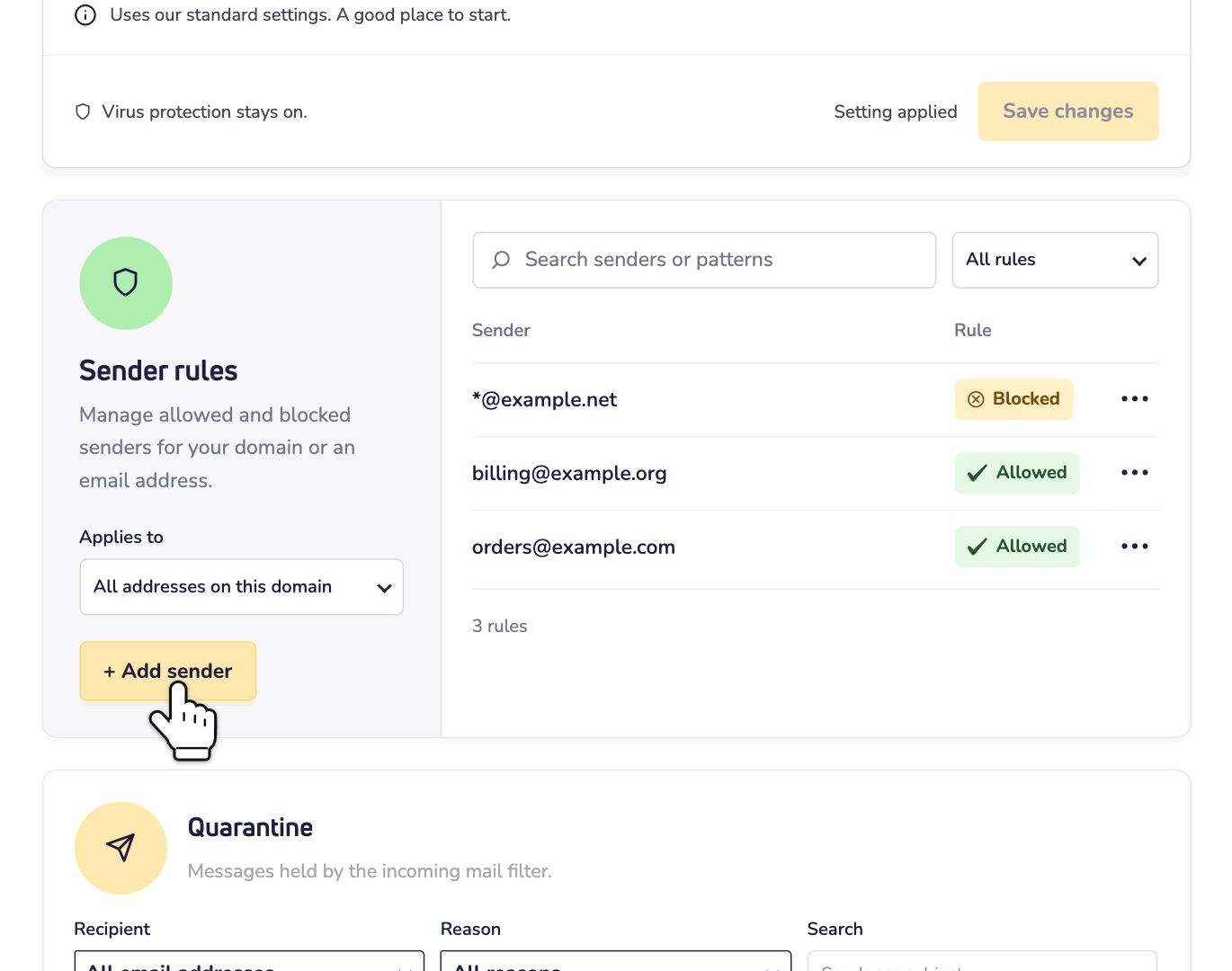
Step 4: Under Sender email or wildcard, enter the sender's email address, or a wildcard (more on that below). Under Rule, choose Allowed or Blocked.
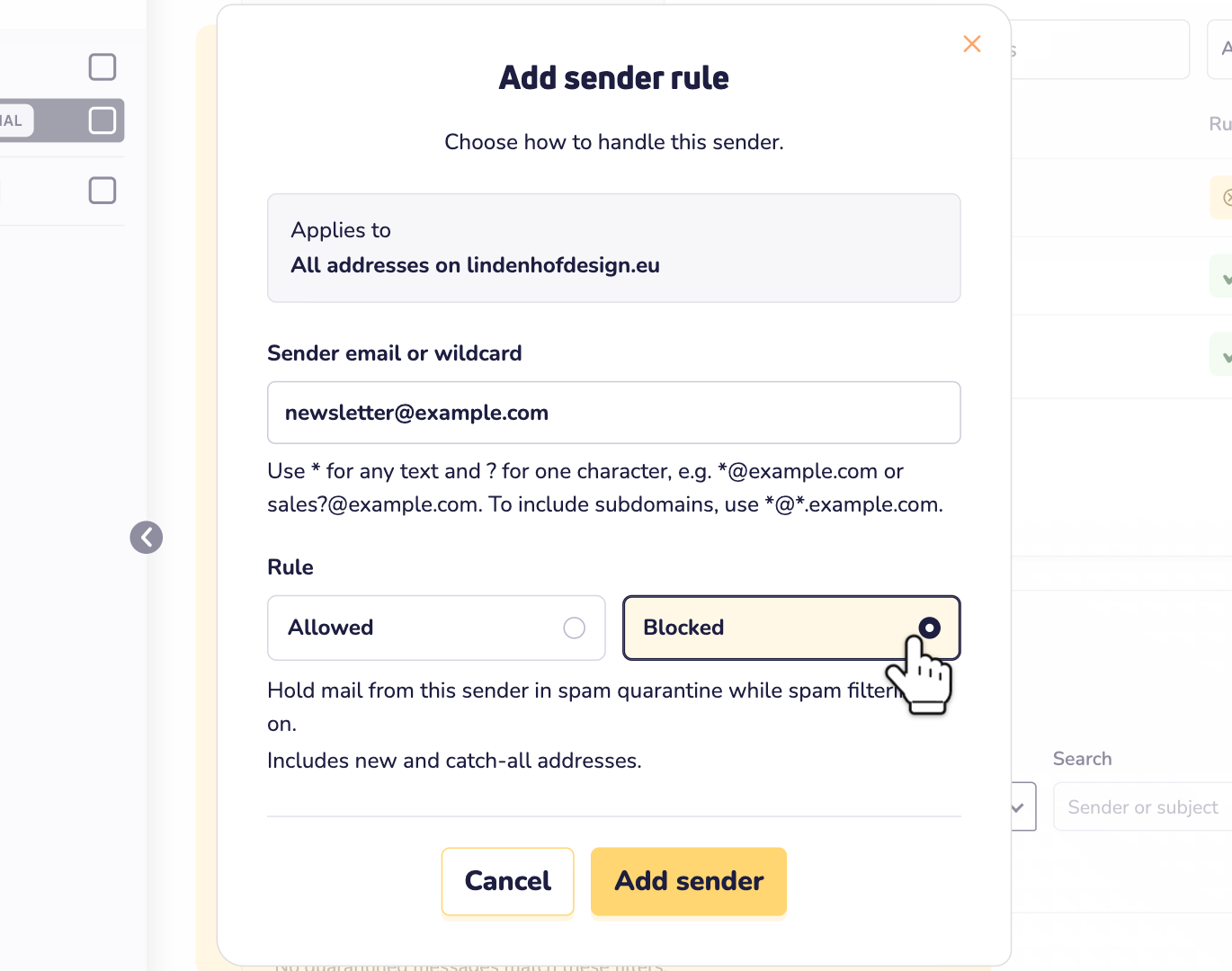
Step 5: Click Add sender.
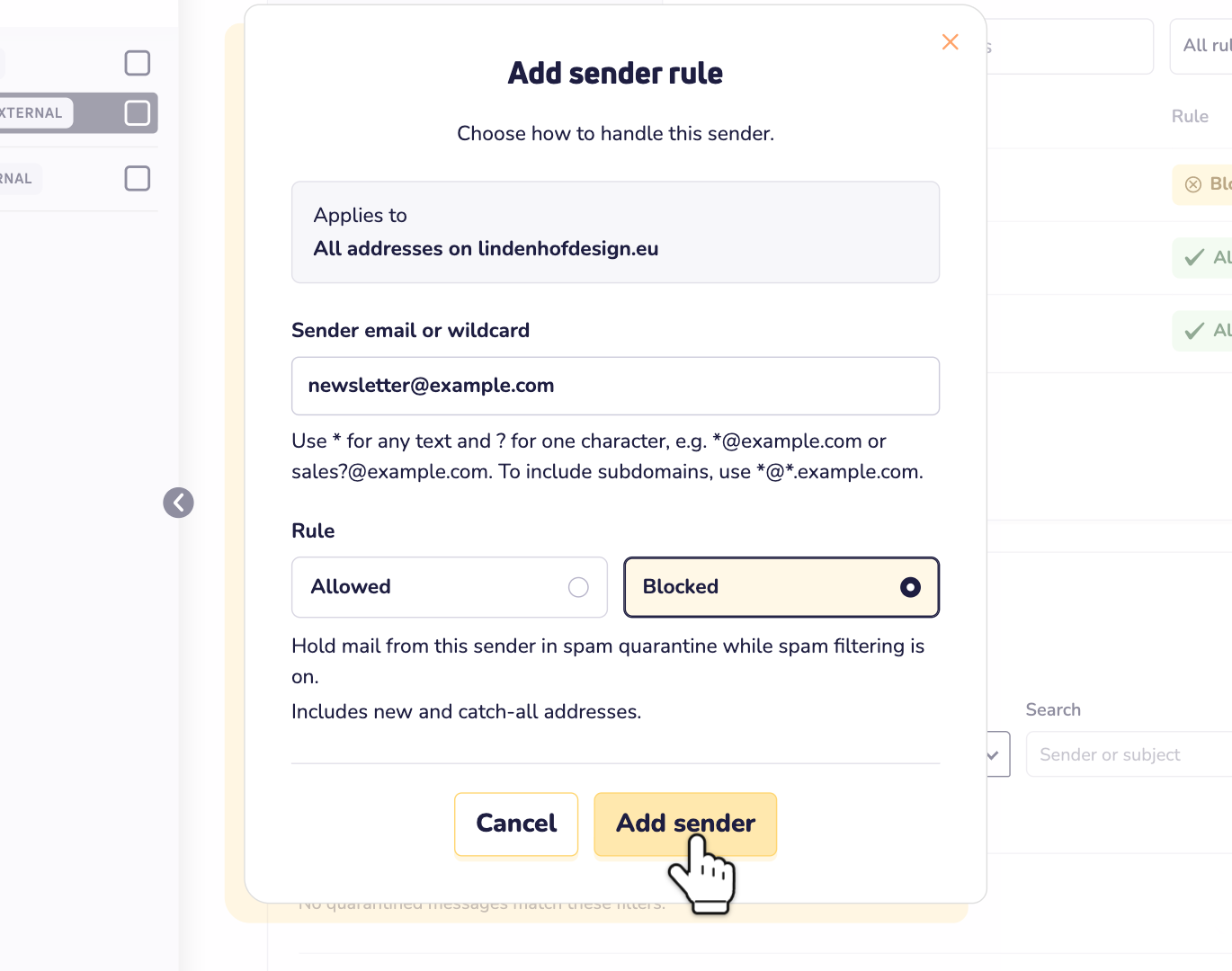
Done! The sender is in the list now. It can take a few minutes before the rule is active.
One rule for many senders: wildcards
Want to allow or block more than one address at once? Use a wildcard. A * stands for any text. A ? stands for one character. Some examples:
- newsletter@example.com: only this one address.
- *@example.com: every sender at example.com.
- sales?@example.com: sales1@example.com, sales2@example.com and so on.
Just a domain name, like example.com, doesn't work. Write *@example.com instead. Senders at a subdomain, like news.example.com, need a rule of their own. The tip under the field shows how.
Change or remove a rule
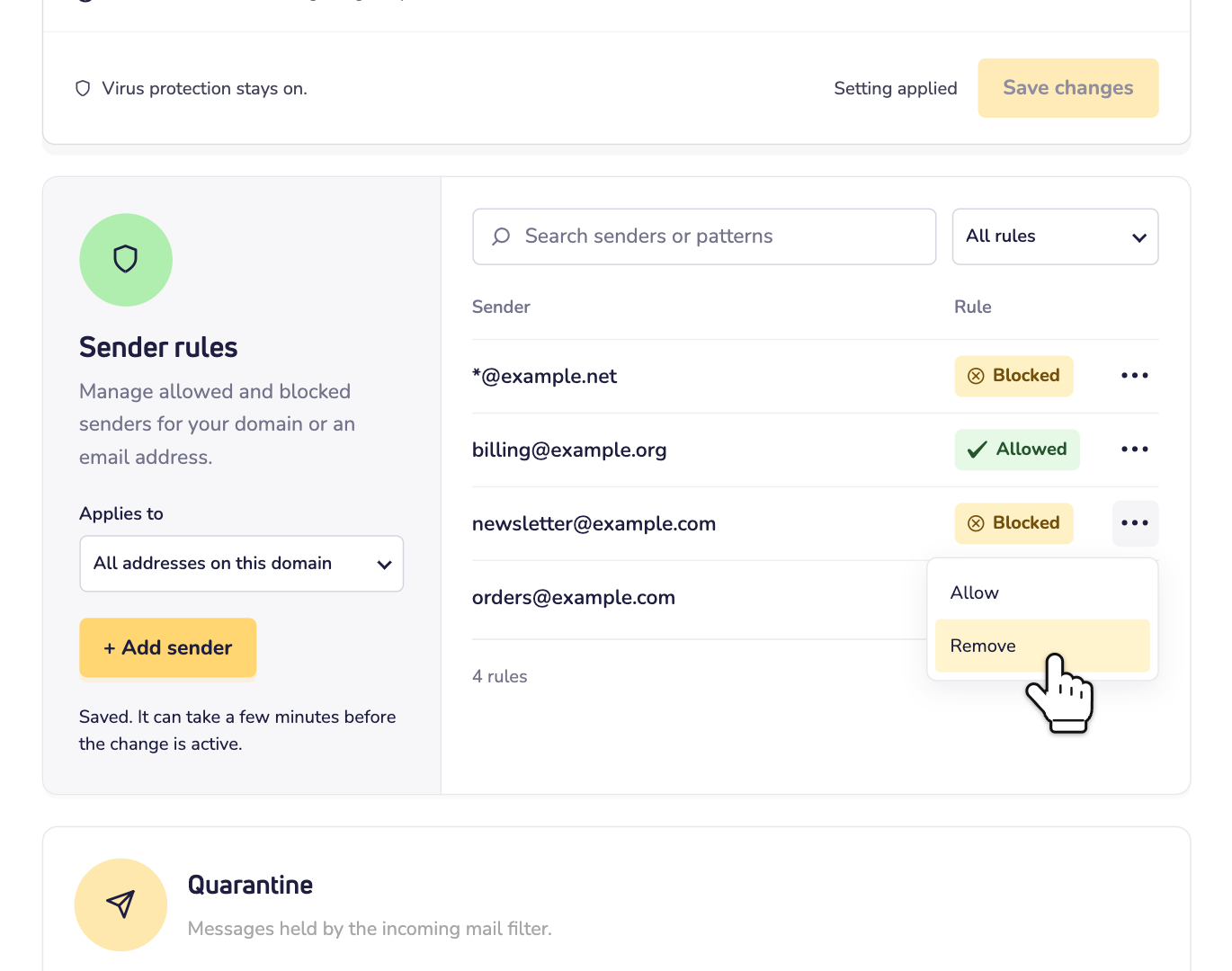
Step 1: In the list, click the three dots next to the sender.
Step 2: Choose Allow or Block to switch the rule. Or choose Remove to delete it.
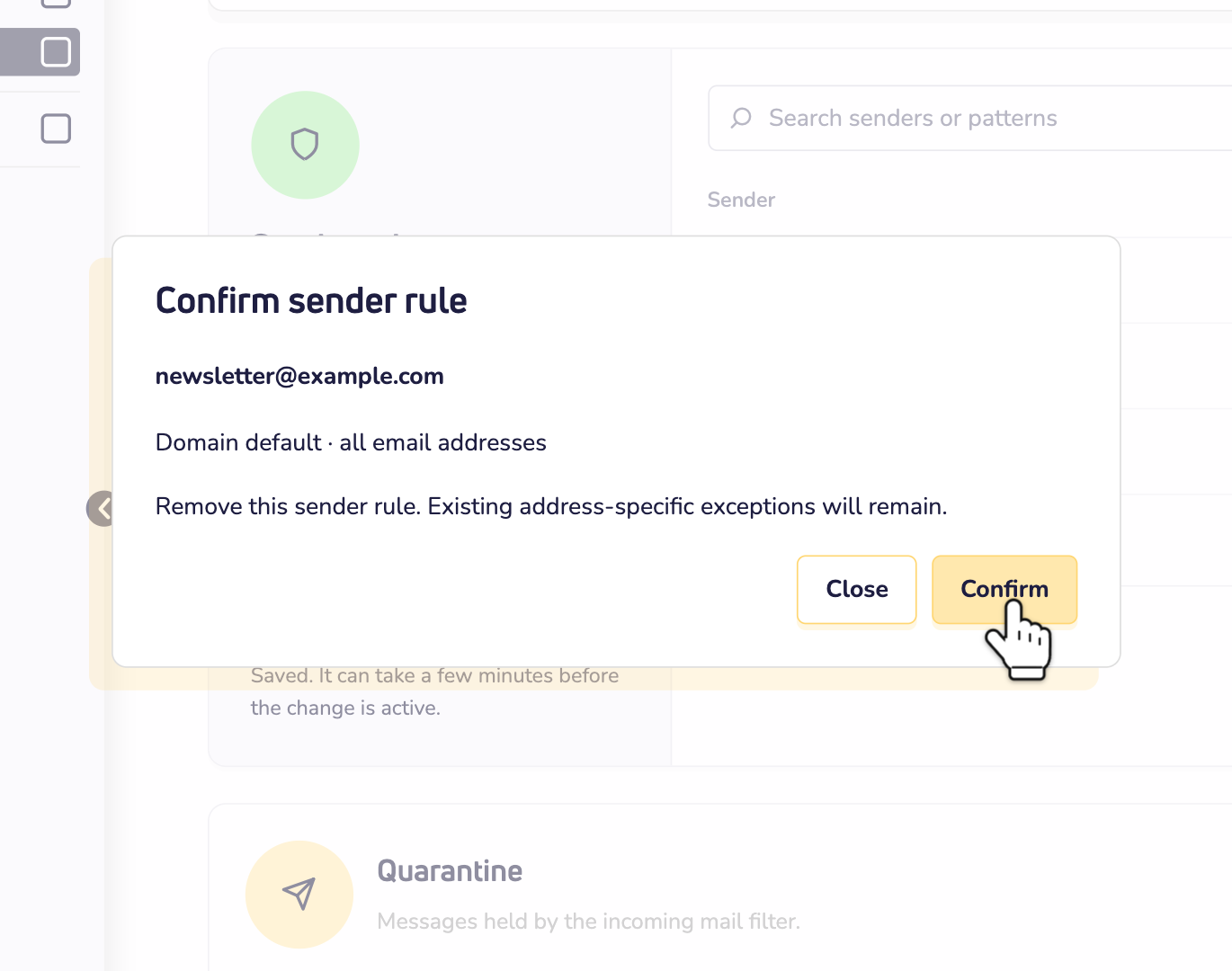
Step 3: A window asks you to confirm. Click Confirm. Again, it can take a few minutes before the change is active.
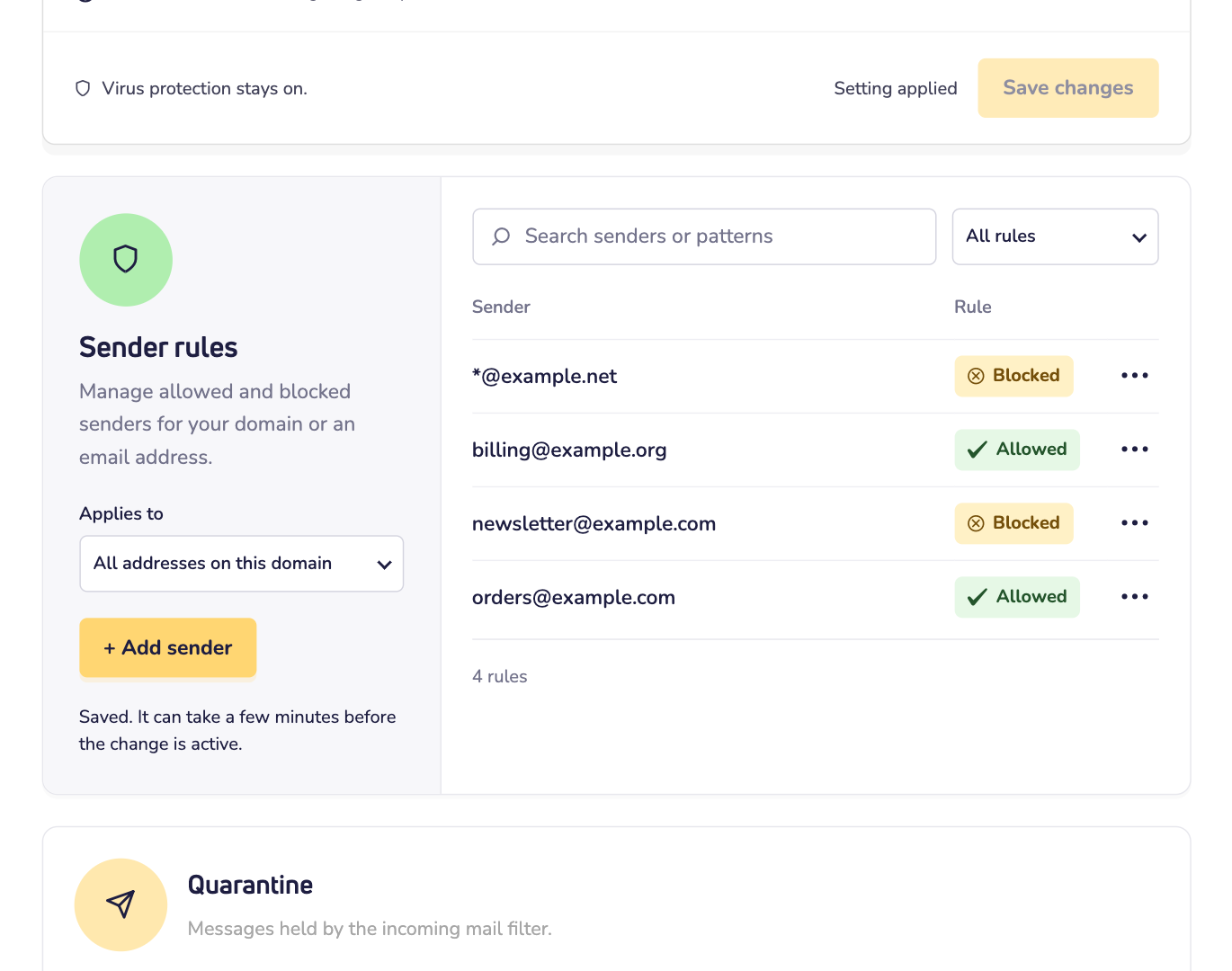
Got a long list? Use the search field above it. Or show only the allowed or the blocked senders.
A different rule for one address
Under Applies to, choose an email address. You now see the rules for that address. The rules for all addresses are in the list too. They say Inherited from domain.
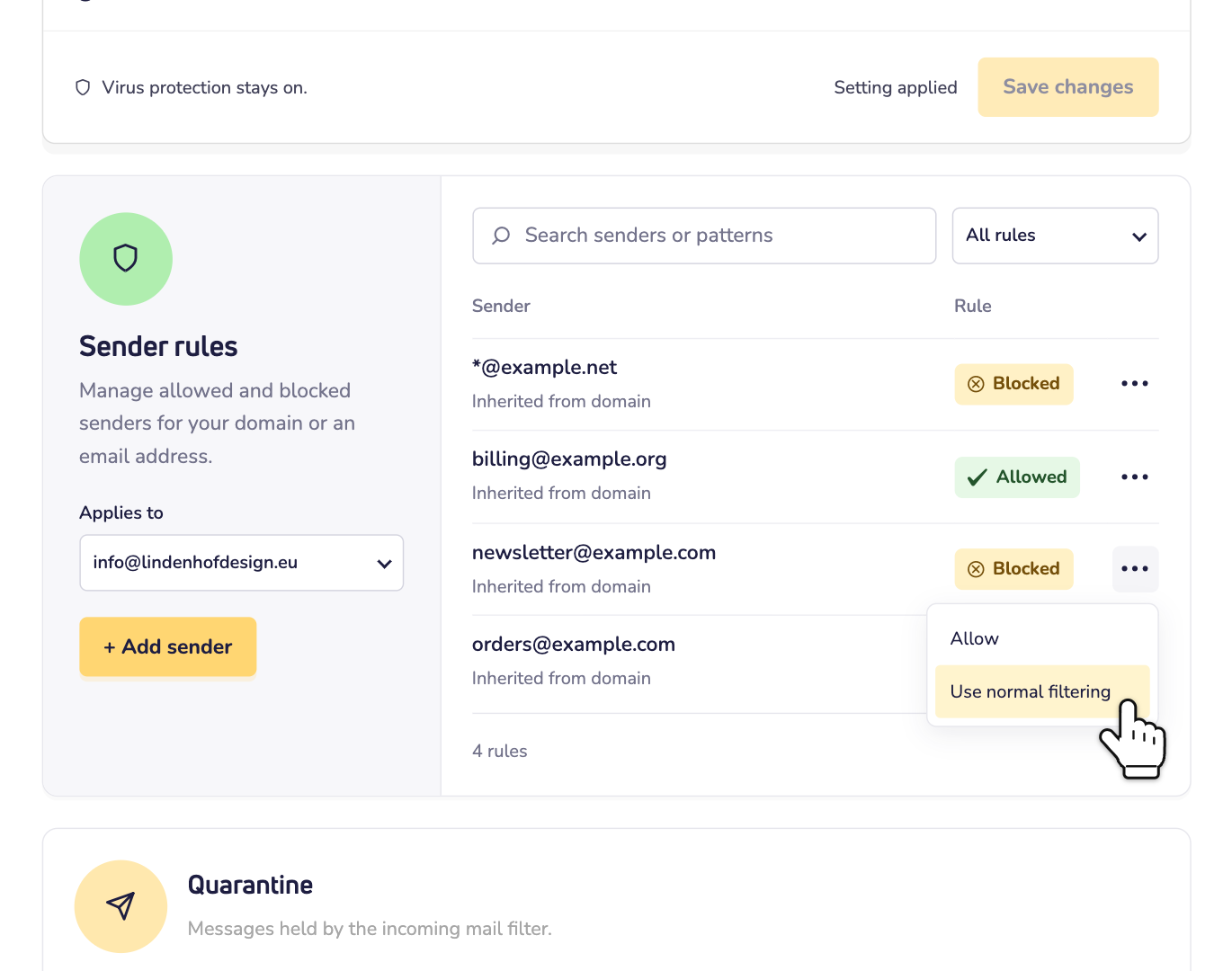
Click the three dots next to a rule. Then choose:
- Allow or Block: this address gets the opposite rule. For example, you block a sender for everyone, but allow it for info@.
- Use normal filtering: the spam filter checks mail from this sender to this address as usual. As if there were no rule.
- Changed your mind? Click the three dots again and choose Use domain default. The rule for all addresses then counts again.
Faster: straight from the quarantine
Found a good email in the quarantine? Then you don't have to type anything. Go to Quarantine on the same page. Click the three dots next to the email, choose Release & allow sender and click Confirm. We deliver the email and allow the sender for all addresses on your domain name.
Real spam? Choose Block sender in the same menu and click Confirm. The sender is then blocked for all addresses. The email stays in the quarantine.
In the daily quarantine reports, you can also allow or block a sender. That rule only counts for the address the email was sent to.
Good to know
- Blocked mail still waits in the quarantine. So you can find it there. But it stays out of your quarantine reports.
- Spam filter turned off? Your rules are saved, but they hold nothing back. Spam and mail from blocked senders reach the inbox. Virus and attachment checks still apply. Read how to turn off the incoming spam filter.
- Spam from lots of different senders? Spammers often change their address. So blocking them one by one rarely helps for long. Make the filter stricter instead. Read how to set the sensitivity of the spam filter.