

Some things aren't for everyone. A test version of your website, for example. Or files only your team may see. Put a password on the folder: it works like a lock on one room of your house. Visitors first get a login window. No right username and password? No access.
Our free htpasswd generator makes the password line for you. Everything happens in your browser, and we store nothing.
First: which kind of server do you have?
We have two kinds of web hosting servers. How you set the password depends on yours. Read more about choosing your web hosting server.
- CloudLinux and Apache: use our htpasswd generator and a .htaccess file. The steps are below.
- LiteSpeed and Redis: use Password Protected Directories in DirectAdmin. These servers ignore login lines in .htaccess.
Not sure? Log in to DirectAdmin and open Extra Features in the menu. Do you see Select PHP version there? Then you're on a CloudLinux server. Otherwise, you're on a LiteSpeed server.
On a CloudLinux server: with our htpasswd generator
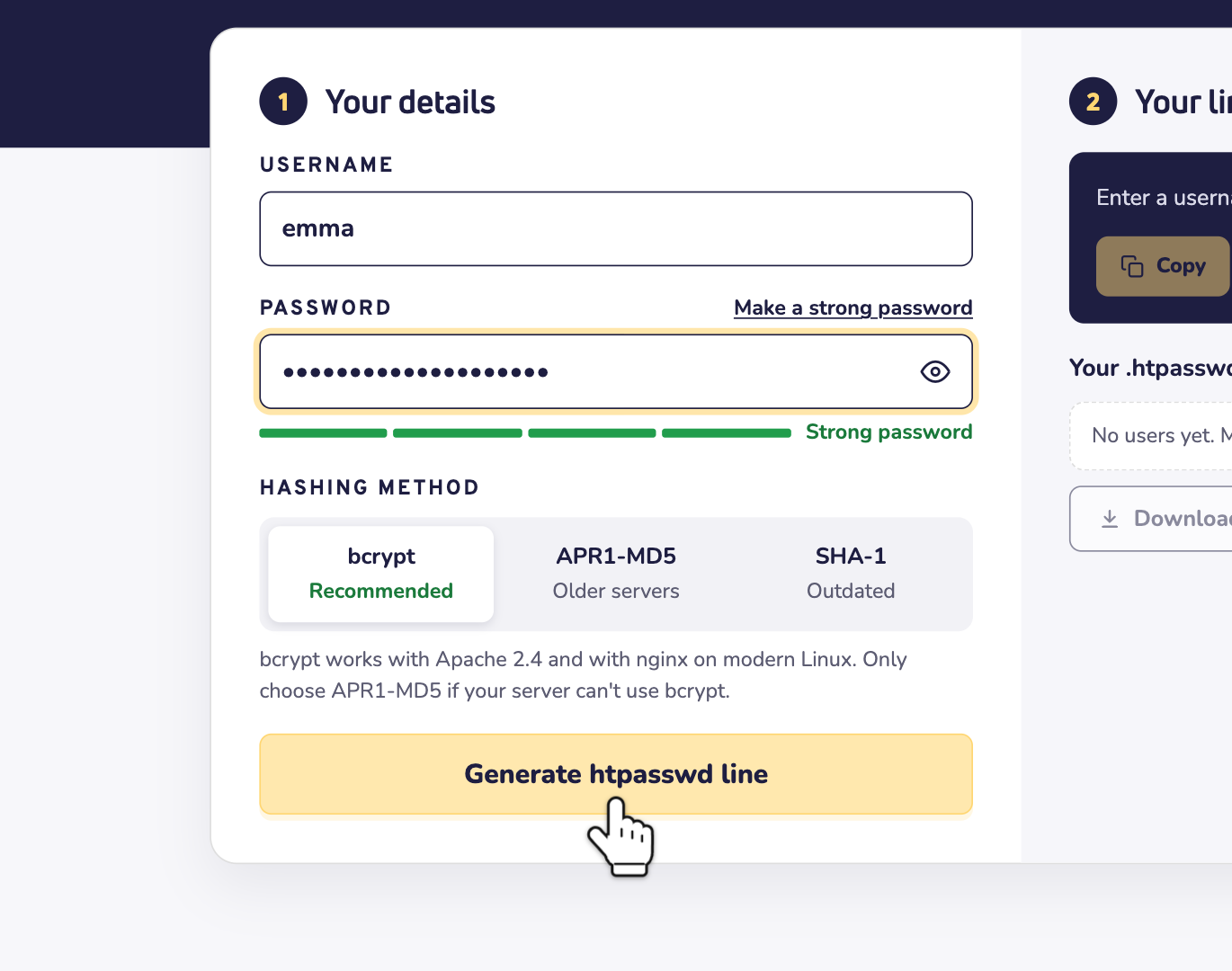
Step 1: Open our htpasswd generator and enter a username and a password. No good password in mind? Click Make a strong password. Keep bcrypt selected: it's the safest choice, and our Apache servers can read it. Then click Generate htpasswd line.
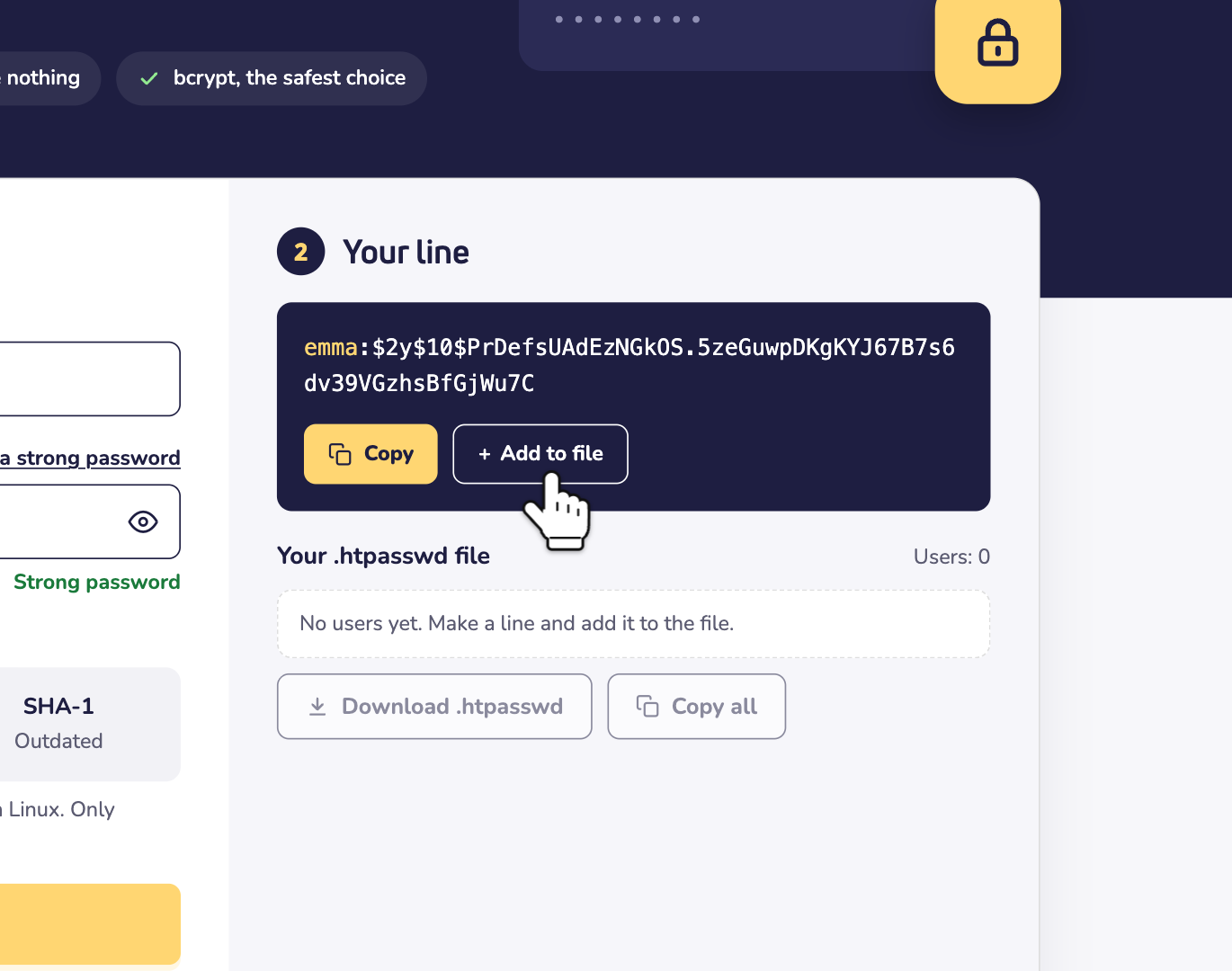
Step 2: Under Your line, you now see the username, a colon and your password in coded form. Click Add to file. More people need access? Make a line for each of them and add it too.
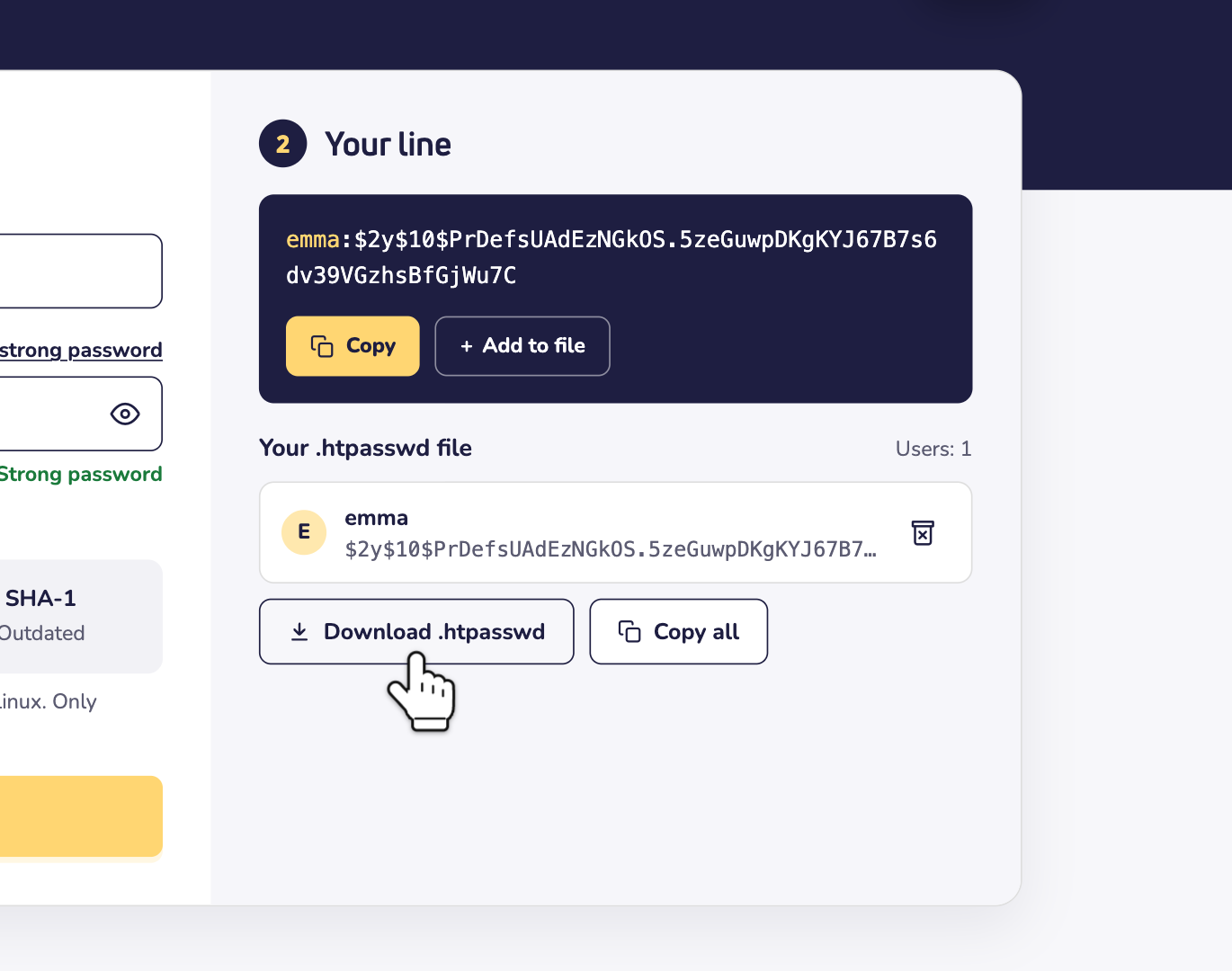
Step 3: Click Download .htpasswd. Your browser may save the file as htpasswd.txt. No problem: you rename it in the next step. Prefer to paste? Then click Copy all and paste the lines into a new file called .htpasswd. Write your password down somewhere safe: the file only holds the coded version.
Step 4: Upload the file to your home folder. That's the folder you start in when you connect with FTP. You see the folders domains and public_html there. Is the file called htpasswd.txt? Rename it to .htpasswd. Never put it in public_html: that's the folder visitors can open. Prefer to work in your browser? Use the File Manager in DirectAdmin.
Step 5: Go to the folder you want to protect, for example public_html/private. For your whole website, that's public_html itself. Open the file .htaccess in that folder, or create it. Then add these lines:
AuthType Basic
AuthName "Protected"
AuthUserFile /home/user/.htpasswd
Require valid-user
Replace user in /home/user/ with your web hosting username. To find it, click your plan in the list on the left of your dashboard and open the Web hosting tab. Your username is under Web hosting information. Is there already something in .htaccess, for example from WordPress? Keep it and add the new lines.
Step 6: Open the folder in your browser, for example https://yourdomain.com/private. You now get a login window. Apache reads the change right away, so you don't have to wait. The password protects the folder and everything in it.
On a LiteSpeed server: in DirectAdmin
Our LiteSpeed servers ignore login lines in .htaccess. With the steps above, your folder would stay open. So use DirectAdmin's own tool instead.
In DirectAdmin, open Advanced Features in the menu and click Password Protected Directories. There you choose the folder and set a username and password. You don't need the generator for this. And it works on both kinds of servers.
Good to know
- Use https. Your browser sends the username and password with every page. With SSL, they travel encrypted. Here's how to activate SSL.
- Folder still open? Check that .htaccess is in the right folder. And check that you're on a CloudLinux server.
- Login doesn't work? Check the path after AuthUserFile. Your username and the file name must match exactly.
- Don't see .htaccess or .htpasswd? Some programs hide files whose name starts with a dot. Look for an option to show hidden files.
- Forgot the password? The file can't tell you, because it only holds the coded version. Make a new line and put it in .htpasswd instead of the old one.
- Remove the password? Delete the four lines from .htaccess.
Questions? Contact us by WhatsApp, Telegram or email.