

Do several of your domain names need the same DNS records? Then don't set them up one by one. Put the records in a DNS template once, and link your domain names to it. It works like a cookie cutter: every linked domain name gets the same records. And when you change the template later? All linked domain names change with it.
Create a template
Step 1: Log in to your dashboard. Go to Settings and open the DNS templates tab.
Step 2: Click Add new template.
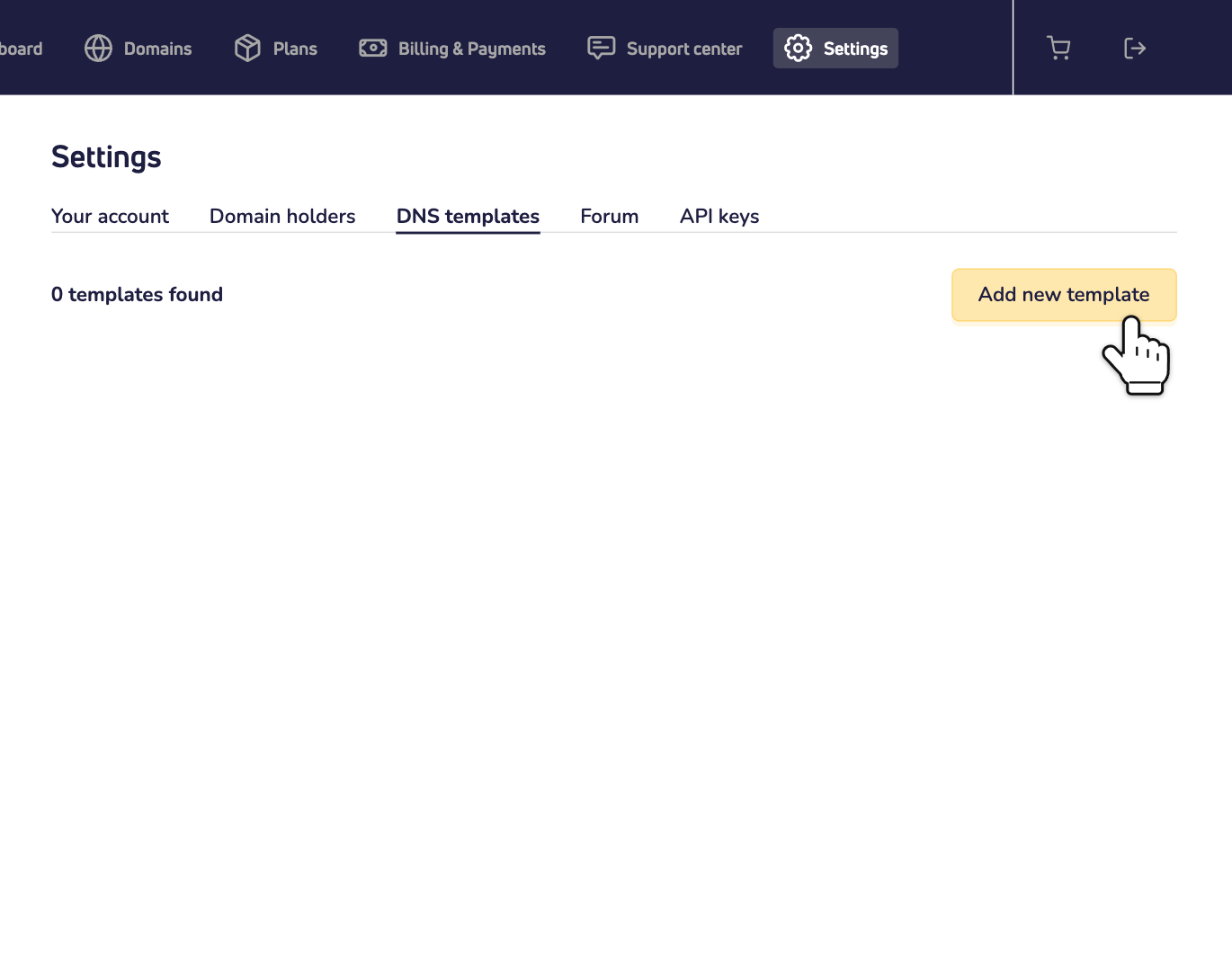
Your new template appears right away. It already holds our default DNS records: the same ones a new domain name gets from us.
Step 3: Give it a name you'll recognize. Click the pencil next to the name, type the new name and click the check mark. A name needs at least 3 characters, and each template needs its own name.
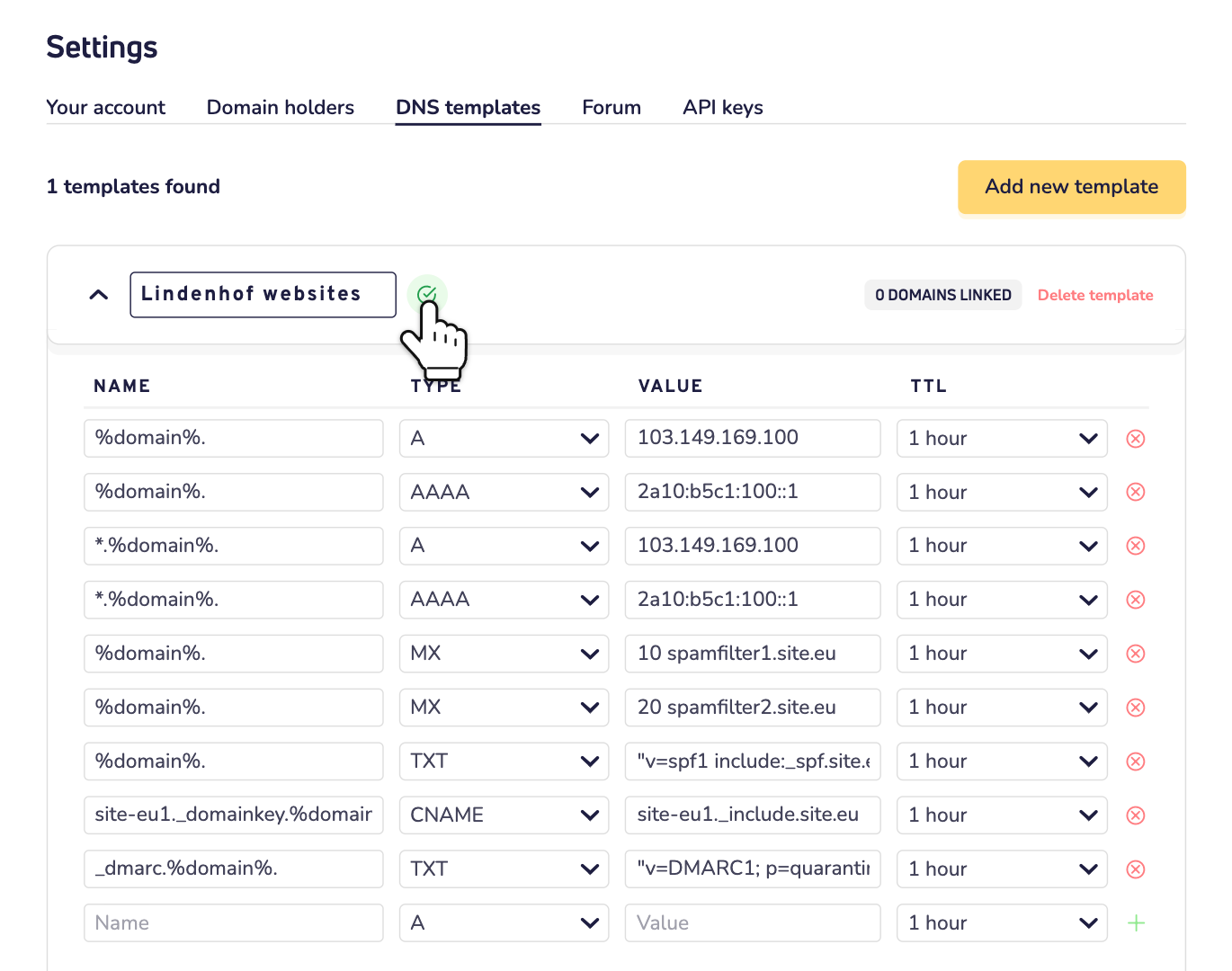
Set the DNS records
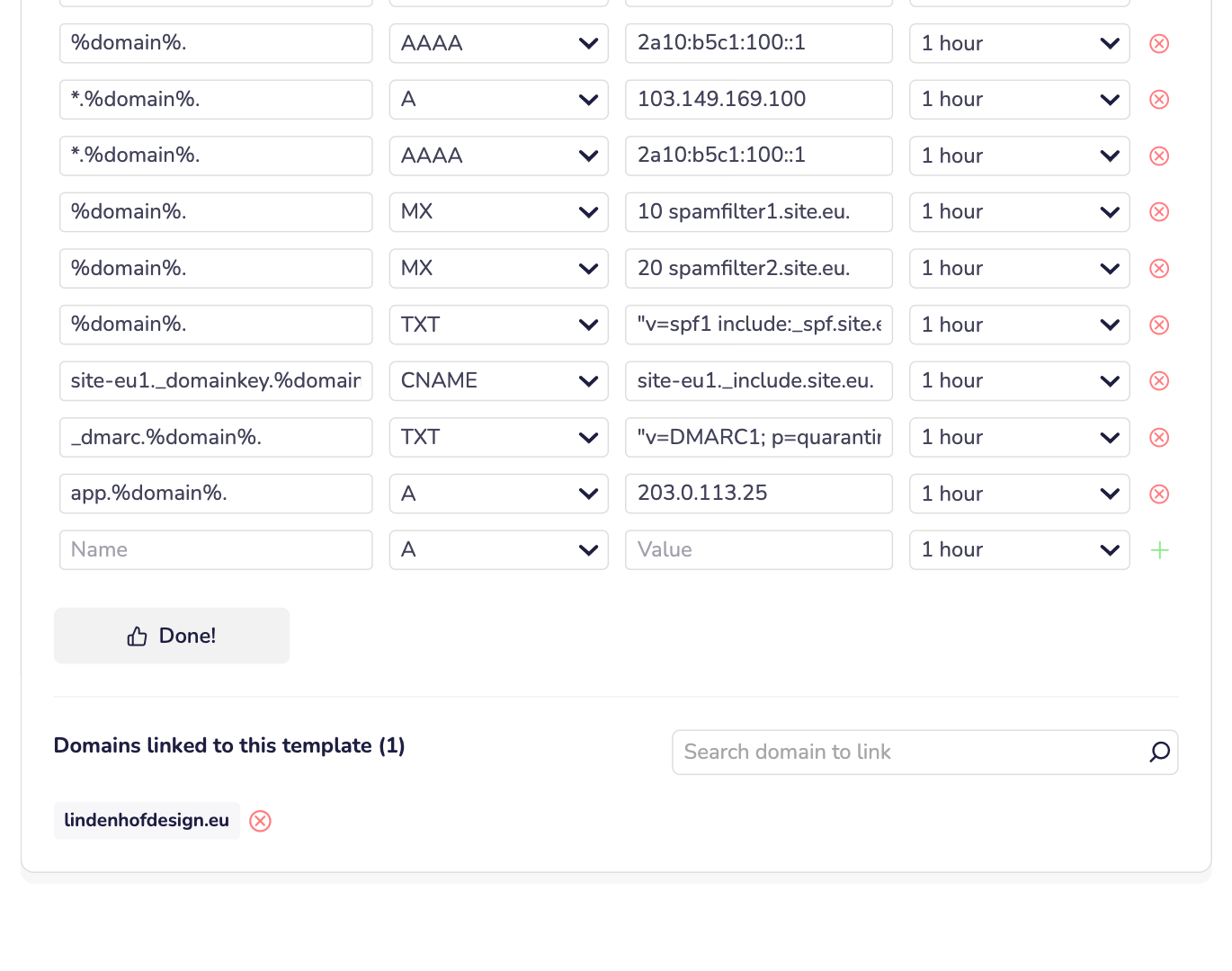
Step 4: Set the records the way you want them on all linked domain names. To add a record, fill in the empty row at the bottom: name, type, value and TTL. To remove one, click the red cross next to it. Then click Save DNS records. Once your records are saved, the button shows Done!
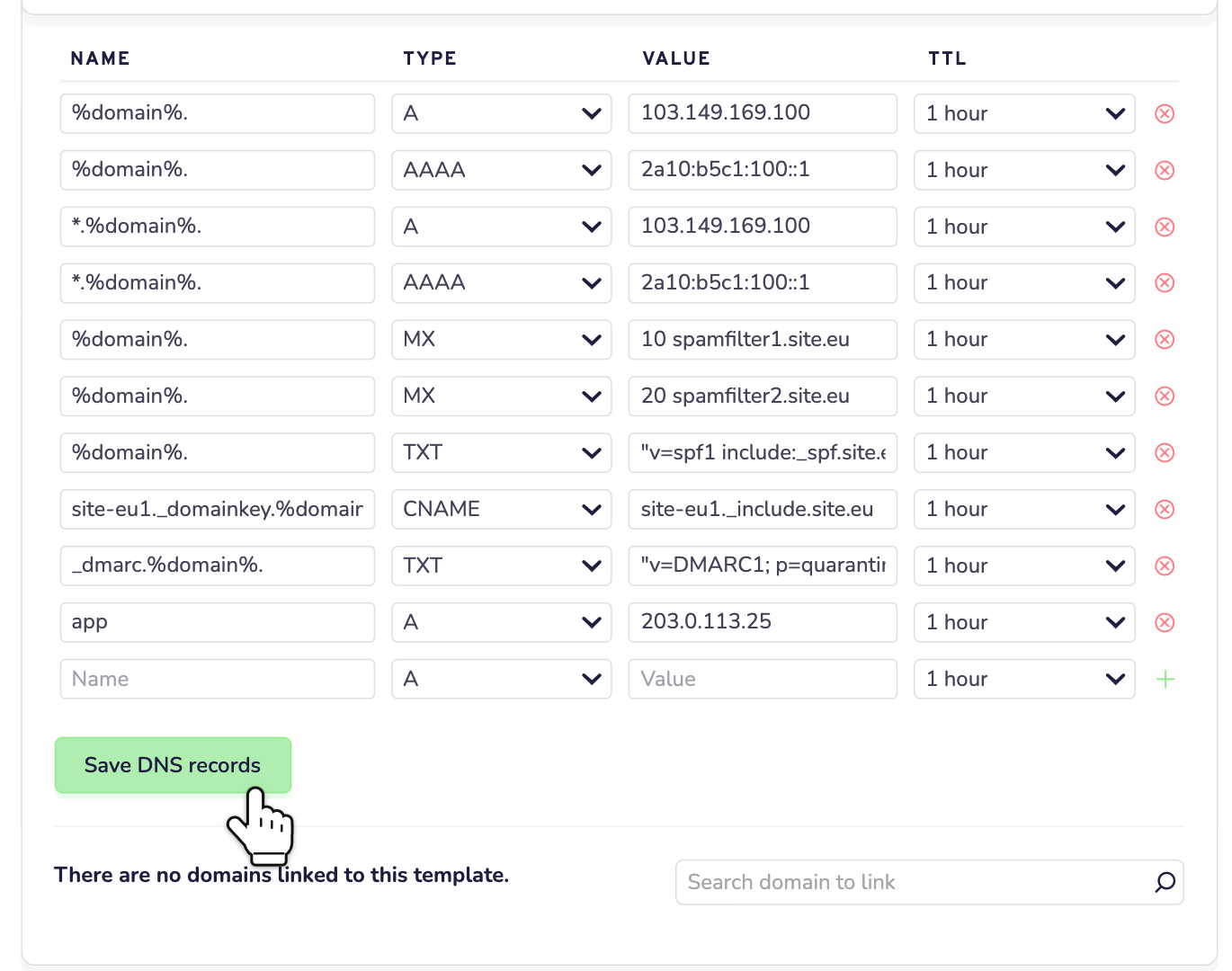
See the word domain between two percent signs in the names? That's a stand-in. We put each linked domain name in its place. So only type the part in front of the domain name, like www. For the domain name itself, type @.
Link your domain names
Good to know before you link a domain name:
- You can link domain names that are registered with us. External domain names can't be linked.
- The template replaces all DNS records of the domain name. Records that aren't in the template are deleted. So check that the template has every record the domain name needs, for example for its website and email.
- Linking turns off Use default Site.eu settings for that domain name. Not sure what that means? Read why our default settings work best for most people.
- Does the domain name use other nameservers, for example those of another provider? Then linking switches it to our nameservers. Read more about nameservers.
- A domain name can only be linked to one template at a time.
Step 5: Below the records, click the field Search domain to link. Type part of a domain name and click it in the list.
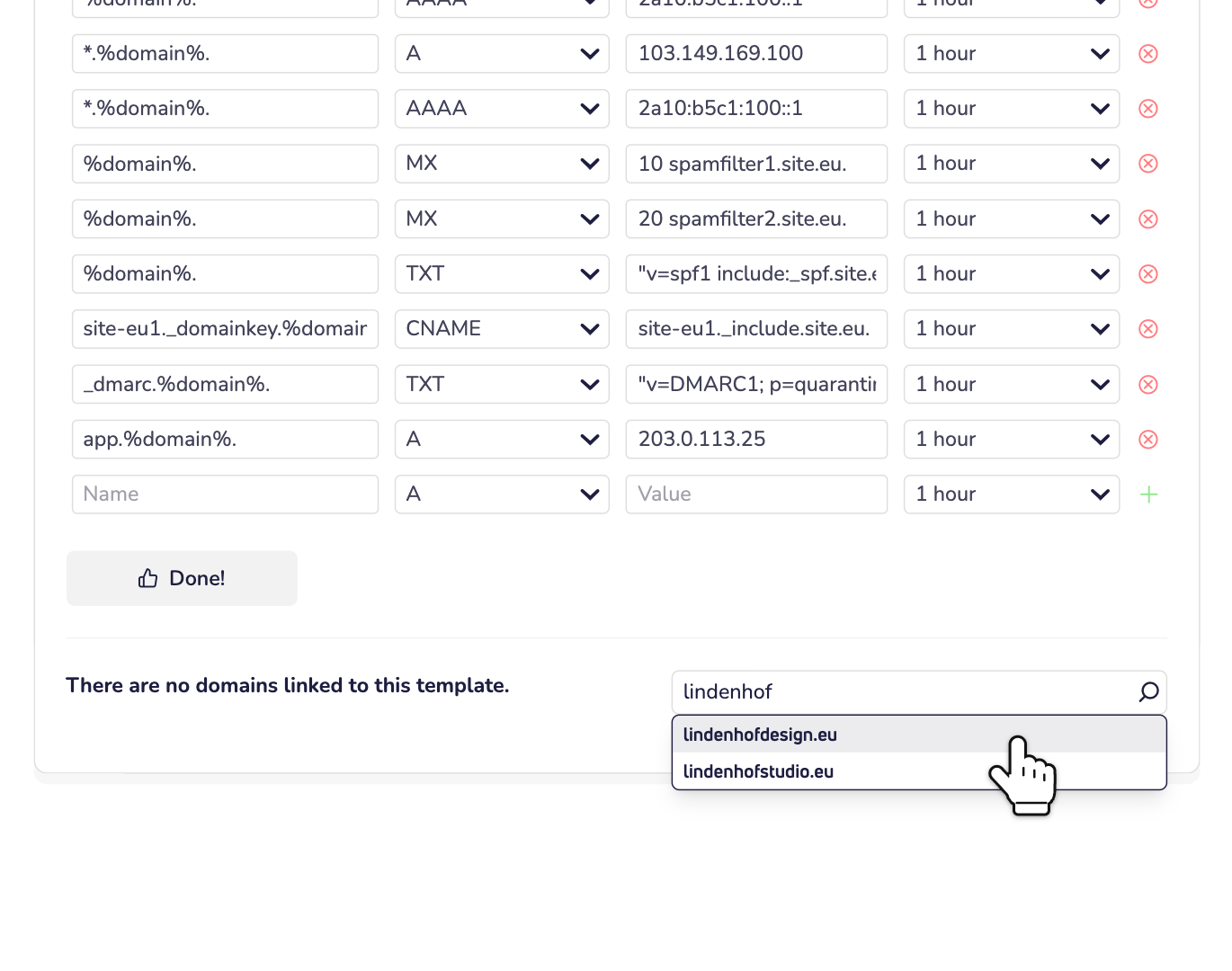
The domain name now shows under Domains linked to this template. Within a few minutes, it has the records of your template. Do the same for your other domain names.
Change a template later
Open the template with the arrow in front of its name. Change the records and click Save DNS records. Within a few minutes, all linked domain names have the new records.
Watch out: did you change the DNS records of a linked domain name on its own page? Then the template overwrites those changes the next time you save the template. Want a domain name to keep its own records? Unlink it first.
Unlink a domain name
Click the red cross next to the domain name, under Domains linked to this template. The domain name keeps the DNS records it has now. Later changes to the template no longer reach it. From then on, you manage its records yourself. Read how to manage your domain name's DNS records.
Turning Use default Site.eu settings back on for a domain name also unlinks it. We then take care of its DNS records again.
Delete a template
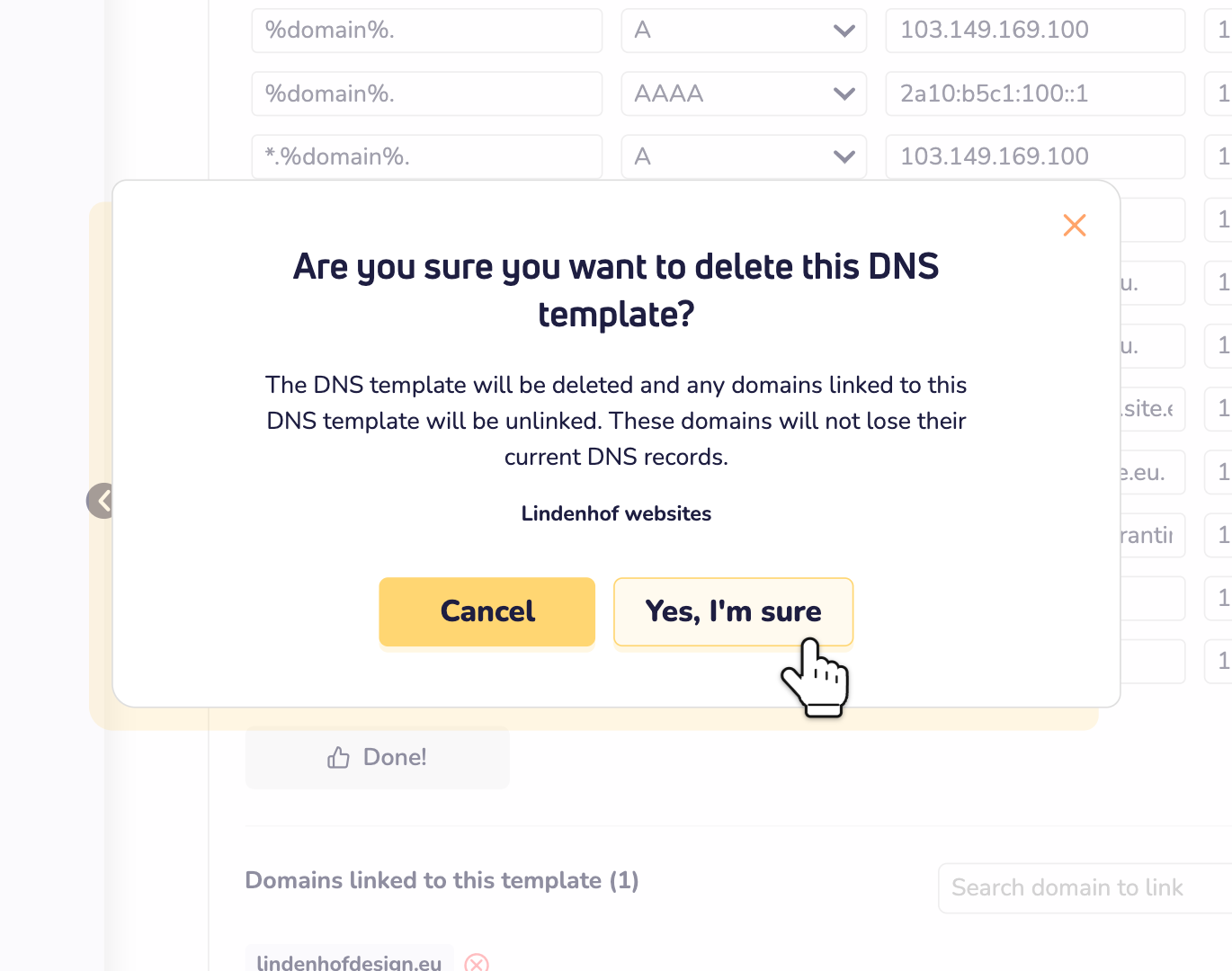
Click Delete template in the top row of the template. Then click Yes, I'm sure. All linked domain names are unlinked. They keep their current DNS records.
Import or export a zone file?
That doesn't work in a template, only per domain name. Open the domain name and click Domain settings, then Advanced settings. Under DNS management, click Import/export DNS zone. Read more in our news about BIND files.