
You share your affiliate link in lots of places. On your website. In your newsletter. On Instagram. But which place brings the most visitors? And which one brings new customers? Give each place its own tag, and your dashboard shows you.
New to our affiliate program? First read what affiliate means and how you earn money.
What is a tag?
A tag is a short name at the end of your affiliate link. It tells us where you shared the link. Your affiliate link looks like this:
https://site.eu/?aff=yournameTo add a tag, put &src= and a name of your choice at the end:
https://site.eu/?aff=yourname&src=newsletterEvery click on this link now counts for "newsletter". Your visitors won't notice a thing. And the tag doesn't change what you earn. A new customer is your customer, with or without a tag.
One link per place: examples
Make a separate link for every place where you share it. For example:
- Your website or blog: &src=website
- Your newsletter: &src=newsletter
- Instagram: &src=instagram
- Facebook: &src=facebook
- A YouTube video: &src=youtube
- A flyer with a QR code: &src=flyer
Want more detail? Make your tags more specific. A banner and a link in a blog post on the same website? Use &src=blog-banner and &src=blog-post. Two newsletters? Try &src=newsletter-march and &src=newsletter-april.
Tags help most where we can't see the source ourselves. Think of email, WhatsApp, other apps and printed QR codes. Without a tag, those clicks end up under Unknown (app, e-mail or typed in).
Rules for your tag
- Use 1 to 40 characters.
- Only use the letters a to z, numbers, a hyphen (-) and an underscore (_).
- No spaces. Write summer-sale or summer_sale, not summer sale.
- No dots, accents or other signs. So instagram.com, café and sale! won't work.
- Capital letters are fine, but we count them as small letters. Newsletter and newsletter are the same tag.
A tag that breaks a rule is ignored. So is an empty one (&src= with nothing after it). Don't worry: the click and the sign-up still count for you. You just see them under the website the visitor came from, or under Unknown (app, e-mail or typed in).
Careful: put an & before src=, not a second ?. A link like ?aff=yourname?src=newsletter still opens our website. But we can't tell it's yours. So the click and the sign-up don't count for you.
Which pages can your link point to?
The link in your dashboard opens our home page. But your link works on every page of our website. Want to send people straight to our web hosting page? Or to a help article? Open that page, copy its address and add ?aff=yourname&src=yourtag to the end.
Does the address already have a ? in it? Then start with an & instead: &aff=yourname&src=yourtag.
Make a tagged link
Step 1: Log in to your dashboard. Click Payments and open the Affiliate program tab.
Step 2: Under Your affiliate link, click Copy. Just below your link, a tip shows an example with a tag.
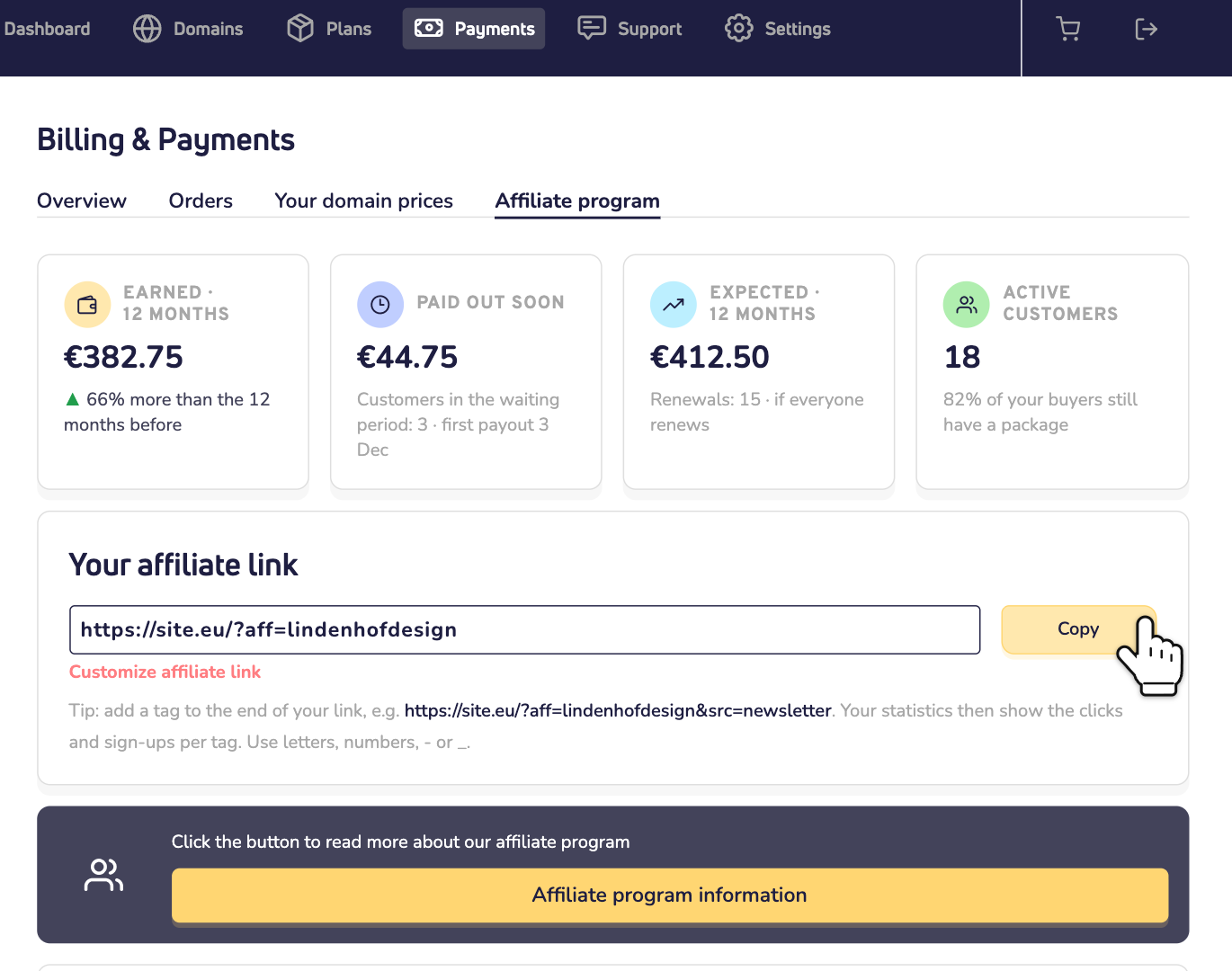
Step 3: Paste your link where you want to share it. Add &src= and your tag to the end. Done.
See where your clicks come from
Step 1: On the same Affiliate program tab, scroll down to Statistics.
Step 2: Under Select date range, pick the period you want to see. It starts with the last 30 days.
Step 3: Below the chart, you find Where your clicks come from. The figures in this screenshot are an example.
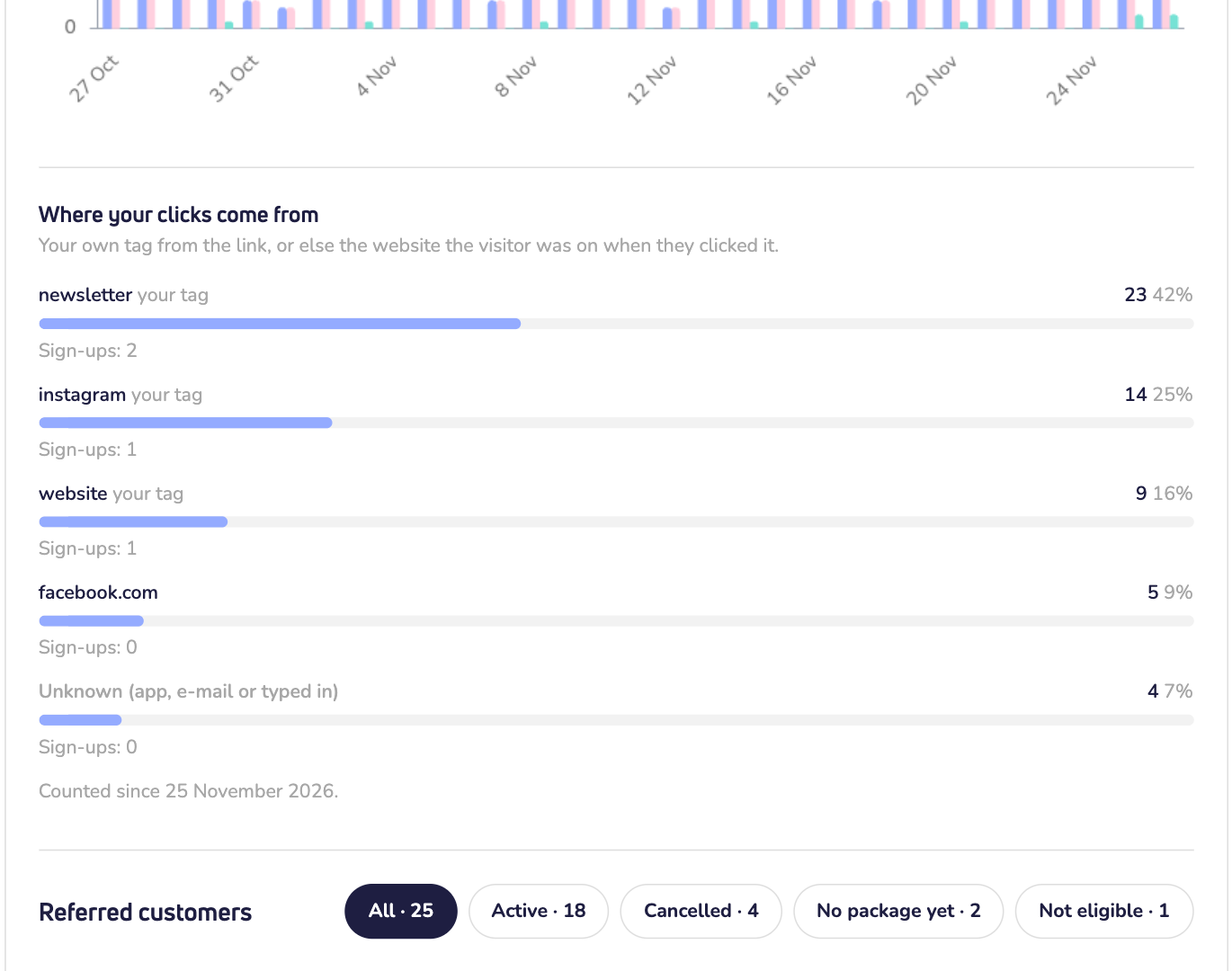
Here's what you see:
- One line per source. The source with the most clicks is at the top. Your own tags say your tag next to them. Without a tag, you see the website the visitor was on, like facebook.com.
- The number on the right is how many clicks came from that source. The percentage next to it is its share of all clicks in the period.
- The line under each source shows how many people created a new account through it.
- Other sources: you see your 10 biggest sources by name. The rest are added up on this line.
- Unknown (app, e-mail or typed in): clicks from an app, an email or a link someone typed in. These don't tell us where the visitor was. Give those links a tag, and they get their own line.
This list counts every click, also when the same person clicks twice. So its total can be higher than Unique visitors at the top of Statistics.
Since when do the numbers count?
We started counting sources on 25 November 2026. Clicks and sign-ups from before that day have no source, so they're not in this list. Does your period start earlier? Then a note under the list shows the date we started counting.
Good to know
- A sign-up counts for the source of the last click on your link before it.
- For the source, we only save the name of the website, like facebook.com. Never the full web address.