

Do several of your domain names need the same change? Then don't open them one by one. Tick them in the sidebar, pick an action, and your dashboard changes them all for you. Ten domain names, one go.
What you can change
The menu has a row for each topic, with its buttons on the right:
- Nameservers: Change gives them all the same new nameservers.
- Plan: Link puts them in one of your plans. Unlink takes them out of their plan.
- Email: turn email On or Off.
- Auto renewal: turn automatic renewal On or Off.
- DNS template: Link them to one of your DNS templates, or Unlink them.
- Advanced settings: On lets you manage their nameservers, DNS management and DNSSEC yourself. Off puts them back on our default settings.
- DNS management: turn our DNS management On or Off.
- DNS record: Add or Remove one DNS record on all of them.
Plan and email also work for domain names that are registered elsewhere. All other actions only work for domain names registered with us.
Good to know before you start
- Email off deletes email. All email addresses and emails of those domain names are deleted. That's why you confirm it with your password.
- Email on needs a plan that includes email.
- A plan has room for a set number of domain names. The window tells you when they don't all fit.
- New nameservers turn DNS management off. We remove the DNS records from our nameservers. So set up the records with the provider of your new nameservers. Read more about nameservers.
- Advanced settings off turns DNS management back on. We also set the DNS records for email, website and redirects right. Read why our default settings work best.
- DNS management off only works when advanced settings are on. We delete the DNS records and redirects from our nameservers. Website and email can stop working until you set up DNS elsewhere.
- DNS management on gives them our nameservers. Their DNS records are replaced by our default records.
- A DNS template replaces all DNS records with the records of the template. Unlinking keeps the records as they are. Read how DNS templates work.
- Auto renewal off? Then a domain name you forget to renew expires. Its website and email stop working.
Change your domain names in 4 steps
Step 1: Log in to your Site.eu dashboard. In the sidebar on the left, tick the boxes of the domain names you want to change. A bar appears at the bottom of the page. It shows how many you ticked.
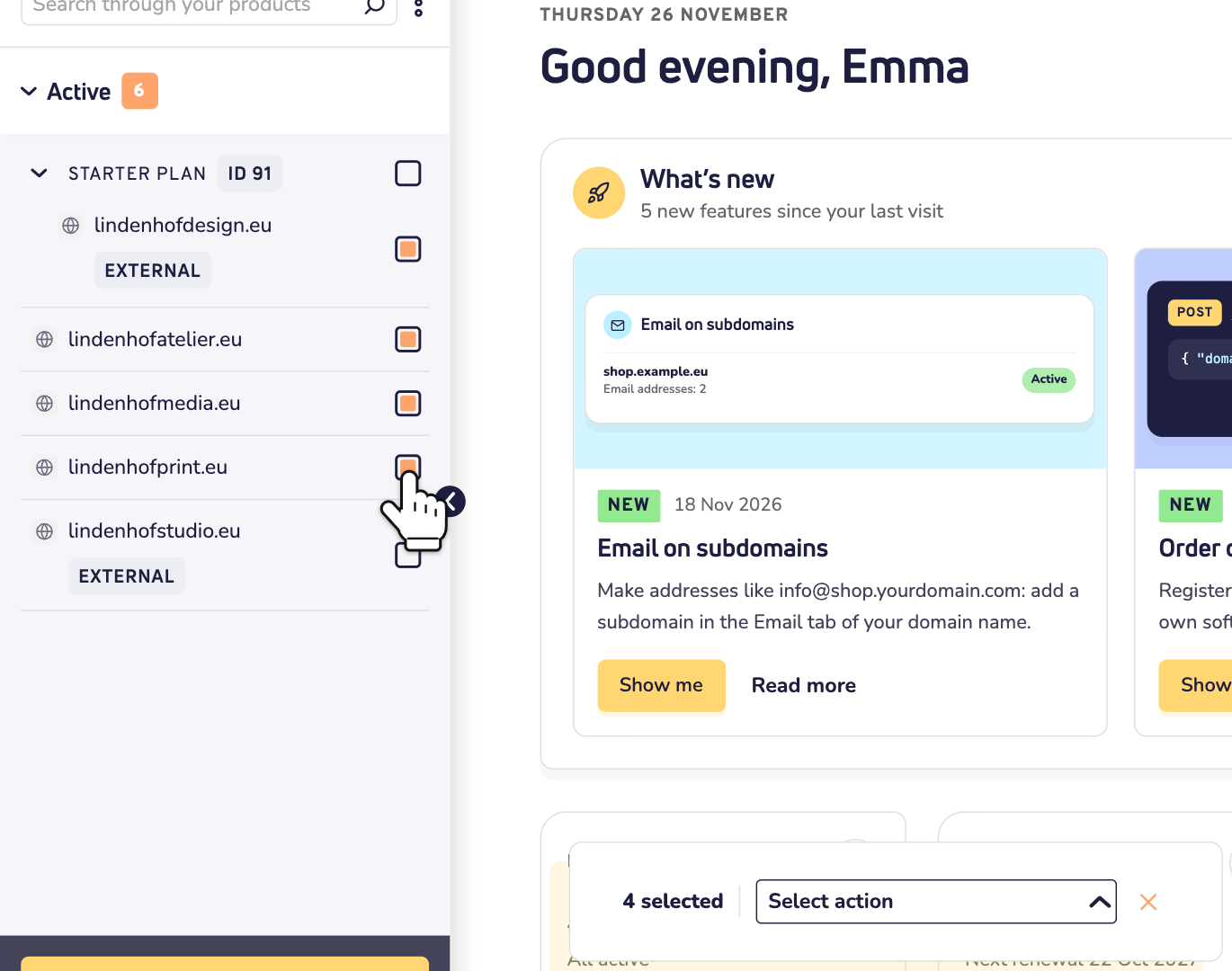
Step 2: Click Select action in that bar. Then click the button you need, for example Add next to DNS record.
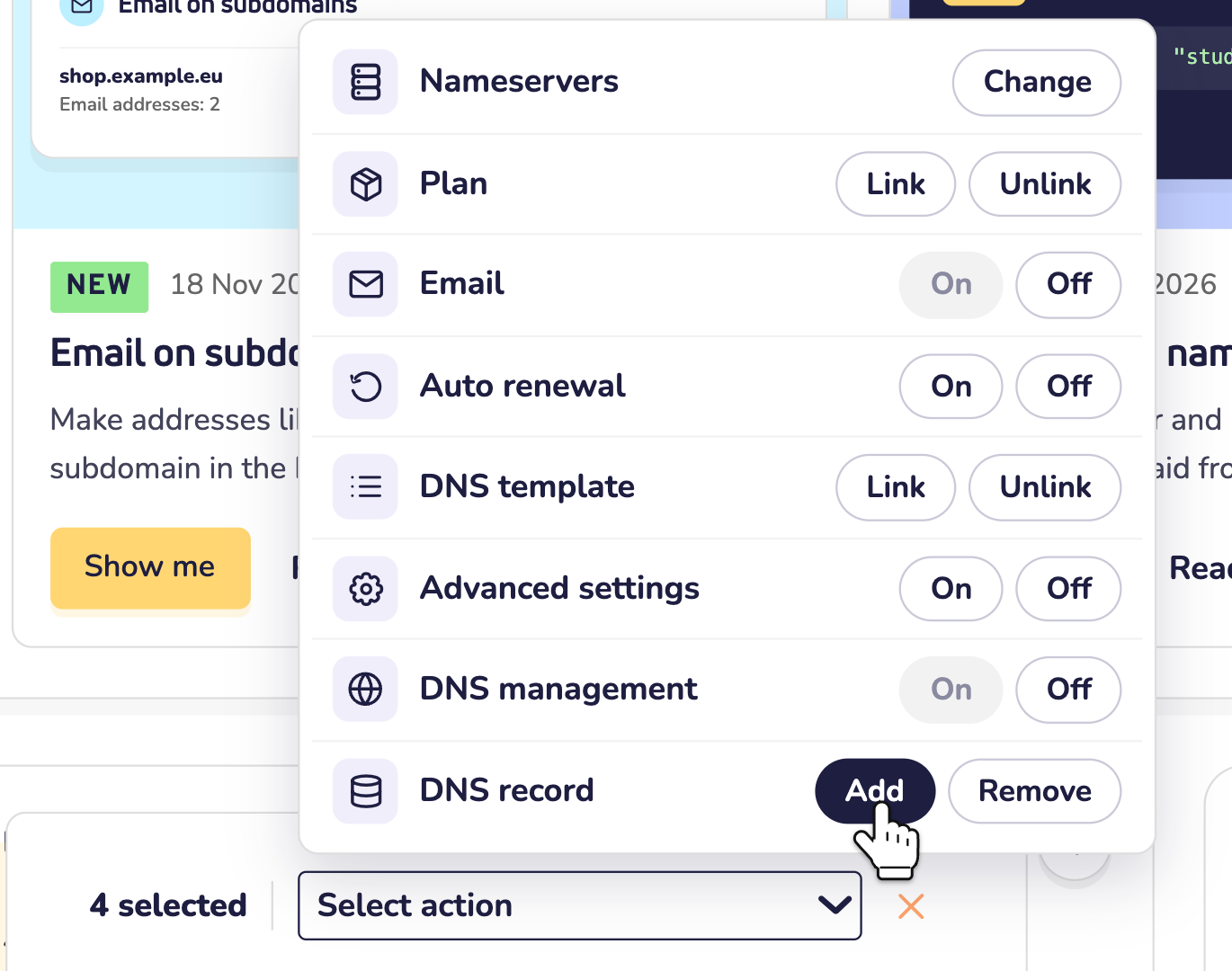
Is a button grey? Then it doesn't fit any of the domain names you ticked. For example, On is grey when that setting is already on for all of them. Ticked the wrong ones? The cross next to Select action clears them all.
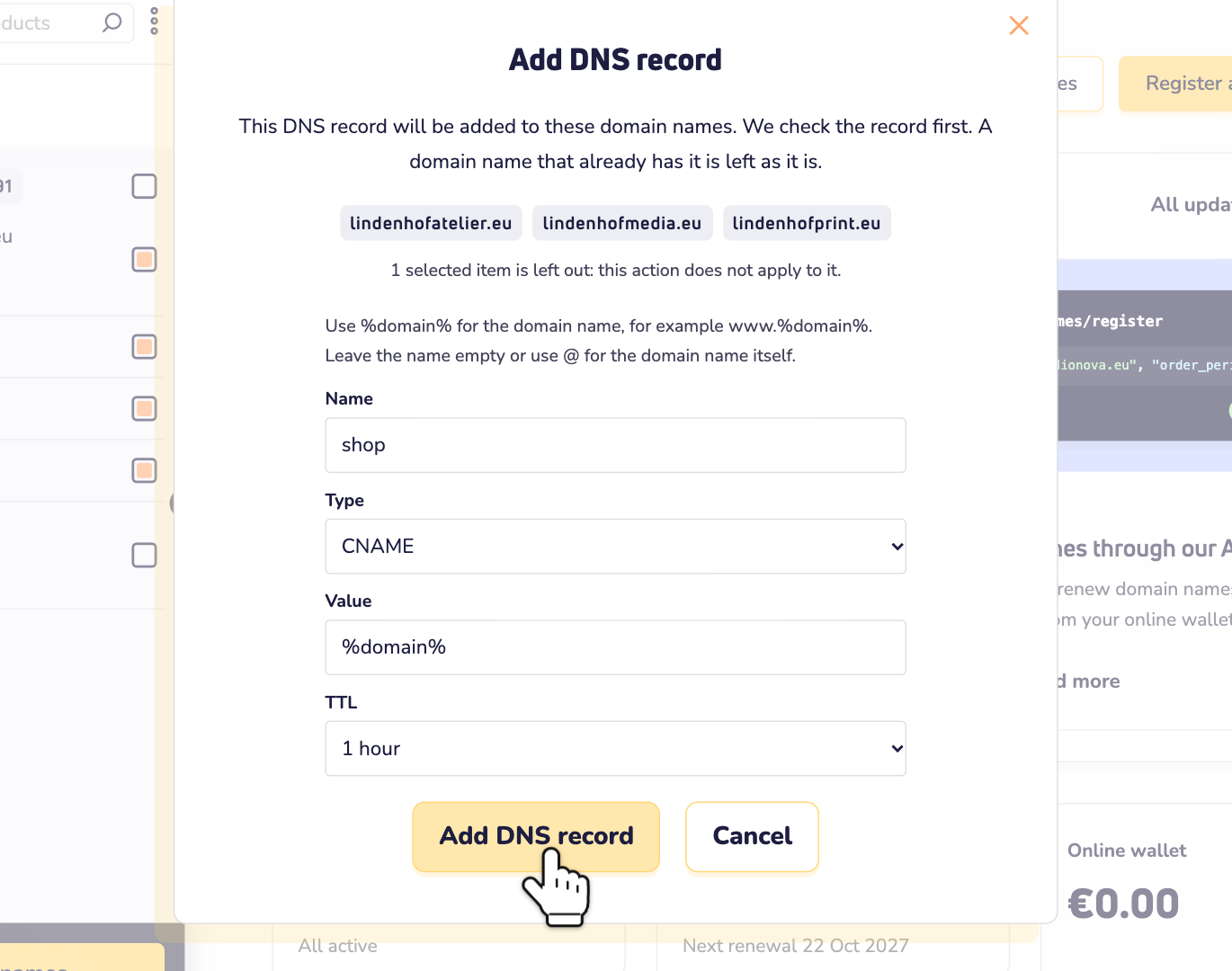
Step 3: A window opens. It lists the domain names that will change. Items the action doesn't fit are left out, like a plan, or an external domain name when you add a DNS record. The window tells you how many.
Fill in what the window asks for: new nameservers, a plan, a DNS template or a DNS record. Then click the button at the bottom, here Add DNS record. Changing nameservers? Then you click Next first, check the list and click Yes, proceed.
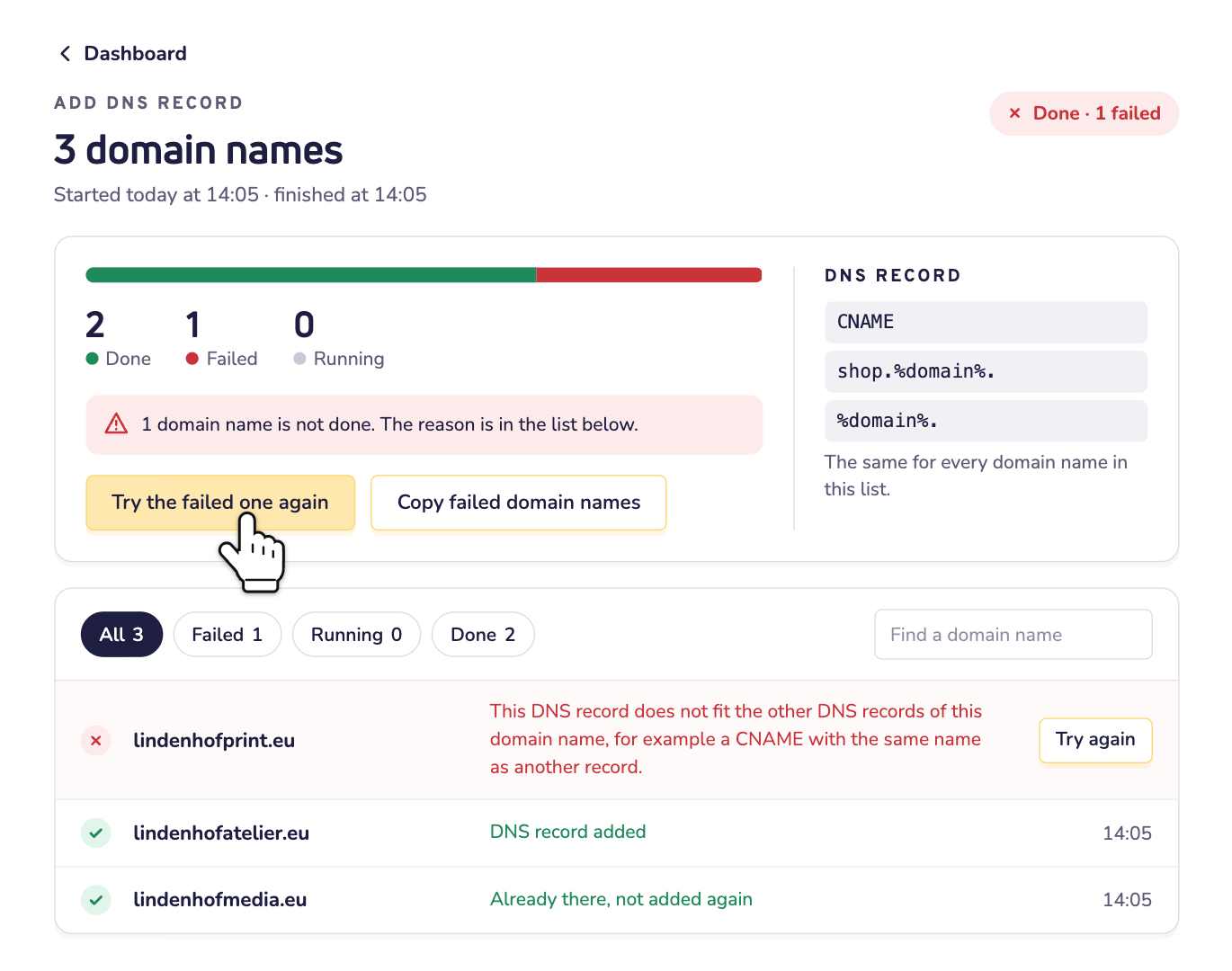
Step 4: The results page opens, and the changes start right away. Each domain name gets its own row with the result.
Read the results page
- At the top you see the action, how many domain names, when it started and the status.
- The bar shows how many are Done, Failed and Running.
- On the right you see what you chose, like the new nameservers or the DNS record. It's the same for every domain name.
- Failed domain names come first, with the reason in red.
- Filter the list with All, Failed, Running and Done. Or type part of a name in Find a domain name.
- Click a domain name to open it.
Did one fail? Read the reason and fix the cause if needed. Then click Try again in its row. Or try all failed ones at once with the yellow button above the list. Turning email off? Then you confirm with your password again.
Need the failed ones for later? Click Copy failed domain names. You get one name per line, ready to paste.
Keep the tab open
The changes run in your browser tab. So keep that tab open until everything is done. You can use the rest of the dashboard in the meantime.
Reloaded the page too soon? The list stays. But a domain name that was still running gets a note: the change may have gone through. Click Try again to be sure. If you close the tab, the results page is gone. Changes that were done stay done.
Add or remove one DNS record on many domain names
Say all your domain names need the same record, like a shop subdomain. Click Add or Remove next to DNS record. The fields work just like the DNS records of one domain name:
- Name: only the part in front of the domain name, like shop. Leave it empty or type @ for the domain name itself.
- Type: the kind of record, like A, CNAME, MX or TXT.
- Value: where the record points to, or its text.
- TTL: how long other servers may remember the record. You only pick this when you add a record.
Need the domain name itself in the record? Type the word domain with a percent sign right before and after it, as in the screenshot above. We put each domain name in its place. So in the example, shop.lindenhofmedia.eu points to lindenhofmedia.eu.
We check the record before anything changes. Is something wrong? Then the field turns red, the reason shows above the form, and no domain name is touched.
- Add skips a domain name that already has the record: same name, type and value. Its row says Already there, not added again.
- Remove only deletes a record with exactly the same name, type and value. All other records stay. A domain name without that record gets This DNS record was not there.
- This works for domain names that use our DNS management. The others are left out.
- Does the record clash with a record the domain name already has? For example a CNAME with the same name as another record? Then that domain name fails, and its row tells you why.