
Emails not sending? Or stuck in the outbox in Outlook or Gmail? Usually the cause is small, and you can fix it yourself in a few minutes.
Can you receive emails but not send them? Or does your email bounce back with an error like 550 5.7.1? Below you find every cause, from quick to more involved. Go through them one by one.
Quick checks
- Is your internet working? Open a website. Won't it load? Then your email app can't send anything either.
- Is the email address right? One wrong letter or a space is enough. Check the ending too, like .co.uk or .com.
- Is the attachment too big? Gmail allows up to 25 MB of attachments per email. Many other mail servers have a similar limit. Send big files as a download link instead, for example with WeTransfer, Google Drive or OneDrive.
- Is anything in your outbox? That's where emails wait that haven't gone out yet. One stuck email can hold up the rest. Open it, check the address and send it again. Or delete it and write a new one.
- Is there an outage? Check our status page at site.instatus.com. It shows right away if something's wrong with our mail servers. Email somewhere else? Then check your own provider.
- Just turned on email? The first time, it can take up to 24 hours before sending and receiving work everywhere.
Can receive emails but can't send them?
Receiving and sending are two separate things. Your email app collects email through the incoming server (IMAP or POP3). Sending goes through the outgoing server (SMTP). Each has its own settings.
Email comes in, but nothing goes out? Then the problem is almost always on the outgoing side:
- The outgoing server, the port or the encryption is wrong.
- Your email app doesn't log in to the outgoing server.
- You changed your password, but not in your email app.
- Your domain name hit its sending limit. Our spam filter then blocks all outgoing email, but receiving keeps working.
Works in webmail? Then it's your email app
This is the quickest test. Log in at mail.site.eu with your full email address and the password of that address. Send a test email to another address of your own. Is your email somewhere else? Then use that provider's webmail.
- The test email arrives? Then your email address and the mail server work. The problem is in your email app, like Outlook or the Mail app on your phone. Check the outgoing server below.
- Doesn't it work in webmail either? Then it's not your email app. Look at bounce messages, spam and the sending limit below.
Check your outgoing mail server (SMTP)
Most sending problems start here. Using email from Site.eu? Then these are the right settings for the outgoing server:
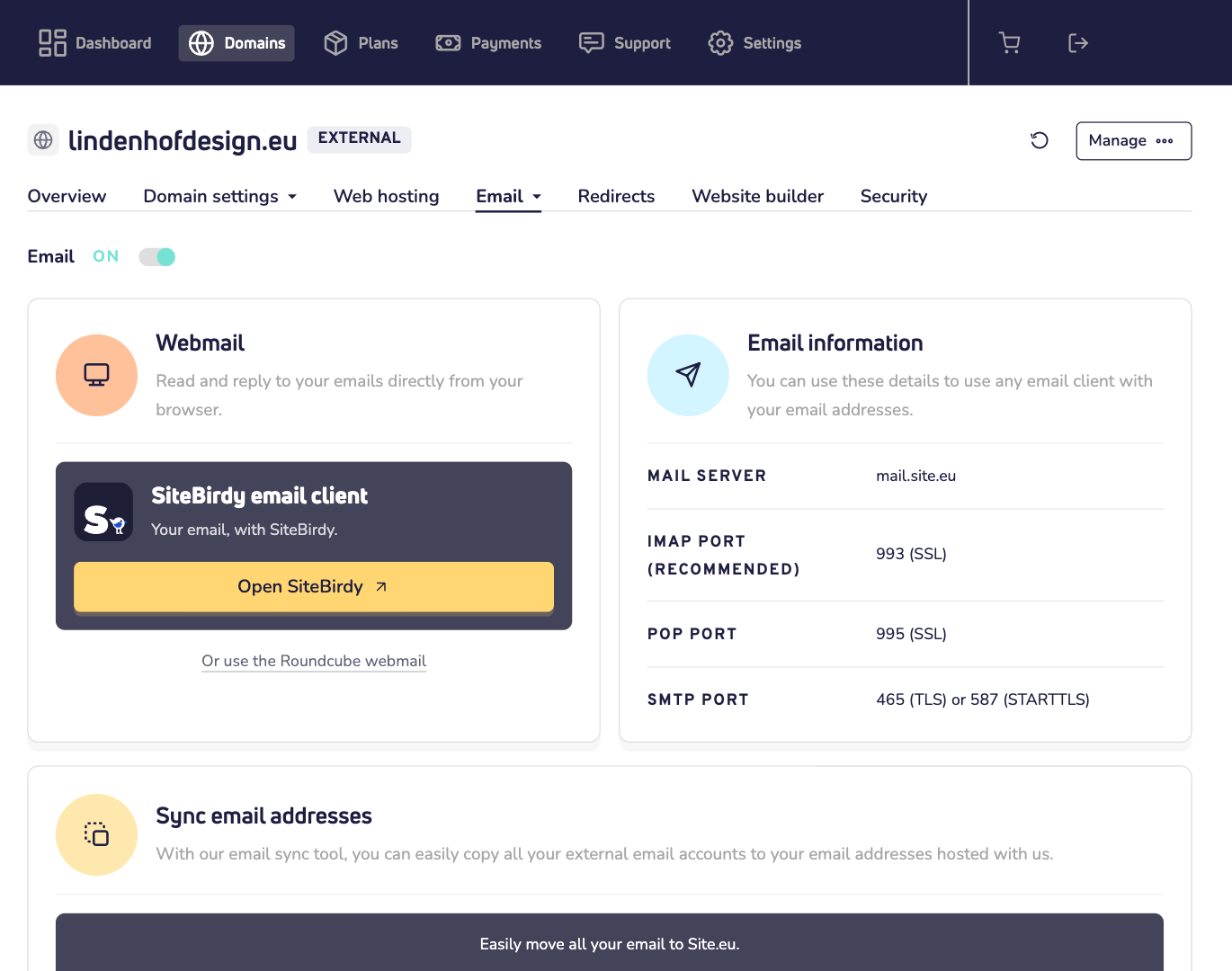
- Server: mail.site.eu
- Port 465 with SSL/TLS, or port 587 with STARTTLS
- Outgoing authentication: on
- Username: your full email address, for example info@yourdomain.com
- Password: the password of that email address
You also find these details in your dashboard. Open your domain name, click Email and look under Email information. All settings, also for incoming email, are in our POP, IMAP and SMTP settings.
Watch out for these three mistakes:
- Authentication is off. Then the server refuses your email. The error often says "relay" or "authentication". Turn authentication on, with the same email address and password as for incoming email.
- Port 25. It often doesn't work, because many internet providers block it. Choose 465 or 587.
- Port and encryption don't match. 465 goes with SSL/TLS, 587 with STARTTLS. Mix them up, and your email app can't connect.
Changed your password? Update it in your apps
Did you change the password of your email address? Then enter the new password in every email app: on your computer, your phone and your tablet. Don't forget old devices, or SiteBirdy.
If you don't, the app keeps trying the old password. Sending fails, often with an error like "authentication failed" or code 535. And after too many failed logins, our firewall blocks your IP address. Then email stops working on your whole Wi-Fi network.
Forgot the password? Set a new one. Open your domain name in your dashboard, click Email and choose Email addresses. Under Your email addresses, click Change password next to the address.
550 5.7.1 and other bounce messages
Sometimes your email does go out, but it comes back. Usually from "Mail Delivery System" or "MAILER-DAEMON". That's called a bounce. It has a code and a short explanation. That explanation tells you what went wrong.
The first digit already says a lot:
- 4: a temporary problem. Often your email still arrives later.
- 5: a permanent problem. Your email wasn't delivered. Sending it again only helps once you fix the cause.
What does 550 5.7.1 mean?
550 5.7.1 means: delivery not authorised, message refused. The recipient's mail server won't accept your email. The text after the code tells you why:
- "Relay" or "authentication required": your email app doesn't log in to the outgoing server. Turn authentication on, as shown above.
- "SPF", "DKIM", "DMARC" or "unauthenticated": the recipient can't check that the email really comes from your domain name. Read the part about spam below.
- "Blocked", "blacklist" or "blocklist": the server that sends your email is on a blocklist. Using our email? Then send us the full bounce, and we'll look into it.
- "Not allowed" or "not authorized": the recipient only accepts email from certain senders. You often see this with group addresses inside a company. You can't fix this yourself. Call or message the recipient and ask them to get you added.
Other bounces you often see
- 550 5.1.1: the address doesn't exist. Usually a typo.
- 4.2.2 or 5.2.2: the recipient's mailbox is full. They need to make room first. Try again later, or get in touch another way.
- 5.3.4: your email is too big. Make the attachment smaller or send a download link.
Mailbox full: how to free up space
Seeing "mailbox full" or "quota exceeded"? Check first who the message comes from. In a bounce, it's almost always the recipient's mailbox. There's nothing you can do about that.
Is your own storage full? With Site.eu, your email counts towards the storage of your plan. Here's how to see how much you use:
- Your whole plan: in your dashboard, click Plans and open your plan. On the Overview tab, you find the card Plan usage. The Storage tile shows your web hosting, your mailboxes and your website builder together. It turns orange when you've used 90% or more.
- Just your email: open your domain name, click Email and choose Email addresses. At the bottom, the Email statistics card shows the Email storage of that domain name.
How much storage you have depends on your plan: from 10 GB to 400 GB on the web hosting plans.
Almost full? Then clean up your mailbox:
- Empty the trash and the spam folder.
- Sort your folders by size. Delete old emails with big attachments, in Sent too. Save the attachments you need somewhere else first.
- Using IMAP? Then deleting an email in your email app deletes it on the server. Empty the trash afterwards too.
- Still too tight? Upgrade your plan.
Emails rejected as spam
Mail servers check that your email really comes from your domain name. They do that with three DNS records: SPF, DKIM and DMARC. Is one missing, or wrong? Then your email lands in the spam folder, or the recipient refuses it. Since 2024, Gmail and Yahoo ask every sender for at least SPF or DKIM.
The good news? With email from Site.eu and our default settings, we create all three for you. You don't have to do a thing.
- Do you also send email through another service? For example a newsletter tool or your webshop. Then that service must be in your SPF record too, and set up DKIM for your domain name. Otherwise those emails land in the spam folder.
- Are DNS records for email missing? Is your domain name registered with us? Then a notice shows at the top of your domain name in the dashboard. Click Viewing missing DNS records to see which records you need.
- Not sure? Run our free DNS check. Under Mail security, you see if your SPF, DKIM and DMARC are in order.
Sending limit reached
Every domain name with us can send 50 emails per 24 hours by default. Go over it, and our spam filter blocks all outgoing email from that domain name. From every address. Receiving keeps working. We email you as soon as the block starts.
The block doesn't end by itself. Wait at least 24 hours, then contact us. Emails you sent during the block don't go out later. Send them again. Read how many emails you can send and how to get a higher limit.
Outlook, Gmail, iPhone and Android: quick fixes
Outlook not sending emails
- Email stuck in the Outbox? Usually that's a big attachment, or Outlook is offline. On the Send / Receive tab, look at the Work Offline button. Is it blue? Click it to go back online, then click Send All.
- One email stuck? Turn on Work Offline. Drag the email from the Outbox to Drafts, remove the big attachment and turn Work Offline off again. Then send it again.
- Checking the outgoing server? In classic Outlook, go to File, Account Settings and then Server Settings. Under Outgoing mail, you find the server, the port, the encryption and the authentication. The new Outlook has different menus. Can't find it there? Remove the account and add it again with the settings above.
Gmail not sending emails
- In the Gmail app, check the Outbox for emails that are waiting. Check your internet and update the app.
- Using a Gmail address? When your Google storage is full, you can't send or receive email anymore.
iPhone and iPad
- Unsent email waits in the Outbox. In Mail, open your list of mailboxes and tap Outbox. Tap the email, check the address and tap Send.
- Checking the settings? Go to Settings, Apps, Mail and Mail Accounts, and tap your account. That's where you also find the outgoing server (SMTP). In older iOS versions, the menu is a bit different.
Android
- Your own email address in an app, like Gmail or Samsung Email? Open your account's settings and look for the outgoing server. Its name differs a little per app and per phone. Enter the SMTP settings from above there.
Still not working?
Contact us by WhatsApp, Telegram or email. Send us right away:
- the email address that can't send
- the error message or the bounce, ideally all of it
- the email app you use, like Outlook or the Mail app on your iPhone
- what you already tried
Then we can help you quickly.