
An email signature adds your name and details below every email, all by itself. See what to include, copy an example and set it up, with or without a logo.
You set up your signature in your email program. For example in Outlook, Gmail, SiteBirdy, our webmail or the Mail app on your iPhone. Use more than one? Then you set it up in each program separately.
What to include in an email signature
Keep it short. Four to six lines is plenty. Pick from:
- Your name, and your job title if you like.
- Your company name and your website.
- A phone number people can actually reach you on.
- Your logo, small. More on that below.
- One or two links, for example to your LinkedIn or your online shop.
Your email address can go in, but it doesn't have to. The person you write to already sees it as the sender.
Running a business? Check which company details the law in your country asks for. In the UK, a limited company shows its registered name, company number, the part of the UK where it's registered and its registered office address on business letters and its website. Many companies add these to their email signature too.
Business email looks best from your own domain name, like info@yourcompany.co.uk. No address yet? Create an email address with Site.eu.
Email signature examples
Business
Kind regards,
Sarah Taylor
Project Manager | Your Company Ltd
020 7946 0123 | yourcompany.co.uk
Registered in England and Wales, company no. 01234567
Freelancer
Best,
Tom Walker
Photographer
07700 900123 | yourname.co.uk
Short, for replies
Sarah Taylor | Your Company | 020 7946 0123
Personal
Cheers,
Lisa
See? A good signature is simple. One glance tells people who you are and how to reach you.
How to create an email signature
- Write out your details first. Start with your name, then add what the reader needs.
- Make your website and other links clickable.
- Add a small logo if you want one.
- Set up the signature in your email program. The steps are below.
- Send yourself a test email. Check it on your computer and on your phone.
Want to make one for free? Your own email program does the job. You can also use a free online generator. It gives you a ready-made signature in HTML. In SiteBirdy, you simply paste that HTML into your signature.
How to add a logo to your email signature
A logo makes your email easy to recognise. But a big logo makes your email heavy and messy. Here's how to keep it neat:
- Small: keep the logo no wider than about 150 to 200 pixels.
- Sharp: use a PNG. Make the file twice the size you want to show, then make it smaller in your signature. That keeps it sharp on phones and modern screens.
- Light: keep the file small, ideally under 50 KB.
- No attachment: put the logo in the signature itself, not as a separate file attached to your email.
Some email programs still show a logo as an attachment, or only load it after a click. That depends on the reader's program. So always put your name, phone number and website as plain text below the logo. Then your message always gets through.
How to add a signature in Outlook
Outlook comes in two versions: new Outlook (and Outlook on the web) and classic Outlook. The steps differ a little.
New Outlook and Outlook on the web
- Select the cog (Settings) and go to Accounts › Signatures.
- Select Add signature, give it a name and type your text.
- At the bottom, choose whether it goes below new messages, and below replies and forwards.
- Select Save.
Classic Outlook
- Open a new email. On the Message tab, choose Signature › Signatures.
- Select New, give the signature a name and type your text.
- To add a logo, use the image button above the text box.
- Under Choose default signature, pick the signature for new messages and for replies and forwards. Select OK.
Good to know: classic Outlook keeps your signature on your own computer. Use Outlook on another computer or on the web too? Then set it up there as well.
How to add a signature in Gmail
- Select the cog at the top right and choose See all settings.
- On the General tab, scroll to Signature and create a new signature.
- Type your text. Use the formatting buttons to add links and an image.
- Choose which signature you use by default for new emails and for replies.
- At the bottom, select Save Changes.
A Gmail signature can be up to 10,000 characters. An image counts too. In the Gmail app on your phone, you set up a separate signature in your account's settings.
How to set up a signature in SiteBirdy
SiteBirdy is our free email app. Your signature there can have formatting and a logo.
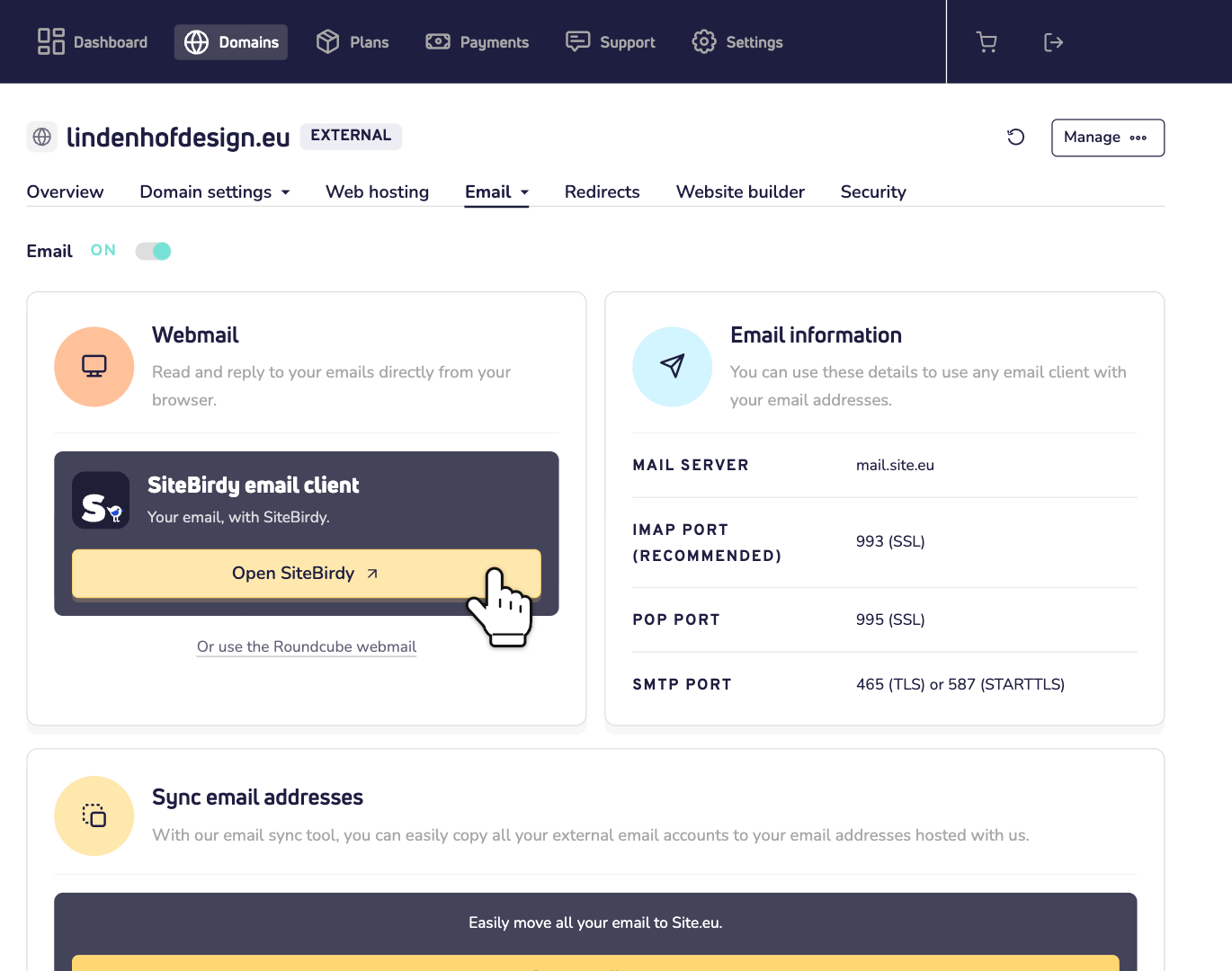
Step 1: Open SiteBirdy. You can do that from your dashboard: open your domain name, click Email and then Open SiteBirdy.
Step 2: Go to Settings › Writing and scroll to Signature. Your changes are saved by themselves: there is no save button.
Step 3: Type your signature. You get the same tools as in a message: bold, colours, sizes, links, alignment and pictures. Add your logo with Add a picture in the formatting bar. Pasting it or dropping it in works too.
Step 4: Logo too big? Click it and choose Small, or drag one of its corners.
Step 5: More than one mailbox? Then choose One for all mailboxes. Or choose A different one per mailbox and write one for each mailbox.
Your signature goes below every new message, reply and forward. Pick a different From address in a message? The signature switches with it.
Already have a signature in HTML? From a generator, for example? Choose HTML above the signature and paste it there. SiteBirdy takes out scripts and other unsafe parts.
A message says your signature is too long? Use less text or a smaller picture.
How to add a signature in webmail (Roundcube)
Using the classic Site.eu webmail? Then your signature is part of your identity.
Step 1: Log in to webmail and click Settings on the left.
Step 2: Click Identities and choose your email address.
Step 3: Type your signature in the Signature field. Want formatting or a logo? Click the HTML button next to the field. You then get a formatting bar.
Step 4: Click Save.
You set your display name and organisation in the same place. Read more in how to set up your email identity in Roundcube.
Signature not showing below your email? Go to Settings › Preferences › Composing Messages. There, Automatically add signature must not be set to never.
Email signature on iPhone and Apple Mail
iPhone and iPad: go to Settings › Apps › Mail › Signature. On an older iOS version, that's Settings › Mail › Signature. Type your signature. This is also where you replace "Sent from my iPhone". Got more than one account? Tap Per Account to give each address its own signature.
On iPhone, a signature can only be text. So no logo.
Mac: open Mail and choose Mail › Settings › Signatures. Pick your account on the left and click the plus button. Type your signature on the right. To add a logo, drag it in.
How to change or remove your signature
You do that in the same place where you made it:
- Outlook: in new Outlook, select the pencil next to your signature. In classic Outlook, go to File › Options › Mail › Signatures.
- Gmail: See all settings › Signature. Delete it with the bin icon. Then select Save Changes.
- SiteBirdy: Settings › Writing › Signature. Change the text, or clear the field.
- Webmail (Roundcube): Settings › Identities. Change the Signature field and click Save.
- iPhone: clear the field under Signature. Then nothing shows below your email.
A change applies to new emails. Emails you've already sent stay as they were.
Common email signature mistakes
- Too long. Ten lines, three logos and a quote? That's distracting. Four to six lines is plenty.
- All in one picture. A signature that is one image can't be clicked or copied. And people who don't load images see nothing. Put your details in as text.
- A big or blurry logo. Follow the tips above: small, sharp and light.
- Logo as an attachment. Put it in the signature, not as a separate file attached to your email.
- A different signature everywhere. Neat on your laptop, "Sent from my iPhone" on your phone. Set it up in every program you use.
- Old details. New phone number or job title? Update your signature straight away.
- Not tested. Send yourself a test email. Check it on your phone and in dark mode too. A black logo on a see-through background can disappear there.