

Who becomes the owner of your new domain name? Which nameservers does it use? Do you want privacy protection? You can set all of this in your cart, before you pay. Per domain name.
Don't want to? Then skip it. Without changes, your domain name gets settings that suit most people. And you can change most of them after your order too.
Open the settings
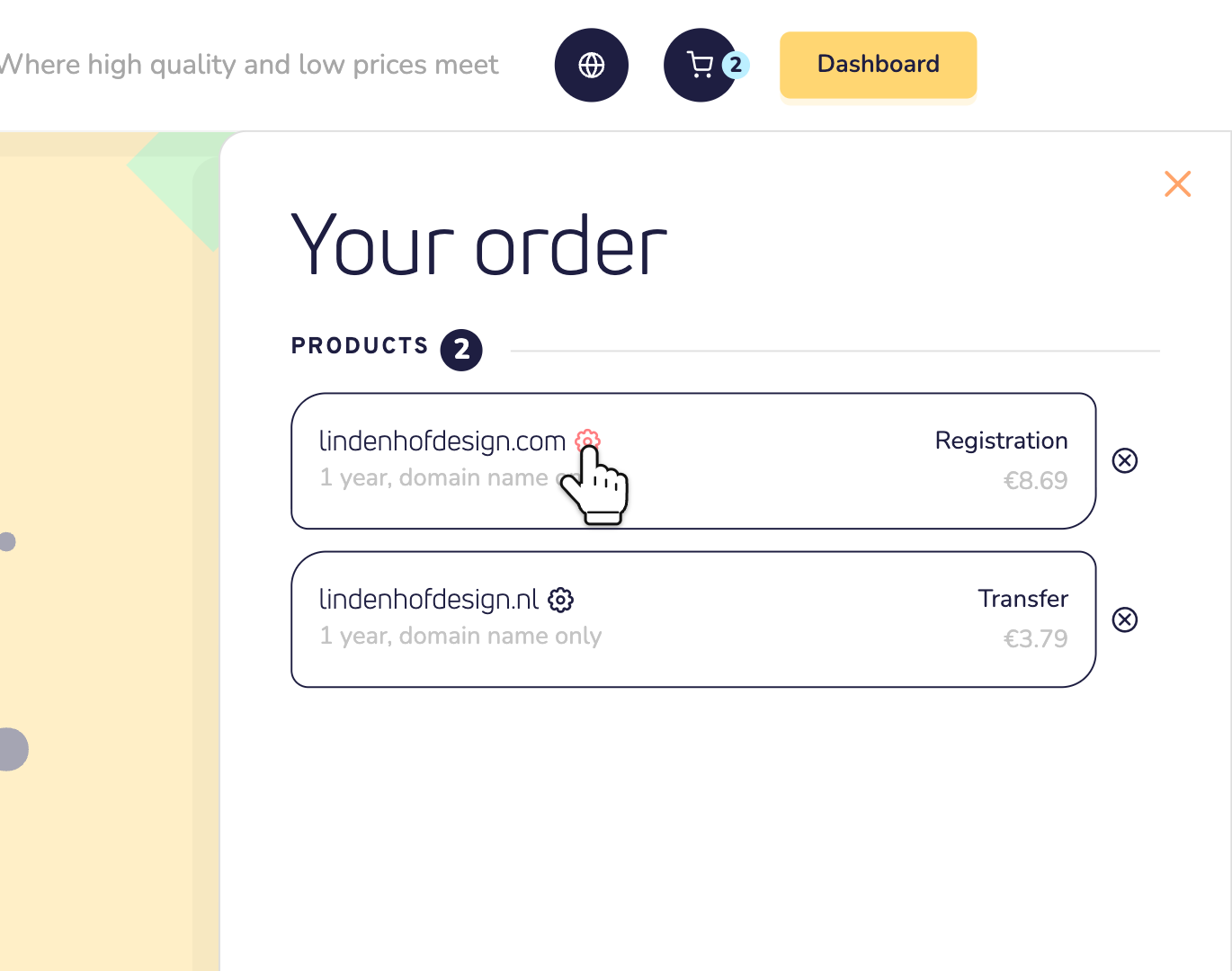
Step 1: Search for your domain name and add it to your cart. Then click the cart icon at the top of the page. Your cart opens.
Step 2: Click the gear icon next to the domain name.
Step 3: A window opens with the settings of this domain name. Click a setting to open it, and make your choice.
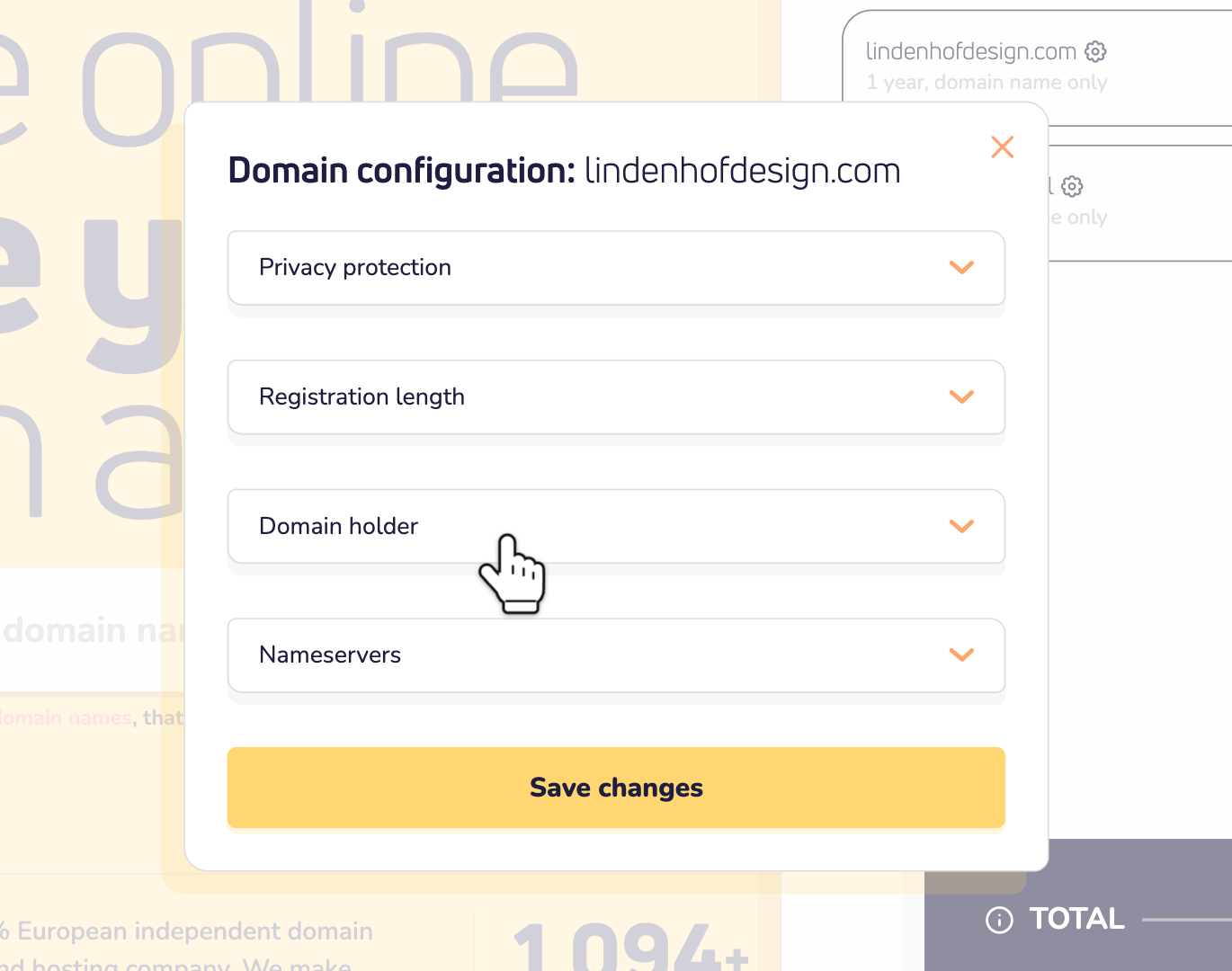
Step 4: Click Save changes. That's it. The window closes, and your cart keeps your choices.
More domain names in your cart? Each one has its own gear icon. So you set them up one by one.
What each setting does
The settings you see depend on the domain name. A registration has up to four. A transfer has one more: the transfer key.
Privacy protection: hide your details
Anyone can look up who registered a domain name. Turn on privacy protection, and they see a privacy service instead of you. It's free. By default, it's Off. You only see this setting when the extension offers privacy protection.
Registration length: how many years?
Choose for how many years you order the domain name. You see the price of each choice. The longer, the bigger the discount. It starts at the period you picked in the domain search.
Domain holder: who owns it?
The domain holder is the official owner of the domain name. Think of the name on the deed of a house. So pick the right person or company. Is the domain name for your business? Then make your business the domain holder.
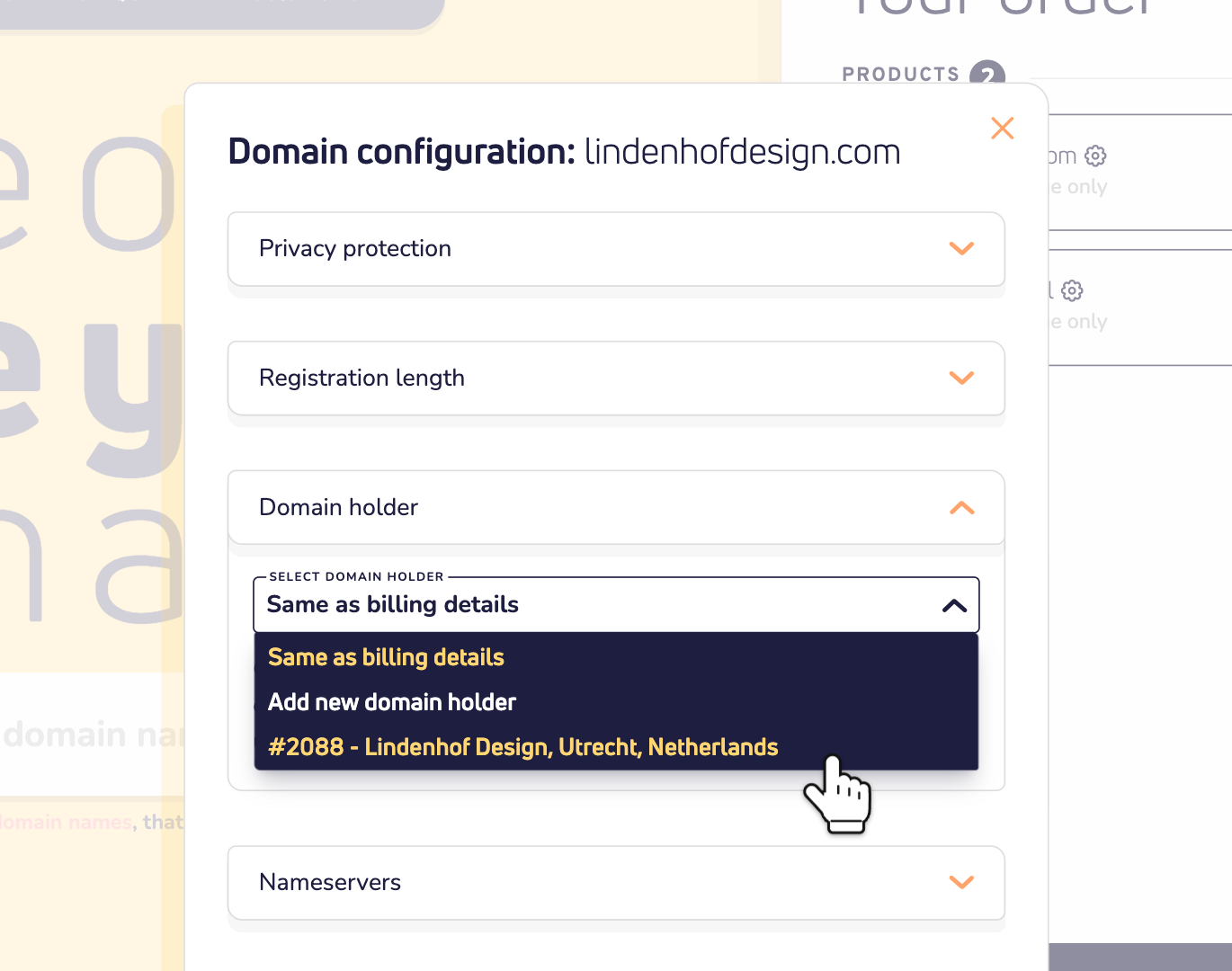
By default, it's Same as billing details. We then use the details from your order: the billing details you give at checkout.
Want another domain holder? Log in first. Then open the list and choose one of your contacts. Or choose Add new domain holder and fill in their details. When you save, we add the new domain holder to your contacts.
Transfer key: only for a transfer
Moving a domain name to us? Then fill in the transfer key. It works like a password for the move. Your current provider gives it to you. Most extensions need one.
Don't have it yet? Leave the field empty. After your order, the domain name waits in your dashboard. Click Domains and open the tab Awaiting extra information. Click the domain name and fill in the transfer key. Then the transfer starts.
Nameservers: ours or your own?
Nameservers hold the DNS of your domain name: the records that tell the internet where your website and email are. By default, your domain name uses ours: Use default Site.eu nameservers. Keep it that way. Our default settings then take care of your DNS, so your website and email just work. Read why the default settings are best.
Only choose Set my own nameservers if you manage your DNS somewhere else, like at another hosting provider. They tell you which nameservers to use. Fill in at least two. Need more? Click add nameserver, up to eight in total.
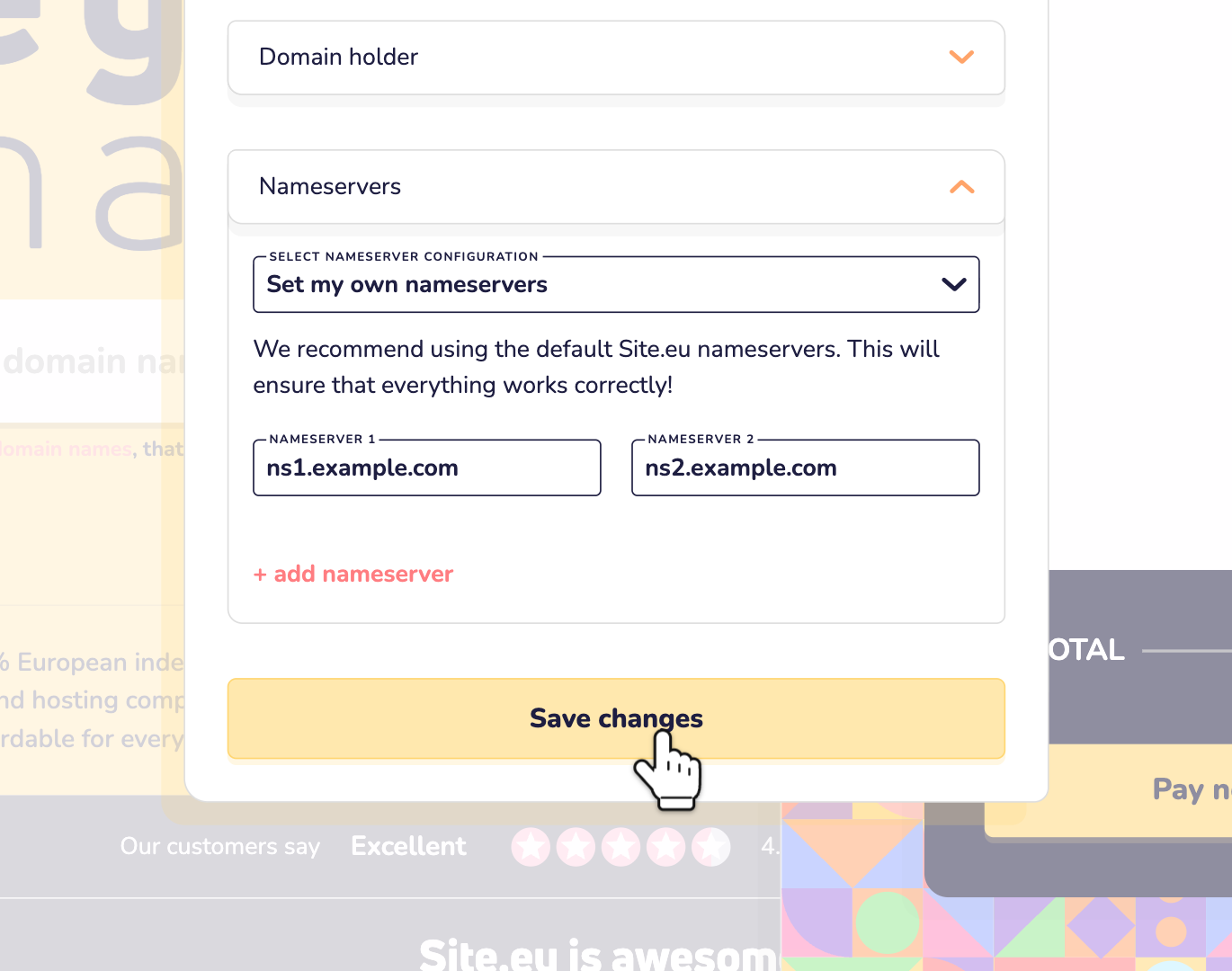
Is a nameserver part of the domain name itself, like ns1.yourdomain.com? Then a field for its IP address appears. Fill it in. More than one IP address? Separate them with a comma.
Good to know: with your own nameservers, our default settings start off. Does the registration fail on your nameservers? Then we register the domain name with ours, so it still goes through. A new .de domain name always starts on ours. You can change them after the registration.
Skipped it? Then you get this
You don't have to open the gear icon. Without changes, your domain name gets:
- privacy protection off,
- the registration length in your cart,
- your billing details as domain holder,
- our nameservers, with our default settings.
Forgot something? At checkout, the overview of your order has the same gear icon.
Some extensions need extra information
Some extensions, like .es, need extra details about the domain holder. An ID number, for example. You don't fill those in with the gear icon. At checkout, after your billing details, the window Extra information required asks for them. Fill them in right away, or after you pay.
After you pay? Then the domain name waits in your dashboard, under Awaiting extra information. Click it and fill in what's asked. Even easier: make a contact ready for the extension before you order. Then nothing is missing.
Change your mind after your order?
You can change most settings later in your dashboard:
- The domain holder: read what a domain holder is. For almost all extensions, a change is free.
- The nameservers: read how to change your nameservers.
- Privacy protection: read how to turn on privacy protection.
- More years: open your domain name and click Renew now.
Questions? Contact us by WhatsApp, Telegram or email.